Custom Holidays
Define your own holidays for use in Holiday Countdown calculations. Custom holidays automatically create countdown sensors for every holiday you define.
Custom holidays allow you to create countdowns for birthdays, anniversaries, personal holidays, or any recurring date. Each custom holiday you create will automatically have a countdown sensor generated, making it easy to track important dates throughout the year.
- Go to Clockwork configuration
- Select "Add Custom Holiday"
- Fill in:
- Holiday Display Name: A friendly name (e.g., "Alice's Birthday")
- Holiday Type: How the date recurs
- Additional fields based on type
- Icon: Optional custom icon
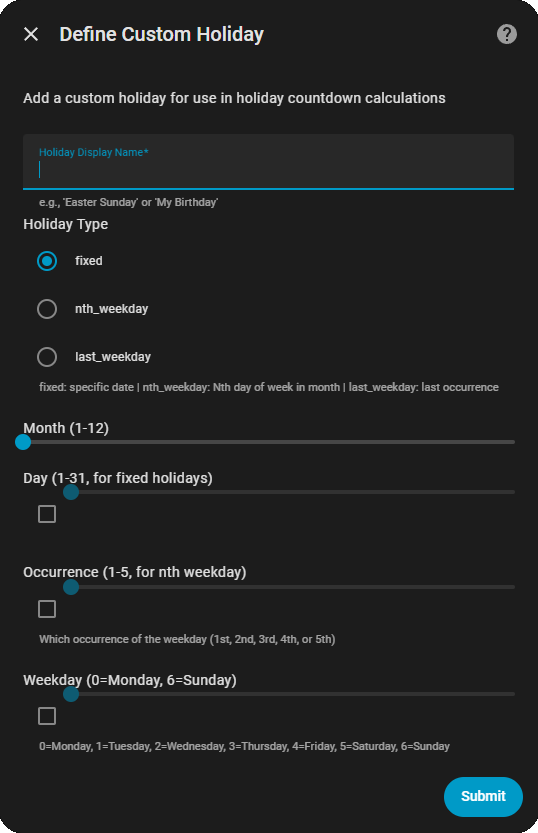
Recurs on the same date every year.
Configuration:
- Month: 1-12
- Day: 1-31
Examples:
- Birthday (e.g., July 4)
- Anniversary (e.g., March 15)
{
  "name": "Wedding Anniversary",
  "holiday_type": "fixed",
  "month": 3,
  "day": 15
}Recurs on a specific day of the week in a specific month (e.g., "2nd Monday of September").
Configuration:
- Month: 1-12
- Occurrence: 1-5 (first through fifth)
- Weekday: 0-6 (0=Monday, 6=Sunday)
Examples:
- Father's Day: 3rd Sunday of June
- Labor Day: 1st Monday of September
{
  "name": "Father's Day",
  "holiday_type": "nth_weekday",
  "month": 6,
  "occurrence": 3,
  "weekday": 6
}Recurs on the last occurrence of a day in a month.
Configuration:
- Month: 1-12
- Weekday: 0-6 (0=Monday, 6=Sunday)
Examples:
- Last Friday of the month
- Last Tuesday of July
{
  "name": "Month-End Report",
  "holiday_type": "last_weekday",
  "month": 1,
  "weekday": 4
}{
"name": "Mom's Birthday",
"holiday_type": "fixed",
"month": 5,
"day": 12
}{
"name": "School Board Meeting",
"holiday_type": "nth_weekday",
"month": 1,
"occurrence": 2,
"weekday": 2
}Second Wednesday of each month
{
  "name": "Pay Day",
  "holiday_type": "last_weekday",
  "month": 1,
  "weekday": 4
}
Last Friday of the month
Once created, use in Holiday Countdown:
- Add a "Holiday Countdown" calculation
- Select your custom holiday from the Holiday list
- Set offset if needed (e.g., -7 for countdown before)
- Save and use in automations
automation:
  - alias: "Birthday reminder"
    trigger:
      platform: numeric_state
      entity_id: sensor.days_until_moms_birthday
      below: 8
      above: 0
    action:
      service: persistent_notification.create
      data:
        message: >
          Mom's birthday is in {{
          states('sensor.days_until_moms_birthday') }} days!
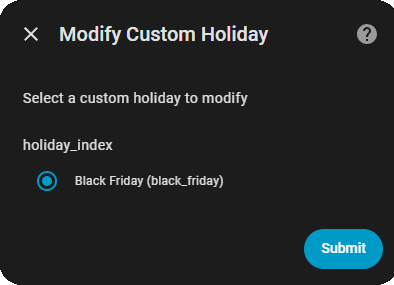
title: Birthday Reminder- Go to Clockwork configuration
- Select "Modify Custom Holiday"
- Choose the holiday to edit
- Update the values
- Save
- Go to Clockwork configuration
- Select "Delete Custom Holiday"
- Choose the holiday to delete
- Confirm deletion
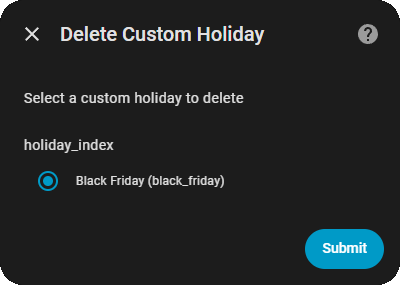
Note: You can safely delete custom holidays; any Holiday Countdown calculations using them will need to be updated manually.
Every custom holiday you create automatically generates a countdown sensor with the format sensor.days_until_{holiday_name} (with spaces converted to underscores and special characters removed).
Example: A custom holiday named "Mom's Birthday" will create a sensor sensor.days_until_moms_birthday that you can immediately use in automations.
- Holiday Countdown - Using holidays in countdown calculations
- Auto-create Holiday Sensors - Configure automatic sensor creation for built-in holidays