Repository navigation
Workflow Bubbling Migration Guide
xyOps v1.1.8 gives each workflow control over which sub-job outputs it collects. We call this "bubbling" (as in, data is bubbled up from the sub-job to the parent workflow). You can keep the old behavior of collecting output from all sub-jobs, or choose the new default "leaf" mode, which contains only results from nodes at the ends of your execution paths (called "leaf nodes").
This guide explains the new settings, what happens when you upgrade, and how to try them when you are ready.
All existing workflows keep the legacy "Bubble All Nodes" mode. Upgrading to v1.1.8 does not automatically switch them to leaf bubbling. There is no forced change to break your existing flows, and no migration work is required to keep their current bubbling behavior.
- Existing workflows stay on Bubble All Nodes. Editing, saving, or cloning one does not automatically convert it to leaf mode.
- New workflows created in the UI default to Bubble Leaf Nodes. You can change the selection before saving.
- Both modes are supported permanently. You can keep existing workflows on legacy behavior forever, while creating other workflows that use leaf bubbling.
-
You can keep the legacy default for new workflows too. Add
"bubble": ""to your existingclient.new_event_templateconfiguration object, as shown below. - Isolation and First Fail Aborts are optional. Upgrading does not automatically enable any new options on your existing workflows.
If you are happy with your existing workflows, you can leave their bubbling settings alone and keep using them.
When a workflow runs a sub-job, that sub-job can produce output data, files, user tags, and custom tables or HTML. Bubbling is the process of collecting those outputs in the parent workflow job itself.
For a sub-workflow, its collected output is also what the parent receives when that sub-workflow completes. This makes a workflow useful as a reusable operation: it accepts input, runs its internal steps, and returns output.
Before xyOps v1.1.8, output from every sub-job was eligible to be collected by the workflow, with output data shallow-merged together. In a long workflow, that could include a database query's raw results, intermediate processing data, and a final summary all merged together.
That behavior remains available as Bubble All Nodes. The new Bubble Leaf Nodes mode lets a workflow return the outputs from the ends of its execution paths, while keeping intermediate results available inside the workflow.
For example:
flowchart LR
	Fetch["Fetch Records"] --> Process["Process Records"]
	Process --> Summary["Write Summary"]
With Bubble All Nodes, all three jobs can contribute output to the workflow. With Bubble Leaf Nodes, only Write Summary contributes when the path completes as shown. It is the leaf node at the end of that execution path.
Data and files still pass between connected nodes when their wire conditions match, regardless of bubbling mode. The fetch results still reach the processing job, and the processed results still reach the summary job. Intermediate jobs also retain their own outputs for inspection.
See Workflow Output for the full behavior.
A leaf is a completed sub-job whose execution path ends at that point. It is evaluated separately for each sub-job, using that job's result and the conditions on its outgoing wires.
This distinction is important because one node can run many jobs. A Split, Repeat, or Multiplex controller may launch the same node repeatedly, and those jobs can take different paths.
In leaf mode, xyOps applies these rules:
- If a completed job has a matching outgoing wire to another Event, Job, or Controller, it is intermediate and does not bubble its output.
- If no such wire matches, the job is a leaf and can bubble its output. A failed job can be a leaf too.
- Attached Action and Limit nodes do not prevent a job from being a leaf. For example, attaching an email notification does not suppress the job's output.
- An On Continue wire to an Event, Job, or Controller always makes the controlled jobs intermediate. This is explained further below.
- A job resumed with an explicit redirect to another node is intermediate.
- Superseded retry attempts are excluded from collected output in either bubbling mode.
A matching wire to a Controller counts as continuation, even if that controller subsequently decides not to launch another job. A leaf is also unrelated to which job finishes last in time: parallel branches can each have their own leaves.
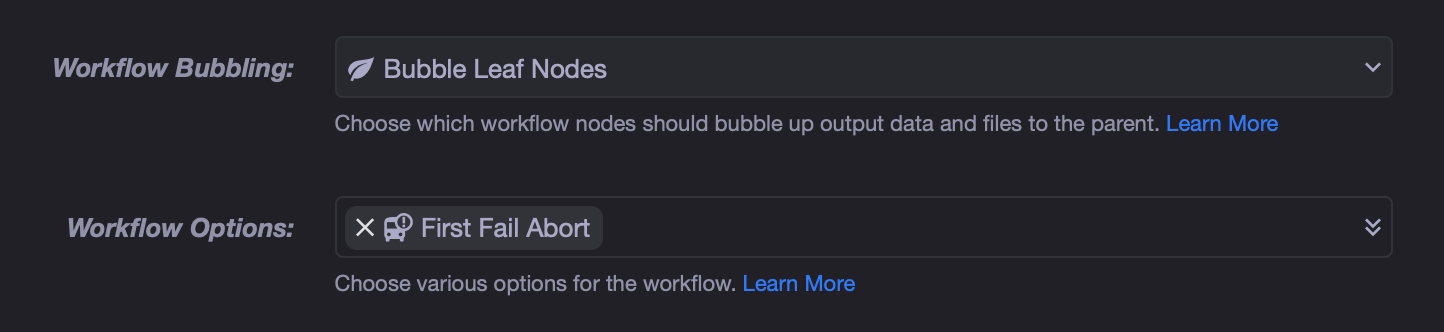
Each workflow now has a Workflow Bubbling menu available in the editor:
| Selection | Behavior |
|---|---|
| Bubble All Nodes | Collect eligible output from all sub-jobs (legacy behavior). |
| Bubble Leaf Nodes | Collect eligible output only from leaf sub-jobs (the default for new workflows created in the UI). |
Your existing workflows do not need to be changed if you want to keep the old behavior. A workflow without the new bubble property is interpreted as Bubble All Nodes, so workflows saved by earlier releases continue to use that mode.
Here is how the defaults work:
| Workflow | Bubbling mode |
|---|---|
| Existing workflow from an earlier release | Bubble All Nodes |
| Existing workflow opened and saved in the editor | Keeps its selected mode, including legacy all mode |
| Clone of an existing workflow | Preserves the source workflow's mode |
| New workflow created in the UI | Bubble Leaf Nodes, unless your new event template specifies otherwise |
Workflow created or imported through the API without bubble
|
Bubble All Nodes |
The setting belongs to the individual workflow. Choosing leaf mode for a new workflow does not change any other workflow, including workflows it calls.
Workflows already running during an upgrade also keep their existing mode. Completed sub-job records from before the upgrade remain eligible for collection, so their outputs are preserved.
The essentials are covered above. The following sections explain how to configure defaults, try leaf bubbling, and use the other workflow options.
An "On Continue" wire to an Event, Job, or Controller always prevents the controlled jobs from bubbling their output.
This applies to all jobs on that controlled node, regardless of individual success or failure. It also applies when the controller's Continue Percentage is not met and the continuation never runs. There is no fallback that suddenly collects all the worker outputs when the threshold fails.
For example:
flowchart LR
	Split["Split"] --> Worker["Worker"]
	Worker -->|On Continue| Join["Join"]
	Join --> Summary["Final Summary"]
In this example, the Worker jobs remain intermediate. The Join collects their data and files for Final Summary, and that final job can produce the workflow's output.
If the Continue Percentage threshold prevents continuation, those worker jobs still do not contribute to the workflow's collected output. Other eligible branches and shared workflow data can still contribute normally.
On Continue wires to Actions, such as notifications, do not by themselves prevent bubbling.
See Continue After Controllers for more on controller continuations.
You can select Bubble All Nodes on any individual workflow. If you want that to be the default every time you create a new workflow in the UI, add a bubble property with an empty string to your existing client.new_event_template object.
Here is a configuration fragment showing where it belongs. Preserve the rest of your existing configuration and template fields:
{
	"client": {
		"new_event_template": {
			"bubble": ""
		}
	}
}
The empty string is intentional: "" selects Bubble All Nodes.
This changes the default selection for new workflows created in the UI. It does not change saved workflows, and you can still select Bubble Leaf Nodes for an individual workflow whenever you want.
To default to leaf mode again, set the template property to "leaf" or remove it. The workflow editor uses leaf mode when the template omits bubble. Plain events ignore this workflow-only property.
The template sets the default for new workflows. Each saved workflow keeps its own setting.
See New Event Template and Configuration for configuration details.
You can opt in one workflow at a time:
- Open the workflow in the editor.
- Change Workflow Bubbling to Bubble Leaf Nodes.
- Review the ends of its execution paths, including error handlers and On Continue wires.
- Save the workflow and launch a fresh run from that workflow.
- Inspect its output data, files, tags, and custom content. If another workflow calls it, check what the parent receives too.
When trying the change, exercise representative successes, failures, and partial-success controller runs. If you prefer to experiment on a copy, clone the workflow first, then explicitly select leaf mode on the clone. Cloning preserves the original mode.
You can return a workflow to Bubble All Nodes at any time. Changing the saved selection applies to newly launched runs and does not rewrite historical job output.
Run Job Again preserves the settings recorded on the original run. To exercise newly saved workflow settings, launch a fresh run from the workflow itself.
The former Isolation Options menu is now named Workflow Options. It contains the isolation settings and the new First Fail Aborts option.
Isolation settings are additional filters on the outputs selected by your bubbling mode. They work with both Bubble All Nodes and Bubble Leaf Nodes:
| Option | Effect |
|---|---|
| Isolate Data | Exclude sub-job output data from this workflow's collected output data. |
| Isolate Files | Exclude sub-job output files from this workflow's output files. |
| Isolate Tags | Keep sub-job user tags from being added to this workflow's tags. |
| Isolate Content | Keep sub-job tables and HTML from being displayed on this workflow. |
For example, choose leaf mode if you want a sub-workflow to return its final result while keeping intermediate data out of that result. Leave Isolate Data off in that case, because enabling it also excludes the leaf jobs' ordinary output data.
You can combine settings. A workflow might return its leaf data and files while selecting Isolate Tags and Isolate Content to keep its own display focused.
Isolation does not delete the original sub-job outputs or stop data and files from passing between connected nodes inside that workflow. Joins still receive their upstream results, and a sub-job's own tags still drive its tag conditions.
Select First Fail Aborts in Workflow Options to abort the workflow on the first sub-job failure that will not be retried. xyOps requests cancellation of the remaining running jobs, cancels queued work, and stops active controllers. The workflow completes with an abort status once its remaining jobs have finished cancelling.
Warnings, critical errors, explicit aborts, and other nonzero result codes count as failures. An attempt that is being retried does not trigger the workflow abort; a final failed attempt does.
When this option triggers, the failed job's normal downstream paths, including error-handler jobs and controller continuations, do not launch. Completion actions attached to the sub-job still follow that job's normal lifecycle.
This option applies only to the workflow where it is selected: enabling it on a parent does not enable it inside a sub-workflow. The parent evaluates the sub-workflow's result when that sub-workflow completes.
Bubbling modes and Workflow Options belong to each workflow independently. Parent options are not inherited by sub-workflows.
For example, an inner workflow can collect all its sub-job data while an outer workflow uses leaf mode. The inner workflow returns its collected result as ordinary node output. The outer workflow then applies its own rules when deciding what to collect from that node.
The same principle applies to isolation. Isolate Data on the outer workflow does not suppress the inner workflow's own collected data. It suppresses that data from the outer workflow's collected output, while connected downstream nodes can still receive it.
If you tried the isolation feature introduced in v1.1.7, one small detail has changed: its options no longer inherit into nested workflows. Select the same isolation options on an inner workflow if you want them to apply there too. Existing selections remain saved on the workflows where you made them.
See Workflow Options and Data Isolation for details.
The shared workflowData object continues to work in either bubbling mode, including updates from intermediate jobs. Isolate Data applies to ordinary output data; it does not isolate shared workflowData.
Shared workflow data remains separate from ordinary sub-workflow output, and is included in the top-level workflow's final output data.
Leaf bubbling can reduce accumulated intermediate output, but it does not impose a size limit on an individual job's output or shared workflow data.
See Sharing Data Between All Nodes.
The new settings live on the workflow event itself, alongside workflow, rather than inside the graph. Here is an event fragment:
{
	"type": "workflow",
	"bubble": "leaf",
	"opts": ["isolate_tags", "isolate_content"]
}-
"bubble": "leaf"selects Bubble Leaf Nodes. -
"bubble": "", or an omittedbubbleproperty, selects Bubble All Nodes. -
optscontains selected Workflow Option IDs:first_abort,isolate_data,isolate_files,isolate_tags, andisolate_content. - An empty or omitted
optsarray enables no options.
The UI's new-workflow default does not silently change API creation or imports. Include "bubble": "leaf" when you want leaf mode; existing exported definitions without that property keep legacy behavior when imported.
Automatic workflow retries preserve the selected bubbling mode and options. Both properties are workflow-only settings.
See Data Structures for the Event.bubble and Event.opts reference.