Retarget Events
This guide shows you how to "retarget" your events and workflows. That is, how to change the Event.targets dynamically on-the-fly, when the job is first started, and/or when it is resumed after being suspended.
Important
This feature requires xyOps v1.0.57 or newer.
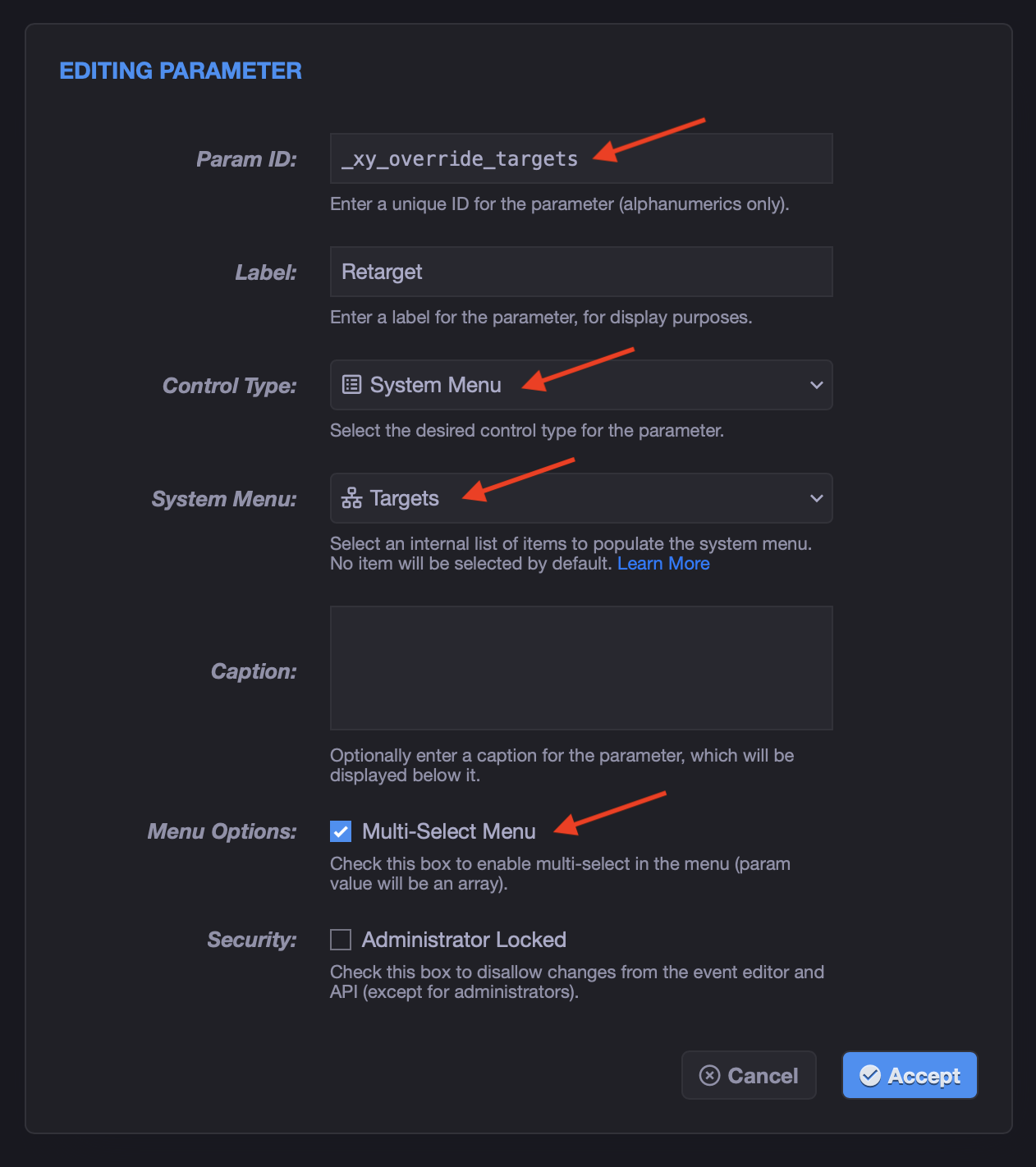
To allow your users to retarget an event when they run it, you simply need to add a special user field:

The new field needs a special ID that must be set exactly like the following, with the leading underscore:
_xy_override_targets
The special _xy_override_ ID prefix tells xyOps that this parameter should override a top-level event property with the specified name. In this case it's the targets array (Event.targets).
Then, select System Menu as the control type, and "Targets" as the list to populate the menu.
Finally, make sure to check the "Multi-Select" checkbox, as we are overriding an array property, not a simple string:
Once your field is added, make sure to save the changes:

And then, when you run the event manually, the user will be presented with a special retargeting multi-select menu:
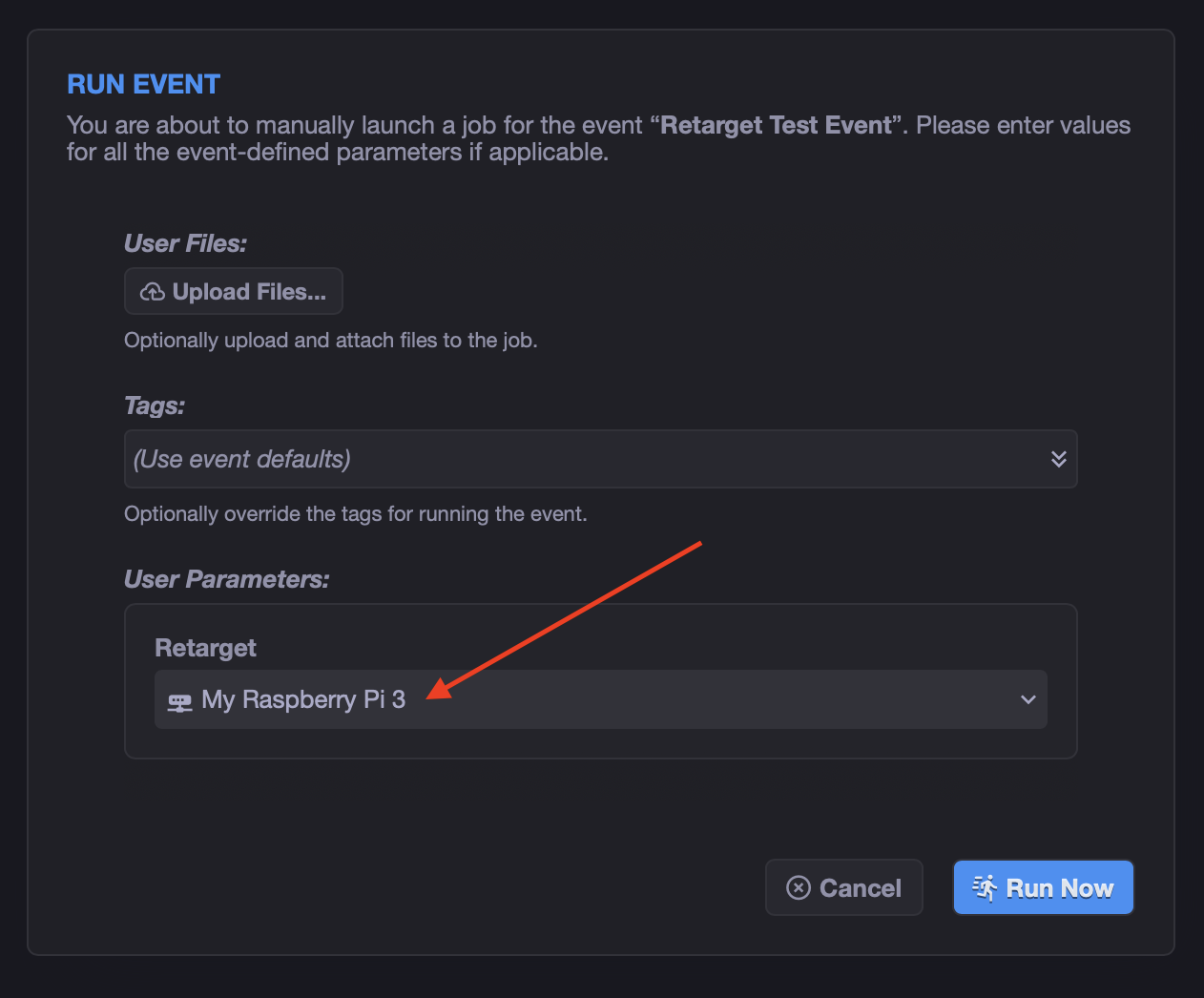
If you leave this menu empty, the default Event.targets for the event will be used. But if you select one or more groups or servers, they will override the entire target list for that specific job run.
You can use this feature to retarget workflows as well. If you add a _xy_override_targets user field at the outer workflow level, and then populate it on a manual job run, it will automatically propagate to all nodes within the workflow, and override all event and job targets within those nodes.
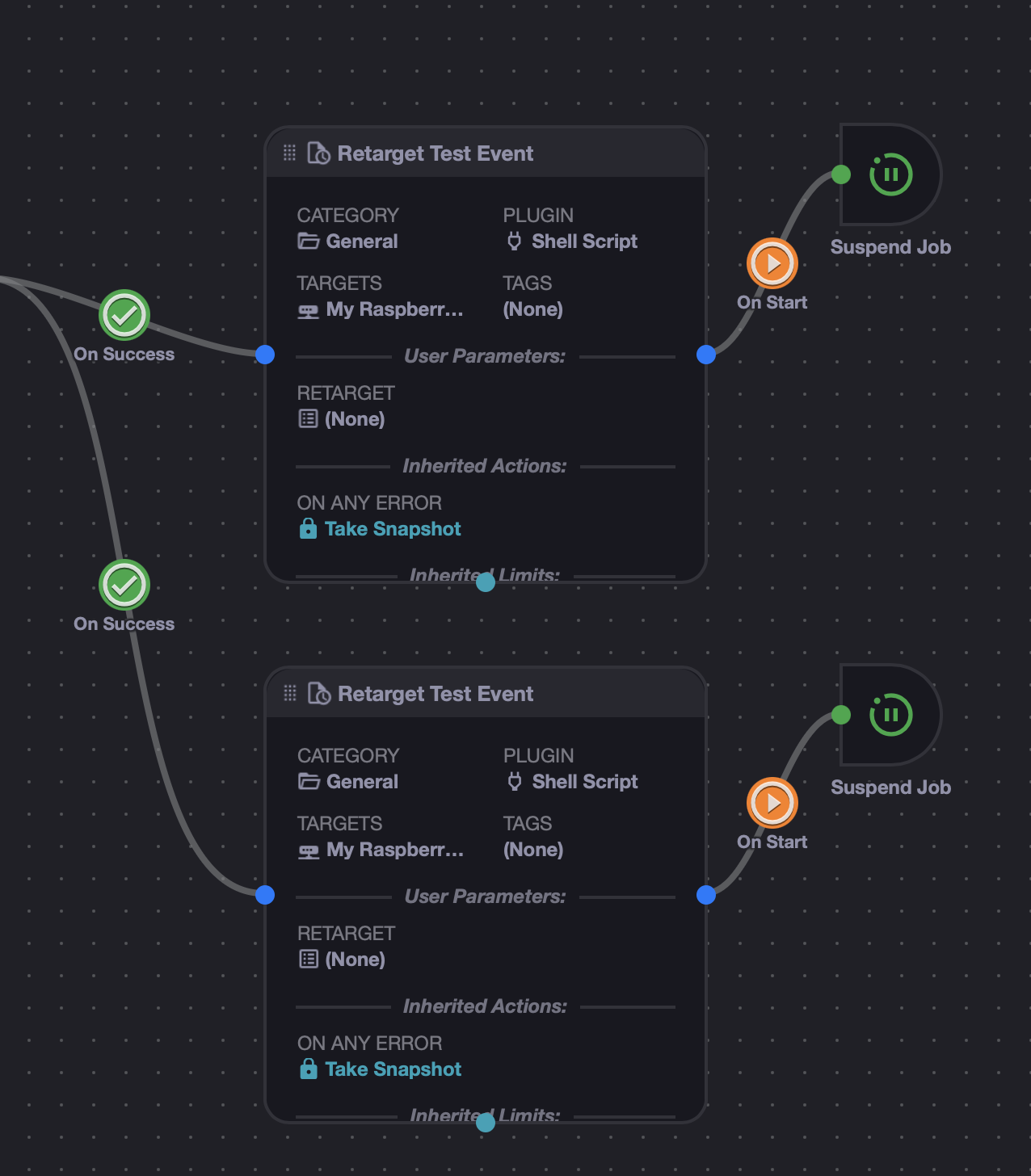
For more fine-grained control over retargeting, you can add _xy_override_targets user fields on your events used inside a workflow. Then, if you add Suspend Job actions with an "On Start" wire condition, you can dynamically retarget individual events when the workflow reaches them:
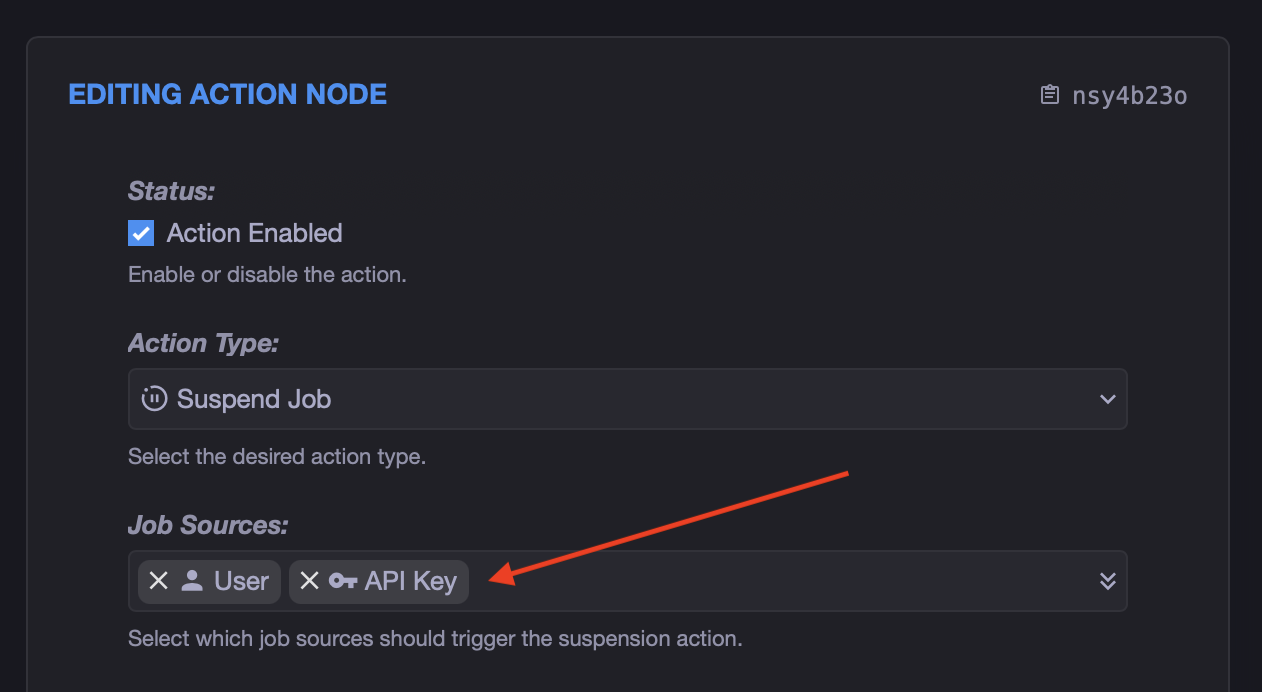
When adding the Suspend Job nodes, locate the "Job Sources" menu, and make sure to select "User" and "API Key". This will make it so the job is only suspended when the workflow is running manually (either by user clicking Run, or an incoming API request):
Then, when your workflow is running, and your event nodes are about to start, the flow will be suspended and you can then retarget just the suspended node by itself:
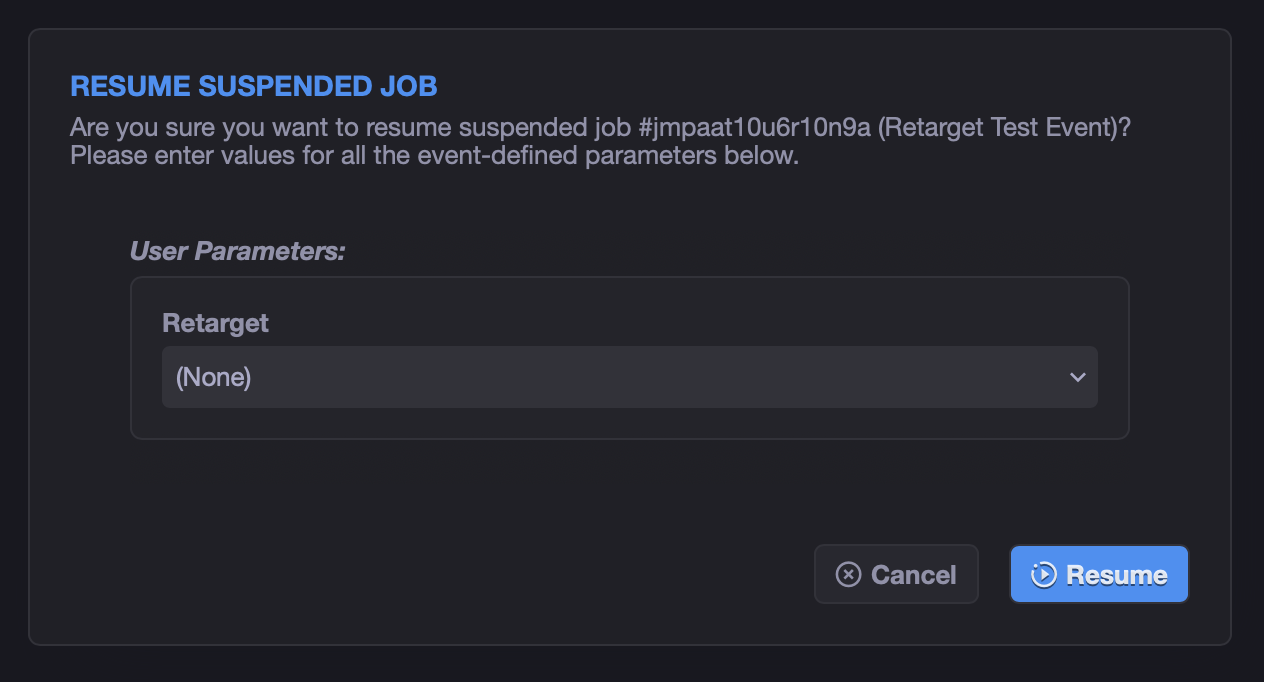
If you have also selected a custom set of targets at the workflow level for the job run, but then select different targets for an event job in the resume dialog, the latter will prevail. The order of precedence is:
- (Highest) Event-specific target override.
- (Medium) Workflow-level target override.
- (Lowest) Event default target settings.
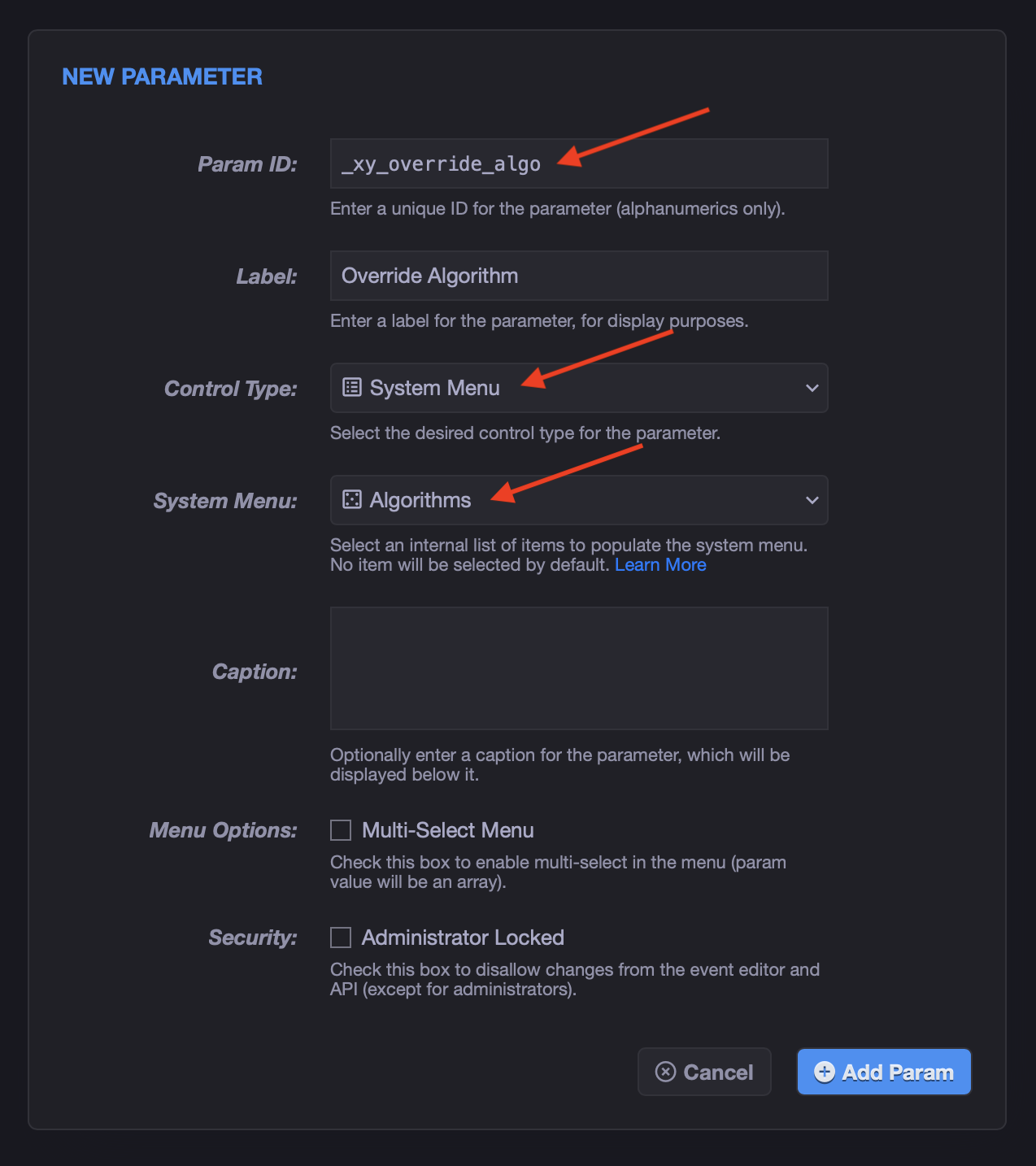
You can also override the Server Selection Algorithm at run time, using the same technique as overriding the target list. To do this, simply add another user field with this ID:
_xy_override_algo
This will override the Event.algo property with a custom value.
As before, select System Menu as the control type, but this time select "Algorithms" as the list to populate the menu, and do not check the "Multi-Select" checkbox, as this parameter is a string, not an array:
Now, when you run the event manually, you will see both override controls:
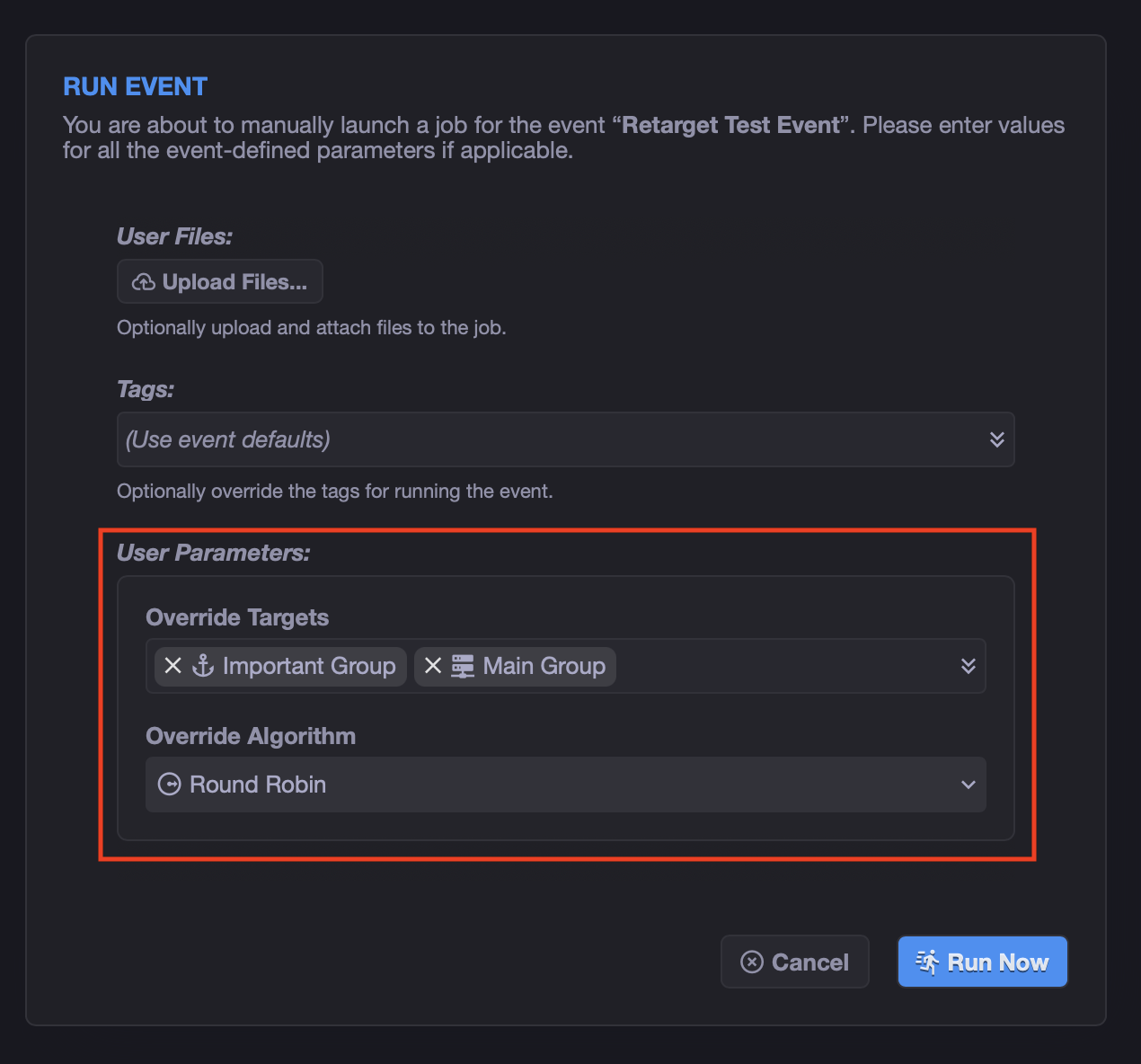
Similarly to the targets array, if you leave the algorithm override empty (unset), it will use whatever default is set in the event.
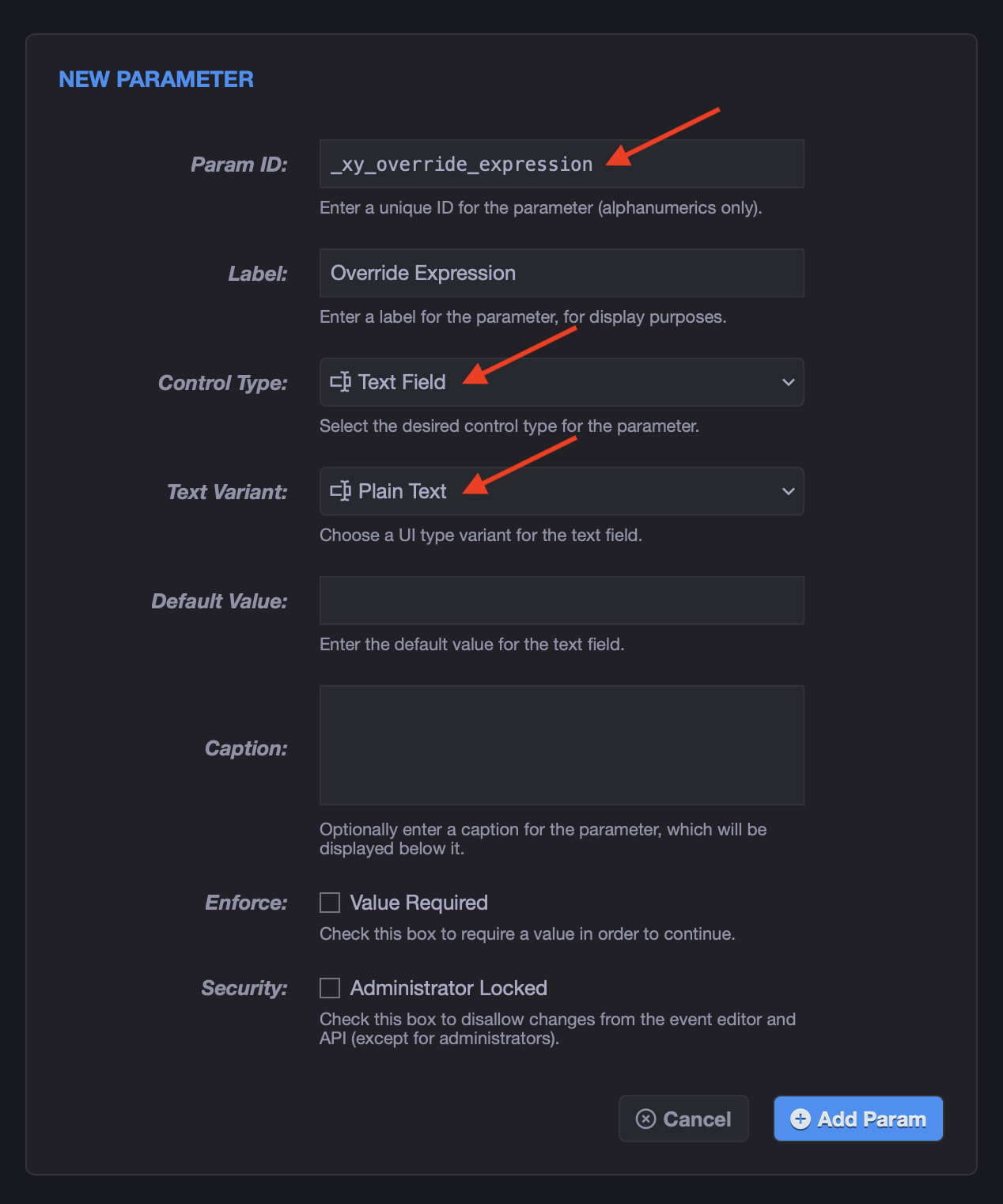
If your events make use of the Event Target Expression feature, for dynamically targeting servers based on their metadata, then you should know that you can also override the expression at run time using the same parameter ID syntax:
_xy_override_expression
This will override the Event.expression property with a custom value.
This time, however, you should set the control type to "Text Field" with "Plain Text" variant, so the user can enter any value they want. Example setup:
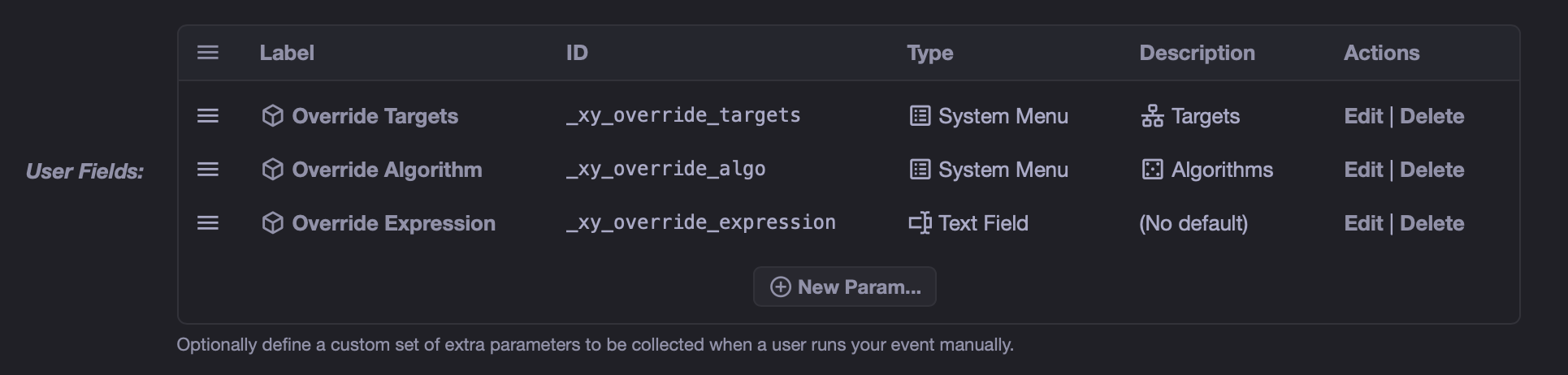
With all three params defined, you should see a list like this:
And a run event dialog like this:
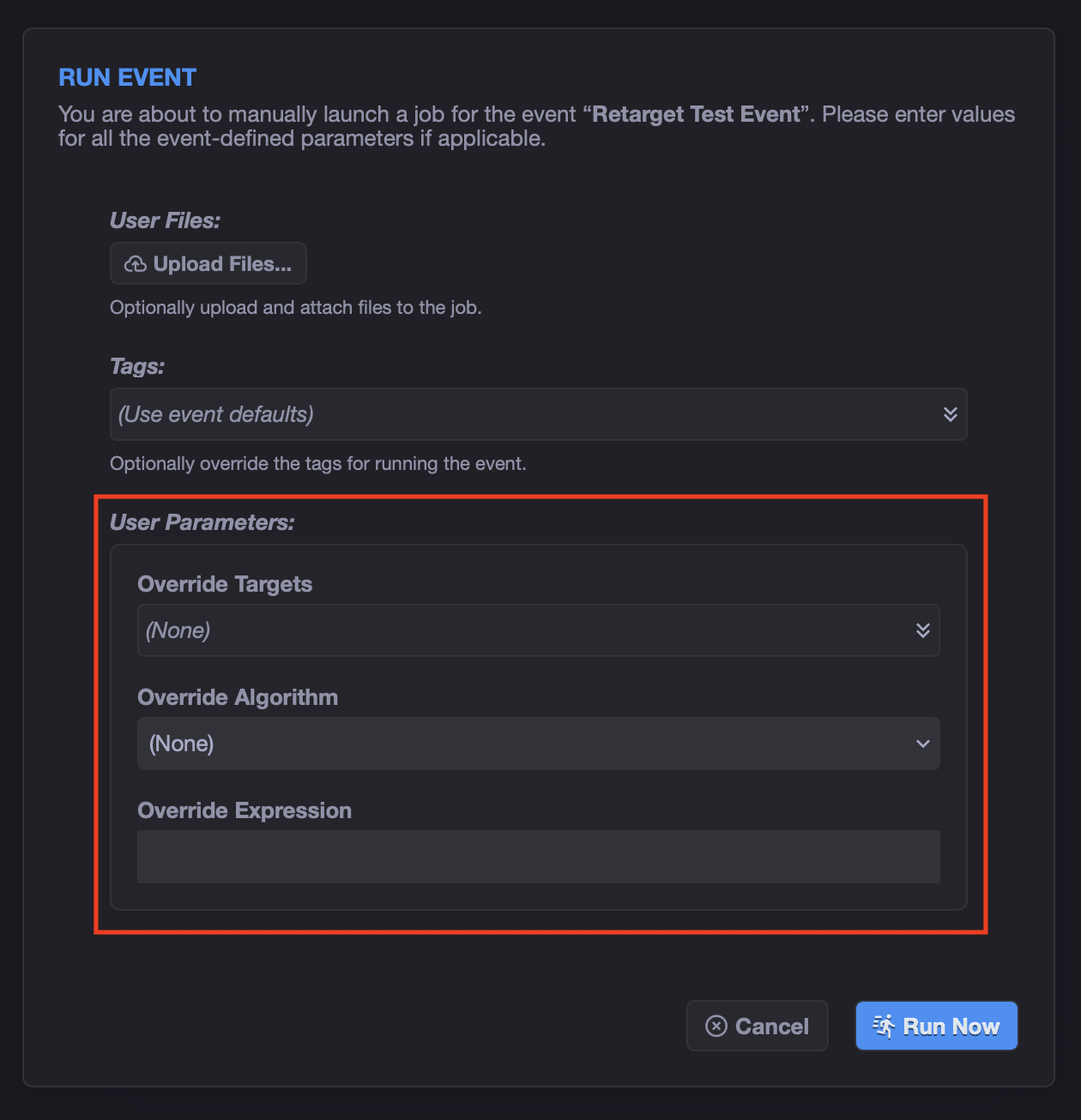
All three of these fields work similarly, in that if you leave them unset (as shown above), the overrides will not apply, and the default parameter values will be used.