Processing Large Batches
xyOps workflows make it easy to split a list and process its items in parallel. For very large lists, however, it is important to keep each individual workflow job at a manageable size.
As a general rule, a single workflow job should contain no more than about 1,000 sub-jobs. You can increase this limit, but doing so is not recommended. A better approach is to divide the workload between two workflows:
- The outer workflow divides the complete input into batches of up to 1,000 items.
- The inner workflow receives one batch and divides it into individual items.
- Limits on both levels control how many batches and items may run at once.
This pattern lets you process hundreds of thousands of items while keeping every individual workflow job within the recommended 1,000 sub-job limit.
Important
The queue limits are an essential part of this design. A Max Concurrent Jobs limit without enough queue capacity will cause excess jobs to abort instead of waiting for their turn.
For a list containing 100,000 items, and processing 5 items in parallel, the data flows through the system like this:
| Level | Split Batch Size | Jobs Created Per Workflow | Max Concurrent Jobs | Max Queue Size |
|---|---|---|---|---|
| Outer workflow | 1,000 | 100 inner workflow jobs | 1 | 1,000 |
| Inner workflow | 1 | 1,000 item jobs | 5 | 1,000 |
The outer workflow creates 100 batches, each containing 1,000 items. Its destination Event node points to the inner workflow and allows only one inner workflow job to run at a time. The remaining batches wait in that node's queue.
The active inner workflow splits its batch into 1,000 individual item jobs. Its processing node allows five jobs to run concurrently (easily configurable of course), while the rest wait in its queue. As each item job finishes, another begins. When all 1,000 items are complete, the inner workflow finishes and the outer workflow starts the next queued batch.
The result is a steady processing rate of five items in parallel, or whatever concurrency value you choose, without placing 100,000 sub-jobs inside a single workflow job.
It is usually easiest to create the inner workflow first. This workflow receives one batch from the outer workflow and performs the actual per-item processing.
Before adding nodes, delete the inner workflow's default Max Jobs and Max Queue limits, as shown below.
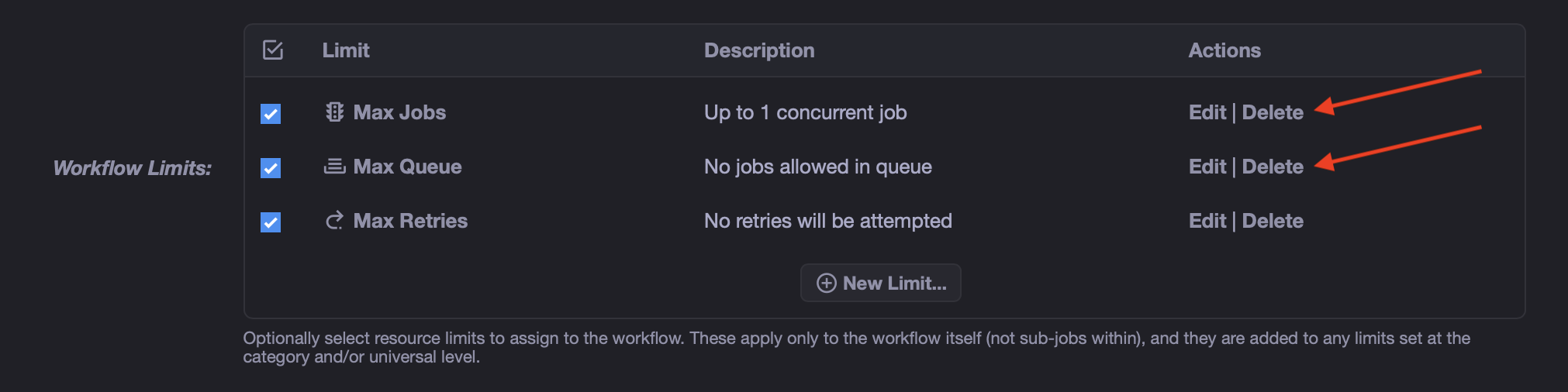
The outer workflow will provide the job and queue limits visually on the Event node that launches the inner workflow. Keep the separate limits on the Process Single Item node, as those control item concurrency.
The inner workflow needs these nodes:
- An enabled Manual Trigger, which serves as the entry point when another workflow launches it.
- A Split Controller that reads
data.itemsand uses a Batch Size of1. - An Event or Job node that processes one item.
- Max Concurrent Jobs and Max Queue Size limit nodes attached to the processing node.
Here is the completed inner workflow:
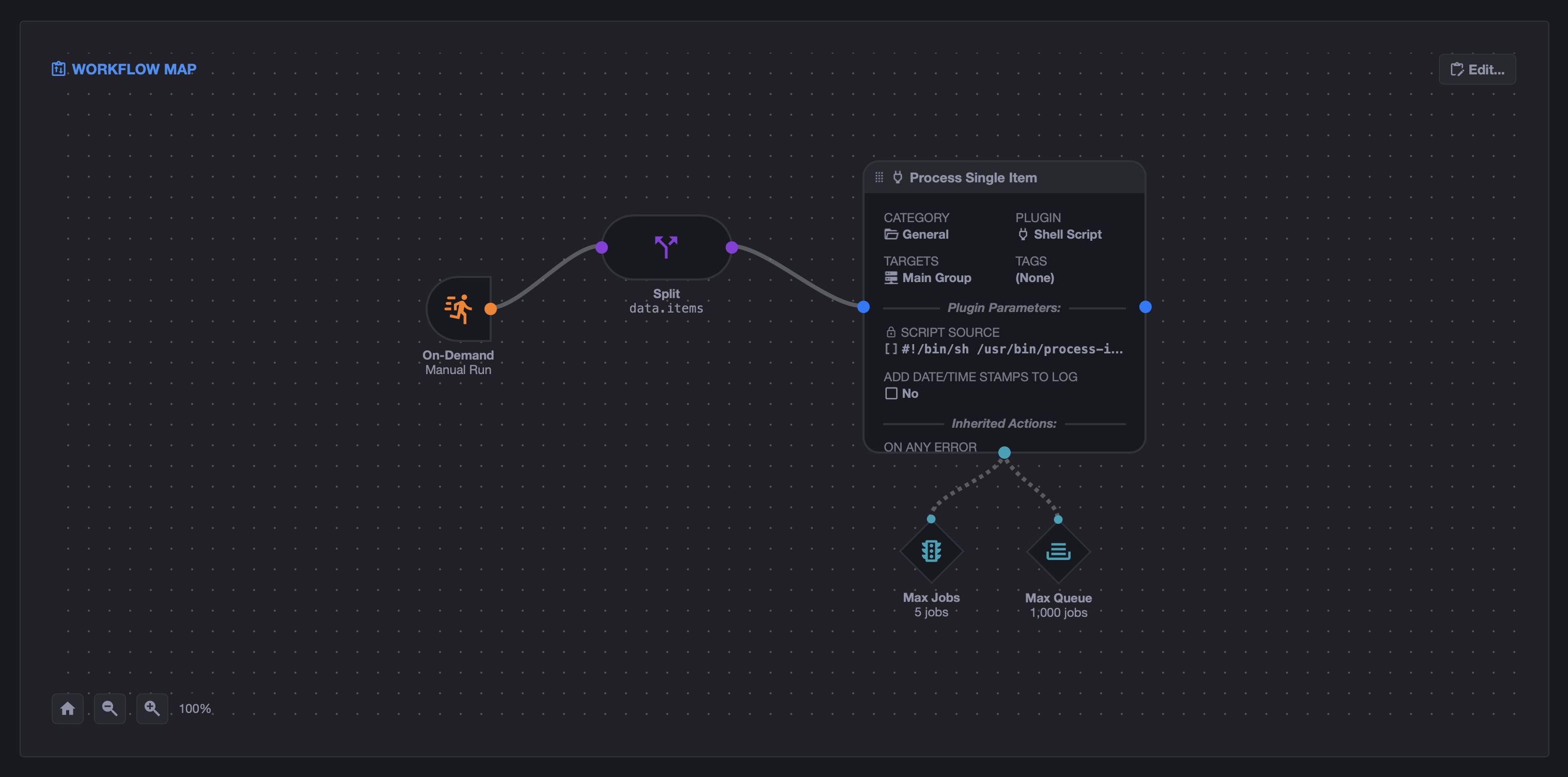
In this example, the Process Single Item node has these limits:
-
Max Concurrent Jobs:
5 -
Max Queue Size:
1,000
Change the concurrent jobs value to match the capacity of your servers and the service being called. For example, use 1 for strictly serial processing, or a larger value when the work can safely run in parallel.
Configure the inner Split Controller with these values:
| Setting | Value |
|---|---|
| Controller Type | Split |
| Split Expression | data.items |
| Batch Size | 1 |
| Continue Percentage | 100 |
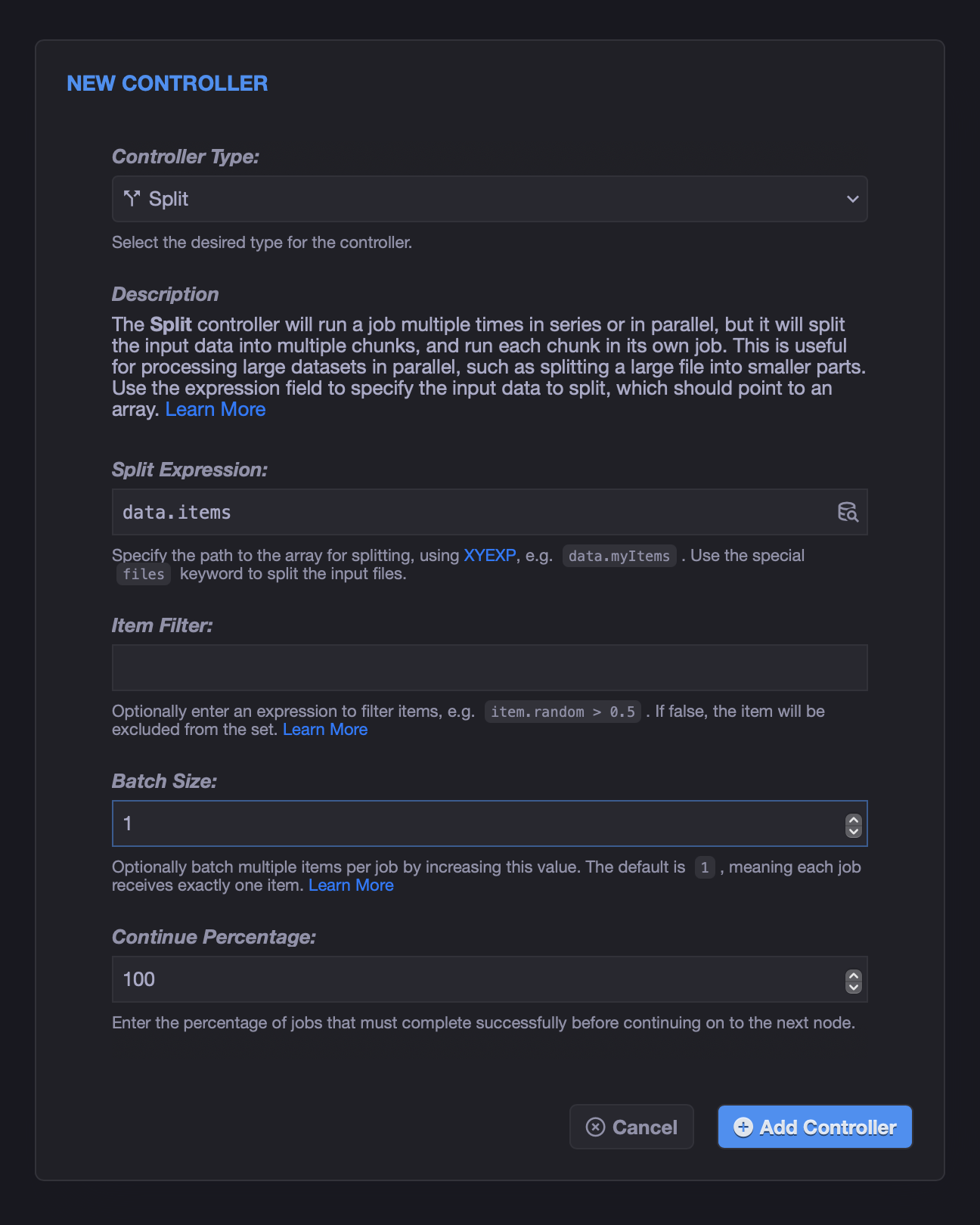
The outer workflow sends each batch to the inner workflow as input data. The Manual Trigger passes this input to the Split Controller, where it is available through the data.items expression.
Because the inner Batch Size is 1, each processing job receives one value as input.data.item.
Tip
The item may be a string, number, object, or any other JSON value. If each item is an object, the processing job can access its properties with expressions such as data.item.id or data.item.filename.
Save the inner workflow and make sure its Manual Trigger is enabled. A workflow must have an enabled Manual Trigger before it can be launched as a sub-workflow.
The outer workflow accepts the complete array, divides it into batches, and sends each batch to the inner workflow.
Add these nodes:
- An enabled Manual Trigger for the API request.
- A Split Controller that reads
data.itemsand uses a Batch Size of1,000. - An Event node that references the inner workflow.
- Max Concurrent Jobs and Max Queue Size limit nodes attached to the inner workflow Event node.
Here is the completed outer workflow:
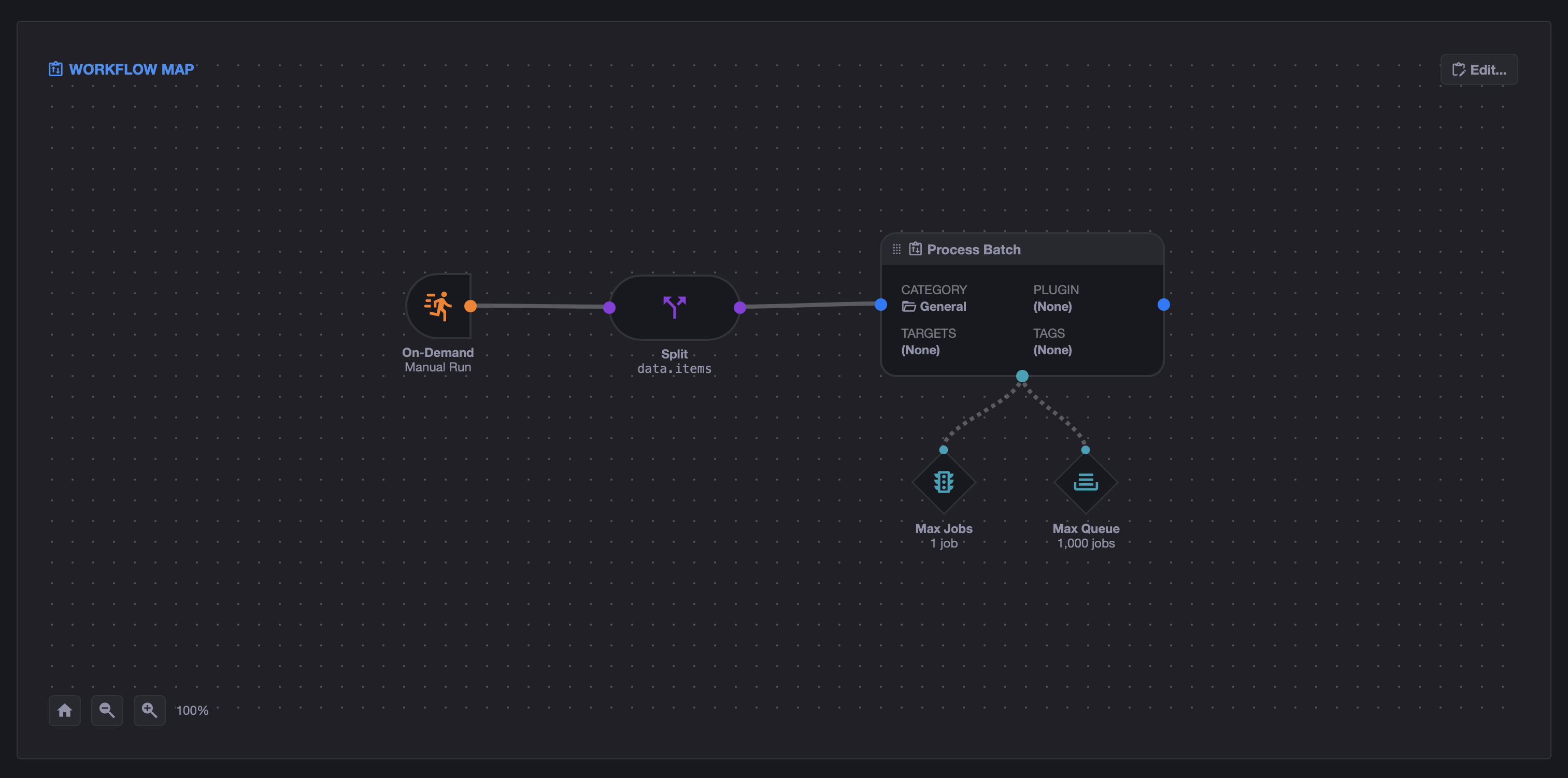
In this example, the Process Batch Event node points to the inner workflow and has these limits:
-
Max Concurrent Jobs:
1 -
Max Queue Size:
1,000
The concurrency limit ensures that only one batch is expanded by an inner workflow at a time. This keeps the item-level queue bounded and makes the final processing concurrency easy to predict.
Configure the outer Split Controller with these values:
| Setting | Value |
|---|---|
| Controller Type | Split |
| Split Expression | data.items |
| Batch Size | 1,000 |
| Continue Percentage | 100 |
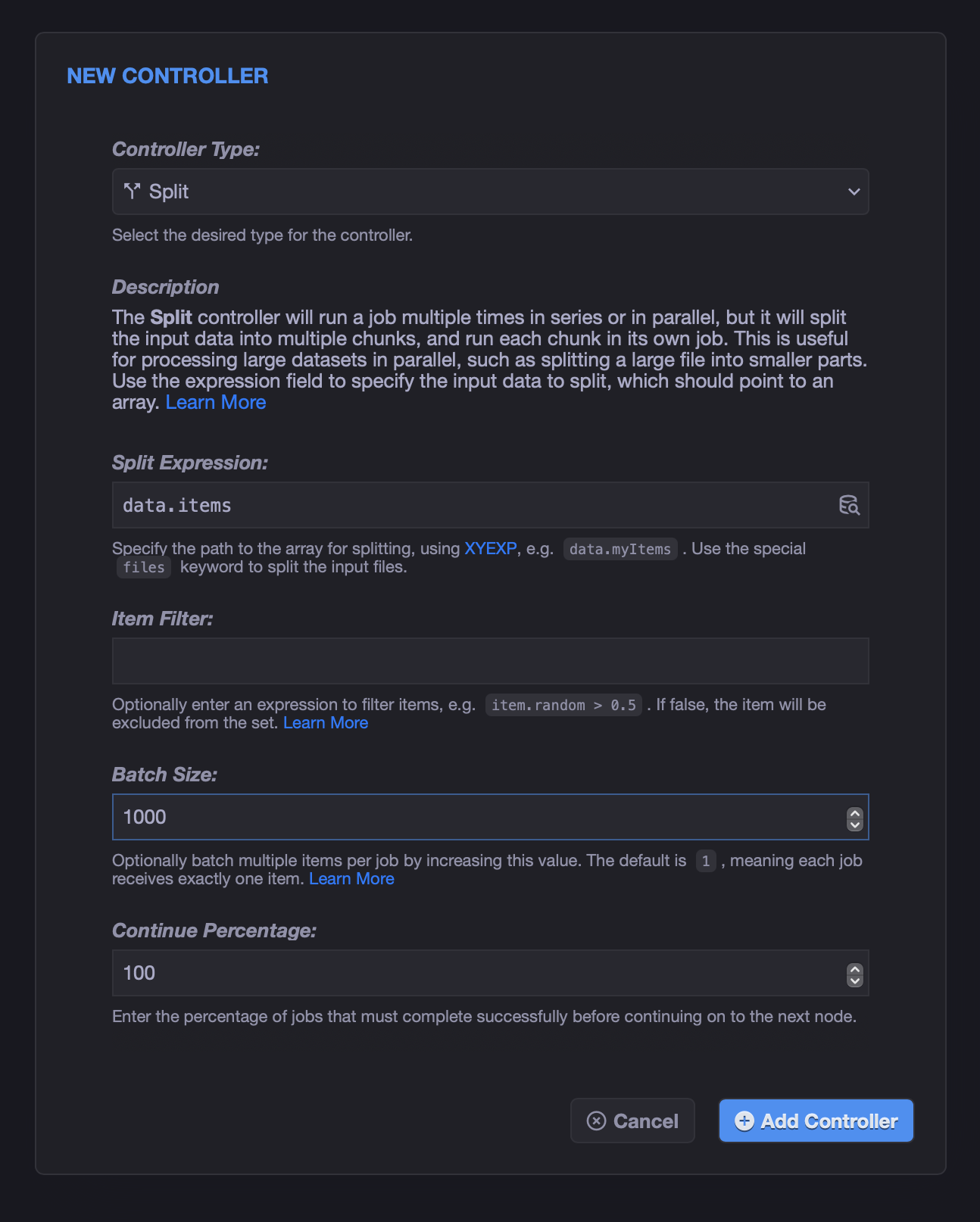
When a Split Controller has a Batch Size greater than 1, each destination job receives an array named input.data.items. That is why the inner workflow can use the same data.items Split Expression.
You can test the complete workflow from the workflow editor without calling the API. Edit the outer workflow, select its Manual Trigger node, and then click Test in the top-left corner.
In the Test Workflow dialog, leave Test Scope set to the default: Entire workflow starting at selection. Under Data Input, click Edit Raw Data... to enter or paste the JSON input for the test.
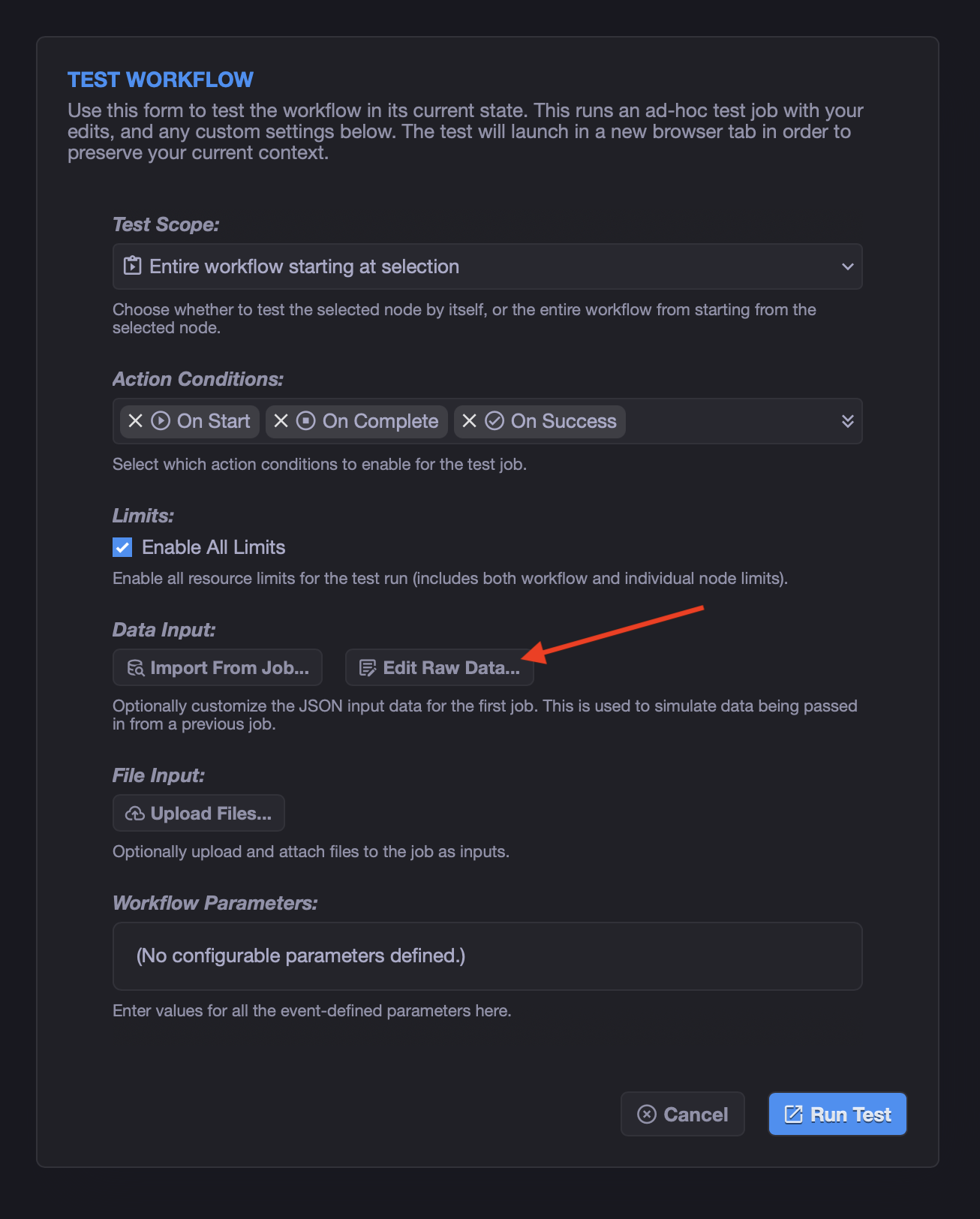
The raw input editor accepts the workflow's input object directly. Make sure the array path matches the Split Expression in the outer workflow. For the data.items expression used in this guide, the input should look like this:
{
	"data": {
		"items": [
			{ "id": 1, "value": "alpha" },
			{ "id": 2, "value": "bravo" },
			{ "id": 3, "value": "charlie" }
		]
	},
	"files": []
}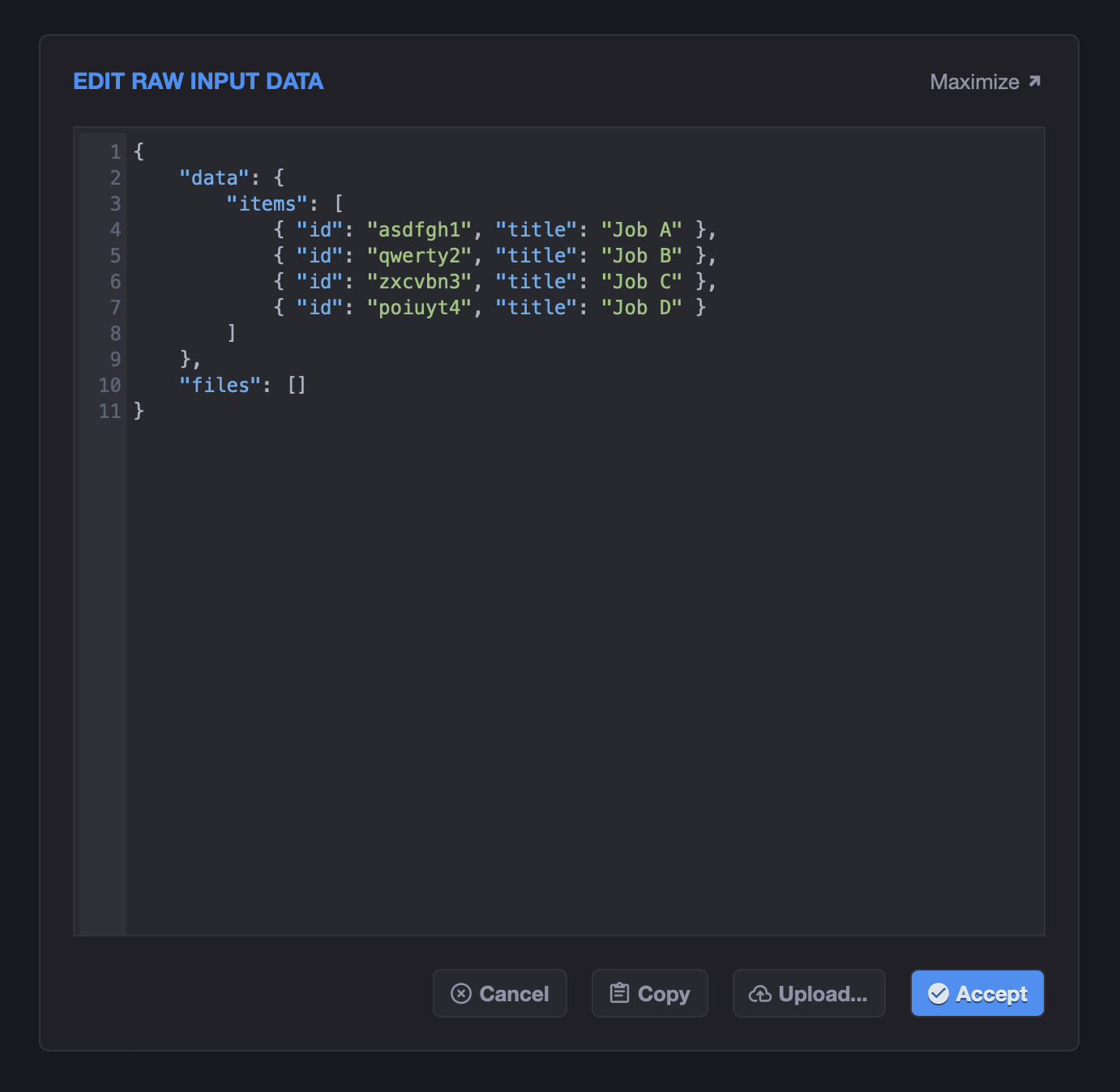
Click Accept to return to the Test Workflow dialog, then click Run Test. The test launches in a new browser tab so you don't lose your workflow editing context.
Start the outer workflow with the run_event API:
POST /api/app/run_event/v1
Content-Type: application/json
X-API-Key: YOUR_API_KEY_HERE
Send the outer workflow ID and place the complete array under input.data.items:
{
	"id": "OUTER_WORKFLOW_ID_HERE",
	"input": {
		"data": {
			"items": [
				{ "id": 1, "value": "alpha" },
				{ "id": 2, "value": "bravo" },
				{ "id": 3, "value": "charlie" }
			]
		}
	}
}
Replace OUTER_WORKFLOW_ID_HERE with the ID of your outer workflow and populate items with the complete dataset. The API starts the workflow in the background and returns its job ID, which you can use to monitor progress.
The example values are convenient defaults, but you can tune them for your workload.
Calculate the number of outer jobs like this:
outer jobs = ceiling(total items / outer batch size)
For 100,000 items with a batch size of 1,000:
outer jobs = ceiling(100,000 / 1,000) = 100
With Max Concurrent Jobs set to 1, at most 99 of these jobs will be waiting while one is active. The example queue size of 1,000 provides plenty of room for the entire set.
With an outer batch size of 1,000 and an inner batch size of 1, each inner workflow creates 1,000 item jobs. If five may run concurrently, up to 995 will initially wait in the queue. A queue size of 1,000 again provides enough room.
If you increase the outer batch size above 1,000, the inner workflow will create more than 1,000 sub-jobs. This defeats the purpose of the two-stage design, so keep the batch size at or below the recommended per-workflow limit.
Note
A non-zero Max Queue Size requires a Max Concurrent Jobs limit on the same event or workflow node.
Confirm that both Max Concurrent Jobs and Max Queue Size are enabled on the destination node. Also verify that the queue is large enough for the number of jobs created by the Split Controller.
Make sure the inner workflow has an enabled Manual Trigger. xyOps uses this trigger as the entry point for sub-workflows.
Confirm that the API payload uses input.data.items and that both Split Controllers use the expression data.items. The outer batched split preserves the plural items name, while the inner split with Batch Size 1 sends each processing job a singular data.item value.
Attach the Max Concurrent Jobs limit to the node being controlled by the Split Controller. Limits attached elsewhere do not automatically apply to a sub-workflow's internal jobs.