Getting Started
FermiViewer runs as a local web app: a small Python server serves the API and the single-page UI, which opens in your browser (or a native desktop window). Pick whichever install fits you.
Download FermiViewer_x64-setup.exe from the
latest release
and run it. It's fully self-contained (~47 MB) — no Python or Node
required. Launch FermiViewer from the Start menu; closing the window
shuts the server down.
The installer is currently unsigned, so Windows SmartScreen may warn on first run — choose More info → Run anyway.
Download fv-server-win64.zip from the same release, unzip, and run
fv-server\fv-server.exe. It starts the app at http://127.0.0.1:8000
and opens your browser; it exits when the last tab closes.
Requires uv (Python is fetched automatically) and Node 20+:
git clone https://github.com/pquarterman17/fermiviewer
cd fermiviewer
cd frontend && npm ci && npm run build && cd ..
uv sync
uv run fv # → http://127.0.0.1:8000| Command | What it does |
|---|---|
uv run fv |
API + UI on :8000, opens the browser, exits when the last tab closes |
uv run fv --desktop |
Native window (pywebview), exits on close |
uv run fv --dev |
Vite hot-reload (:5173) + auto-reloading backend |
uv run fv --no-browser --no-auto-shutdown |
Plain server, stays up |
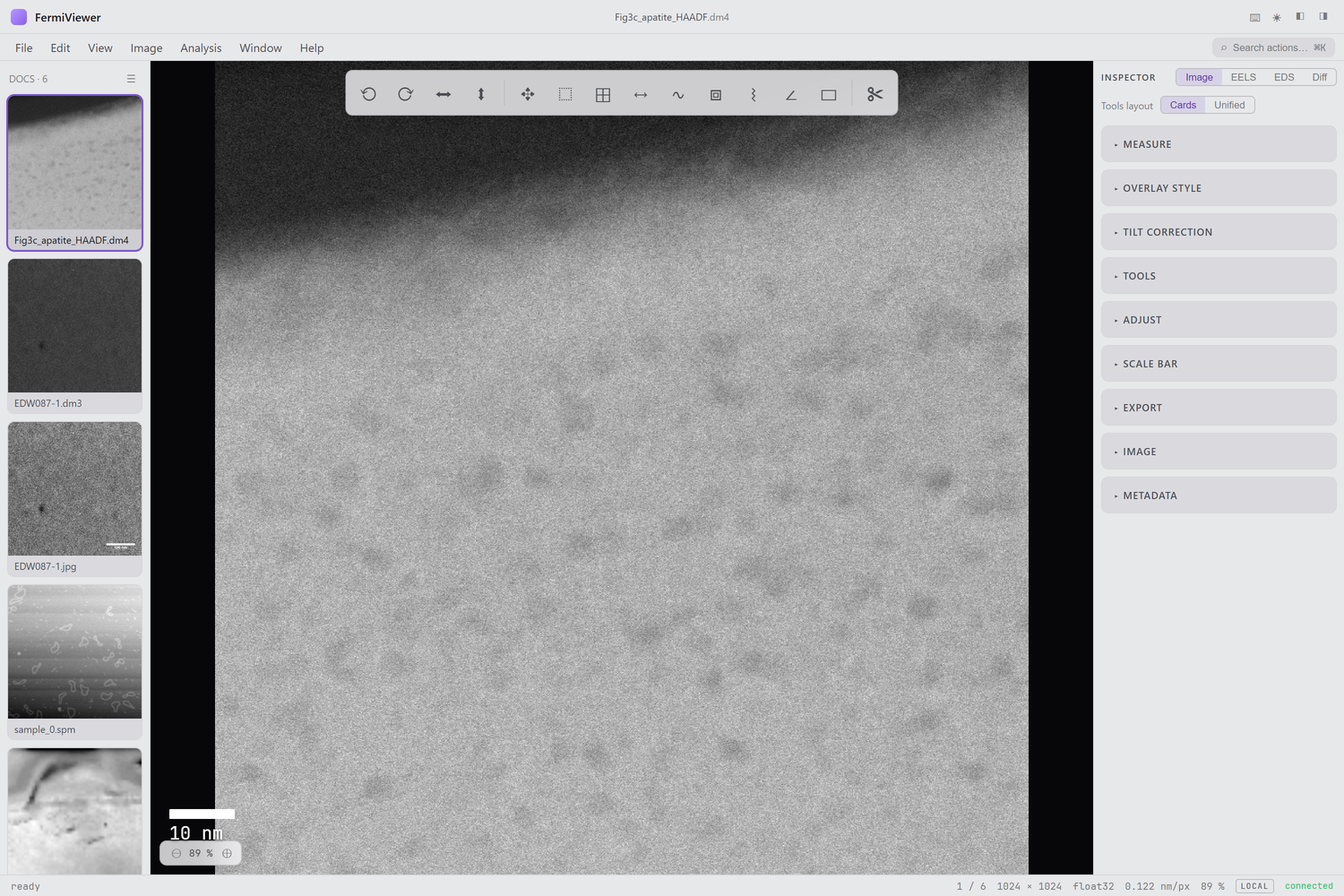
Three ways to open data:
- File → Open… — the native file picker.
- Drag and drop — drop files anywhere on the window.
- File → Open by Path… — for large files already on the server's disk (skips the upload copy).
Opened images appear as thumbnails in the library (left). Click one to make it active; it renders on the central stage, with details and tools in the inspector (right).
- The stage shows the active image. Scroll to zoom, space-drag (or the hand tool) to pan, F to fit, 1 for actual size.
- The float toolbar at the top of the stage holds the measurement and zoom tools.
- The inspector tabs — Image · EELS · EDS · Diff — switch between image tools and the analysis workshops.
- Press ? for the full keyboard map and ⌘K / Ctrl-K for the command palette (search every action by name).
Next: Viewing & Display.