Repository navigation
The menu
sudo zenithboard menu (or sudo ./install.sh in the folder you downloaded). Since 0.44.0 it is ordered by what
you want to do: one entry to start with, then one menu per subject, seven entries at most, each with its way back
(the owner's review, 21 October 2026: too many menus, some of ten entries, and nothing said that the web console needs
ADS-B and the wall first). Every entry runs the same zenithboard command as the terminal and the web console: the
three stay one and the same. The screens below are the real ones, captured from the menu itself.
Move with the arrow keys, Enter to choose, Esc to go back. A step that cannot be undone asks you to type a word.
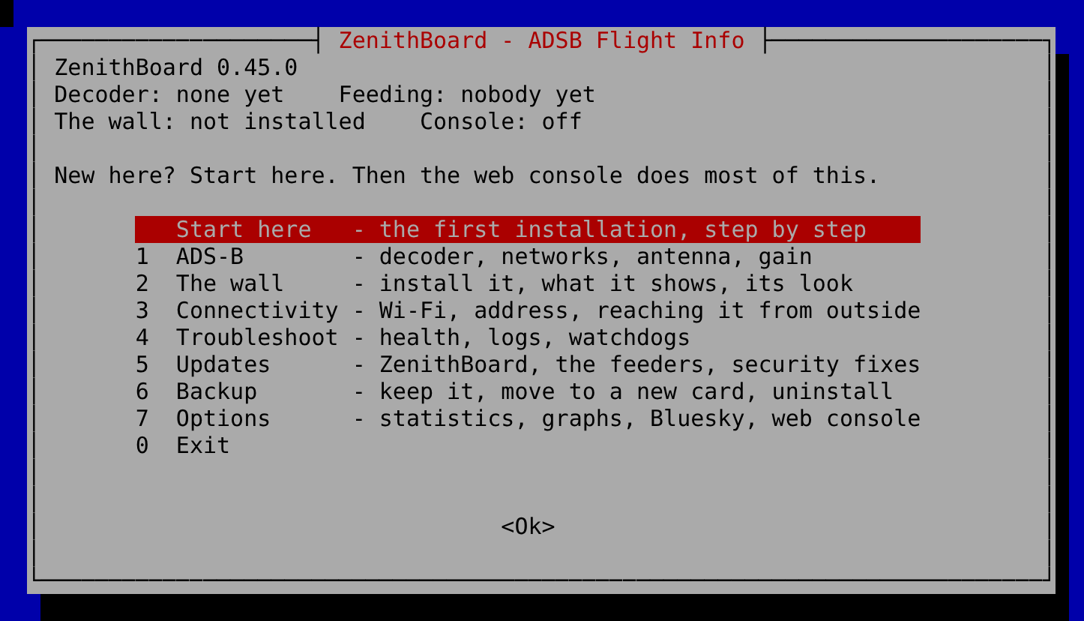
The three lines at the top say what this Pi already does: the decoder and the networks it feeds, the wall's address, the console's.
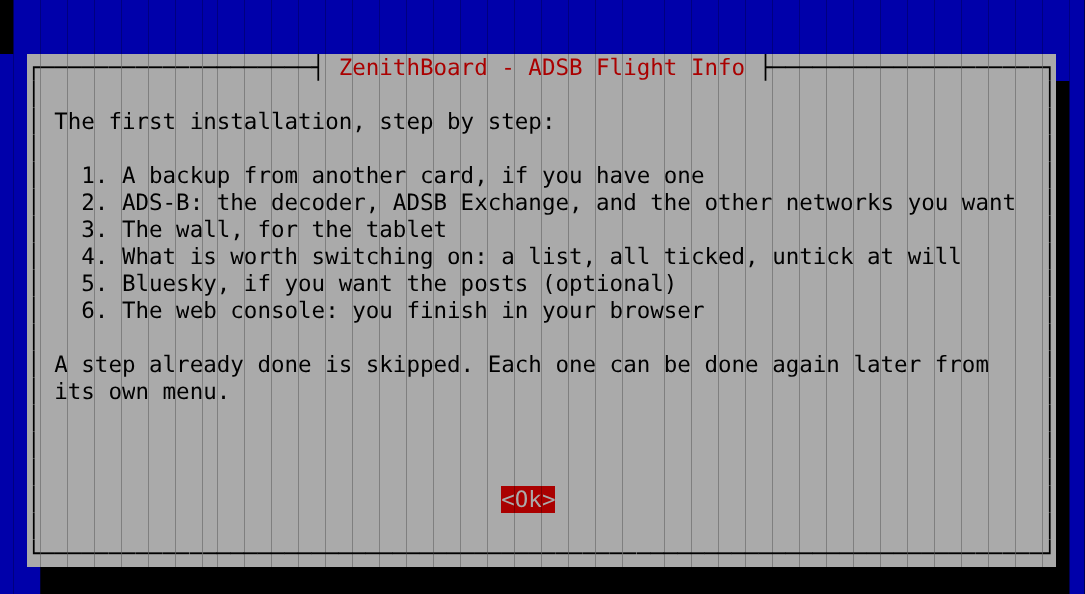
In its order, each step skipped when it is done already:
-
A backup from another card? Yes: it asks for the file in your home folder (copied there with WinSCP from Windows: Moving to a new card) and puts it back. The networks then find their identities by themselves at step 2.
-
ADS-B: the decoder (readsb), ADSB Exchange (always; it runs the one MLAT client unless you give MLAT to another network, 1.2), and the other networks you tick. Their installers are theirs, and ask in the terminal (a station name, an e-mail, a key); the screen says what to answer. Without a decoder the rest waits, and says so.
-
The wall, the page the tablet shows. The web console is one of its pages: without the wall, no console.
-
What is worth switching on, one list, everything ticked; untick what you do not want, each can be switched off again later:
Ticked What it does Statistics The /statspage, and the Bluesky summaries (30 KB a day)graphs1090 Years of graphs on port 8542, in ZenithBoard's look (only when the receiver map's web server is there) Logs kept after a restart Why it stopped can be read afterwards (50 MB at most) Hardware watchdog A frozen Pi restarts by itself (when the board has one) Network watchdog The network, then the Pi, restarted when the router is lost Debian's security fixes Daily, from Debian's security channel; the feeders are left alone, no reboot Daily log clean-up The last 7 days kept Wi-Fi hardening Reconnects without end, no power saving (only when on Wi-Fi) -
Bluesky, optional (0.54.18): asked only while no account is set up. Yes: its handle, then an app password (made at bsky.app → Settings → Privacy and Security → App Passwords), checked with Bluesky, then the words and the picture. No: the screen says where it is later (7 Options → 3 Bluesky → 2 The account, or
sudo zenithboard social setup). The account is set up in the terminal because the app password never goes through a web page; the console's first steps show the summaries once it exists. -
The web console: its password (10 characters at least, asked twice), then its address. You finish in your browser: its first steps check what is left, System → Signed in → Pair a phone.
Once everything is done, the entry says all done: check it again.
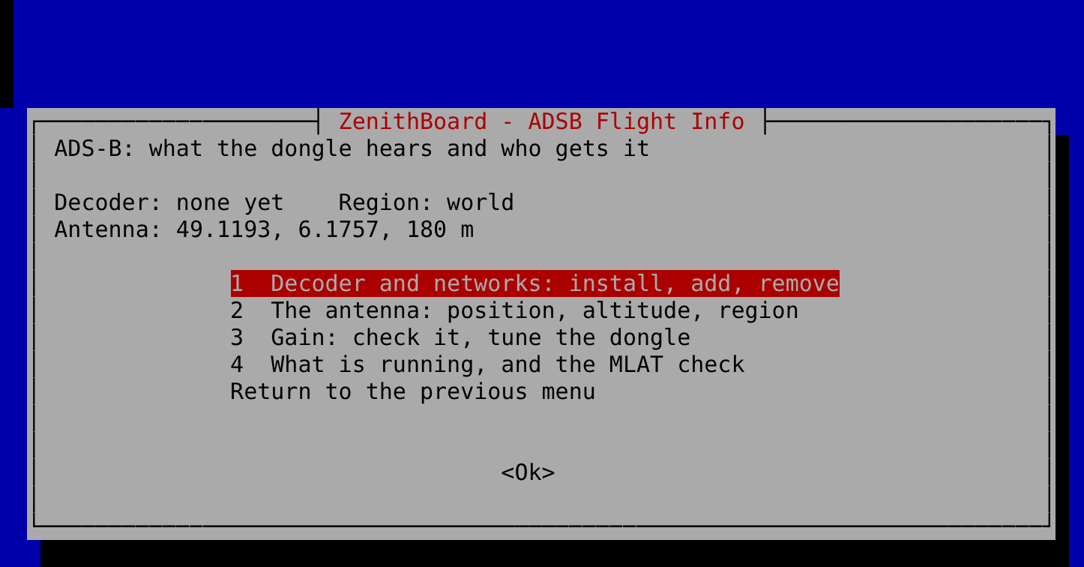
The decoder and the networks (install, add, remove: an unticked network is removed after a confirmation), the antenna's position and region (applied everywhere it is stored: the decoder, the networks that take it, the wall), the gain (Gain tuning), what is running with the single-MLAT check, and (1.2) which network does MLAT.
0.52.0: the list of networks has ADSB Exchange stats: their map of your aircraft, unticked until it is on. Ticked, it installs ADSB Exchange's stats package; unticked again, it removes it (ADSB Exchange's stats).
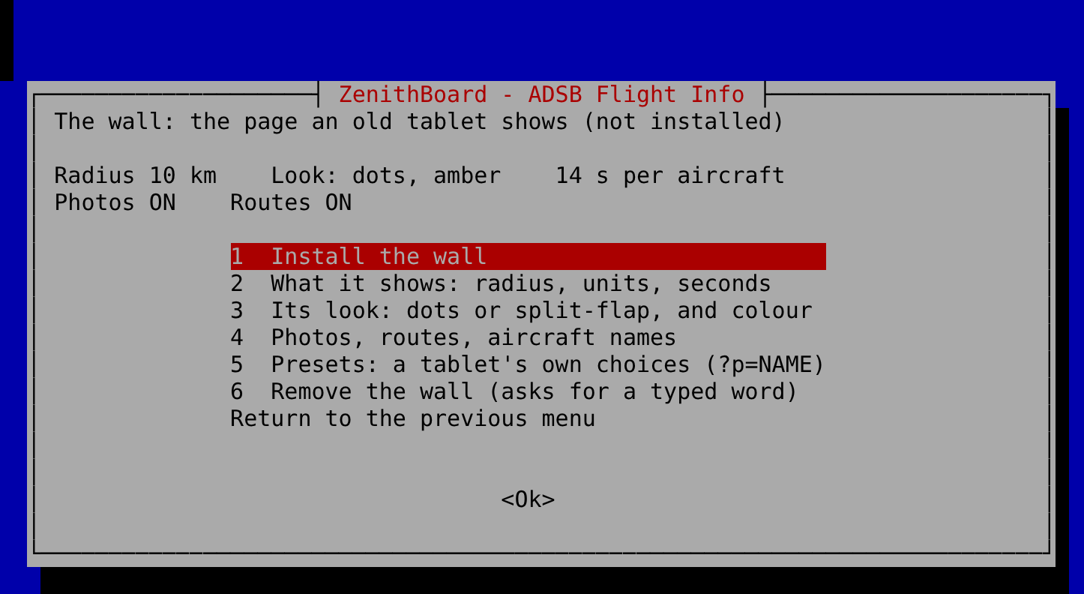
Install it (or reinstall its files), what it shows (radius, units, seconds per aircraft), its look (dot matrix or split-flap, and its colour: graphs1090 and the web console take the same colour), photos, routes and aircraft names (Routes, photos and data), presets for each tablet, and removing it (a typed word).
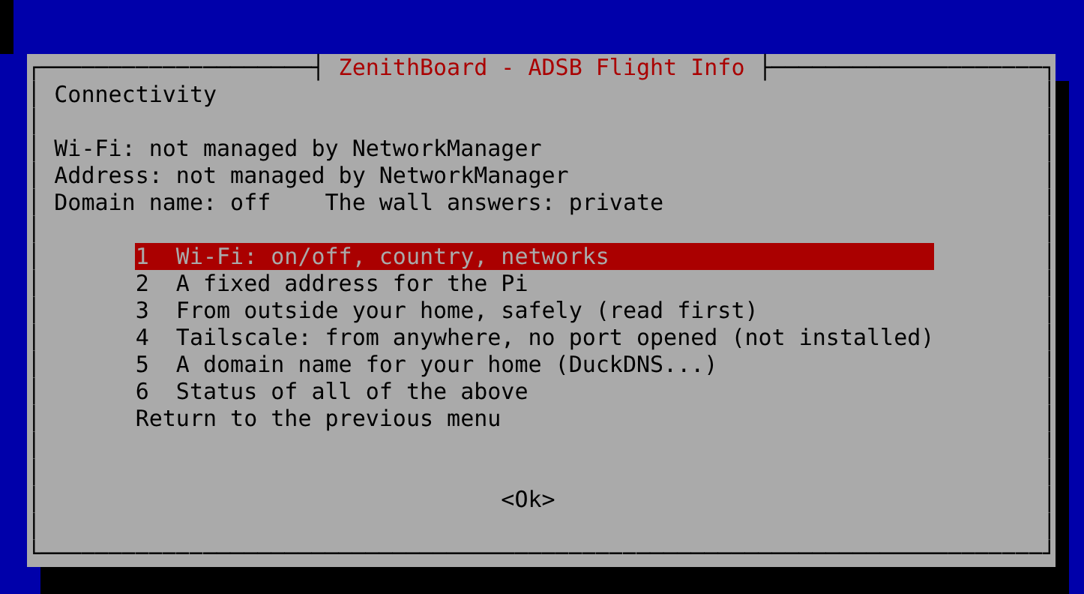
Wi-Fi, a fixed address, Tailscale, a domain name, the status of all of them. Item 3, read before opening anything:
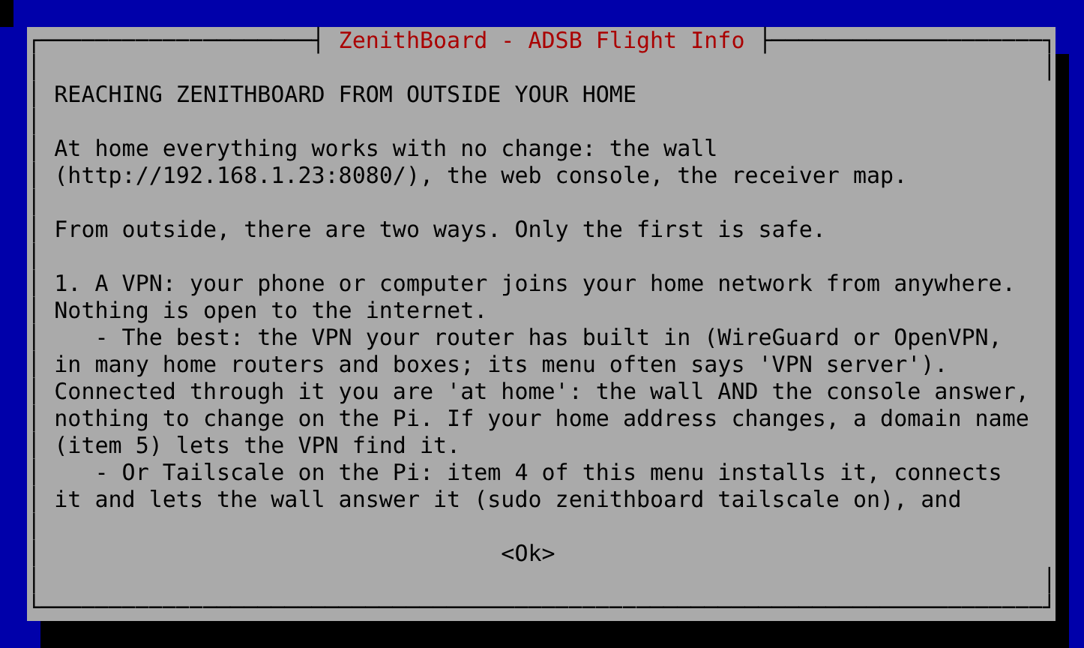
- At home, everything works with no change.
-
The safe way from outside is a VPN: your phone joins your home network; nothing is open to the internet.
- Best: the VPN built into your router or box (WireGuard or OpenVPN; its menu often says VPN server). Through it you are "at home": the wall and the console answer, nothing to change on the Pi. A domain name (item 4) lets the VPN find your home when its address changes.
- Or Tailscale on the Pi: item 4, below. It works even behind a provider's shared address (CGNAT).
-
Opening a port makes the wall public: no password, no encryption, and the aircraft around your antenna tell
roughly where you live; robots scan every address all day. If you still want it: a fixed address, a domain name,
forward only port 8080, then
sudo zenithboard config-set ALLOW_FROM any. Never forward port 22 (SSH, the Pi's login) or port 80 (the receiver map has no guard). The console never answers from the internet anyway. - Some providers share one public address between many homes (CGNAT): no port can be opened, a VPN like Tailscale still works.
3 Connectivity → 4 Tailscale (0.45.0, off by default), or sudo zenithboard tailscale on|off|status|remove.
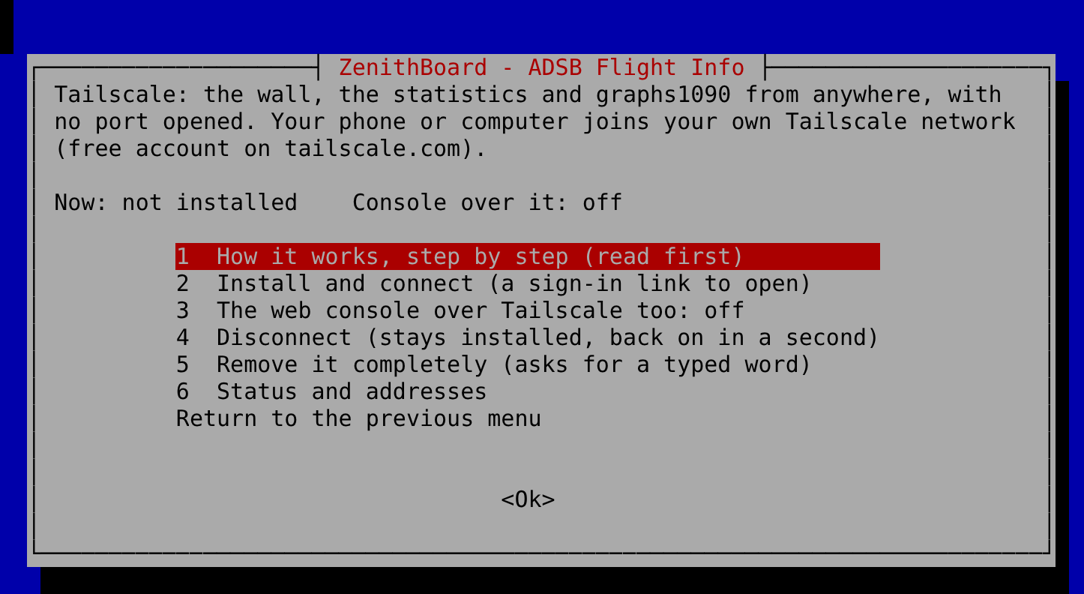
How to use it, step by step:
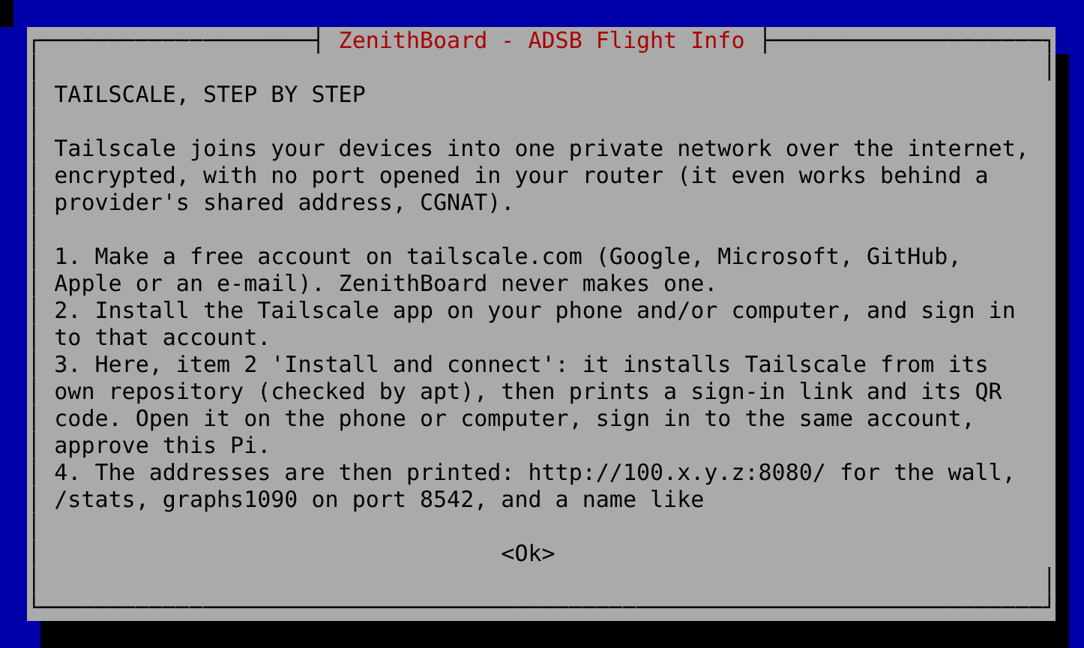
- Make a free account on tailscale.com (with a Google, Microsoft, GitHub or Apple account, among others; free for personal use). ZenithBoard never makes one and never sees its password.
- Install the Tailscale app on your phone and/or your computer, and sign in to that account.
- Here, 2 Install and connect (or
sudo zenithboard tailscale on). It installs Tailscale from its own repository (pkgs.tailscale.com, the steps of its page for your system; apt checks the package against Tailscale's key), then prints a sign-in link and its QR code. Open the link on your computer, or scan the code with your phone; sign in to the same account; approve the Pi. The menu waits until it is done. - It then prints the addresses to use from anywhere, with Tailscale on in the app: the wall
http://100.x.y.z:8080/,/stats, graphs1090 on port 8542, and a name likezenithboard.tailXXXX.ts.net. - The web console stays for your home network, unless you choose 3 The web console over Tailscale too
(
sudo zenithboard tailscale console on): then only devices signed in to your Tailscale account reach it, encrypted by Tailscale, and its password still applies.
What it changes on the Pi: the Tailscale package, its repository and its key; the wall answers Tailscale's addresses
(100.64.0.0/10, Tailscale's own range) on top of what it answered
(ALLOW_FROM=private,100.64.0.0/10). Nothing is opened in your router.
From the web console (0.46.0): System → Tailscale. Its switch connects (installing Tailscale the first time); the sign-in link appears in the card as a Sign in to Tailscale button while it waits; then the card gives the addresses, links to the wall and the statistics over Tailscale, and the switch for the console over it. The overview's At a glance says Tailscale on. Removing it completely asks for a typed word, so it stays in the terminal.
How to take it away:
-
Disconnect for a while: 4 Disconnect (
sudo zenithboard tailscale off). The Pi leaves your Tailscale network, the wall answers what it answered before; it stays installed and signed in, so 2 (oron) brings it back at once. -
Remove it completely: 5 Remove it completely (
sudo zenithboard tailscale remove, typeremove). The Pi signs out (its key expires), Tailscale stops, and the package, its repository, its key and its state on the Pi are removed (when ZenithBoard installed them; a Tailscale you installed by hand is only signed out and stopped). The console's setting goes back to home only. Last, in your account: remove the Pi from the list of machines, login.tailscale.com/admin/machines.
zenithboard security (4 Troubleshoot → 5) says what is open at any time. More: Security.
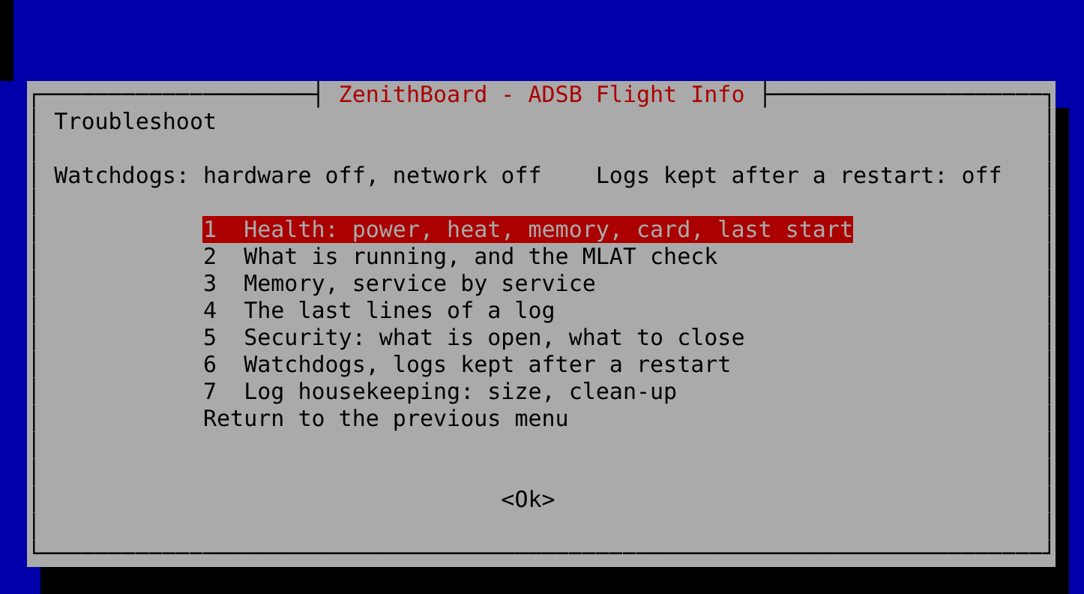
Health (power, temperature, memory, card, how the last start ended), what is running, memory service by service, the last lines of a service's log, the security check, the watchdogs and logs kept after a restart, log housekeeping. More: Reliability and diagnostics.
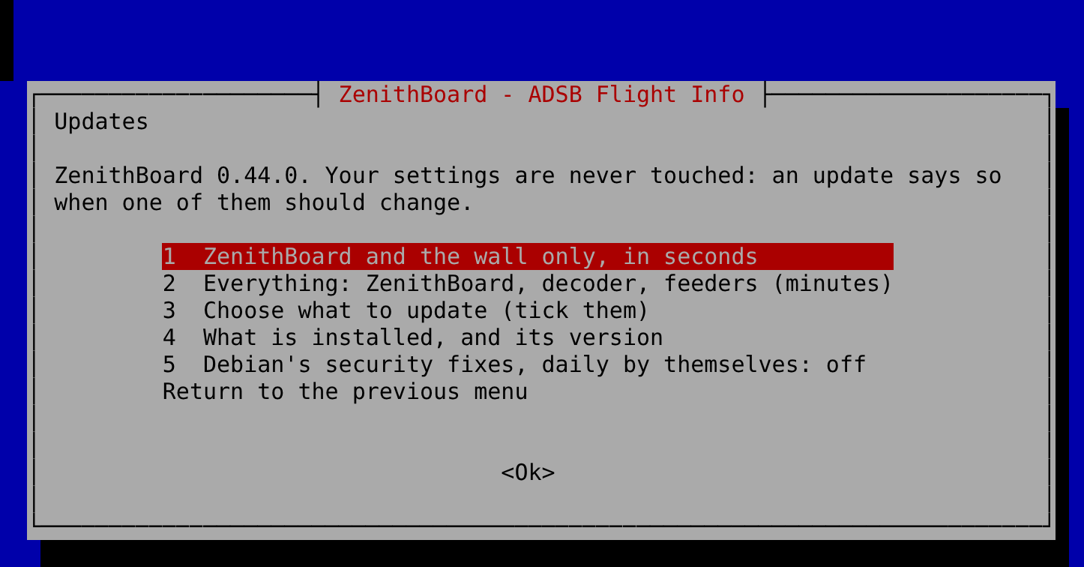
ZenithBoard and the wall alone (seconds), everything (minutes), a choice of components, what is installed, and Debian's daily security fixes. The menu opens again on the new version after an update.
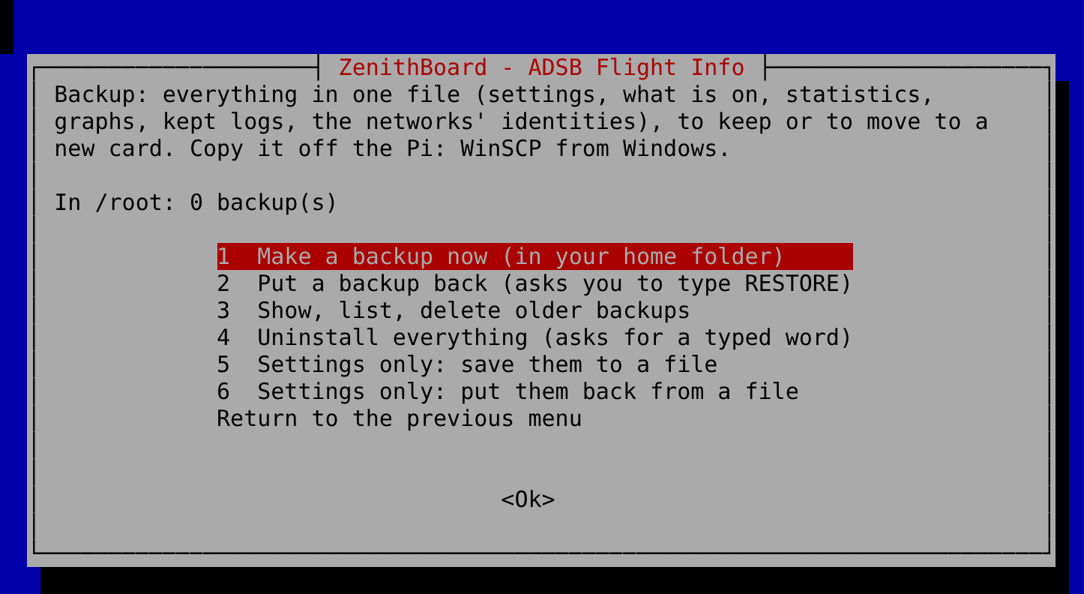
Make a backup (in your home folder), put one back (a typed word), show, list and delete the older ones, uninstall everything (a typed word), and the settings file alone. Moving to a new card · Backup and restore.
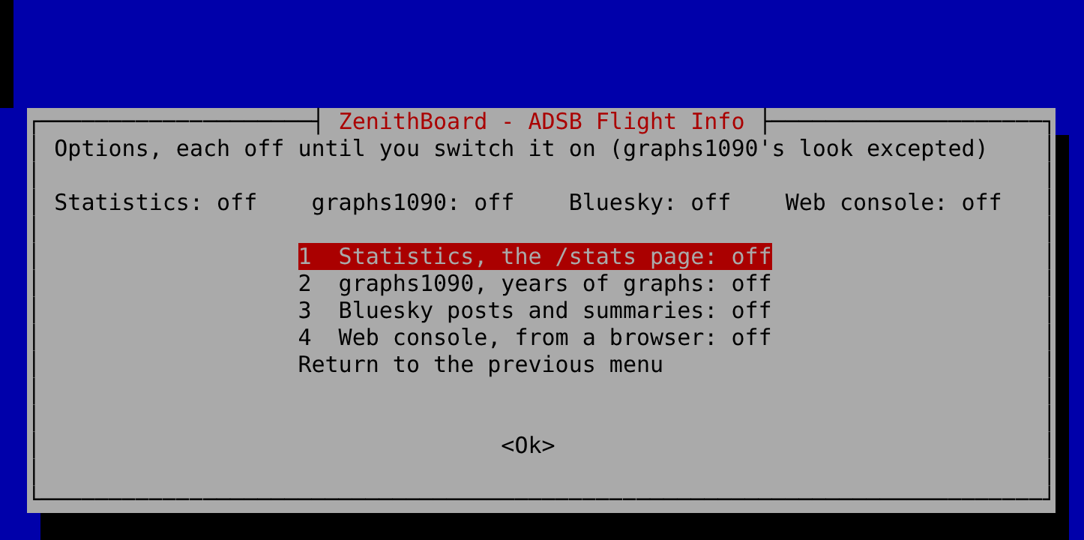
Statistics (Statistics), graphs1090 and its look, Bluesky (Social sharing), the web
console (Web console, its entry 7 the language of the web pages), and 5 Telegram (0.99.6, Telegram):
switch it, the bot and the chat (the token is asked here, never in the console), try the messages or send a test, status, remove. Each is off until switched on, graphs1090's look excepted: ZenithBoard's by
default, graphs1090's own with sudo zenithboard graphs look original.
3 Bluesky (0.54.9, seven entries and Return, like the console's Sharing page): 1 switch sharing on or off, 2 the
account (set up, change, or remove after typing remove, and its status), 3 words and rules, 4 how a post looks
(picture, words, language by name, your own templates, photo link, town names), 5 summaries, 6 try it or post now,
7 status.
| Before | Now |
|---|---|
| 1 ADSB | 1 ADS-B → 1 |
| 2 FlightInfo | 2 The wall |
| 3 Settings → 1 Network | 3 Connectivity |
| 3 Settings → 2 Receiver (region, position, gain) | 1 ADS-B → 2, 3 |
| 3 Settings → 2 Receiver (units) | 2 The wall → 2 |
| 3 Settings → 2 Receiver (statistics, graphs1090) | 7 Options → 1, 2 |
| 3 Settings → 3 Wall | 2 The wall |
| 3 Settings → 4 Logs | 4 Troubleshoot → 7 |
| 3 Settings → 5 Reliability (health, memory, watchdogs, saved logs) | 4 Troubleshoot |
| 3 Settings → 5 Reliability (Debian patches) | 5 Updates → 5 |
| 3 Settings → 6 Social sharing, 7 Web console | 7 Options → 3, 4 |
| 4 Status | 4 Troubleshoot → 2 (or 1 ADS-B → 4) |
| 5 Update | 5 Updates |
| 6 Maintenance | 6 Backup |