Repository navigation
Web console
A test since 0.39.0, off by default, that can be taken out again: ZenithBoard's settings from a browser or a
phone on your home network, at http://PI:8080/console, in the wall's own look. The menu (sudo zenithboard menu)
and the zenithboard command stay as they are and stay the reference: every change the console makes runs the same
command, and you read what it prints.
sudo zenithboard console password     # choose its password (asked twice, never on the command line)
sudo zenithboard console on           # prints the address: http://192.168.x.x:8080/console
From outside your home: with Tailscale (System → Tailscale in the console since 0.46.0, or 3 Connectivity → 4
Tailscale in the menu), the console's The console over Tailscale too (or sudo zenithboard tailscale console on)
lets it answer your Tailscale network too, by its 100.x.y.z address or its *.ts.net name;
off by default, home networks only otherwise.
The console is a page of the wall's server: on a new card, install the wall first (menu Start here, or 2 The wall). Before it,
console on says so and changes nothing (0.43.0: it used to stop on chown: invalid user: zenithboard, the wall's own
user not existing yet); console password works already.
Or the menu: 7 Options → 4 Web console, or the end of Start here. On a new card, the whole way from the SD card to here: Fresh install.
The first steps open the first time you sign in, nine short screens (0.41.0): what this Pi is and feeds, where
the antenna is (checked when you press Next), the wall, the networks (read only, each with its page), what to collect, what
keeps it running, the Bluesky summaries, your phone, then a review that applies only what you changed, one command
after the other. Skip leaves everything as it is. They open again from System → First steps again, from the
Finish setting up card the overview shows while something is missing (no position, no decoder, statistics off, a
watchdog off), or at the address …/console#first-steps.
Off again: sudo zenithboard console off (the password is kept). Gone for good: sudo zenithboard console forget
(the password, the signed-in phones and the record of what it ran are deleted). Nothing else on the Pi depends on it.
The two ways are independent: the QR code needs no password, and the password needs no QR code. The terminal is for setting up, not for every visit: once a browser or a phone is signed in, it stays signed in while it is used.
| Needs the terminal | Then | |
|---|---|---|
| Password only | Once: console password, console on
|
Any browser on the home network signs in with it; it stays signed in a week (a day unused). Phones can then be paired from that browser, no terminal |
| QR code only, no password | Once per phone: console on, console pair
|
The phone stays signed in as long as it opens the console once a month (a year at most). Another phone, or this one after that: console pair again, or from a browser already signed in |
| Both (recommended) | Once | The password for computers, the QR code for phones; the terminal only when a phone was away more than a month and no browser is signed in |
| Phone sign-in on (0.40.0) | Once: console phone-signin on (or from the console) |
A computer is signed in by a phone already signed in: QR code on the computer, yes on the phone, no password |
-
A password, chosen over SSH. Kept as a scrypt hash in
/etc/zenithboard/console.env(root:zenithboard, 0640), never inconfig.env, never in a log. The password field is a normal one, so the phone's or the browser's password manager can keep it. A browser signed in with it stays signed in for a week (a day unused). -
A phone, by QR code. On a computer already signed in: System → Signed in → Pair a phone; or over SSH:
sudo zenithboard console pair. Scan the code with the phone's camera within five minutes: the link works once and keeps the phone signed in as long as it opens the console once a month (a year at most). No password is needed. The code is drawn dark on its own white square with its margin, on the page and in the terminal (qrencode, when installed, is told both colours), so it scans on a black background. A QR code opens in the phone's browser, never inside an app added to the home screen: on an iPhone, sign in inside that app with the console password (see the table under The console as an app). -
A computer, signed in by a phone (0.40.0, off by default, asked for by the owner):
sudo zenithboard console phone-signin on, or System → Signed in in the console, or the menu. The computer's sign-in page then shows, under the password, a QR code and a four-digit code. Scan the QR code with a phone already signed in to the console: the phone shows Sign in Windows at 192.168.1.237? and the same four digits; check them and say yes, and the computer is signed in, for a week (a day unused), no password typed. The QR code carries only the request's name; the computer keeps a secret of its own to collect its sign-in, so a photo of its screen signs nobody in. A request is answered once and lasts two minutes; the page renews it a few times, then shows New code (0.54.8). In System → Signed in such a computer is listed by the phone. Refused on the phone: nothing happens. Every one is in Activity → Sign-ins. -
Signing out: Sign out on the page; System → Signed in lists every browser and phone and signs any of them
out (this browser first; since 0.54.18, more than two others fold under one line, N other browsers and phones,
that unfolds);
sudo zenithboard console signoutsigns everyone out, and so does choosing a new password. Since 0.99.10 a sign-out also ends what that browser or phone handed out: a pairing code it made is refused, and a computer it said yes to is not signed in (its page says Refused on the phone), whether it signed itself out, was signed out from System → Signed in, or everyone was (console signout,console password). A code printed bysudo zenithboard console pairbeforeconsole signoutorconsole passwordis refused too; print a new one. - Wrong passwords (0.99.10): five tries from one address, then a wait that doubles with each miss (30 seconds up to an hour); thirty misses in a quarter of an hour from anywhere, and everyone waits five minutes. Tries sent all at once count the same as tries one after the other. The Pi checks two passwords at a time (each check takes 16 MB of memory, on purpose, so that a stolen hash is slow to guess); a third sign-in at that moment is answered Busy. Try again in a few seconds., and that try does not count as a miss.
Face ID and passkeys are not offered, on purpose. A passkey (WebAuthn) is tied to a domain name and browsers allow
it only in a secure context: HTTPS, or localhost on the machine itself. A plain-HTTP page at an address like
http://192.168.1.196:8080 is neither, so Safari refuses to create one there
(web.dev: the relying party ID,
Corbado: passkeys need HTTPS). It would take HTTPS under a
domain name the phone trusts — the DuckDNS name with a real certificate, say — which is a project of its own; the QR
code is what signs a phone in meanwhile.
The console can sit on a phone's home screen or a computer's dock with its own icon (the ZenithBoard logo in the wall's dots) and its own window. System → The console as an app says how, for the browser in hand:
| Where | How |
|---|---|
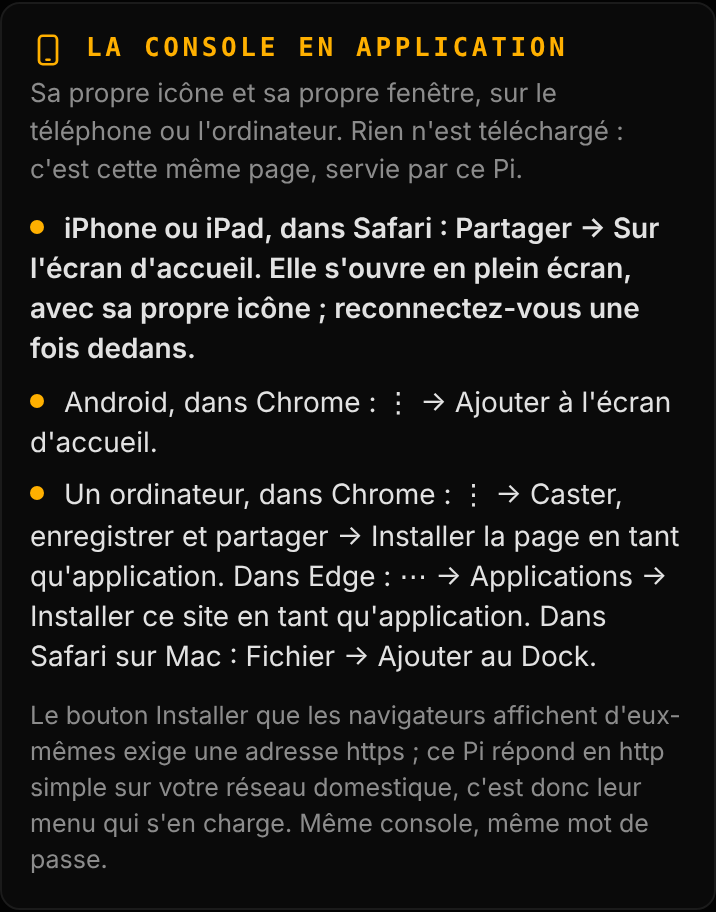
| iPhone, iPad (Safari) | Share → Add to Home Screen: full screen, its own icon. Sign in once more inside it with the console password: iOS keeps an app's cookies apart, and a QR code opens in Safari, not in the app. A phone paired by QR code only (no password) must have one chosen first: sudo zenithboard console password (0.53.8: the card and the pairing window used to tell it to add the page from Safari and say nothing of this) |
| Android (Chrome) | ⋮ → Add to Home screen |
| A computer | Chrome: ⋮ → Cast, save, and share → Install page as app. Edge: ⋯ → Apps → Install this site as an app. Safari on a Mac: File → Add to Dock |
Why the menu, and not an Install button. The Install button browsers offer by themselves, and the prompt the card shows when one is offered, need an https address (Chrome's install criteria). The Pi answers in plain http on the home network, so the browser's menu does it instead: same page, same password. Over an https address (a Tailscale or domain name that serves https), the card shows Install the app itself.
What it adds: console.webmanifest (name, /console as start and scope, standalone), four icons drawn by
tools/make_console_icons.js from the wall's own shapes and font (192 and 512 px, a maskable 512 px, 180 px for iOS),
and a service worker, /console-sw.js, registered only over https. It keeps nothing: every page and every answer
comes from the Pi, as before, so nothing stale is ever shown. The console's CSP and headers are unchanged.
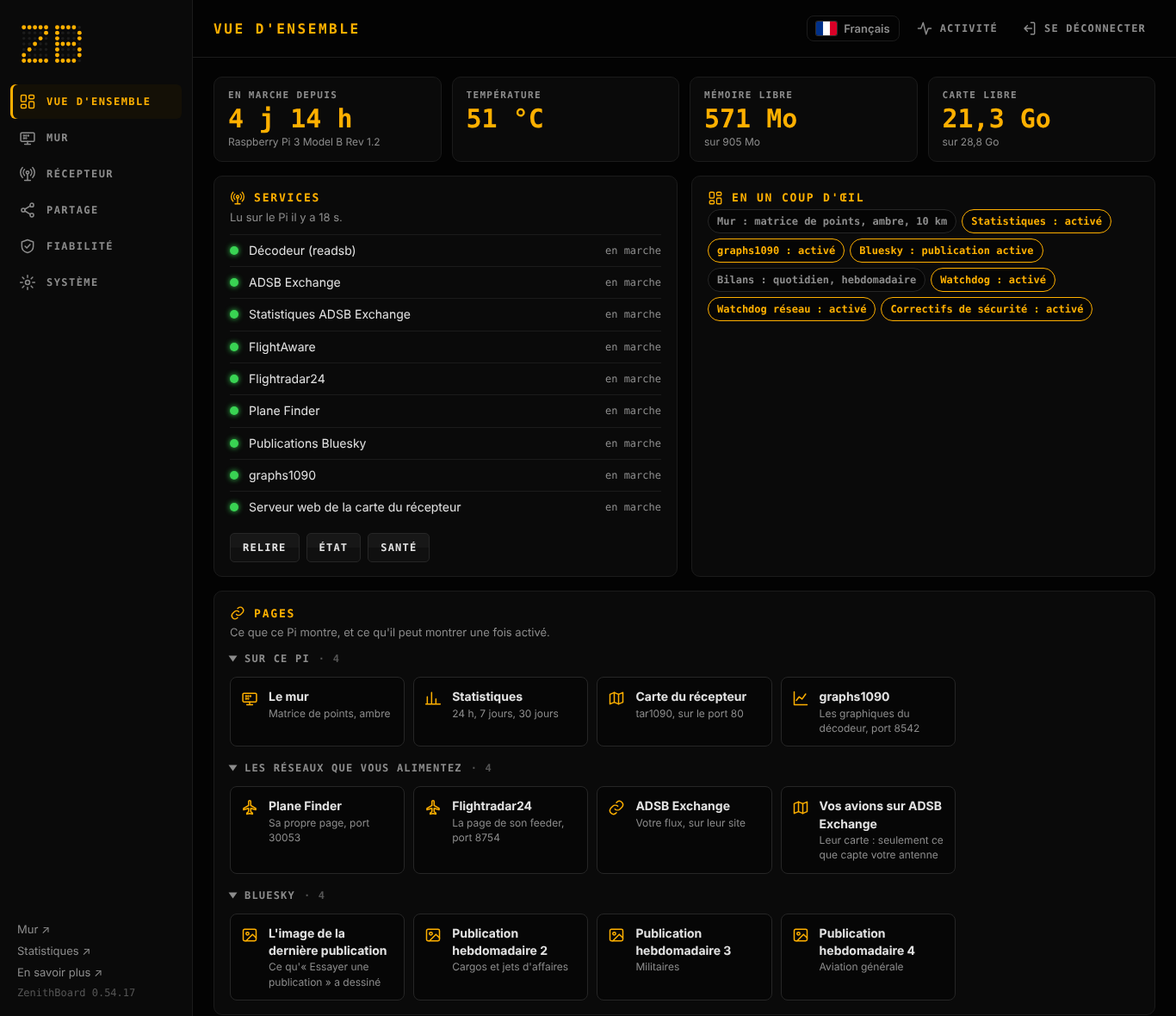
22 languages (French 0.47.0, Swahili 0.53.1, Hindi 0.55.0, the others 0.48.0): English, French, German, Dutch, Italian, Spanish,
Portuguese (Brazil), Polish, Finnish, Estonian, Latvian, Lithuanian, Indonesian, Swahili, Hindi, Russian, Ukrainian, Arabic
(right to left), Japanese, Korean, Chinese (Simplified and Traditional); Swahili and Hindi without a native speaker's review yet —
Translating. The first visit asks before
the password: the browser's own language and English as two buttons, the others in one list; once signed in, that choice becomes the Pi's default
(CONSOLE_LANG) for every browser that did not choose. The flag at the top (here, on /stats and on graphs1090's
page) changes it for that browser only. The Pi's default: System → Language, sudo zenithboard console lang fr, or
the menu (7 Options → 4 Web console → 7). What the Pi prints — the output in the cards, Activity, the terminal —
stays in English, like the menu. A word that reads wrong: Translating.
One section on screen at a time: a side bar on a computer, tabs at the bottom of a phone. A section is shown by the page itself, the address's # written without the browser navigating (0.99.1: on an iPhone through Tailscale each tap used to reload the whole page); back and forward go through the sections. The side bar's foot links to the wall, the statistics page, the project's site zenithboard.app (Learn more ↗, 0.53.2) and the running version's release notes.
| Section | What is in it |
|---|---|
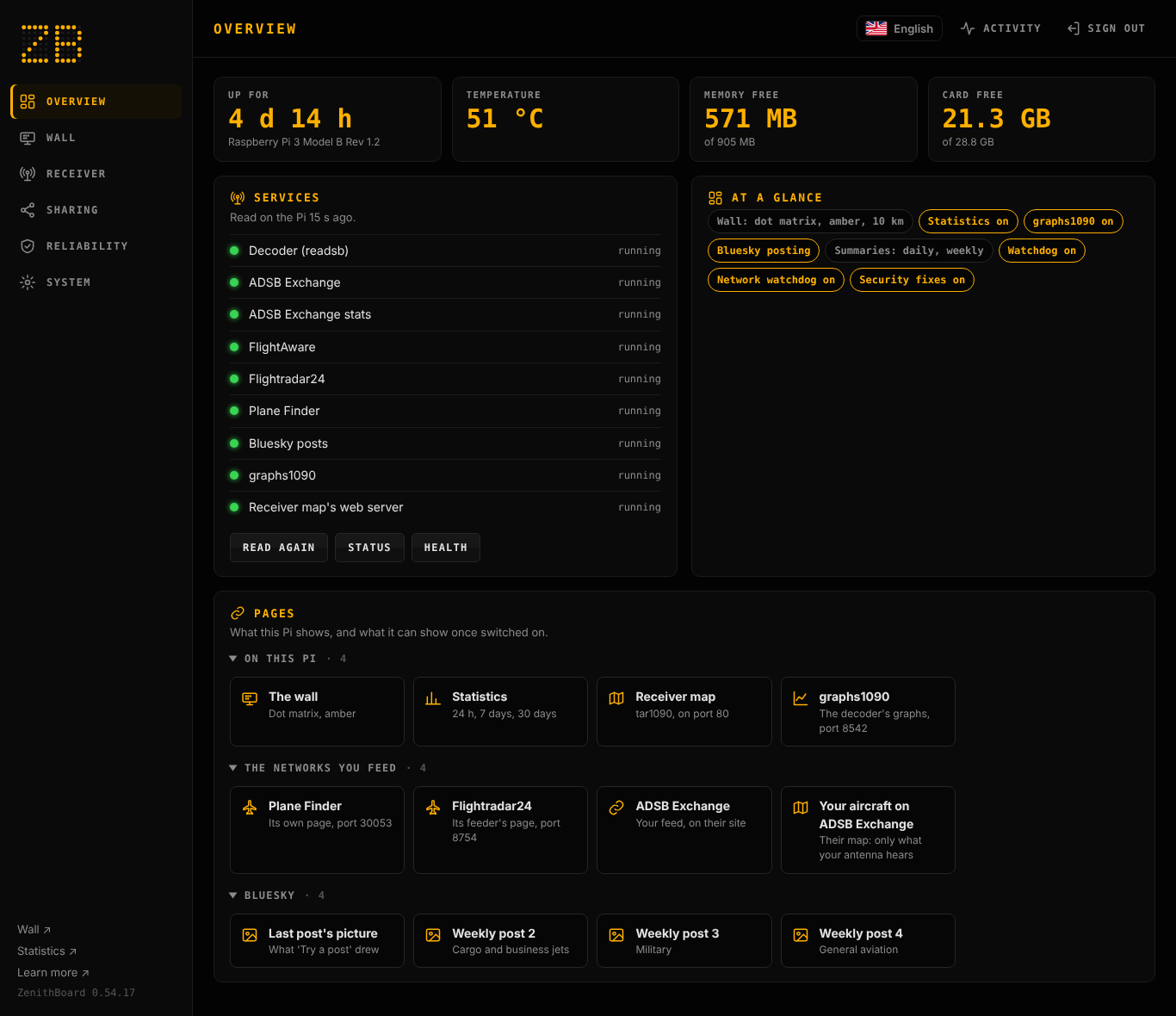
| Overview | Up time, temperature and power warnings, memory, card; each service running or not; links to every page this Pi serves and to the ones it can serve once switched on, in three groups since 0.54.18 (the owner's request): On this Pi (the wall, /stats, the receiver map, graphs1090), The networks you feed (Plane Finder, Flightradar24, ADSB Exchange, your map there once its stats are on) and Bluesky (the post pictures). Each group folds to its title alone; the browser remembers which ones you left folded |
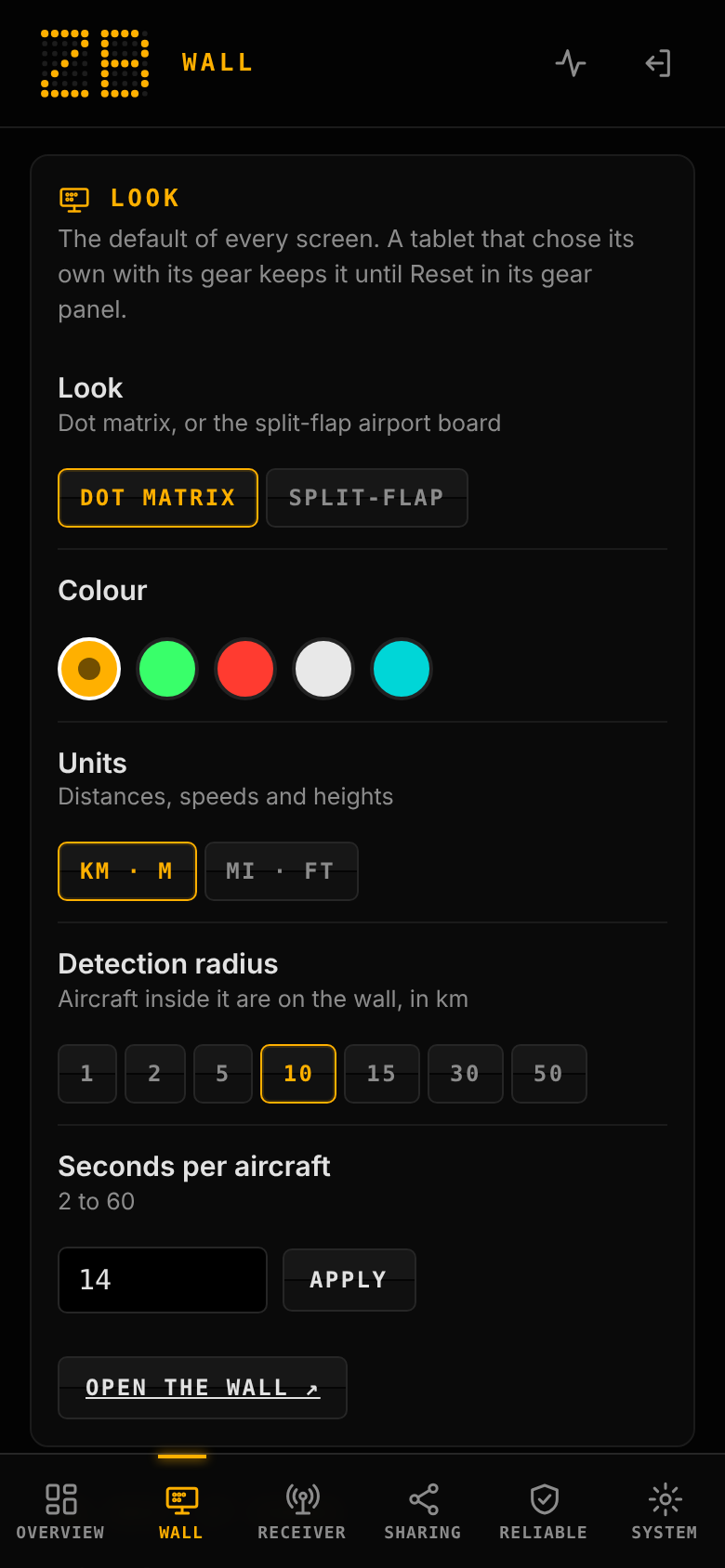
| Wall | Look, colour, units, radius, seconds per aircraft; photos, routes, the receiver map's database, the monthly data refresh |
| Receiver | Region, antenna position, statistics, graphs1090, ADSB Exchange's stats (0.52.0, with the link to their map of your aircraft), the gain (check, one step down or up), the gain log, status |
| Sharing | Telegram (0.99.6): on or off, the crossings and which ones, the emergency squawks, the messages' language and units, try them, send a test, status; Your own Telegram messages, one for each kind, with the tags a click away and a try. The bot's token and the chat stay in the terminal (sudo zenithboard telegram setup). Bluesky on or off; the place name, the sharing radius, what is worth a post, the gap, the town names on the maps (0.50.0); the picture (look, colour, map, units, photo link, the words, the hashtags, the posts' language, 0.51.0); Your own templates, with the tags a click away and a try (0.51.0); the three summaries (on or off, day and time, which posts, a try); Try a post and the pictures |
| Reliability | Hardware and network watchdogs, logs kept after a restart, Wi-Fi hardening, daily security fixes, daily log clean-up; health, memory, logs |
| System | Update ZenithBoard and the wall, update everything; the pages' language (0.47.0); Tailscale (0.46.0: connect, its sign-in link as a button, disconnect, the console over it, its addresses; removing it stays in the terminal); a backup to make, download and delete (0.42.0, without the networks' identities: Backup and restore); network, Wi-Fi and domain name status; who is signed in, pairing a phone; the security check; turning the console off |
What every control does appears in its own card, under it, as the Pi prints it: a button (Health, Memory, Status, a log, a try of a post), a switch, a choice, a field applied, an update or graphs1090 that takes minutes. The command is on the first line, then its answer, then done or exit N; ⤢ opens it in Activity, × closes it. One per section: the last one. The earlier ones are in Activity. Activity (top right) shows the job running as it prints, the last jobs, the journal of changes and the sign-ins. Click one of the last jobs to read what it printed: it opens at the top of the drawer.
-
It takes the wall's colour. Its accents, buttons and the logo are in the colour the wall is set to (Wall →
Colour,
zenithboard colour): amber by default, and black and white when the wall is white — not a night mode (the owner asked, 21 October 2026). graphs1090's page, in ZenithBoard's look, takes the same colour. - One change at a time. The Pi runs the console's commands one after the other, like typing them one by one in a terminal. A change made while a long one runs (installing graphs1090, an update: minutes) waits its turn: its control shows a dashed, waiting state, and the page says Queued: graphs1090 runs first. Nothing is lost, and the order is the order of your clicks. Only a change waiting with nothing running means the helper is missing (see below).
-
The QR code is never on the sign-in page. It is made by a browser already signed in (System → Signed in → Pair
a phone) or over SSH (
sudo zenithboard console pair). Shown on the sign-in page, it would sign in anyone on the network who scans it. - A QR code signs in the phone that scans it, and only that one, once. It does not sign in the computer that showed it (that one is already signed in), nor another device later. Each browser has its own sign-in: the password, or its own QR code.
- A computer can be signed in by a phone (0.40.0, off by default): see below.
- Enter applies, and the summaries say when they cannot go out (0.54.8). Enter in a field does what the button beside it does. The Summaries card, and the first steps, say when no summary goes out (no Bluesky account, or posting off). Try a post offers The picture only when it drew one; on an empty sky it says to try again when the wall shows an aircraft nearby. Emptying Your own templates and saving asks first, like Delete them all.
- It stays fresh and keeps the keyboard's place (0.99.18). Left open, the page reads the Pi again every two minutes and when its tab is shown again (Read on the Pi gives the time of that reading), never while a question is open or a field is being typed in. Enter in a field applies it once: its button then waits (…). After a change the focus stays on the control that had it, drawn again; a control waiting for the Pi keeps the focus and does nothing. Activity and every question take the focus and keep Tab inside them, the page behind out of reach; Escape or × gives it back to what opened them.
- It fits a phone, and Arabic (0.99.19). On a phone the line under a figure of the overview (the Pi's model, a power warning) wraps instead of being cut, and at 400 px or less the figures are a little smaller; a figure or a line still too long gives its whole text when held or hovered. The tab labels lose their letter spacing there, so STABILITÄT or НАДЁЖНОСТЬ stay one word. A message (Saved, an error in red) shows at the top of a phone, under the notch, across its width, and a tap goes through it: it never covers the tabs or the first steps' buttons. Right to left, the side bar marks the chosen section on its outer edge and a list's dot keeps its gap before the words.
-
Forgotten password, full card, failed command, update (0.54.7). The sign-in page says how to get a new password
(
sudo zenithboard console password: every browser and phone is signed out). The pairing window says the phone must be on the home Wi-Fi. A change that cannot be written because the card is full says so, withzenithboard health,logs usageandbackup list, instead of Turn the console on again. A command that fails points at what it printed beside the button or in Activity. After an update the page of the old version reloads itself once the wall answers with the new one.
Only in the terminal, on purpose: uninstalling and anything that asks for a typed word; Wi-Fi on, off, networks,
country, and fixed addresses (one mistake cuts the Pi off the network the page comes through); passwords, tokens and
keys (the Bluesky account, the domain name, the console's own); posting to Bluesky (0.50.0 had a written post here; the
owner had it taken out in 0.51.0); emptying statistics or logs;
importing settings or restoring a backup; config-set. An update never accepts a new GitHub signing key from the console: it says so, and
the key is answered over SSH.
The wall's server runs as the unprivileged zenithboard user inside its sandbox. It cannot change the Pi, and the
console does not give it that right:
-
Home networks only: 10/8, 172.16/12, 192.168/16, link-local and the Pi itself, whatever
ALLOW_FROMsays (a narrowerALLOW_FROMstill applies). The page must be opened by an address or a local name (*.local,*.lan,*.home.arpa, the Pi's own name, or one listed inCONSOLE_HOSTS): a site elsewhere that points its own name at the Pi (DNS rebinding) gets nothing. -
The session: a random cookie,
HttpOnly,SameSite=Strict, limited to/console, kept on the Pi only as its SHA-256 (/var/lib/zenithboard/console/state/sessions.json, 0600). Every change also carries a second token in a header and must come from the page's own origin, so another site cannot make the browser change anything. - A computer signed in by a phone (off by default): only a phone already signed in can say yes, after seeing the computer's name, address and four-digit code; the QR code holds no secret; a request is answered once, within two minutes; twenty requests per address per ten minutes at most.
- Failed sign-ins: five from an address, then a wait that doubles (30 s up to an hour); thirty in a quarter of an hour from anywhere, and everyone waits five minutes. Each is noted in Activity and in the wall's journal.
-
A fixed list of actions (
flightinfo/console_actions.py): each is onezenithboardcommand whose values must be one of those listed, a number in its range or text matching its pattern. The server checks the request against it and writes a small job file into the one folder it may write (ReadWritePaths=/var/lib/zenithboard/console/state). -
A root helper (
tools/console_run.py), started byzenithboard-console.pathwhen a job appears: it opens the file without following links, requires a plain file of the wall's user under 4 KB, checks it against the same list (root's own copy in/opt), and runs the one command as an argument list — never through a shell — with its input closed and a time limit. What it prints goes to/var/lib/zenithboard/console/out/(root's, read by the wall), with a journal line per change. -
The page: strict security headers (
Content-Security-Policywith no inline code,frame-ancestors 'none',nosniff, no referrer), no file from the internet: the fonts, the dots and the QR code generator (MIT,flightinfo/static/vendor/) are on the Pi.
What it does not protect against: the page travels unencrypted on your home network (plain HTTP, like the wall),
so someone able to read your Wi-Fi traffic could read a session cookie. Use it on a network you trust; turn it off
when you do not need it. zenithboard security says it is on and checks the password file's mode.
The way in is always the terminal. The console replaces nothing: SSH, the menu (sudo zenithboard menu, 7 Options → 4 Web console) and every zenithboard command work whether the console is on, off, stuck or broken, and the console cannot touch SSH, Wi-Fi or the network addresses. So the break-glass procedure is: open SSH, then follow the line that matches.
| What you see | Step by step, over SSH |
|---|---|
| Password forgotten | 1. sudo zenithboard console password (choose a new one; everyone is signed out). 2. Sign in again |
| "This pairing code is used or out of date", with a fresh code | The wall could not write its console folder: it was started before console on made it, and its sandbox opens only folders present at its start (0.39.0, fixed in 0.39.2: console on restarts it, the code no longer depends on that write). 1. sudo systemctl restart zenithboard-flightinfo. 2. sudo zenithboard console pair again (a code works once, five minutes). The page also says it when the folder cannot be written |
| "Busy. Try again in a few seconds." (0.99.10) | Other sign-ins were being checked at that moment (two at a time). Sign in again a few seconds later; if it keeps coming back, something on the network is trying passwords: Activity → Sign-ins shows the addresses |
| "Too many tries. Wait N seconds." (failed QR codes count too) | 1. Wait, or 2. sudo systemctl restart zenithboard-flightinfo (the count lives in the wall's memory; signed-in sessions survive the restart) |
| Phone lost, or a browser you do not know in Signed in | From a browser still signed in: System → Signed in, Sign out beside that one: since 0.54.15 what it signed in goes with it (a computer it said yes to, a phone paired with a code it made), and since 0.99.10 what it had not yet signed in (a code not used yet, a yes the computer has not collected). Sign out the others if in doubt. Or over SSH: 1. sudo zenithboard console signout (every browser and phone out at once). 2. sudo zenithboard console password if the password may be known. 3. Pair your phone again: sudo zenithboard console pair
|
| The page says the console is off | sudo zenithboard console on |
| 403 "home network only" or "open it by the Pi's address" | 1. Open it as http://192.168.x.x:8080/console (the Pi's address: hostname -I), from a device on the home network. 2. By a name of your own (not *.local): sudo zenithboard config-set CONSOLE_HOSTS your.name. 3. A VPN whose addresses are not private (Tailscale's 100.64/10) is refused until you say so: sudo zenithboard tailscale console on (0.46.0; off by default), or SSH through it. A narrower ALLOW_FROM applies too (zenithboard config) |
| A change stays queued behind another (Queued: … runs first) | Normal: one change at a time. Wait for the one running (its output: Activity). To give up on it: see A change stays running |
| A change stays queued with nothing running (the page warns after 20 s) | The helper is not running. 1. sudo zenithboard console status (Helper: active?). 2. sudo zenithboard console on (reinstalls it). 3. Still queued: journalctl -u zenithboard-console -n 50 and systemctl status zenithboard-console.path
|
| A change stays running | 1. Look at what it prints: Activity, or sudo ls -t /var/lib/zenithboard/console/out/ | head, then sudo cat the newest .log. An update or graphs1090 can take minutes. 2. To stop it: sudo systemctl stop zenithboard-console.service
|
| Jobs piling up, or you want none to run | 1. sudo zenithboard console off (the helper stops; nothing more runs). 2. Drop what waits: sudo rm -f /var/lib/zenithboard/console/state/spool/*.job. 3. sudo zenithboard console on when you want it back |
| A setting made from the console broke something | 1. Activity → Changes, or sudo zenithboard console status (the last five), or sudo cat /var/lib/zenithboard/console/out/journal.log: each line is the command run, with its value. 2. Run the opposite yourself (sudo zenithboard radius 10, sudo zenithboard watchdog off…) or use the menu. Nothing the console does is beyond what those commands undo |
| The page does not load at all | 1. systemctl status zenithboard-flightinfo and zenithboard logs flightinfo (the console lives in the wall's server). 2. sudo systemctl restart zenithboard-flightinfo. 3. The wall itself (/) loads but not /console: sudo zenithboard console status
|
| The first steps should come back |
System → First steps again, or …/console#first-steps; to have them open by themselves at the next sign-in: sudo rm /var/lib/zenithboard/console/state/wizard-done
|
| No SSH either (Pi not on the network) | Not caused by the console, which cannot change the network. Keyboard and screen on the Pi, or the card in another computer: Reliability and diagnostics |
sudo zenithboard console forget      # off; deletes the password, the sessions, the record of jobs, the wizard's mark
sudo zenithboard console password    # a new password
sudo zenithboard console on          # the helper again; the wizard comes back at the first sign-in
sudo zenithboard console pair        # the phone again (QR code)
sudo zenithboard console forget. The Pi is then as before 0.39.0: no helper, no password, no console folder in use, /console answers "off". The code stays in the release, unused; nothing else depends on it.
| File | What |
|---|---|
/etc/zenithboard/console.env |
The password's scrypt hash and when everyone was last signed out. root:zenithboard 0640 |
/var/lib/zenithboard/console/state/ |
The wall's: sessions (hashes), the job spool, the sign-in record. 0700. Since 0.99.11 root never follows a link found at state/ or its spool/ (it removes it), and the root helper opens the spool once without following a link and reads and removes every job through it (Security) |
/var/lib/zenithboard/console/out/ |
Root's: each job's output and end, the journal, the overview's facts, a terminal pairing code's hash, the last backup made here (backup.tar.gz, root:zenithboard 0640, one at a time) |
/etc/systemd/system/zenithboard-console.path · .service
|
The helper, installed by console on only |
CONSOLE=1 in config.env
|
On; CONSOLE_HOSTS=name1,name2 adds names the page may be opened by |
Built and previewed on 21 October 2026 against a stand-in for the zenithboard command (desktop and phone width,
headless Chromium): the wizard, every section, Activity, the QR code. The request checks, the sessions, the pairing
and the helper are covered by tests/test_console.py and tests/test_console.sh; the keyboard, the drawer, the
questions and the fresh reading by tests/test_console_keys.js (headless Chromium, 0.99.18), with a 360 px phone in
English, French, Russian, German and Arabic since 0.99.19. In use on the reference Pi since
21 October 2026: the systemd path unit and the helper as root (graphs1090 installed from the page), an iPhone paired by
QR code, a backup downloaded. Not yet seen there: a real update from the page. See Project status.