Repository navigation
Adding a Remote Linux Machine
Home / Remote Monitoring / Adding a Remote Linux Machine
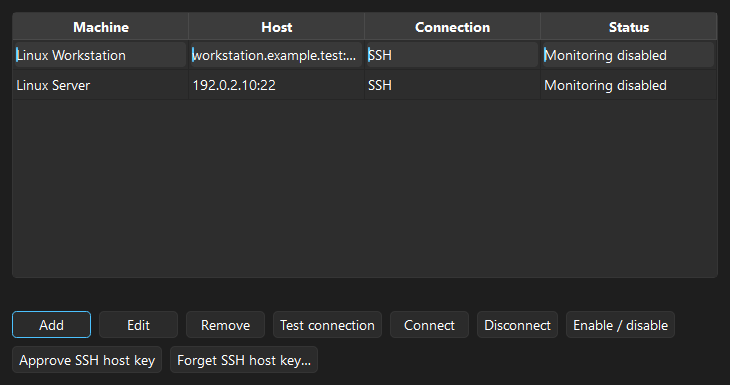
- Open Remote Targets → Manage Remote Targets from the tray, then choose Add.
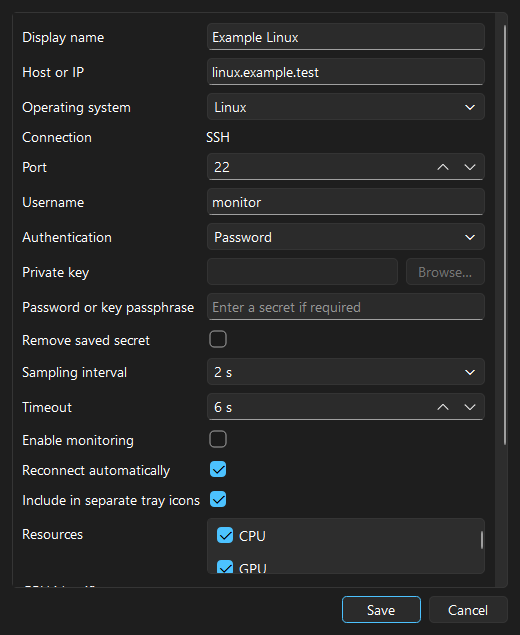
- Set a display name such as Lab Linux. Enter your authorized host and port. A documentation example is
linux.example.test, port22, accountmonitor. - Choose Linux, then Password or Private key. Private key authentication includes the key-file picker and a passphrase when required. Saved secrets use Windows Credential Manager.
- Save the initially disabled profile. Select Test connection to request the SSH key and one telemetry sample.
- Obtain the true fingerprint separately from the system or its administrator. Compare it with the prompt, then choose Approve SSH host key for a matching fingerprint. Test again.
- Choose Connect or edit the profile to enable monitoring. Check the machine in the monitor dropdown to show it.
See SSH Configuration for prerequisites and Connection Troubleshooting for failures.

Original application developed by Sonja M Thomas, SLT Design Creations, LLC. Copyright 2010-2026 SLT Design Creations, LLC. Design Creations