Repository navigation
Quick Start
Home / Getting Started / Quick Start
- Install or extract ARM, then launch it.
- Find the graph icon by the Windows clock. Use the overflow arrow if needed.
- Hover until the monitor opens. Select Local Machine once for a first view. Wait for a few samples to populate the lines.
- Select Details for a larger view. Use Pin to keep the small monitor on screen.
- Open Settings in the main window or from the tray. Choose a theme, colors and sampling interval, then Save.
- To add another machine, follow Adding a Remote Linux Machine.
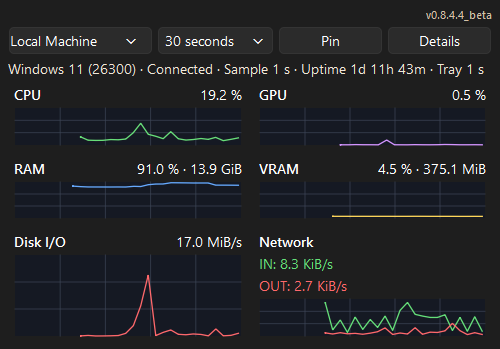
The example uses the previous Beta capture of the same single-machine layout.
Previous · Portable Edition · Next · First-Time Configuration

Original application developed by Sonja M Thomas, SLT Design Creations, LLC. Copyright 2010-2026 SLT Design Creations, LLC. Design Creations