Repository navigation
mgmt2
- Hostname: mgmt2

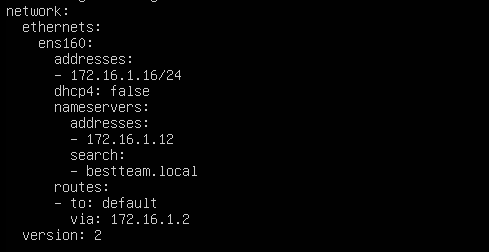
Using netplan to configure the IP, DNS, and gateway address:
sudo vi /etc/netplan/00-installer-config.yaml- IP = 172.16.1.16
- DNS = 172.16.1.12
- Gateway = 172.16.1.2
- Adding a DNS record for mgmt2 on dc1

-
Using these commands:
-
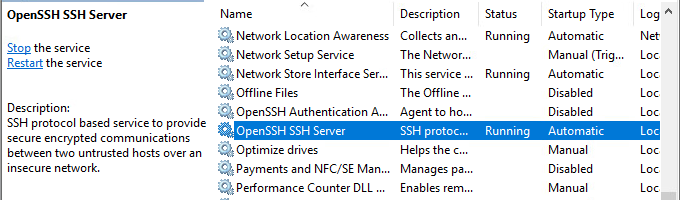
Add-WindowsCapability -Online -Name OpenSSH.Server~~~~0.0.1.0 -
Start-Service sshd -
Set-Service -Name sshd -StartupType 'Automatic' -
Set-ItemProperty "HKLM:\Software\Microsoft\Powershell\1\ShellIds" -Name ConsolePrompting -Value $true -
New-ItemProperty -Path HKLM:\SOFTWARE\OpenSSH -Name DefaultShell -Value "C:\Windows\System32\WindowsPowerShell\v1.0\powershell.exe" -PropertyType String -Force
- Create a Deployer user account with the same password on each box
- Ensure Deployer can elevate to root
- On each machine, create the file /etc/sudoers.d/sys265
- Add the line
deployer ALL=(ALL) NOPASSWD: ALL

- This will allow the Deployer user to elevate to root without being prompted for a password, which is essential when using Ansible for installations and configuration changes
ssh-keygenssh-copy-id user@hostnameeval $(ssh-agent)ssh-add -t 14400

sudo apt install ansible sshpass python3-paramiko

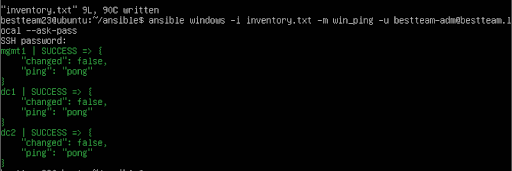
To ensure Ansible was working and that we had connections to all necessary hosts, we created an inventory.txt file, and used it to differentiate between Windows and Linux boxes. We then used Ansible's ping module to ensure that we could run playbooks on all hosts.
- For Windows:
ansible windows -i inventory.txt -m win_ping -u bestteam-adm@bestteam.local --ask-pass
- For Linux:
ansible centos -i inventory.txt -m ping
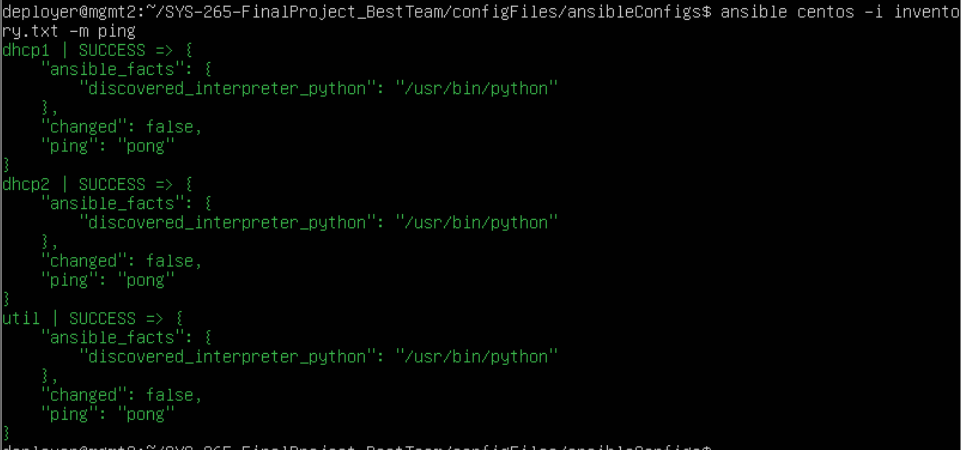
To fulfill RVTM requirements 4, 11, 12, 13, and 14, we had to use MGMT2 as an Ansible controller and deploy a variety of accounts and services across several different machines. This section will cover the use of Ansible to deploy Windows domain user accounts, Linux local accounts, apt and yum packages, and the application Gitlab on the Util machine.
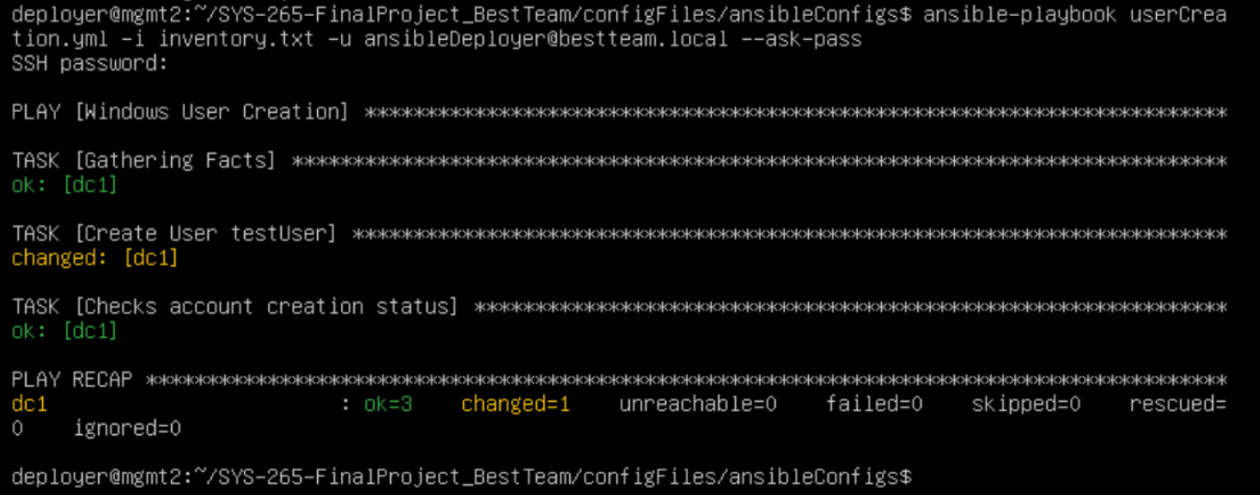
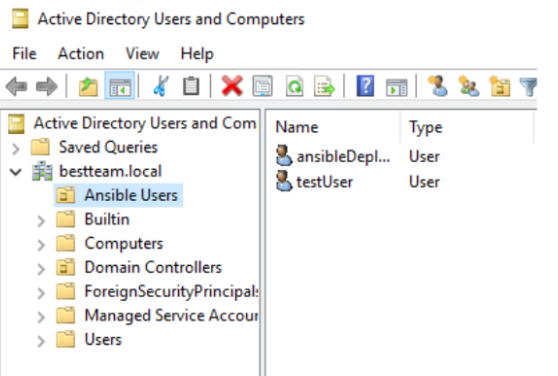
To deploy Windows Domain user accounts, I used the community.windows.win_domain_user Ansible module. As you can see in the windowsUserCreation.yml file, I also had to specify the account username and password, and an AD-joined account with sufficient privileges to create the account. Prior to running this playbook, I made a new OU called Ansible Users on DC1, as well as an ansibleDeployer account, so that our named admin credentials were not viewable within the playbook. I then used the command ansible-playbook userCreation.yml -i inventory.txt -u ansibleDeployer@bestteam.local --ask-pass to run the playbook and create the user.
Running the Playbook:
testUser appears in the OU:
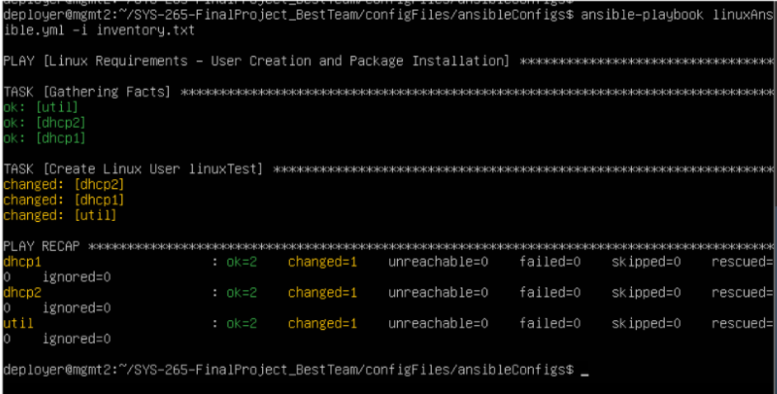
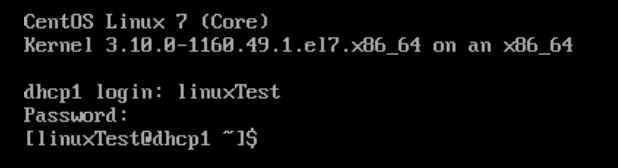
I used a very similar process to create Linux users via Ansible. In this case, User Creation is the first task within the linuxAnsible.yml file. It uses ansible.builtin.user module, which requires a username and password for the new user. This was interesting to configure, because it actually wanted a SHA-512 hash instead of a plain-text password. I used the command mkpasswd --method=sha-512 fakePassword >> linuxAnsible.yml to convert the password to the hash and pipe it into the .yml file. I was then able to run the playbook and create the accounts using the command ansible-playbook linuxAnsible.yml -i inventory.txt.
A Successful Playbook Run:
A Successful Login from the linuxTest User on DHCP1
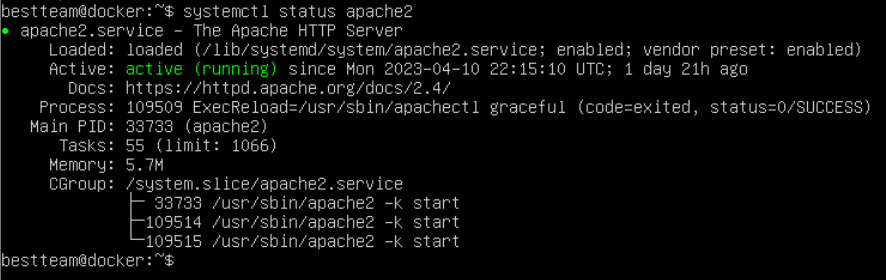
Deploying an APT package was the third task of the linuxAnsible.yml playbook. I decided to install Apache2 by using the ansible.builtin.apt module. This was quite simple, as I just had to specify the name of the package and the state. I set the state to present, because I wanted Apache to be installed. For this to work, I had to set up an SSH connection and passwordless login to Docker (an Ubuntu Linux server), using the steps outlined above. I then was able to run the playbook using the command ansible-playbook linuxAnsible.yml -i inventory.txt. The play ran successfully, and apache was installed.
APT Install Apache2:

Apache2 Active and Running:
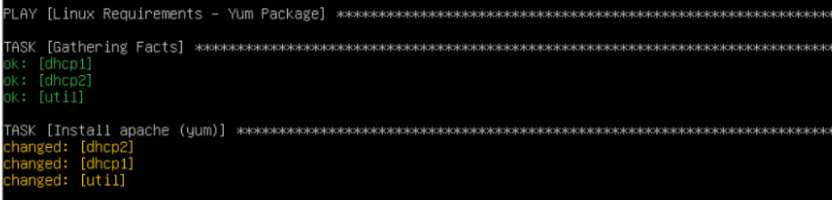
Deploying a YUM package was the second task of the linuxAnsible.yml playbook. It used a very similar process as installing the APT package. I decided to install httpd by using the ansible.builtin.yum module. This was quite simple, as I just had to specify the name of the package and the state. I set the state to present, because I wanted httpd to be installed. I then was able to run the playbook using the command ansible-playbook linuxAnsible.yml -i inventory.txt. The play ran successfully, and httpd was installed.
YUM Install httpd:
httpd is present:

For the Ansible Service deployment on Util, we chose to install Gitlab. Gitlab is a GUI management system for using git and accessing git files from CLI-only servers. I pulled the configuration files from Ansible Galaxy with the command ansible-galaxy install geerlingguy.gitlab. I then had to customize the URL to fit our environment. I did that by creating a /vars/main.yml file, and appending the line gitlab_external_url: "https://gitlab.util". I then updated the DNS records on DC1 to ensure that gitlab.util pointed to 172.16.1.17.
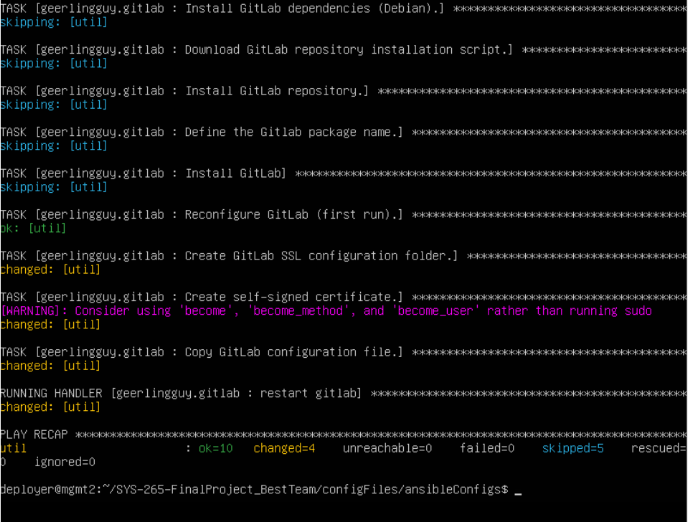
The playbook actually failed the first time I ran it, because it needed to curl a file, and Util did not have curl installed. I used the command sudo yum install curl to install curl, then ran the playbook again. It actually didn't work the second time either. After looking through the error logs on Util, I determined that the issue was that some of the commands within the playbook required root level access, and it wasn't properly elevating to allow that. I went into the /tasks/main.yml file, and updated each task after the error occurred to allow elevation to root by adding the line become: true. After that, I was able to run the playbook successfully!
The final, successful playbook run:
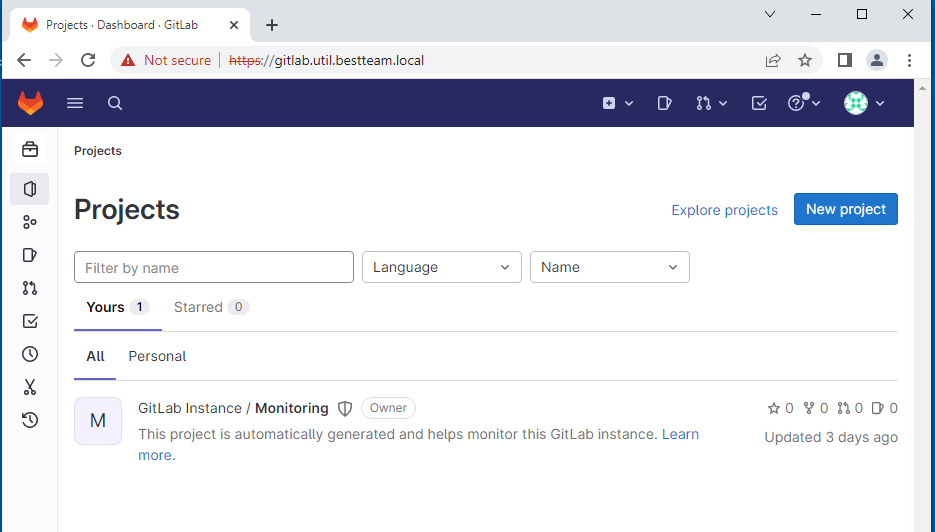
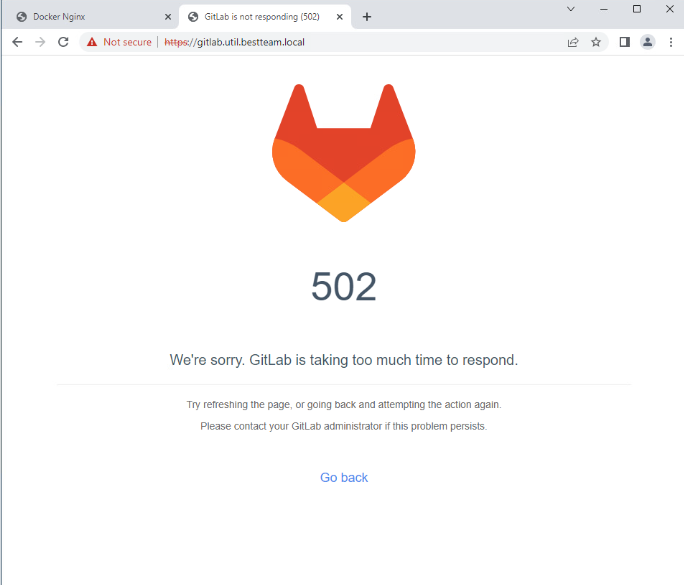
After the playbook ran successfully, it was time to access Gitlab from W2. The first time I tried this, the Gitlab symbol came up, along with an error message about response time. After I determined that it was a memory issue on Util, we were able to assign Util more memory, and access Gitlab.
The Original Gitlab Message:
To reset the default password, I ran the command sudo gitlab-rake "gitlab:password:reset" on Util. I was able to set the password to a password of my choice, which I then used to log in to the Gitlab User UI. I was able to navigate throughout the UI, and it is working as intended.
A Fully Functional Gitlab: