Repository navigation
util
The following configuration is for a CentOS 7 Gitlab server, named util.
The network and other basic system configurations for CentOS 7 were done manually and not via script, unfortunately, due to troubles with moving a Bash script from local storage to virtual storage. The procedures outlined in the script were simply implemented manually here, including:
- Creating a local admin user
- Configuring the network adapter
- Setting the hostname
- Editing the /etc/sudoers file
The realmd service needs to be installed before joining a Linux system to a Windows domain. Use the following commands to install and then join:
sudo yum install -y realmd samba samba-common oddjob oddjob-mkhomedir sssd
realm join --user=Administrator@bestteam.local bestteam.local
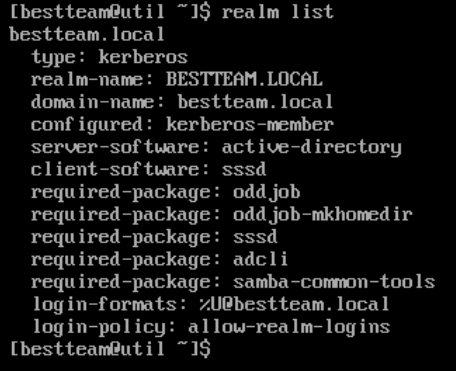
Use the realm list command to see what domain a Linux machine is joined to:
For the Ansible Service deployment on Util, we chose to install Gitlab. Gitlab is a GUI management system for using git and accessing git files from CLI-only servers. I pulled the configuration files from Ansible Galaxy with the command ansible-galaxy install geerlingguy.gitlab. I then had to customize the URL to fit our environment. I did that by creating a /vars/main.yml file, and appending the line gitlab_external_url: "https://gitlab.util". I then updated the DNS records on DC1 to ensure that gitlab.util pointed to 172.16.1.17.
The playbook actually failed the first time I ran it, because it needed to curl a file, and Util did not have curl installed. I used the command sudo yum install curl to install curl, then ran the playbook again. It actually didn't work the second time either. After looking through the error logs on Util, I determined that the issue was that some of the commands within the playbook required root level access, and it wasn't properly elevating to allow that. I went into the /tasks/main.yml file, and updated each task after the error occurred to allow elevation to root by adding the line become: true. After that, I was able to run the playbook successfully!
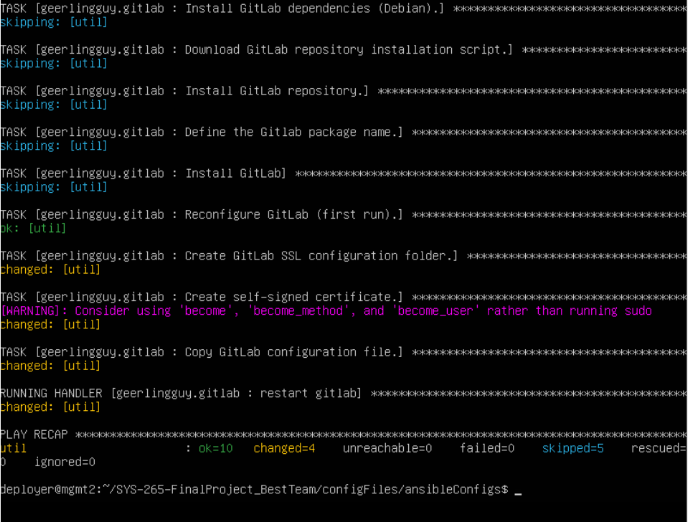
The final, successful playbook run:
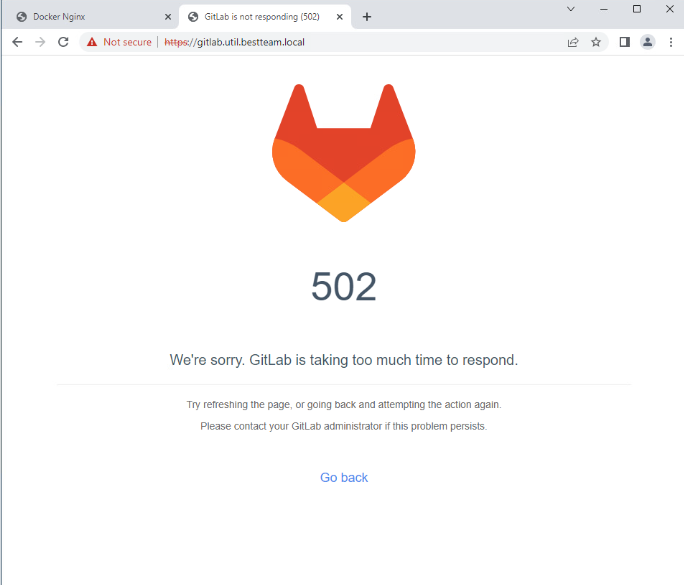
After the playbook ran successfully, it was time to access Gitlab from W2. The first time I tried this, the Gitlab symbol came up, along with an error message about response time. After I determined that it was a memory issue on Util, we were able to assign Util more memory, and access Gitlab.
The Original Gitlab Message:
To reset the default password, I ran the command sudo gitlab-rake "gitlab:password:reset" on Util. I was able to set the password to a password of my choice, which I then used to log in to the Gitlab User UI. I was able to navigate throughout the UI, and it is working as intended.
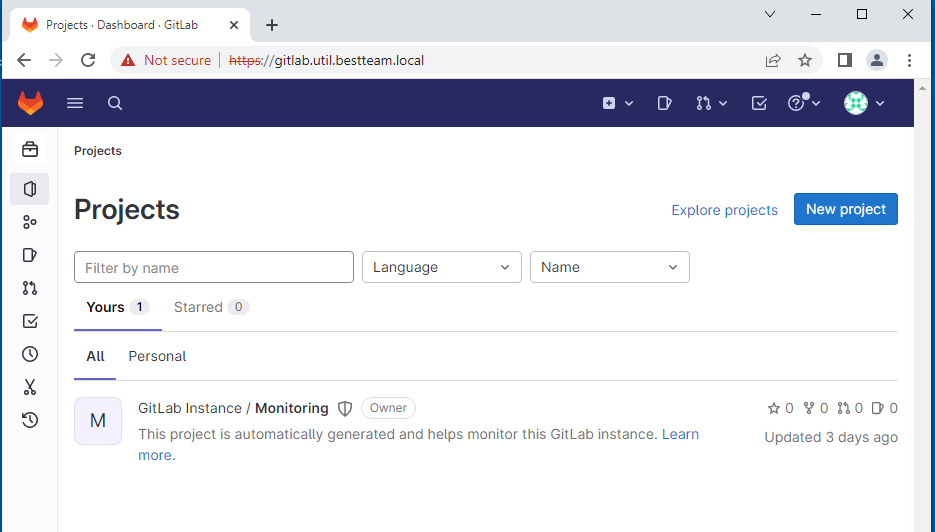
A Fully Functional Gitlab: