Repository navigation
Pairing and Moving Devices
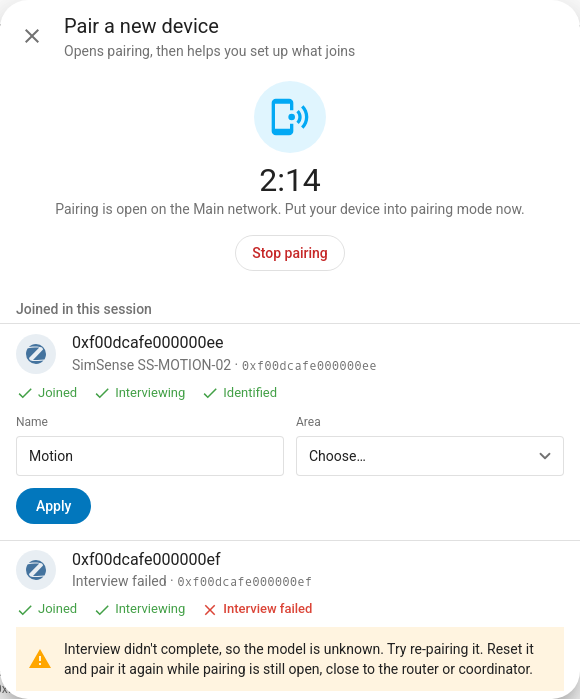
The pairing button on the Devices tab opens Pair a new device. Pick the network and how long to keep pairing open (2, 3 or 4 minutes), then Start pairing. Each device that joins is listed with its progress: Joined, Interviewing, then Identified or Interview failed. Keep a battery device awake and close by while it's interviewing.
You can open pairing on the whole network, or through one router only. Pairing through the router nearest the new device gives it a strong first connection, instead of whatever router happens to answer first. Routers in the list are grouped by area.
Once a device has been identified, set its name, its area and (for a battery device) its battery type right there, and choose Apply. With a naming pattern set, the name is filled in for you, and it updates as you pick an area. Apply renames the device in Zigbee2MQTT and Home Assistant and sets its area. You don't have to wait to set the area: the tracker asks Home Assistant for the new device directly. If Home Assistant hasn't added the device yet, you get an error saying so; try again a moment later. Stop pairing closes pairing early.
If the interview fails, the dialog says so: reset the device and pair it again while pairing is still open, close to the router or coordinator.
Pairing a device to replace a dead one? Pair it here without naming it, then use Replacing a device on the old one.
Battery devices pick their own router, so they can't be told to switch. Moving re-pairs the device with pairing open only through the router you choose. It keeps its name, history and Home Assistant entities, because its IEEE address doesn't change.
- Open the device and choose Change router, or choose Move on a map advice line.
- Pick the router. Routers in the same room are marked, and the tracker preselects the strongest one in the device's area.
- Choose how long to keep pairing open, then Start.
- Put the device into pairing mode. Usually that's holding its button for about 5 seconds until the light flashes; the dialog links to the device's page on zigbee2mqtt.io for the exact steps. Keep it close to the router.
- The dialog shows Rejoined when the device comes back through the chosen router.
Run a routing scan a few minutes later to see the new connection on the map.
Reconfigure asks Zigbee2MQTT to set up the device's reporting again. It's the first thing to try for a frozen reading or a device that has gone quiet. Battery devices are asleep most of the time, so press a button on one just before you reconfigure it.
Reconfigure is also available as a button entity on each Zigbee device in Home Assistant. See Home Assistant entities.
When Zigbee2MQTT knows of a firmware update for a device, the device shows a Firmware update item on the Health tab and its Info tab, and is listed on the Updates tab.
- Check for firmware update on the Info tab asks Zigbee2MQTT to check now.
- Update installs it. Updates go through one queue, one device at a time. They can take an hour or more on battery devices.
Firmware updates covers the Updates tab, updating everything at once, and the overnight window.
Rename or set area renames the device in Zigbee2MQTT, with Home Assistant rename on so its entities follow, and sets its area in Home Assistant. The old name is kept in the device's history.
A naming pattern gives your devices names that follow one style. Set it in Settings → Device names (option naming_pattern), for example {area} {type} {n}. The setting shows an example name as you type. Empty turns it off.
| Token | Becomes |
|---|---|
{area} |
The device's Home Assistant area. |
{type} |
A short kind worked out from what the device exposes, or else its description: Motion, Presence, Door, Leak, Smoke, Gas, CO, Vibration, Thermostat, Blind, Lock, Fan, Bulb, Button, Plug, Switch, Air, Temp, Light sensor, Repeater. |
{model} |
The Zigbee2MQTT model, for example RTCGQ11LM. |
{n} |
The lowest number from 1 that makes the name unique. Without {n}, a name that's taken gets 2, 3 and so on added. |
- A token with no value (no area yet, or a kind that can't be worked out) is left out, along with the space or dash next to it.
-
/,+and#in an area or model are replaced or dropped, because Zigbee2MQTT treats them as part of the MQTT topic. - Names are kept unique across all your networks.
The pattern fills in the name in Pair a new device, and drives the Naming check.
The Naming check lists devices still named by their IEEE address (0x…) and, when a pattern is set, active devices whose name doesn't follow it. A device is only checked against the pattern when every token it uses has a value.
Rename to pattern on the Health tab's Network health card lists each of those devices with its suggested name. Untick any you want to keep, then confirm. They're renamed one at a time, in Zigbee2MQTT and Home Assistant. The old names are kept in each device's history.