Repository navigation
Alerts and Notifications
When a check finds a new problem, or a device joins or leaves, the app sends an alert. Each alert goes to every channel you've turned on in Settings → Notifications:
| Channel | Setting | Notes |
|---|---|---|
| Home Assistant notification | Home Assistant notifications | Clears itself when the problem goes away. |
| Automation event | Automation event | Fires z2m_tracker_alert. On by default. |
| Notify action | Mobile notifications | Any notify action, for example notify.mobile_app_your_phone. |
Send test notification sends one alert through every channel that's on, so you can check they work.
Which problems send alerts is set per check in Settings → Checks. See Health checks.
- A problem alerts once, when it first appears. It doesn't repeat while the problem lasts.
- When the problem clears, its Home Assistant notification is dismissed. If it comes back later, it alerts again.
- Problems that already exist when the app first starts don't alert. The same goes for existing problems when you turn a check's alerts on: you're only told about new ones.
- Ignored problems don't alert.
- Send alerts off stops everything, including the weekly summary notification. Your other choices are kept. With the integration, Settings → Repairs stays empty too.
- While alerts are paused, or during quiet hours, alerts are held and sent later, or not at all.
- When a router goes offline, the devices behind it don't alert on their own. See Router outages.
A device with a problem lists the Home Assistant automations, scripts and scenes that use it. On the Health tab, open Used by under the problem to see them, each with a link to its editor. Its alerts get a line such as "Used by: Hall lights at night, Leak shut-off (+2 more)", so you know what has stopped working before you open anything.
- The list is looked up for devices with problems and for critical devices. If a lookup fails, it's tried again after 1, 5 and 15 minutes.
- Device joined and Interview failed alerts have no Used by line, because nothing uses a device that has only just joined.
- An item that Home Assistant's editor can't open, such as one written in YAML without an ID, is listed without a link.
offline_alert_minutes counts from the moment Zigbee2MQTT marks the device offline, not from its last message. Zigbee2MQTT only does that after its own availability timeout: by default 10 minutes for mains devices and 25 hours for battery devices, or a timeout set for the device in Zigbee2MQTT's configuration.yaml. So with the defaults, a mains device alerts about 70 minutes after it goes quiet (10 + 60), and a battery device about 26 hours later (25 h + 60 min).
Each device's Health tab shows its own steps under When this device alerts: its last message, when Zigbee2MQTT marks it offline (its own timeout or the mains or battery default), the offline alert delay, and Expected reporting if you've set it. If Zigbee2MQTT availability is off for the device, only Not heard from applies, after 2 days.
To change the Zigbee2MQTT timeout, go to Zigbee2MQTT's Settings → Availability for all devices, or set availability → timeout under one device in its configuration.yaml. For a device that should report more often than that, set Expected reporting instead.
When a router goes offline, the devices that route through it often follow. The Offline check groups them. A device whose router in the last routing scan that saw it is offline (or that router's router, and so on) shows under that router on the Health tab. The router gets one problem and one notification, for example "Router offline: Landing plug - 6 devices that route through it are offline too".
- The devices behind it don't alert on their own while the router is down.
- When the router comes back, devices still offline 5 minutes later become normal problems and alert as usual.
- Devices that were never in a routing scan, and routers whose Offline check is ignored, aren't grouped.
- Repairs in Home Assistant follow the same grouping. Each device's own entities still show it offline.
Use ⋮ → Pause alerts before planned work, such as a Zigbee2MQTT upgrade, re-pairing or a power cut. Pick 30 min, 1 hour, 4 hours, until 08:00 (the app's time zone), or Until I resume. While alerts are paused:
- Health keeps checking and lists problems as normal. A banner on every tab shows when the pause ends and how many new problems are waiting.
- No problem alerts are sent. When the pause ends, or you press Resume now, problems that are still there are sent once. Problems that came and went during the pause are never sent.
- Device joined, Device left and Interview failed alerts are not sent, and not sent later either. They still show on the Activity tab.
- Notifications already in Home Assistant stay until their problem clears after the pause.
- The weekly summary and Send test notification still go out.
The pause survives an app restart. ⋮ → Resume alerts ends it early. Changing an alert setting during a pause marks the problems already found as sent, the same as it does outside a pause.
With the integration, the actions z2m_tracker.pause_alerts and z2m_tracker.resume_alerts do the same from automations. See Actions.
Turn on Critical device on a device's Info tab for devices that must never fail quietly: smoke and leak sensors, the freezer plug, the heating. A critical device:
- gets an Offline alert after
critical_offline_minutes(default 5) instead ofoffline_alert_minutes. Set it on Settings → Thresholds → Critical device offline for; - shows a red Critical tag in its panel, in the device list and on the Health tab, and has its own Critical filter in the device list;
- sends its alerts with the title starting Critical:, and with
critical: truein thez2m_tracker_alertevent; - alerts straight away during quiet hours.
Alerts to the notify action (Mobile notifications) for a critical device also carry the Companion app's high-priority data: priority: high and ttl: 0 (Android, delivered straight away), and push: interruption-level: time-sensitive (iOS, shown through Focus modes).
When you replace a critical device, the new one is critical too.
Alerts sent to the notify action through the Home Assistant Companion app come with buttons:
| Button | What it does | On |
|---|---|---|
| Mute 24 h | Mutes that check on that device for 24 hours, the same as muting it in the device panel. On a router outage alert it mutes the router's Offline check, which also quiets the devices behind it. | Device alerts |
| Ping | Pings the device and sends the reply time, or that it didn't answer, as a second notification. | Mains devices that can be pinged |
| Battery replaced | Records a battery change today, the same as the button on the Battery tab (and in Battery Notes, if the device has it). | Low battery and Battery running down alerts |
Tapping the alert opens the device in the Zigbee Tracker. Alerts about a whole network, a group, joins and leaves, the quiet hours summary and the weekly summary have no buttons; tapping them opens the Zigbee Tracker.
Each alert's buttons carry a one-use code. A button works once, for 7 days, and only for the device and check the alert was sent for. Anything else is ignored and written to the app's log. The app hears the buttons through Home Assistant's mobile_app_notification_action event, so they work without the integration.
Alerts also carry a tag, so a repeat of the same alert replaces the old one on the phone.
The buttons are on by default. If your notify action isn't the Companion app and rejects the extra data, turn off alert_actions on the app's Configuration tab. See Configuration.
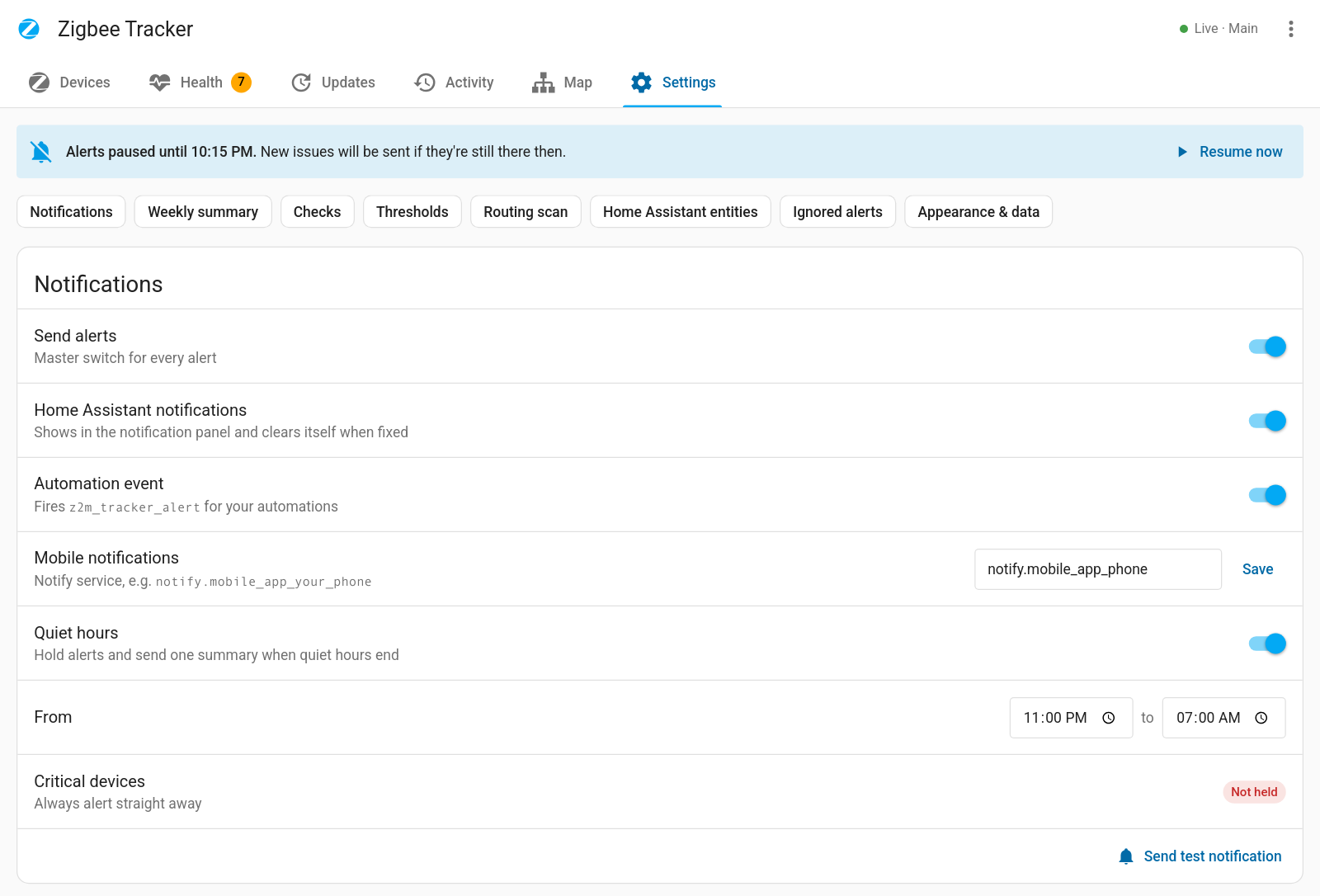
Turn on Quiet hours in Settings → Notifications and set From and to. Between those times, new problem alerts and Device joined, Device left and Interview failed alerts are held instead of being sent. The times are in the app's time zone and can cross midnight. Alerts for critical devices still go out straight away.
When quiet hours end, one notification sums up the night, titled "Zigbee overnight: N issues, M resolved". It lists:
- the problems that are still open;
- the ones that appeared and cleared during the night, with their times;
- the held join, leave and interview alerts.
Problems listed as still open count as alerted, so they aren't sent again one by one. If nothing happened, no summary is sent. Held alerts are kept in the app's data, so they survive a restart.
The options are quiet_hours, quiet_start and quiet_end. See Configuration.
Every alert fires this event (unless Automation event is off), with this data:
| Field | Example | What it is |
|---|---|---|
kind |
battery_low |
The check key, or joined, left, interview failed, test, or digest for the quiet hours summary. |
ieee |
0x00158d0001a2b3c4 |
The device's IEEE address. For a network problem, network:<base topic>. |
name |
Hall motion |
The device's name. |
title |
Zigbee: Hall motion - Low battery |
The notification title. |
message |
Battery at 12%. |
The notification text. |
network |
zigbee2mqtt |
The base topic of the device's network. |
key |
battery_low:0x00158d0001a2b3c4 |
A unique key for this problem. |
critical |
true |
Only there for a critical device. The title then starts with Critical:. |
triggers:
  - trigger: event
    event_type: z2m_tracker_alert
    event_data:
      kind: offline
actions:
  - action: light.turn_on
    target:
      entity_id: light.hall
    data:
flash: shorttriggers:
- trigger: event
event_type: z2m_tracker_alert
event_data:
critical: true
actions:
- action: siren.turn_on
target:
entity_id: siren.hallLeave Mobile notifications empty and pick the alerts in an automation instead:
triggers:
  - trigger: event
    event_type: z2m_tracker_alert
conditions:
  - condition: template
    value_template: "{{ trigger.event.data.kind in ['offline', 'network_offline', 'joined'] }}"
actions:
  - action: notify.mobile_app_your_phone
    data:
      title: "{{ trigger.event.data.title }}"
message: "{{ trigger.event.data.message }}"Once a week the app sends a short summary:
- how many devices are active;
- what needs attention (up to eight, by name);
- batteries to buy for the next 60 days;
- devices that joined or were removed this week;
- how many times each network went offline this week.
Set the day and hour in Settings → Weekly summary, or Send one now to see it. It goes to the same notification channels as alerts, and also fires a z2m_tracker_summary event with title and message, so you can send it anywhere:
triggers:
  - trigger: event
    event_type: z2m_tracker_summary
actions:
  - action: notify.mobile_app_your_phone
    data:
      title: "{{ trigger.event.data.title }}"
      message: "{{ trigger.event.data.message }}"