Repository navigation
Health Checks
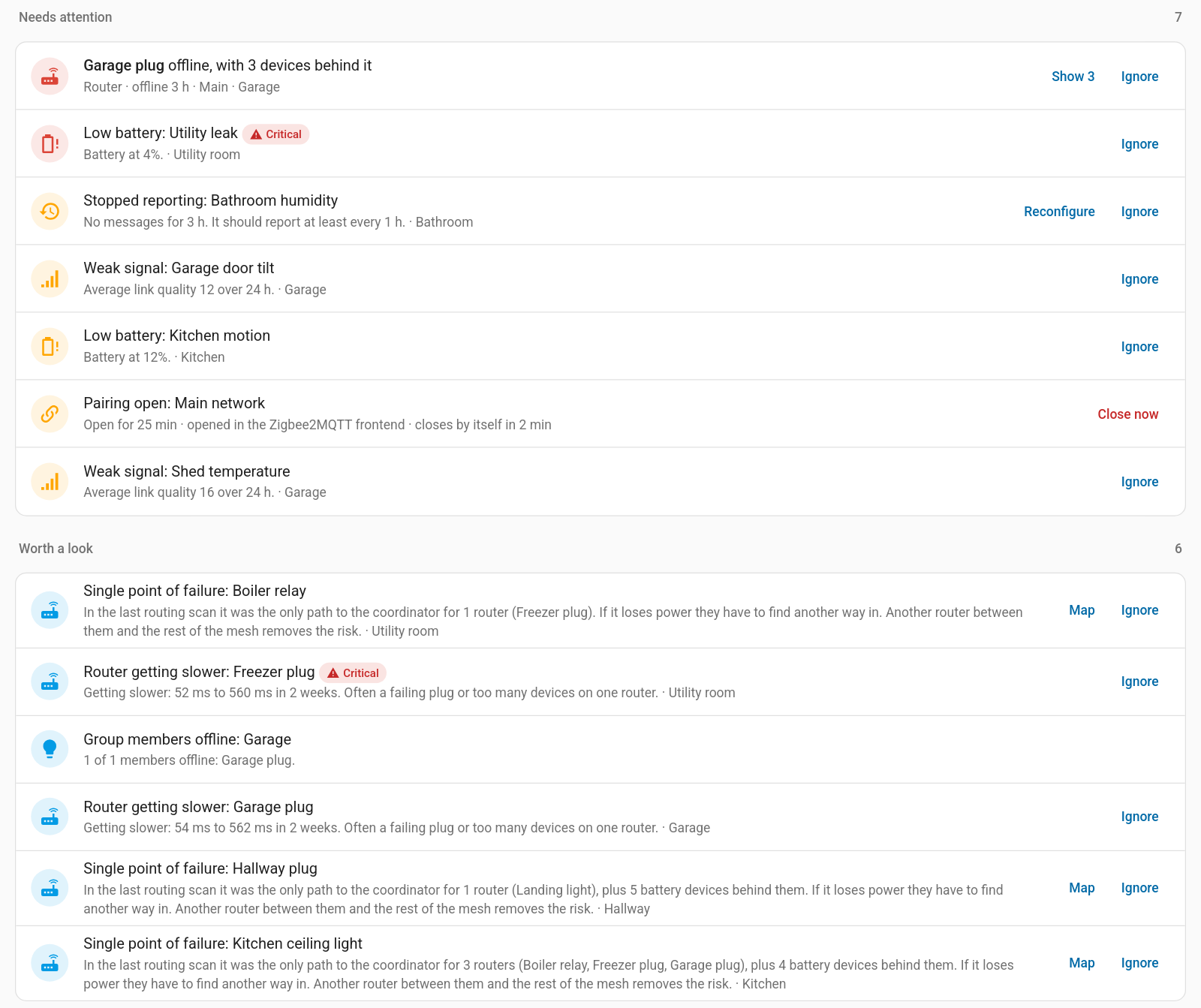
The app runs its checks every minute. Everything it finds is listed on the Health tab: warnings under Needs attention, info under Worth a look. The tab's badge shows how many there are, and turns amber when any are warnings.
Each problem has a severity:
- Warning: something is wrong now. Warnings count towards the integration's Issues sensor and the device's Needs attention entity.
- Info: worth knowing, nothing broken yet.
Checks skip the coordinator and removed devices.
| Key | Name | Severity | Flags a device when… |
|---|---|---|---|
offline |
Offline | Warning | Zigbee2MQTT reports it unavailable for longer than offline_alert_minutes (default 60), or critical_offline_minutes (default 5) for a critical device. Devices behind an offline router are grouped under it; see Router outages. |
silent |
Not heard from | Warning | It has sent nothing for 2 days, and Zigbee2MQTT doesn't track its availability. |
late |
Stopped reporting | Warning | It has sent nothing for longer than its own Expected reporting limit, even while Zigbee2MQTT still shows it online. Off until you set a limit. See Expected reporting. |
frozen |
Frozen reading | Warning | A temperature, humidity, pressure, CO₂, VOC, PM2.5 or soil moisture reading has stayed the same for frozen_alert_hours (default 24) across at least 20 reports. A device can have its own limit. |
battery_low |
Low battery | Warning | Its battery is at or below battery_alert_percent (default 15), or it reports low battery. A device can have its own limit. |
battery_soon |
Battery running down | Info | Its battery is expected to reach 10% within 45 days. See Batteries. |
weak_signal |
Weak signal | Warning | Its average link quality over the last 24 hours is below 30. |
signal_drop |
Signal dropping | Info | Its link quality today is below 60% of the previous week's average, and below 80. |
unidentified |
Unidentified device | Warning | It joined but its interview never completed, so the model is unknown. |
update |
Firmware update | Info | Zigbee2MQTT reports a firmware update is available. |
replacement |
Possible replacement | Info | It has the same name as a removed device it isn't linked to. See Replacements. |
network_offline |
Network offline | Warning | Zigbee2MQTT or its coordinator has stopped responding for 2 minutes. |
restart_required |
Restart needed | Info | Zigbee2MQTT says it needs a restart to apply a settings change. |
pairing_open |
Pairing left open | Warning | Pairing (permit join) has been open for 10 minutes, or something other than the Zigbee Tracker opened it. One per network. |
flapping |
Flapping | Warning | It went offline 4 or more times, or left the network twice, in the last 24 hours, even if each drop was too short for the Offline check. |
chatty |
Chatty device | Warning or Info | Warning when it averages more than chatty_per_hour messages an hour (default 1200) over 6 hours. Info when it sends 5 times its usual rate, and at least 360 an hour. |
battery_drain |
Battery draining fast | Warning | Its battery fell at least 3 times faster over the last 14 days than its rate since the last battery change. Needs about 5 weeks of history. |
binding_lost |
Binding lost | Warning | A binding (to another device, a group, or the coordinator for reporting) disappeared and didn't come back within 10 minutes. |
single_point |
Single point of failure | Info | In the latest routing scan, it's a router that is the only path to the coordinator for other routers. |
router_hopping |
Changes router often | Info | It's an end device whose parent router changed 3 or more times across the routing scans of the last 7 days. Scans it's missing from don't count. Routers aren't checked. |
slow_router |
Router getting slower | Info | It's a router whose nightly reply time over the last 3 days is more than 3 times its median over the 14 days before, and above 150 ms. See Ping. |
coordinator_backup |
Coordinator backup | Warning | Zigbee2MQTT's coordinator_backup.json is missing, has no network key, doesn't match the running channel or PAN ID, or is more than 3 days old while Zigbee2MQTT has been running for over a day. Only checked when the Zigbee2MQTT data folder is inside the Home Assistant config folder. |
z2m_memory |
Zigbee2MQTT memory | Info | Zigbee2MQTT's own memory use grew more than 50% over the last 7 days, with at least 5 days of readings. One per network. Needs Zigbee2MQTT 2.5 or newer. |
signal_dip |
Daily signal dip | Info | Average link quality across a network drops at least 25% below that day's median in the same 1 to 4 hours on at least 4 of the last 7 days, and at least 30% of its devices dip then too. One per network. |
group_member_offline |
Group members offline | Info | A Zigbee2MQTT group has members that have been offline for longer than offline_alert_minutes. One per group, listing the offline members. |
slow_commands |
Slow to respond | Info | Its typical reply to commands over the last 24 hours is above 1 s, or at least 3 times its usual over the 7 days before and above 300 ms. Needs 10 commands in the 24 hours. See Commands. |
missed_commands |
Misses commands | Warning | At least 20% of the commands sent to it over the last 24 hours got no reply within 10 s, out of at least 10. Commands sent while Zigbee2MQTT marks it offline don't count. |
reporting_config |
Reporting settings | Info | Its attribute reporting drains its battery, floods the mesh, or may never report a measurement. See Reporting. |
naming |
Naming | Info | It's still named by its IEEE address (0x…), or, when a naming pattern is set, its name doesn't follow it. |
maintenance_due |
Maintenance overdue | Info | One of its maintenance tasks is past its due date. |
upgrade_worse |
Worse since upgrade | Info | After a Zigbee2MQTT or coordinator firmware upgrade, the week after looks clearly worse than the week before, once at least 2 days of it have passed. Shown for 30 days. One per network. See Effect of an upgrade. |
Three more are events rather than ongoing problems. They never show on the Health tab, only as alerts:
| Key | Name | Fires when… |
|---|---|---|
joined |
Device joined | A device joins one of your networks. The alert names the radio maker, so a stranger joining stands out. |
left |
Device left | A device leaves one of your networks. |
interview_failed |
Interview failed | A newly joined device couldn't be identified. |
Turn checks off, or choose which send alerts, on Settings → Checks. See Configuration for the checks that send alerts by default. The others show on the Health tab but don't send alerts until you set them to Show and notify.
The six checks added in 1.5.0 (Slow to respond, Misses commands, Reporting settings, Naming, Maintenance overdue and Worse since upgrade) show on the Health tab straight away, but don't send alerts until you turn that on.
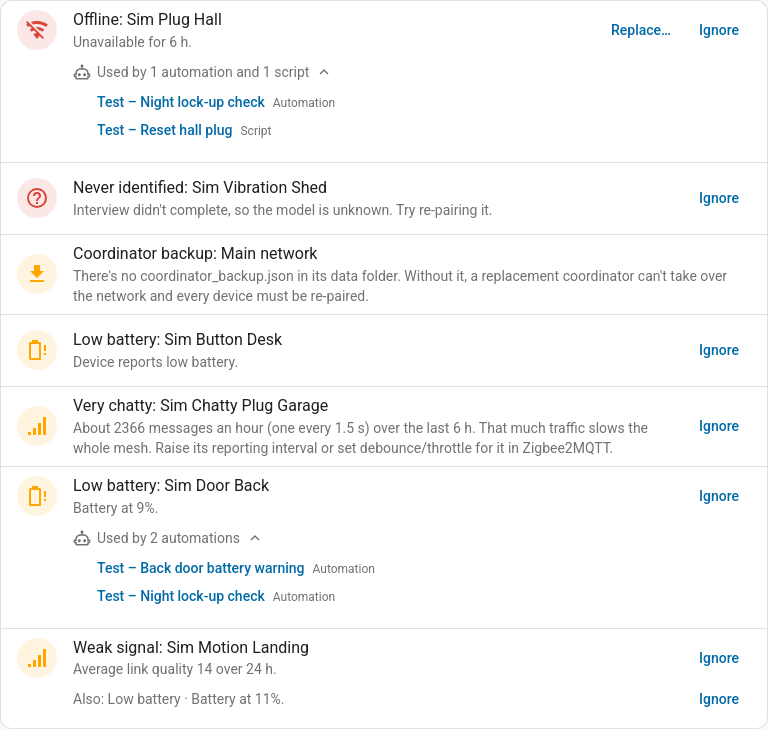
A device with a problem also shows Used by: the Home Assistant automations, scripts and scenes that use it, each linked to its editor. That tells you what stops working while the problem lasts. See What a problem affects.
Check the device has power. For a battery device, check the battery. If it's a router, devices that route through it may go offline too. If it comes back and drops again, look at its signal on the network map. If it has died, replace it.
If the tracker has no record of when a device went offline, it counts from when it first sees the device offline, so the alert still comes. A recorded time is kept across app restarts.
When a router goes offline, the devices that route through it are listed under it as one problem. Fix the router first: check its power. See Router outages.
The device's Health tab shows how long it takes to alert, under When this device alerts. See When a device alerts.
Battery devices without availability tracking only show up as silent. Press a button on the device or replace its battery. If it still says nothing, re-pair it, or replace it with a new one.
The device has gone quiet for longer than the limit you set on its Health tab. Treat it like an offline device: check its power or battery, and its signal on the network map. If it's working but just reports less often than you thought, raise its limit. The Health tab shows how often it usually reports; set the limit a little above that.
The check is skipped while that device's Zigbee2MQTT is offline, so a network outage raises one alert, not one per device.
The device is still talking but one reading has stopped changing. That usually means its reporting setup was lost. Choose Reconfigure on the problem. For a battery device, wake it first (press its button) so it hears the request. Reconfiguring resets the report count, so the warning clears and the check starts again.
The device is too far from its router, or something has changed nearby. The network map suggests a better router where it can. You can move the device to it, or add a mains-powered Zigbee plug closer by.
The interview didn't finish. Remove the device in Zigbee2MQTT and pair it again, close to the coordinator or a router.
Install it from the Updates tab, or let the overnight run do it. See Firmware updates.
Choose Link if the new device really does replace the removed one. Otherwise Ignore it.
Every device on that network is unreachable. Check the Zigbee2MQTT app is running and the coordinator has power and, for a network coordinator, a network connection. The alert clears itself when Zigbee2MQTT comes back.
While pairing is open, any nearby Zigbee device can join your network. If you're not pairing anything, choose Close now on the problem. The detail says who opened it (the Zigbee2MQTT frontend, or Home Assistant or an automation), whether it's open only through one device, and when it closes by itself.
The check sends an alert by default. Existing installs get this alert switched on once when they update to 1.2.0; turn it off on Settings → Checks if you don't want it.
A device that keeps dropping out usually has a weak or unstable link, a failing power supply, or a router nearby that keeps restarting. Check its signal on the network map, and check whether the router it uses is flapping too.
A device sending hundreds of messages an hour slows the whole mesh. Raise its reporting interval, or set debounce or throttle for it in Zigbee2MQTT. If it's only chattier than usual, something changed: a stuck sensor, a reporting setting, or an automation sending it commands in a loop.
The problem names the router the device connects through and its link quality. A weak link makes the device keep retrying, which drains the battery. Move it to a closer router, or check for a sensor stuck reporting.
A switch or remote that stopped controlling its light has usually lost its binding. Choose Restore to re-create it. That works for bindings to another device, to a group, or to the coordinator (re-created with a reconfigure). If the device runs on battery, press a button on it just before you confirm. You can also restore one binding at a time from the device's Bindings list; see Restoring lost bindings. If you removed it on purpose, choose It was intended to dismiss it. Bindings you remove with Zigbee2MQTT's Unbind are logged but never flagged.
Other routers reach the coordinator only through this one. If it loses power, they and the battery devices behind them have to find another way in. A router placed between them and the rest of the mesh gives them a second path. The same advice is on the network map.
A battery device that keeps switching router usually has no single good link. The device's History tab lists its router in each scan and the one with the best link. A mains-powered router close to it gives it one steady route, or move it to the router with the best link.
The router takes much longer to answer than it used to. That's often a failing plug or too many devices on one router. Check the router's nightly reply times on its Trends tab. Power-cycle it, or move some devices to another router.
Without a current coordinator_backup.json, a replacement coordinator can't take over the network and every device has to be re-paired. Zigbee2MQTT writes the file itself and normally refreshes it at least daily, so an old one means writing it is failing: check the Zigbee2MQTT log. A backup for a different channel or PAN ID is left over from an older network. Restarting Zigbee2MQTT writes a fresh one.
Zigbee2MQTT's memory keeps growing, which usually ends in a crash. Restarting Zigbee2MQTT frees it. If it keeps climbing, check its log for an extension or converter that leaks. Health → Coordinators → More details shows its memory over the last 14 days.
The check uses the bridge/health messages Zigbee2MQTT 2.5 and newer sends, every 10 minutes by default (its health.interval setting).
A light or plug in a group is offline, so the group won't switch it. Check the members listed in the problem, the same way as an offline device. The Groups card below shows every member.
Something switches on at the same time most days and drowns out the Zigbee signal: busy Wi-Fi on an overlapping channel, a microwave, or a USB 3 device near the coordinator. The detail says when it happens. Health → Radio channels shows the hourly chart once a network has a week of link quality from at least 3 devices. See Radio channels.
Commands to the device take longer than they should, or longer than they used to. That's usually a weaker link or a busy router on the way. Check its signal and router on the network map, and its Commands chart on the device's Health tab. A reply is the device's next state message showing what was asked.
A light or plug that ignores one command in five usually has a weak link, or a router on the way that drops messages. Check its signal on the network map, move it to a better router, or add a router closer by. The device's Health tab lists its missed commands for the last 7 days.
The device's Health tab lists its reporting under Reporting, with each setting that needs a change and the recommended values. Use recommended sends the fix to Zigbee2MQTT after you confirm. For a battery device, press its button just before you confirm. See Reporting.
The device still has the name it joined with, or a name that doesn't follow your pattern. Rename to pattern on the Network health card lists each device with its suggested name. Untick any you want to keep, then confirm. They're renamed one at a time, in Home Assistant too. See Naming pattern.
A job you set on the device, such as testing a smoke alarm, is due. Do it, then choose Mark done on the Maintenance card or the device's Notes tab. See Maintenance tasks.
The week since a Zigbee2MQTT or coordinator firmware upgrade looks clearly worse than the week before. The detail lists what changed. Health → Coordinators → More details shows the before and after numbers. If devices keep dropping, check the release notes for the version and consider going back to the one before. See Effect of an upgrade.
Choose Ignore on a problem to stop flagging it for that device, for 1 day, 7 days, 30 days or forever. Other devices and other checks aren't affected. Settings → Ignored alerts lists everything you've ignored, with a button to stop ignoring each one.
The problems come first, so on a phone you don't have to scroll past the status cards to reach them. Below them, the Health tab has:
- Network health: how alerts are being sent, your thresholds, and when each network was last scanned, with buttons for the alert settings and a routing scan. Rename to pattern appears here when devices fail the Naming check.
- Coordinators: see Coordinators below.
- Maintenance: overdue tasks and those due in the next 14 days. See Maintenance tasks.
- Batteries to buy: with the spare batteries you have in stock. See Batteries.
- Battery life by brand: once you record brands. See Battery brands.
- Leftover in Home Assistant: only when there are any. See Leftover in Home Assistant below.
- Radio channels: your Zigbee channels against the Wi-Fi channels you've entered. See Network map.
- Groups: only when you have Zigbee2MQTT groups. See Groups below.
- Reliability by model: see Reliability by model.
Zigbee2MQTT updates, restarts and outages are also written to the Activity tab.
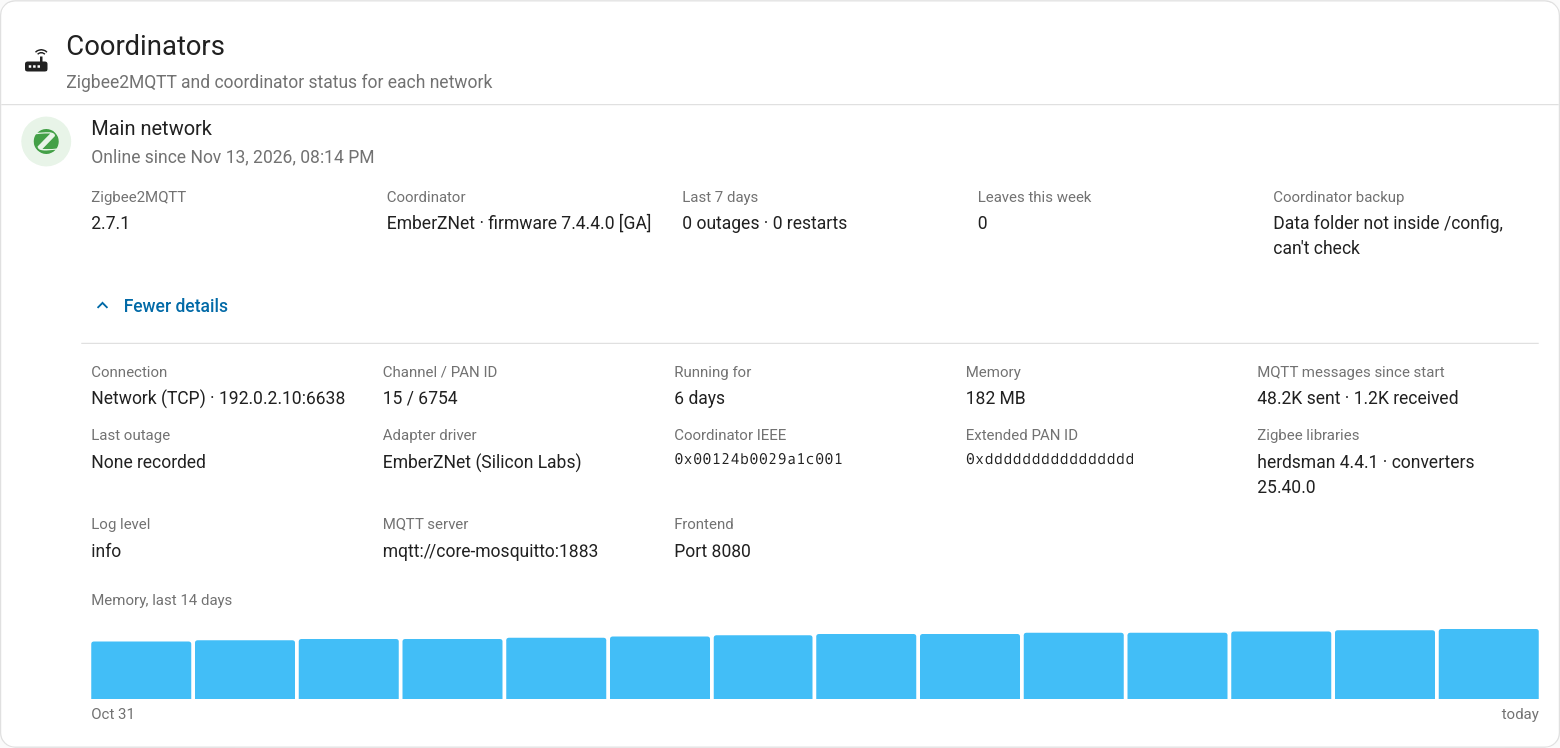
Each network shows five facts: the Zigbee2MQTT version, the coordinator type and firmware, outages and restarts in the last 7 days, Leaves this week, and the coordinator backup's age and device count.
More details opens the rest:
- Connection: how Zigbee2MQTT reaches the coordinator, Network (TCP), mDNS or USB serial, with the address or port;
- Channel / PAN ID, Running for, Memory, MQTT messages since start and Last outage;
- Adapter driver, Coordinator IEEE, Extended PAN ID, Zigbee libraries (herdsman and converters versions), Serial settings, Log level, MQTT server and Frontend;
- Memory, last 14 days, a bar chart of Zigbee2MQTT's own memory use.
A network that is offline, or has a Zigbee2MQTT memory problem, opens with the details already showing.
Memory, MQTT traffic and the memory chart come from the bridge/health messages that Zigbee2MQTT 2.5 and newer sends. With an older version, or before the first message, the card says there's no health data yet.
More details also shows the effect of the latest upgrade and the Zigbee2MQTT settings changes.
When a network's Zigbee2MQTT version or coordinator firmware changes, the app records the upgrade and compares the week before it with the week after. More details shows the latest upgrade, the before and after numbers, and a short list of earlier upgrades. The last 20 upgrades per network are kept.
| Compared | Marked worse when |
|---|---|
| Devices going offline per day | Up by at least 1 a day and at least doubled |
| Average link quality | Down by at least 10 |
| Messages per hour | Down by at least 30% and at least 10 an hour |
| Devices leaving per day | Up by at least 0.5 a day and at least doubled |
| Parent router changes per routing scan | Up by at least 2 per scan and at least 1.5 times |
The same rules the other way round mark a number better.
- Numbers appear once there's at least a day of data on both sides. Until the week is over, the card says how many days the "after" side has so far.
- The first hour after the upgrade is left out, because the restart itself drops devices for a moment.
- Two changes within an hour (firmware flashed, then Zigbee2MQTT updated) count as one upgrade.
- A number is left out when its data isn't there. Devices going offline needs availability on in Zigbee2MQTT; parent changes need 2 routing scans on each side.
- The "before" side only covers what the app saw. An app installed three days before an upgrade compares three days.
A clearly worse week raises Worse since upgrade.
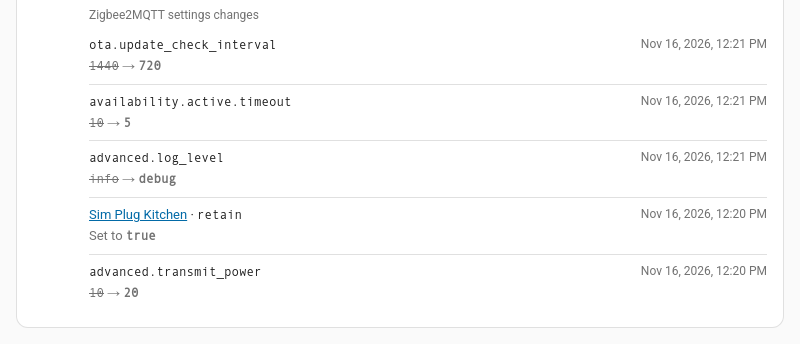
Changes to Zigbee2MQTT's own settings are listed under Zigbee2MQTT settings changes, with the old and new value, and written to the Activity tab as "settings changed". Changes to one device's options in Zigbee2MQTT go in that device's logbook instead.
Passwords, the network key, the PAN ID and tokens are never stored or shown. A change to one of them shows as Changed (value hidden). The last 200 changes are kept.
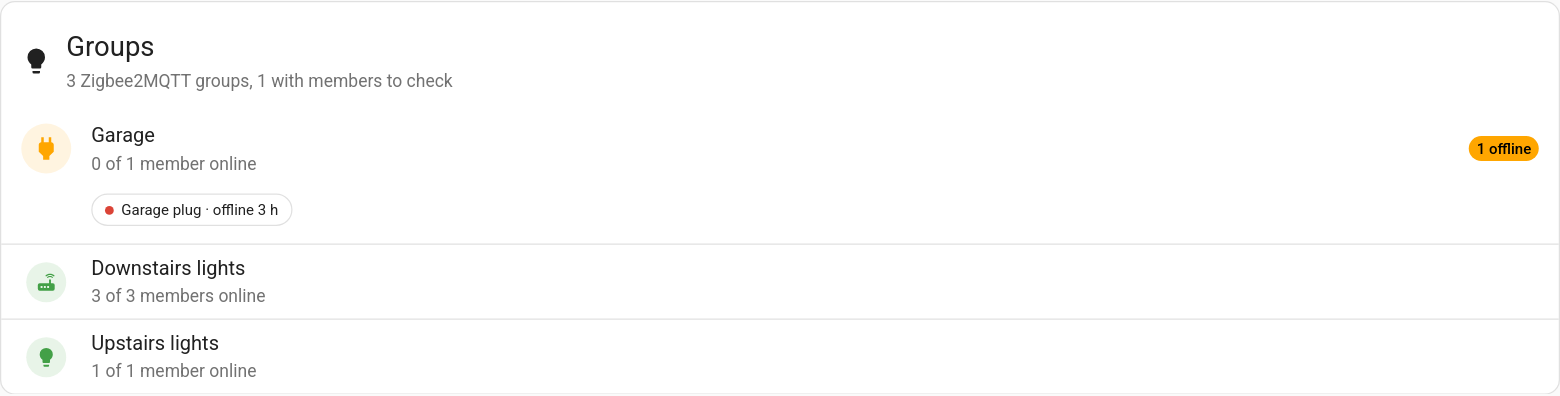
The Groups card lists every Zigbee2MQTT group with how many of its members are online. A group with offline members shows each member, with the offline ones in red.
A device that dropped out of a group but is still on the network (for example after it left and was re-paired) is shown for 30 days, until it's back in the group, or until the group is deleted. Leaving a group is only noticed while the app is running.
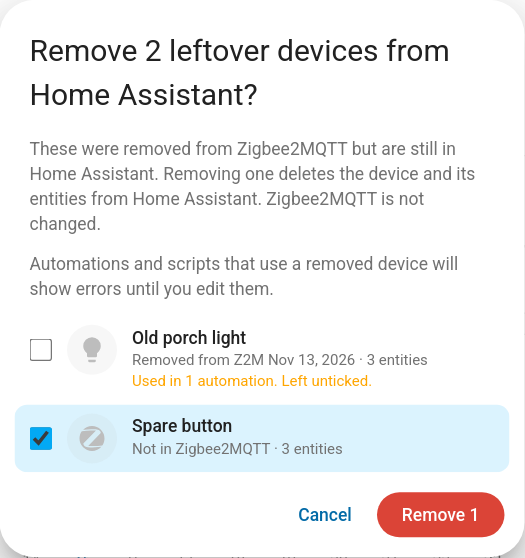
A device removed from Zigbee2MQTT can stay in Home Assistant with all its entities unavailable, for example when Zigbee2MQTT was stopped or its Home Assistant integration was off at the time. Health lists these under Leftover in Home Assistant.
A Home Assistant device is listed when all of these are true:
- It came from Zigbee2MQTT's MQTT discovery (identifier
zigbee2mqtt_<ieee>). The Zigbee2MQTT bridge device is never listed. - Its IEEE address is not an active device on any network the app tracks: the app has it as removed, or has never seen it.
- The MQTT integration owns it, and none of its MQTT entities has a live state. A device from a Zigbee2MQTT network the app doesn't track still has live entities, so it isn't listed.
The list is checked once every tracked network has sent its device list, then whenever Home Assistant's device or entity registry changes.
Nothing is removed until you press Review and remove, tick the devices and confirm. Devices used by an automation or script start unticked, with a warning. The app checks every ticked device again before removing it, and skips any that is no longer a leftover.
Each device is removed from the MQTT integration only, which deletes the device and its entities from Home Assistant. Zigbee2MQTT is not changed. If another integration such as Battery Notes is also attached to the device, Home Assistant may keep the device for that integration. Automations and scripts that use a removed device show errors until you edit them.
A device's uptime is the share of the last 30 days (or since it was first seen, if that's sooner) that it wasn't offline. It's shown on the device's Health tab and as the Uptime (30 days) entity.