Repository navigation
Configuration
Most settings live on the app's Settings tab in the sidebar. The firmware update options are on the Updates tab. Changes there take effect straight away and are saved back to the app's configuration, so the two always match.
The Settings tab is long on a phone. A row of chips at the top jumps to each section.
Some options can only be set on the app's Configuration tab (Settings → Apps → Z2M Device Tracker → Configuration): base_topics, z2m_panels, alert_actions, the MQTT broker options and metrics_token. Restart the app after changing any of them.
| Option | Default | What it does |
|---|---|---|
base_topics |
zigbee2mqtt |
The MQTT base topic of each Zigbee2MQTT instance to track. Add one line per instance. |
z2m_panels |
empty | Links to each Zigbee2MQTT app's web interface, one per network, as base_topic=app_slug. |
A network's name in the tracker comes from its base topic. zigbee2mqtt shows as Main. Others drop the zigbee2mqtt_ prefix, so zigbee2mqtt_garage shows as Garage.
The app slug for z2m_panels is in the Zigbee2MQTT app's address bar, after /app/. For example:
base_topics:
  - zigbee2mqtt
  - zigbee2mqtt_garage
z2m_panels:
  - zigbee2mqtt=45df7312_zigbee2mqtt
  - zigbee2mqtt_garage=45df7312_zigbee2mqtt_garage
With panels set, Settings → Networks shows a button that opens each Zigbee2MQTT interface.
| Option | Default | Settings tab | What it does |
|---|---|---|---|
alerts_enabled |
true |
Send alerts | Master switch. Off sends nothing, including the weekly summary, but keeps your other choices. With the integration, Settings → Repairs stays empty while it's off. |
persistent_notifications |
true |
Home Assistant notifications | Shows alerts in Home Assistant's notification panel. They clear themselves when the problem is fixed. |
fire_events |
true |
Automation event | Fires a z2m_tracker_alert event for each alert. |
notify_service |
empty | Mobile notifications | Also sends alerts to a notify action, for example notify.mobile_app_your_phone. Only notify. actions are accepted; a bare name like mobile_app_your_phone gets notify. added. |
alert_actions |
true |
(Configuration tab only) | Adds Mute 24 h, Ping and Battery replaced buttons to alerts sent to the notify action, and opens the device when the alert is tapped. Turn it off if your notify action isn't the Companion app and rejects the extra data. See Buttons on phone alerts. |
alert_on_join |
true |
(Device joined check) | Alerts when a new device joins. Same as setting Device joined to Notify. |
quiet_hours |
false |
Quiet hours | Holds alerts during quiet hours and sends one summary when they end. Critical devices still alert straight away. |
quiet_start / quiet_end
|
23:00 / 07:00
|
From … to | Quiet hours as HH:MM, in the app's time zone. The window can cross midnight. |
See Alerts and notifications for what each alert contains, and Quiet hours for the summary.
To pause alerts for a while, for example during Zigbee2MQTT work, use ⋮ → Pause alerts. It isn't an option; see Pause alerts.
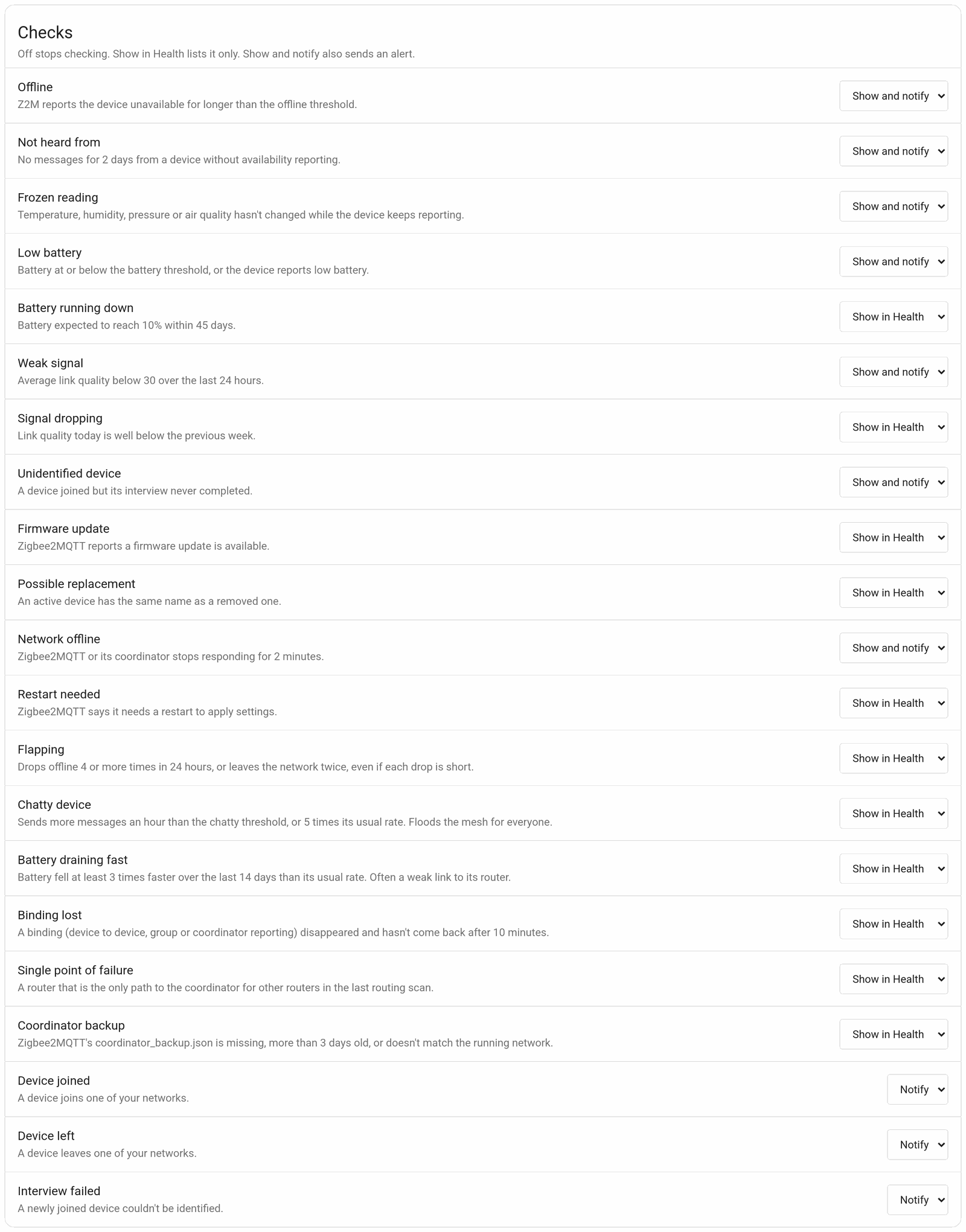
| Option | Default | What it does |
|---|---|---|
disabled_checks |
empty | Checks to turn off completely. |
notify_checks |
see below | Checks that send an alert. Checks not listed here (and not disabled) still show on the Health tab. |
On the Settings tab each check has one dropdown: Off, Show in Health or Show and notify. Event checks (joined, left, interview failed) only have Off and Notify.
The default notify_checks are battery_low, frozen, interview_failed, joined, late, left, network_offline, offline, pairing_open, silent, unidentified and weak_signal. Every other check shows on the Health tab only. The check keys are listed on Health checks.
late and pairing_open are new in 1.2.0. An existing install gets each one switched on once, when it updates. If you turn either off afterwards, it stays off.
The checks new in 1.5.0 (slow_commands, missed_commands, reporting_config, naming, maintenance_due and upgrade_worse) aren't in the default notify_checks. They show on the Health tab, and send alerts only once you set them to Show and notify.
| Option | Default | Range | Settings tab | What it does |
|---|---|---|---|---|
offline_alert_minutes |
60 |
0–10080 | Offline alert delay | Extra wait after Zigbee2MQTT marks a device offline, before it's flagged. Zigbee2MQTT only marks it offline after its own timeout (10 min for mains devices, 25 h for battery devices by default), so with 60 a mains device alerts about 70 min after its last message. See When a device alerts. |
critical_offline_minutes |
5 |
0–1440 | Critical device offline for | The same, for devices marked Critical device on their Info tab. See Critical devices. |
frozen_alert_hours |
24 |
0–720 | Reading unchanged for | How long a reading can stay identical, while the device keeps reporting, before it counts as frozen. 0 turns the check off. |
battery_alert_percent |
15 |
0–100 | Low battery at | Battery level at or below which a device is flagged. |
chatty_per_hour |
1200 |
60–36000 | Chatty above | Messages an hour, averaged over 6 hours, above which a device is flagged as chatty. |
A device can have its own low battery level and frozen reading time, on its Health tab under Limits for this device. See Limits for one device.
Expected reporting is set per device, on its Health tab. To set it for many devices at once, go to Settings → Thresholds → Expected reporting and select Set for many devices….
- Pick Mains devices, Battery devices or both. Only devices with no setting lists only devices that don't have one yet.
- Pick a multiplier: 2×, 3×, 5× or 10×. Each device gets its Usual gap between messages times the multiplier, rounded up to a tidy value such as 3 min, 30 min or 6 h. The usual gap comes from the last week's message counts, or the last 6 hours for a device with less history.
- Untick any device you want to leave alone, then select Apply. Turn off clears the setting on the ticked devices instead.
Some devices start unticked:
- reports on change: devices that only send when something happens, such as door sensors, buttons and plain switches. A device counts as this when it has no regular reading (temperature, humidity, pressure, power, energy, air quality, light level or soil moisture).
- not enough data: devices with too few messages to tell how often they report.
| Option | Default | What it does |
|---|---|---|
networkmap_hour |
3 |
Hour (0–23, local time) of the nightly routing scan. -1 turns the nightly scan off; you can still run one by hand. |
wifi_channels |
empty | Your 2.4 GHz Wi-Fi channels, for example 1, 6. Up to six channels from 1 to 14. Used to check your Zigbee channels for overlap. |
See Network map.
Set these under Schedule on the Updates tab.
| Option | Default | Updates tab | What it does |
|---|---|---|---|
ota_window |
empty | Overnight updates | Time window for installing firmware updates automatically, as HH:MM-HH:MM in local time, for example 02:00-05:00. It can cross midnight. Empty turns automatic updates off. |
ota_min_battery |
30 |
Minimum battery | Battery level (0–100) below which battery devices are skipped by Update now, Update all and the overnight run. Update anyway overrides it for one device. |
A start and end time that are the same aren't a valid window. See Firmware updates.
By default the app uses the broker Home Assistant offers to apps, the Mosquitto broker app. To use another broker, set mqtt_host and restart the app. These options are at the bottom of the app's Configuration tab, from version 1.4.0.
| Option | Default | What it does |
|---|---|---|
mqtt_host |
empty | Address of your broker. Empty uses the one Home Assistant offers. |
mqtt_port |
1883 |
Its port. Usually 1883, or 8883 with TLS. |
mqtt_user / mqtt_password
|
empty | Login for that broker. Leave empty if it allows anonymous connections. |
mqtt_ssl |
false |
Connect over TLS. |
mqtt_ssl_verify |
true |
Check the broker's TLS certificate. Turn off only for a self-signed certificate on a network you trust. |
mqtt_host: 192.0.2.10
mqtt_port: 8883
mqtt_user: z2m_tracker
mqtt_password: your-password
mqtt_ssl: true
Use the same broker as Zigbee2MQTT. The app's Home Assistant entities use MQTT discovery, so they appear only if Home Assistant's MQTT integration is connected to that broker too. Without mqtt_ssl, the login and all Zigbee messages cross your network unencrypted.
If the connection fails, the app's log says why and which option to check.
| Option | Default | Settings tab | What it does |
|---|---|---|---|
naming_pattern |
empty | Device names → Naming pattern | Pattern for device names, for example {area} {type} {n}. Fills in the name of each device that joins in Pair a new device, and drives the Naming check. Empty turns it off. |
The tokens are {area}, {type}, {model} and {n}. See Naming pattern.
| Option | Default | What it does |
|---|---|---|
metrics_token |
empty | Token for the Prometheus endpoint, 16 characters or more. Empty keeps the endpoint off. |
The endpoint also needs port 9099/tcp mapped under Network on the app's Configuration tab. See Prometheus metrics.
| Option | Default | What it does |
|---|---|---|
ha_entities |
true |
Adds tracker entities to each Zigbee2MQTT device through MQTT discovery. Turning it off removes them. |
| Option | Default | What it does |
|---|---|---|
weekly_summary |
true |
Sends one message a week. |
summary_day |
0 |
Day to send it, 0 = Monday to 6 = Sunday. |
summary_hour |
9 |
Hour to send it, 0–23, local time. |
These are on the Settings tab but are stored per browser, not in the app:
- Theme
- Language (in Appearance & data): see below.
- Device details: open a device in a side panel next to the list (wide screens) or in a pop-up dialog. Phones always use the dialog.
The Map tab also remembers, per browser, whether you last used Graph or Floor plan, which legend groups you were showing, and your Names and Links choices.
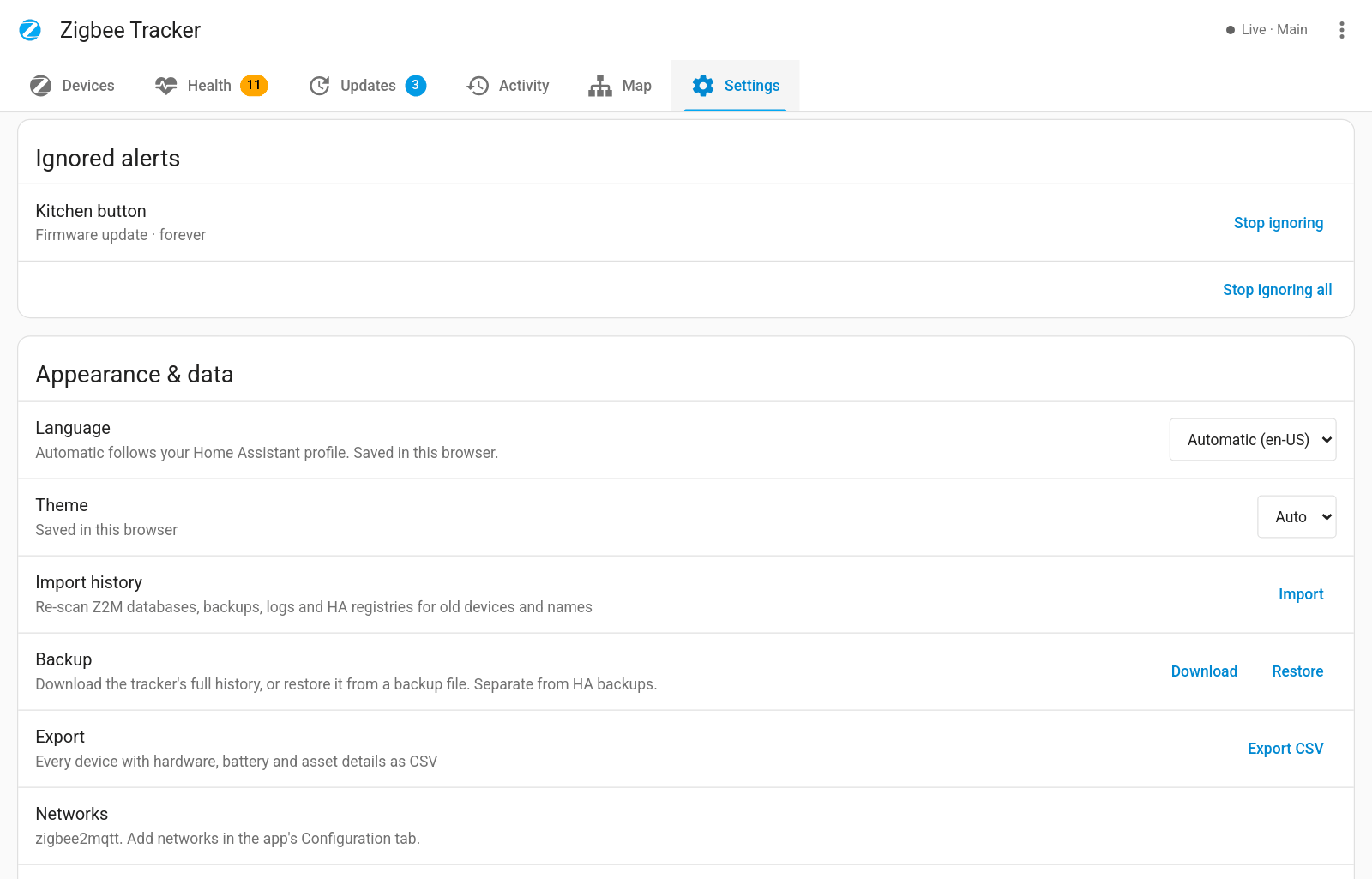
The sidebar uses the language in your Home Assistant profile. To use a different one, pick it in Settings → Appearance & data → Language. Automatic goes back to following your profile. The choice is saved in your browser, so each browser can have its own.
Dates, times and "2 days ago" follow the same language.
The sidebar comes in English, Čeština (Czech), Deutsch (German), Español (Spanish), Français (French), Italiano (Italian), Nederlands (Dutch), Polski (Polish), Português (Brasil) (Brazilian Portuguese), Русский (Russian), Svenska (Swedish) and 简体中文 (Simplified Chinese). The picker shows each language by its own name. A regional language picks the closest one: Portuguese (Portugal), for example, uses Brazilian Portuguese. If your language isn't there, the sidebar stays in English.
The translations are machine-made, so corrections from native speakers are welcome. Text added in 1.2.0 itself, and any text a translation leaves out, shows in English.
The same languages cover the app's options on its Configuration tab, and the integration's setup, options, actions and dashboard cards. Those follow your Home Assistant profile language.
Some text always stays in English: Home Assistant notifications, the weekly summary, alert events, the names of the sensors the app adds to each device, and names and data that come from Zigbee2MQTT, such as models.
A language is three files, each copied from the English one next to it:
| What | English source |
|---|---|
| The sidebar and the dashboard cards | z2m_tracker/app/www/i18n/en.json |
| The app's options in Home Assistant | z2m_tracker/translations/en.yaml |
| The integration: setup, options, actions, entities | custom_components/z2m_tracker/translations/en.json |
Name each copy after Home Assistant's language code (for example de or pt-BR), translate the values, and open a pull request. To fix a translation, edit the existing file. CONTRIBUTING.md has the details, including plurals and placeholders.