Repository navigation
Advanced Mode
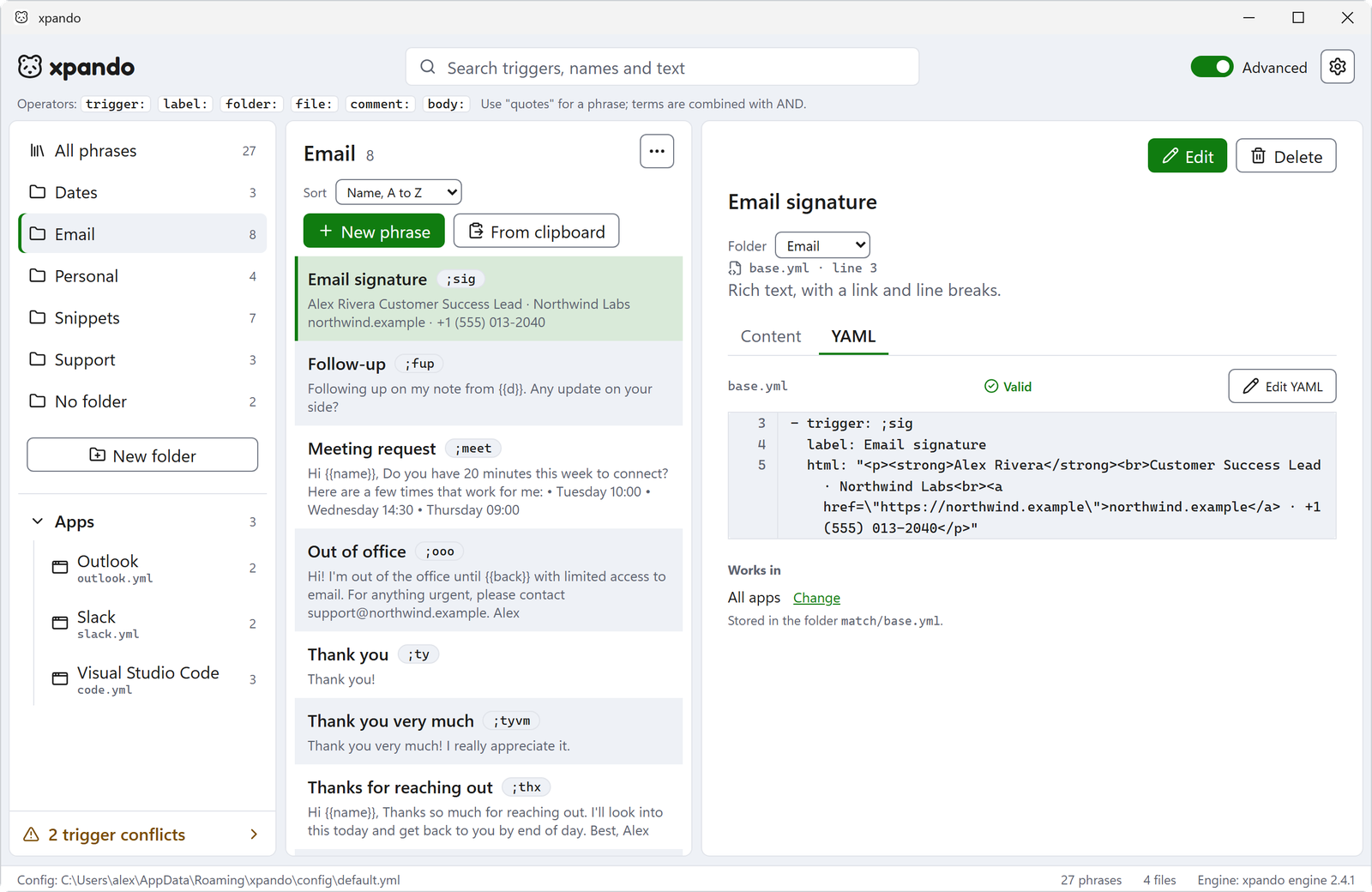
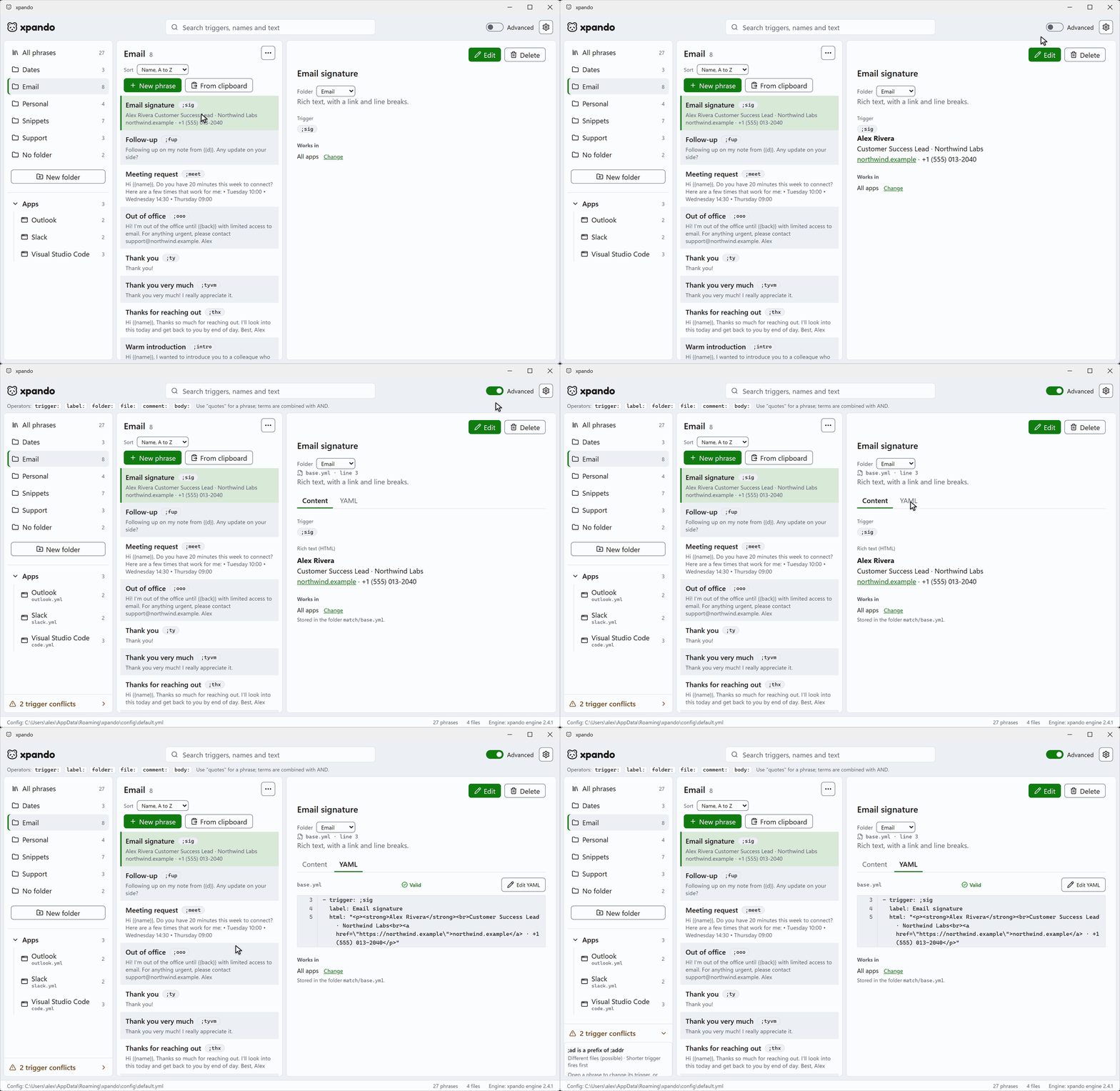
The Advanced switch in the header shows the technical side of xpando. Use it when you want to see exactly what is saved, fix a file by hand, or use an option the normal form keeps out of the way.
Nothing disappears when Advanced is off. Every feature stays reachable through More options or through this switch. xpando remembers the switch between runs.
-
Search operators such as
trigger:andbody:. A line under the search box lists them. See Search. - Content and YAML tabs on the phrase details. See below.
-
File and line: under a phrase name, a small line shows the file and line, for example
base.yml · line 3. Under Works in, a note says which file the phrase is stored in and which config files load it. - File names in the Apps list, and Apps with no phrases show too, so nothing is hidden.
- Option tags: under the phrase's triggers, small tags such as "Whole word" or "Match case".
-
More options for a phrase: Only expand at the start of a word, Only expand at the end of a word, Capitals style and How the text is inserted. More options opens by itself. The file's own name for each option is shown next to it (for example
wordandpropagate_case). See Writing Phrases. - More macros: Command output and Program output, an Add a macro button, and cards you can rename and retype. See Macros.
- More rich text tools: subscript, superscript, font, font size, indents, line spacing and tables. See Rich Text.
- Trigger conflicts: a list at the bottom of the left pane. See Trigger Conflicts.
- A status bar at the bottom of the window. See below.
-
A way to type a program file name such as
winword.exein the program picker of Works in, and a list of the files that will change before a phrase is moved. - The PowerShell conversion offer for old clipboard tricks (see Macros).
Your phrases are stored in YAML files (a plain text format that espanso uses). With Advanced on, select a phrase and open the YAML tab to see its exact source with the file's real line numbers. It shows Valid or Invalid and the reason.
- Select a phrase and open the YAML tab.
- Click Edit YAML.
- Change the text. Tab adds two spaces and Shift+Tab removes them.
- Watch the status line. It says Checking..., then Valid, or "Line 4, column 3: ..." with a Go to button for the error.
- Click Save (or press Ctrl+S). Cancel or Esc leaves.
The comment block above the phrase is part of the text you edit.
Turn on the Whole file switch to edit every phrase and top-level key in the file (such as imports). If your change would remove phrases, xpando lists them and you must tick Remove these phrases from the file before Save works.
Switching between one phrase and the whole file asks first if you have unsaved text: Discard your changes? with Discard or Keep editing. Unsaved YAML text also survives selecting another phrase and coming back (until you close xpando).
The same safety net as the normal form applies:
- The text must be valid YAML and must be exactly one phrase (when editing one phrase). Save is disabled while it is not.
- Every other phrase in the file must come out unchanged, or the save is refused.
- The file is written in one step. If it changed on disk since you opened it, xpando refuses and offers Reload. Your edit is kept and checked against the new version.
- xpando keeps a one-time
.bakbackup of the file from before its first change, and keeps your comments and layout.
At the bottom, with Advanced on:
- Config: where your data folder is.
- The number of phrases and files.
- Engine: which engine xpando found and its version, for example "xpando engine 2.4.1". Hover over it to see the file location.
These are the options a phrase can have, and where to find them (the file's name for the option is in brackets). Each option is explained in Writing Phrases.
| Option | Label | Shown in |
|---|---|---|
word |
Only expand when I type it as a whole word | Always |
propagate_case |
Match the capitalization I type | More options |
left_word |
Only expand at the start of a word | Advanced only |
right_word |
Only expand at the end of a word | Advanced only |
uppercase_style |
Capitals style (needs Match the capitalization I type) | Advanced only |
force_mode |
How the text is inserted: Automatic, Paste from the clipboard or Type with the keyboard | Advanced only |
search_terms |
Search terms | More options |
Description (a # comment) |
Description | More options |
Options that Advanced mode shows are still saved and kept when it is off.
xpando phrases use espanso's file format. For everything the format can do (regular expressions, global variables, imports), see the espanso documentation. Remember that a few things are xpando's own: the set_clipboard macro type and the xpando_folder: line are understood only by xpando's engine, not by stock espanso (which ignores xpando_folder).
Related pages: Trigger Conflicts | Search | Macros | Settings and Data Folder