Repository navigation
Folders and Apps
Folders and apps are two separate ways to organise phrases.
- A folder is only a label. It helps you find things ("Email", "Dates", "Support"). A folder never changes where a phrase works.
- Works in decides which programs a phrase expands in: All apps, or Only these apps. The Apps list in the left pane shows the programs your phrases are limited to.
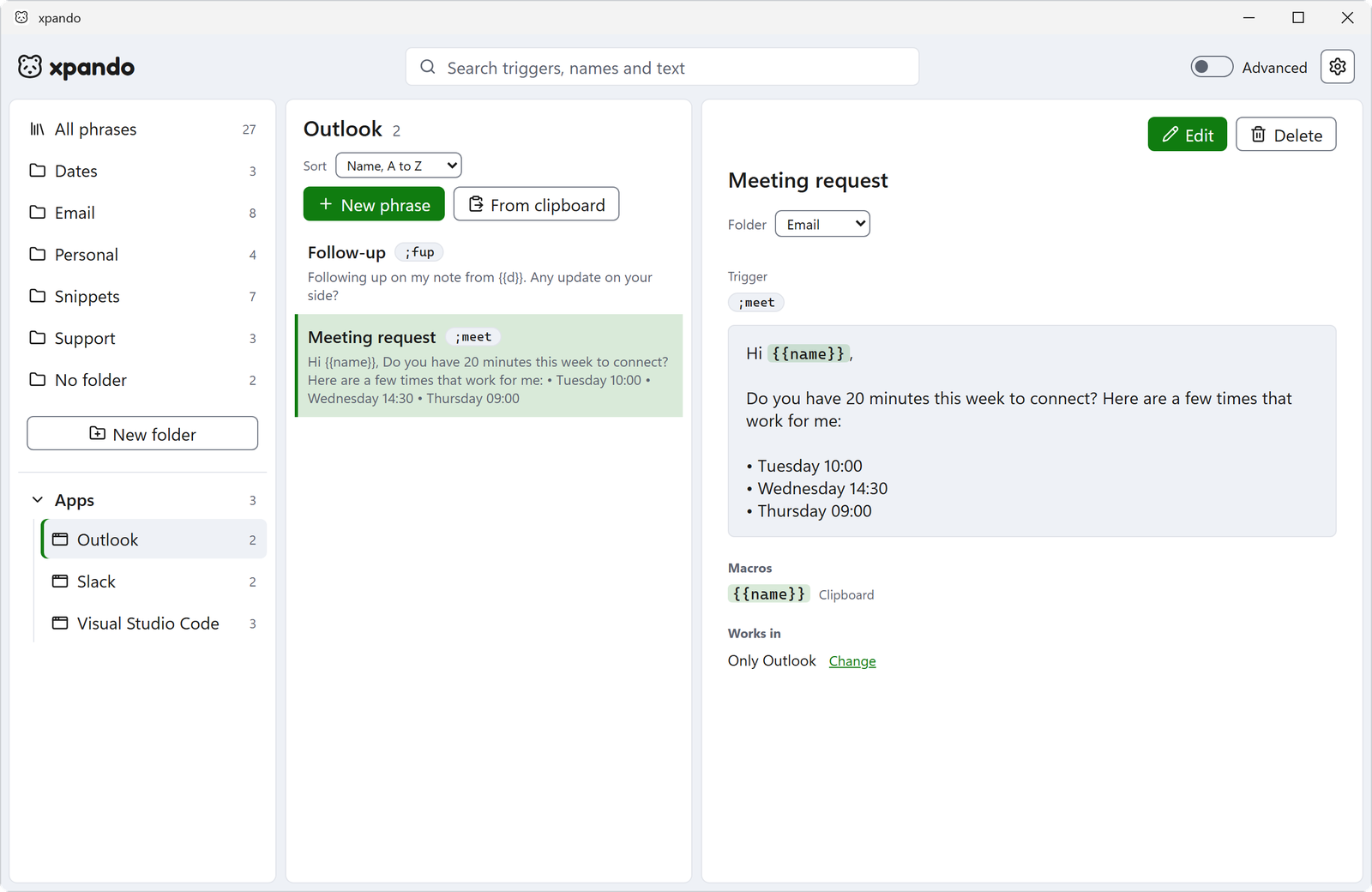
- Click New folder (under the folder list).
- Type a Folder name and click Create folder.
A folder name can be up to 60 characters, and two folders cannot have the same name (capital letters do not count). A new folder stays in the list even while it is empty.
- In the phrase details, use the Folder menu. Choose a folder, or No folder.
- In the phrase form (New phrase or Edit), use the Folder menu there.
- A new phrase starts in the folder you were looking at.
A phrase is in one folder, or in none. Phrases in no folder show under No folder and under All phrases.
- Click the folder in the left pane.
- Click the ... button (Folder options) in the middle pane.
- Choose Rename folder or Delete folder.
Deleting a folder does not delete its phrases. They stay in your list, in no folder. xpando says so before you confirm.
If you imported phrases, or had files from before folders became labels, each phrase file shows as a folder named after the file. For example phrases in base.yml appear in a folder called base until you file them elsewhere. Phrases in files that xpando made for one program start in no folder.
Every phrase has a Works in setting.
- All apps (the default): it expands everywhere.
- Only these apps: it expands only in the programs you pick, for example Outlook.
You can see it in the phrase details and in the editor. Click Change to open the dialog Where should "name" work?

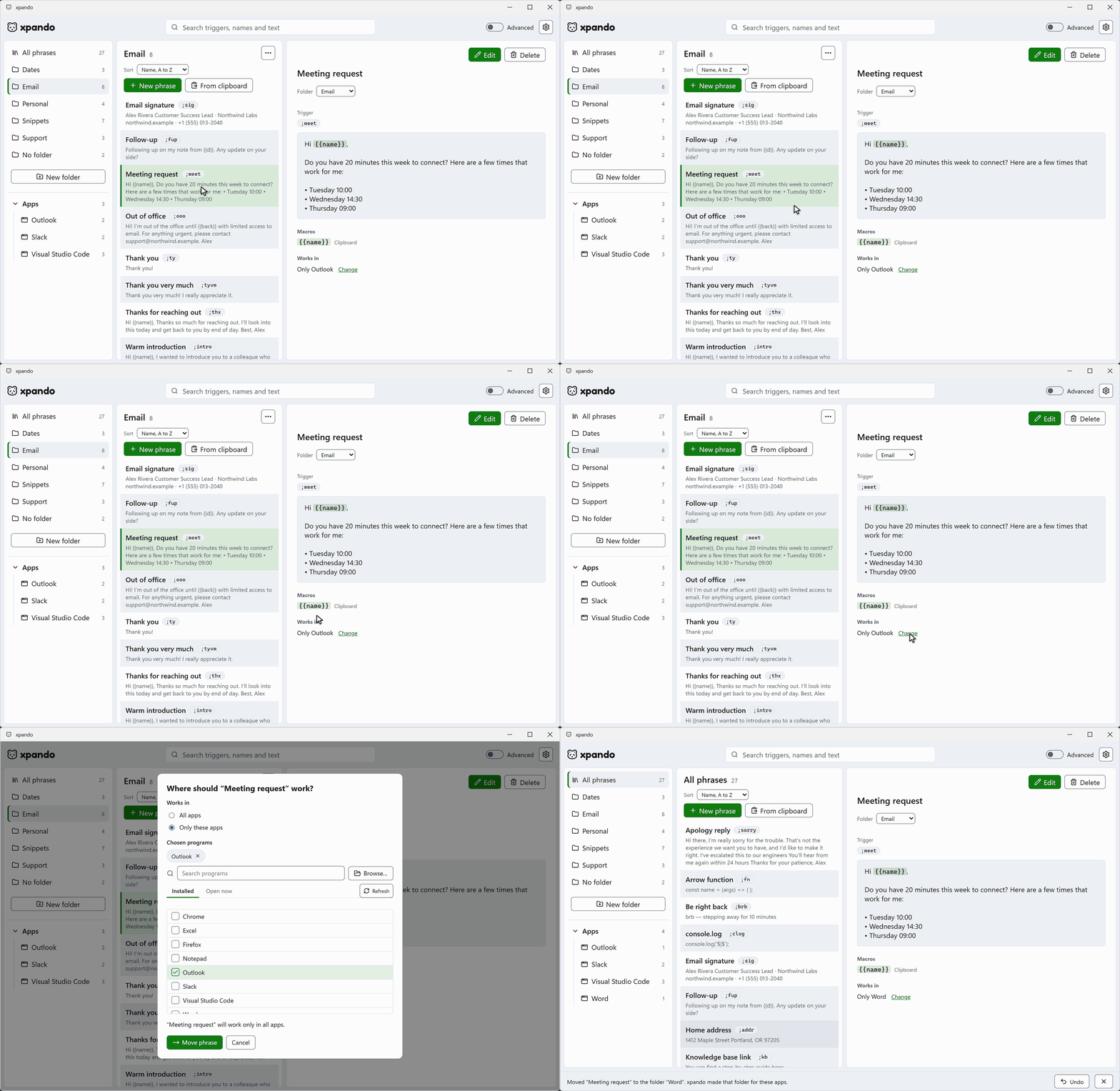
- Choose Only these apps.
- Pick programs from the list. You can search by name in Search programs.
- Installed: programs xpando found on this computer (Windows only). The first look can take a few seconds. Refresh looks again.
- Open now: programs that have a window open right now. If your program is missing, open it first.
- Browse... lets you pick a program file yourself.
- Chosen programs appear as tags at the top, each with an x to remove it.
- Read the sentence under the list. It says what will happen.
- Click Save.
For a new phrase, the same box is in the form, and the choice is applied when you save. A new phrase made while a program is selected under Apps starts as "Only" that program.
espanso, the engine under xpando, can limit whole phrase files to programs, not single phrases. So when you change Works in, xpando moves the phrase to a file that works in exactly those programs, and creates one if needed. You do not have to manage those files.
- Phrases for the same set of programs share one file.
- The phrase, its description and all its settings move unchanged.
- All apps puts the phrase back where it came from, if xpando remembers. Otherwise it goes to your main all-apps file, and you can choose another place from the Put it in this folder list.
- After a move, a note says Moved "name" to the folder "...". with an Undo button. Undo puts the phrase back. A file xpando created stays (empty) after an undo.
- xpando makes a one-time backup copy (
.bak) of each file before the first change. Either both files change or neither does.
xpando tells you why, and changes nothing. For example:
- The same trigger already exists where the phrase would go (a clash).
- A file is read-only.
- The phrase comes from an installed espanso package. Change packages with espanso, not in xpando.
- The setup of that file is too unusual to change safely.
If a program limit was written by hand in a way xpando does not manage (for example by window title), the phrase details say so, and changing Works in moves the phrase to another file.
- One entry per program, with a count. A phrase that works in several programs appears under each of them.
- Programs with no phrases are hidden. They come back when they get a phrase. Advanced Mode shows all of them, with their file names.
- A message such as "No setting loads the folder ..., so this phrase does not expand" means nothing loads the file the phrase is in. Change Works in to fix it.
- Programs are matched by file name (for example
winword.exe), not by full path. -
Installed works on Windows only. Browse... is tested on Windows. On Linux it needs
zenity, and on macOS use Open now. The macOS and Linux versions of the picker have not been tested. - On macOS and Linux, Open now uses the list of running processes.
- Only one app setting applies to the program in front at a time: the first matching app-specific one, otherwise the general one.
- Files inside subfolders of
matchand installed packages cannot be changed here.
Related pages: The Phrase Manager | Writing Phrases | Advanced Mode | Migrating from espanso