Repository navigation
Search
xpando has two ways to find a phrase: the search box in the window, and a shortcut that opens a small search box from any program.
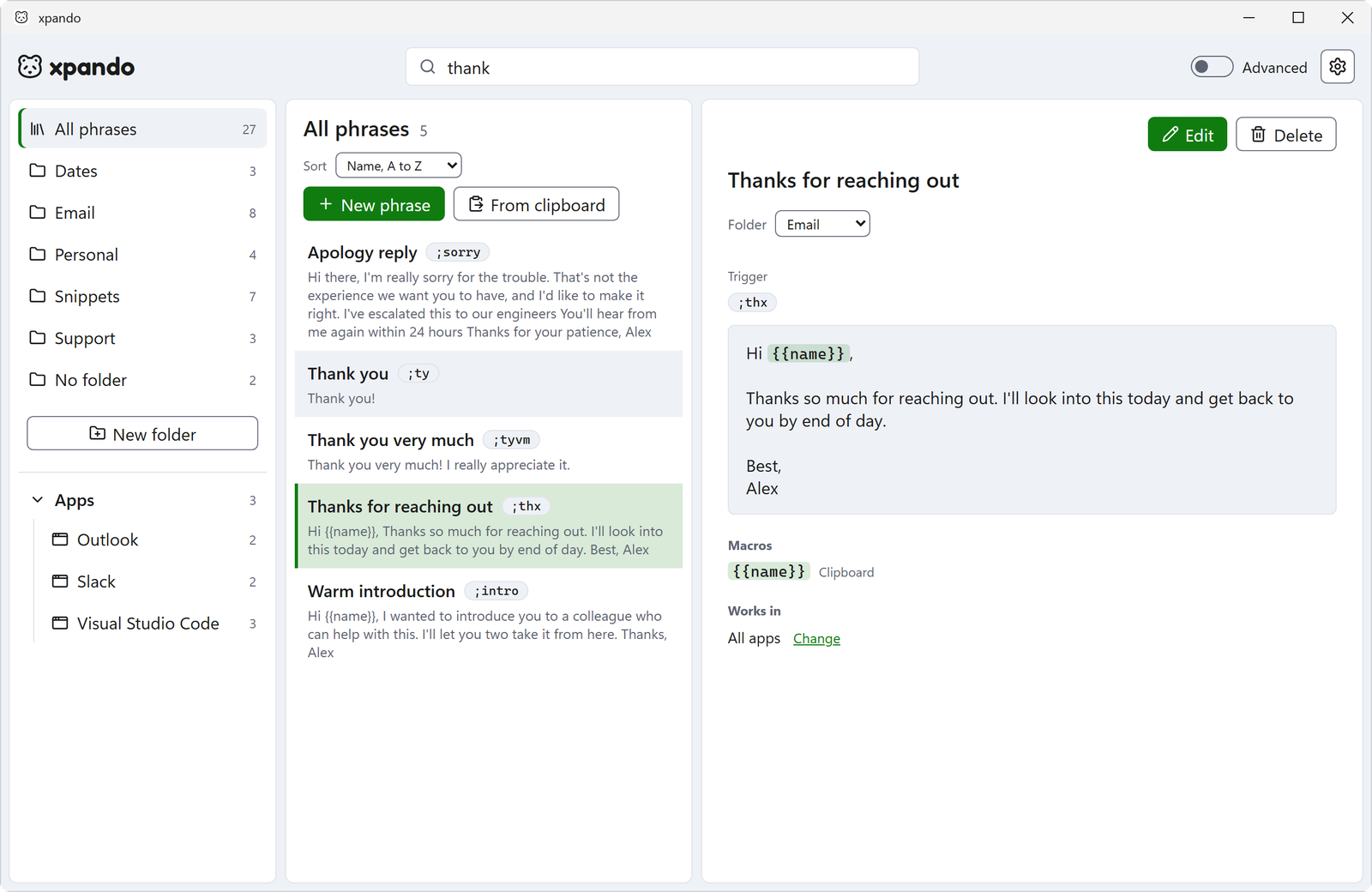
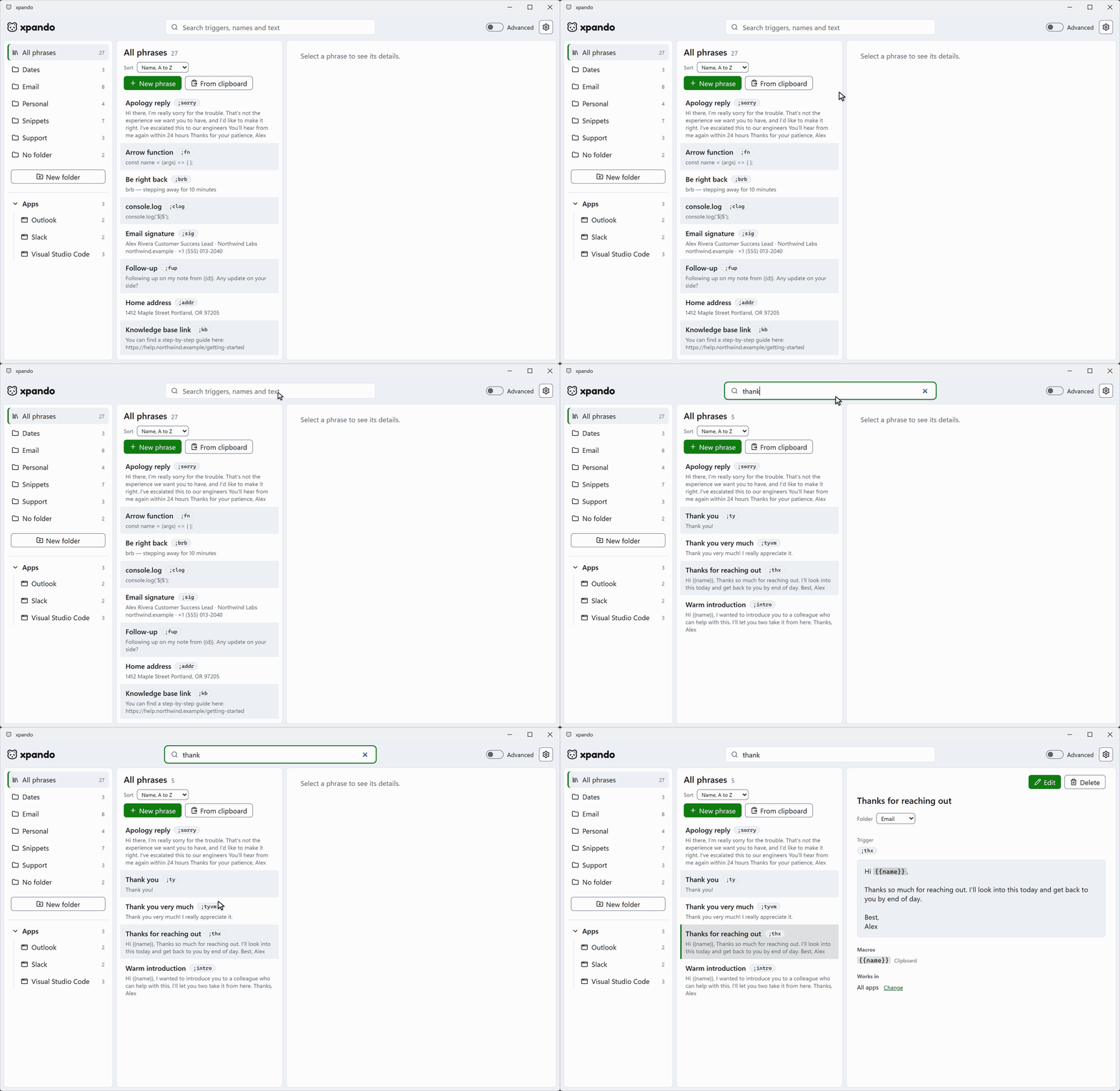
Type in the box at the top ("Search triggers, names and text"). The list narrows as you type.
- The search finds your text anywhere in a phrase's triggers, name, description and text. Capital letters do not matter.
- It searches inside what you have selected on the left. To search everything, select All phrases.
- If nothing matches, the list says "No phrases match your search."
- Clear the box to see the whole list again.
- If you type while editing a phrase and the search would hide it, xpando asks about your unsaved changes first.
The search in the window does not look at a phrase's Search terms. Those are for the shortcut search below.
Turn on Advanced Mode to narrow a search to one part of a phrase. A line under the search box then lists the operators.
| Operator | Looks in |
|---|---|
trigger: |
the triggers |
label: |
the phrase name |
folder: |
the name of the file's folder, which is the file name without .yml (for example base). It does not look at the folder labels you made with New folder
|
file: |
the file path (for example base.yml) |
comment: |
the description |
body: |
the text |
Rules:
- Type the operator, then the word, with no space:
trigger:sig. -
Quotes keep several words together:
body:"kind regards". -
Several terms must all match (an AND):
file:base trigger:;sig. - A word with no operator looks in the triggers, name, description and text, like plain search.
- Something that is not one of the six operators, such as
:hiorhttp:x, is treated as an ordinary word. So you can still search for a trigger that starts with a colon. - An operator with nothing after it yet (still typing) is ignored.
- With Advanced off, the whole box is one plain search.
Examples:
-
trigger:;sigfinds the phrase whose trigger contains;sig. -
folder:baseshows phrases whose file isbase.yml. To see the phrases in one of your folders, just click that folder in the left pane. -
file:outlookfinds phrases stored in a file with "outlook" in its name. -
body:"{{date}}"finds phrases that use a macro calleddate. - For a rich text phrase, the text is stored with its formatting tags, so
body:also sees those.
Press the search shortcut (Alt+Space unless you change it) in any program to open a small search box, pick a phrase and have it typed where you were. It also has a few built-in commands. See Quick Search for how it works and how to change the shortcut.
Related pages: Quick Search | The Phrase Manager | Writing Phrases | Advanced Mode | Settings and Data Folder