Repository navigation
Rich Text
A phrase can be plain text or rich text. Rich text can have bold, links, lists, colours, tables and more, so your email signature or a formatted reply looks right when it is pasted.
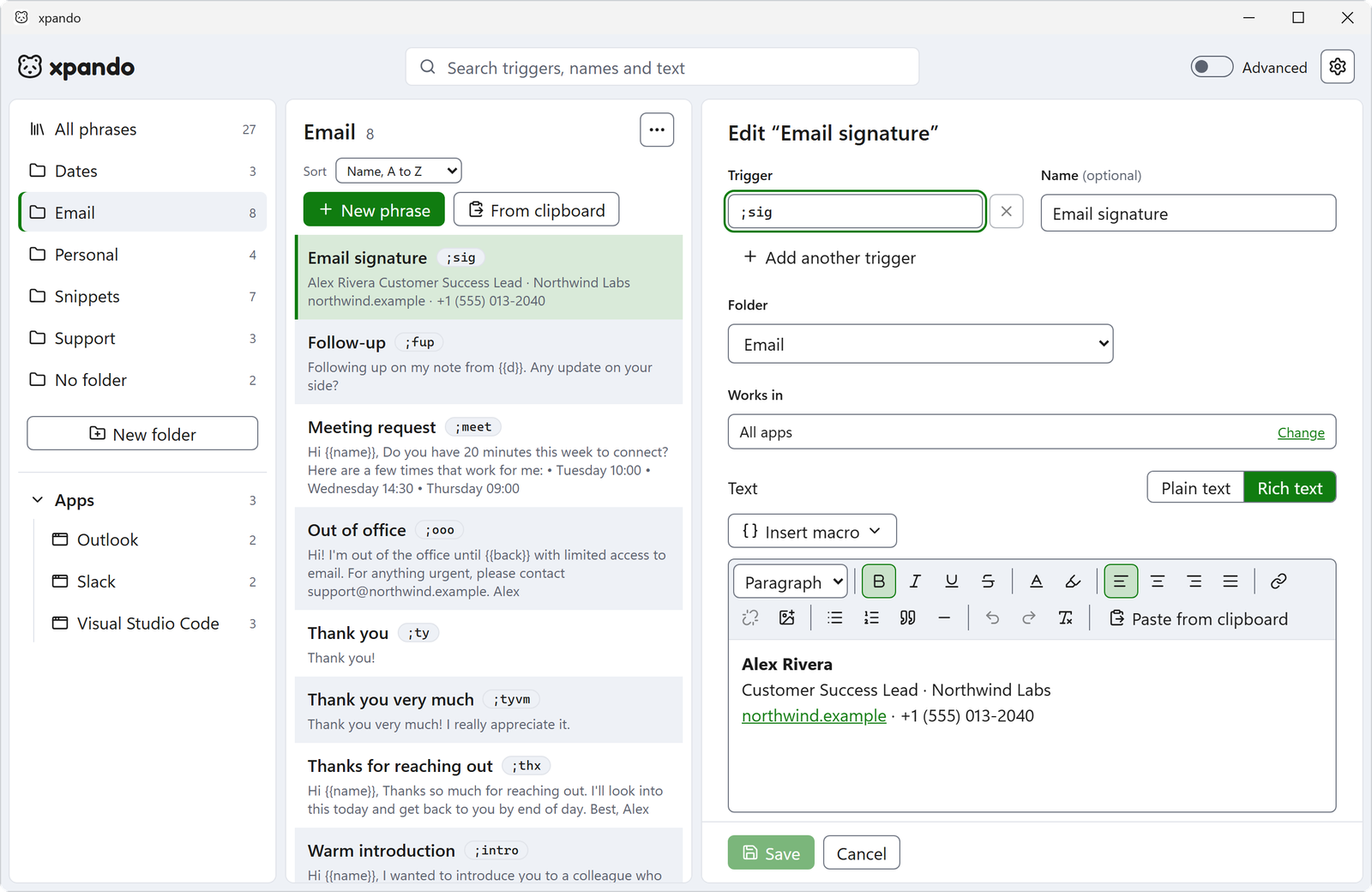
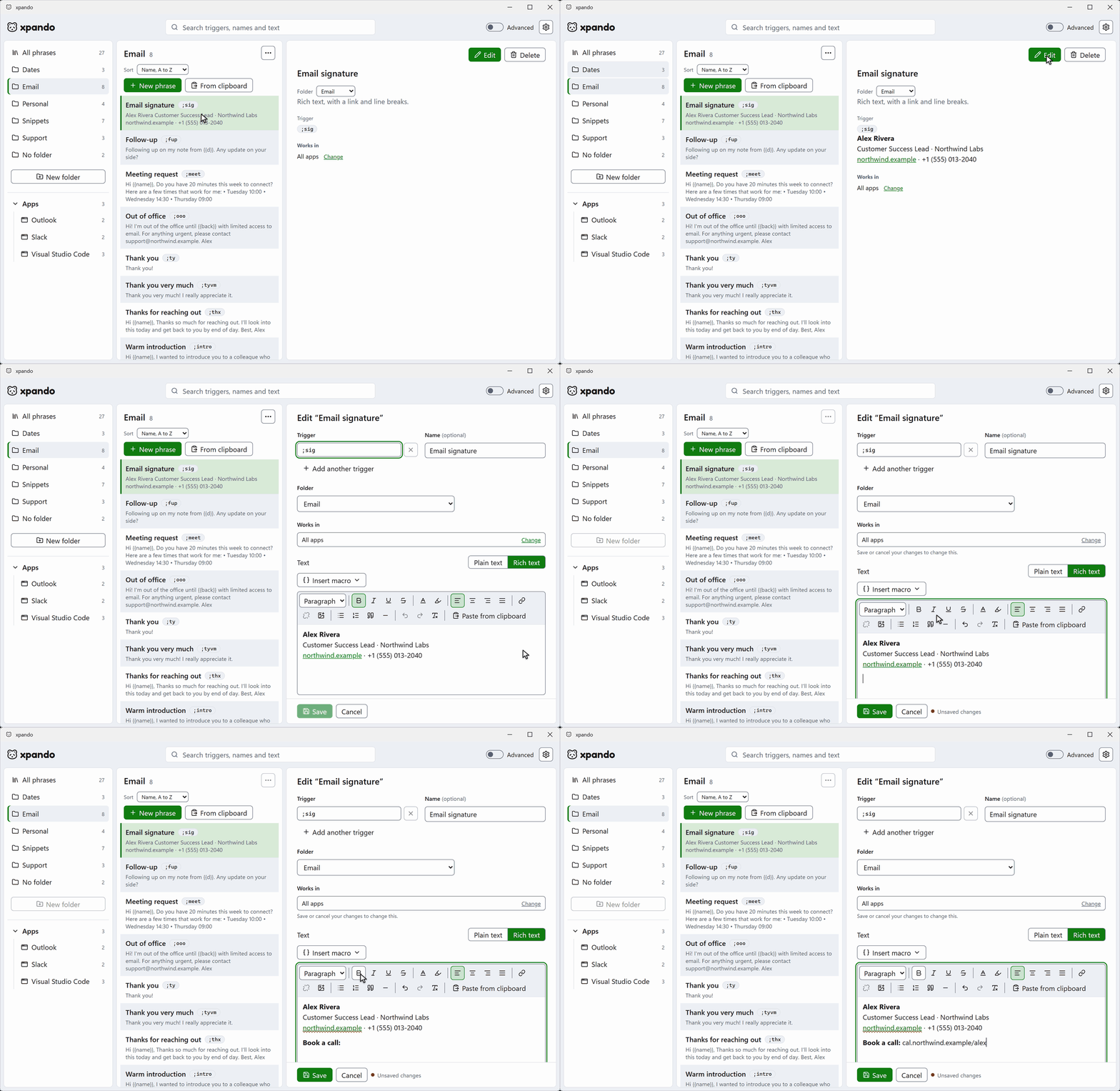
Above the Text box, the Plain text / Rich text switch chooses how the phrase is written. Click Rich text and the box becomes an editor with a toolbar.
From left to right, the toolbar offers:
- A text style menu (for example Paragraph and headings)
- Bold, Italic, Underline, Strikethrough
- Text colour and Highlight
- Align left, Centre, Align right, Justify
- Link and Remove link
- Image
- Bulleted list, Numbered list, Quote, Horizontal line
- Undo, Redo, Clear formatting
- Paste from clipboard
Advanced Mode adds Subscript, Superscript, Font, Font size, Decrease indent, Increase indent, Line spacing and Table (insert a table, add or delete rows and columns, merge and split cells). The buttons are hidden when Advanced is off, but xpando still keeps such formatting that is already in a phrase.
-
Link asks for a Link address. Addresses must start with
http://,https://,mailto:ortel:. Other kinds are not allowed. - Image asks for an Image address (https). The picture is a link to a picture on the internet, not stored in the phrase. It must stay online, and some programs never show linked pictures. A small picture that comes along when you paste (up to about 300 KB) is stored inside the phrase.
You can copy formatted text from Word, Outlook, Excel, Google Docs or a web page and use it as the text of a phrase.
- Ctrl+V in the rich text editor pastes it with its formatting, cleaned up.
- Paste from clipboard (a button in the toolbar) does the same from a button. If your computer does not allow xpando to read the clipboard, it says so. Press Ctrl+V instead.
- From clipboard (next to New phrase) starts a whole new phrase from what you copied. See The Phrase Manager.
What happens to the formatting:
| In Word and similar | In the phrase |
|---|---|
| Bold, italic, underline, strikethrough, subscript, superscript | Kept |
| Text colour, highlight, font, font size | Kept |
| Headings, alignment, indents, line and paragraph spacing | Kept |
| Bulleted and numbered lists, including sub-levels | Kept as real lists |
Links (http, https, mailto, tel) |
Kept. Other kinds become plain text |
| Tables with borders, shading, widths, merged cells | Kept |
| Pictures on the web, or small pictures stored in the document | Kept |
| Pictures on your computer or in an email | Left out, with a note under the editor |
| Comments, hidden text, Word's style sheets | Left out |
xpando only keeps a safe set of formatting. Anything else is removed, so scripts and strange formatting cannot end up in your files. Fonts must be installed on the computer where the phrase is used.
- Plain to rich keeps your text. Blank lines become paragraphs and single line breaks stay line breaks.
- Rich to plain loses formatting. xpando first tells you what would be lost ("Plain text can't hold ... Switching removes it.") and you choose Switch to plain text or Keep rich text.
Rich text is always put in through the clipboard (a paste), not typed key by key. xpando normally puts your previous clipboard back afterwards.
Programs that cannot take formatting get a readable plain version instead: paragraphs, bullet lists as *, and link addresses left out.
Programs differ in how they show pasted formatting (Outlook, Word, Gmail, Slack, Teams and others). xpando has not been tested against each one yet. Try your phrase where you will use it, and if something looks wrong, try simpler formatting or report it.
Macros work in rich text, with two cautions:
- Cursor position is not offered in rich text. In the Insert macro menu it is greyed out and says "Plain text only".
- A macro's value is inserted as is. If the clipboard holds something that looks like web markup (such as
<b>), it is pasted as formatting. For clipboard content you do not control, prefer plain text.
The search box looks at the stored text of a phrase. For rich text that includes its formatting tags, so (in Advanced mode) a search such as body:strong can match a phrase that has bold text. See Search.
Related pages: Writing Phrases | Macros | The Phrase Manager | Troubleshooting