Repository navigation
Quick Search
Press a keyboard shortcut in any program and a small search box opens. The shortcut is Alt+Space unless you choose your own (see Change the shortcut). Type a few letters of a phrase, press Enter, and xpando types it where you were. You never have to open the xpando window.
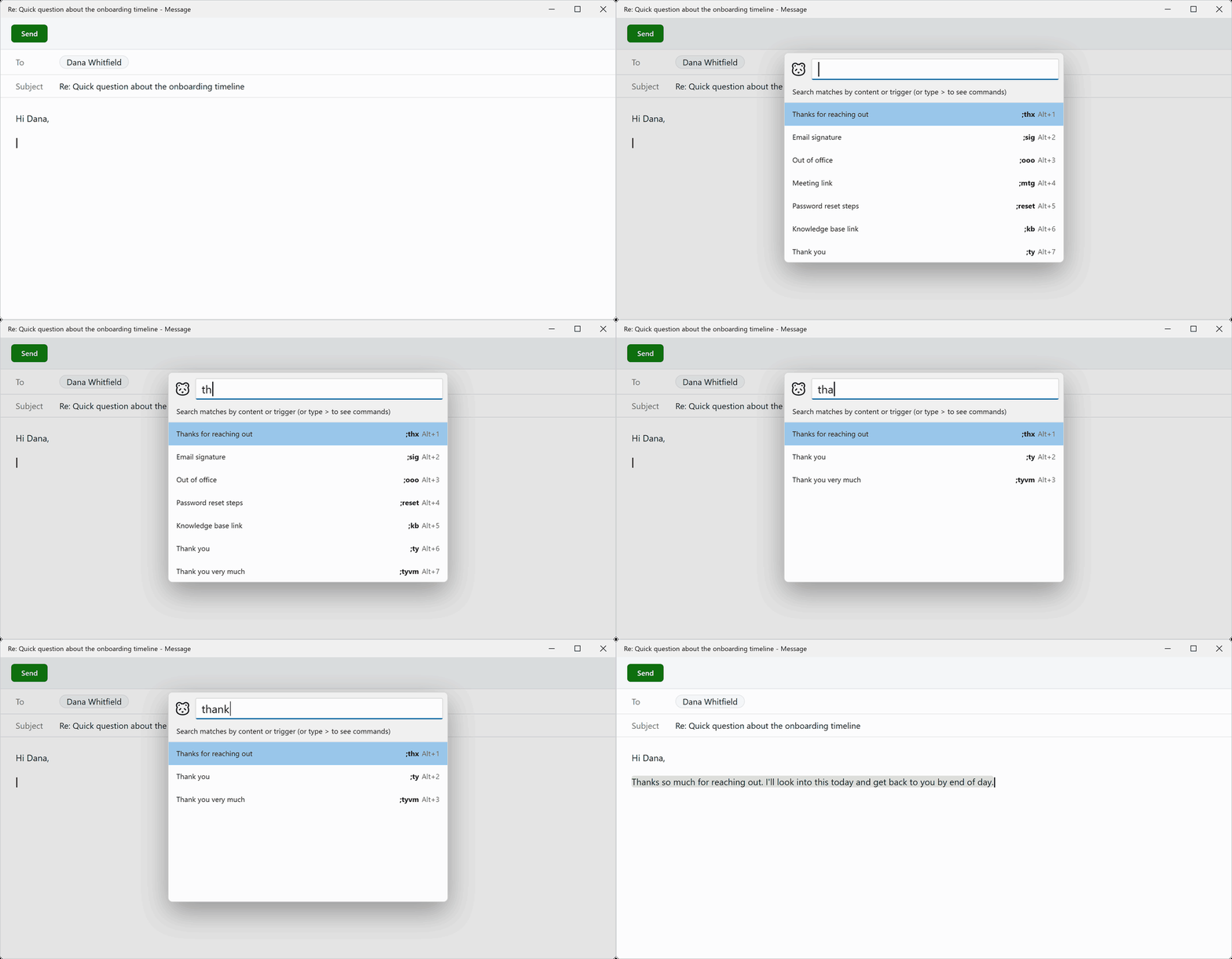
The screenshots on this page use sample phrases.
- Click where you want the text, for example in an email or a chat box.
- Press the search shortcut (Alt+Space by default). The search box opens.
- Type a few letters. The list narrows as you type.
- Press Enter to type the highlighted phrase, or use one of the shortcuts below.

The search box is part of xpando's engine, so it works even when the xpando window is closed, as long as the engine is running.
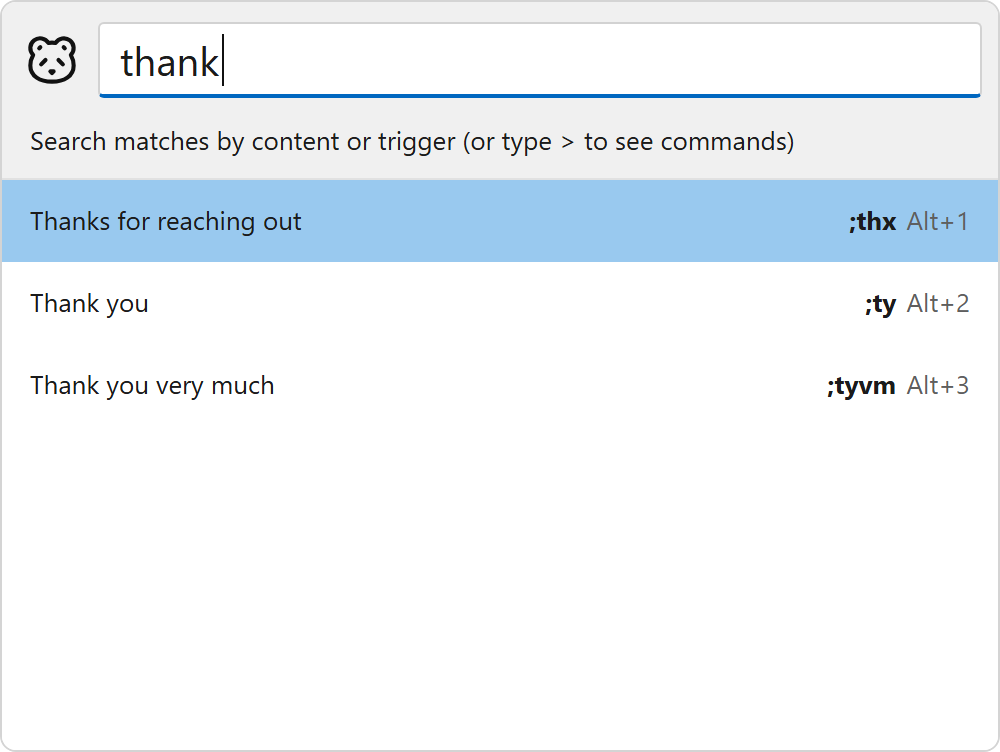
It looks at the text of a phrase, its trigger, its name and any Search terms you added to it in More options. It does not need the whole word: "thank" finds "Thanks for reaching out", "Thank you" and "Thank you very much".
| Keys | What they do |
|---|---|
| Up and Down, or Tab and Shift+Tab | Move through the list. Ctrl+N and Ctrl+P work too. |
| Enter | Type the highlighted phrase. |
| Alt+1 to Alt+8 | Type the first to the eighth result straight away. The number is shown next to each result. |
| Esc | Close the box without typing anything. |
Type > to see the built-in commands instead of phrases:

- Open xpando opens the xpando window.
- Restart xpando restarts the engine. Try this if expansion stops working.
- Quit xpando stops the engine.
- Show xpando's logs opens the engine's log, which helps when you report a problem.
- Open Settings (the gear).
- Under Expansion and search, find Open the search box and click Change.
- Press the keys you want. Hold Ctrl or Alt (you can add Shift) and press a letter, number, F key or Space (some other keys work too).
- Press Esc if you change your mind.
xpando restarts the engine for you so the new shortcut works at once. If another program already uses the same keys, choose different ones. The shortcut is stored in the search_shortcut line of config/default.yml in your data folder. If it is set to OFF there, the shortcut is turned off and Settings shows "Off."
- Check that the engine is running. xpando shows a warning in its window when it is not.
- Another program may already use the same keys (Alt+Space by default). Choose a different shortcut as described above.
- On macOS and Linux the shortcut and the box come from the same engine but get less testing than Windows. See Troubleshooting.
Related pages: Search | Settings and Data Folder | Writing Phrases | Troubleshooting