Repository navigation
Macros
A macro is a changing piece of a phrase. It is filled in at the moment the phrase expands: today's date, what you copied last, a name you pick from a list. In the text it shows as {{name}}.
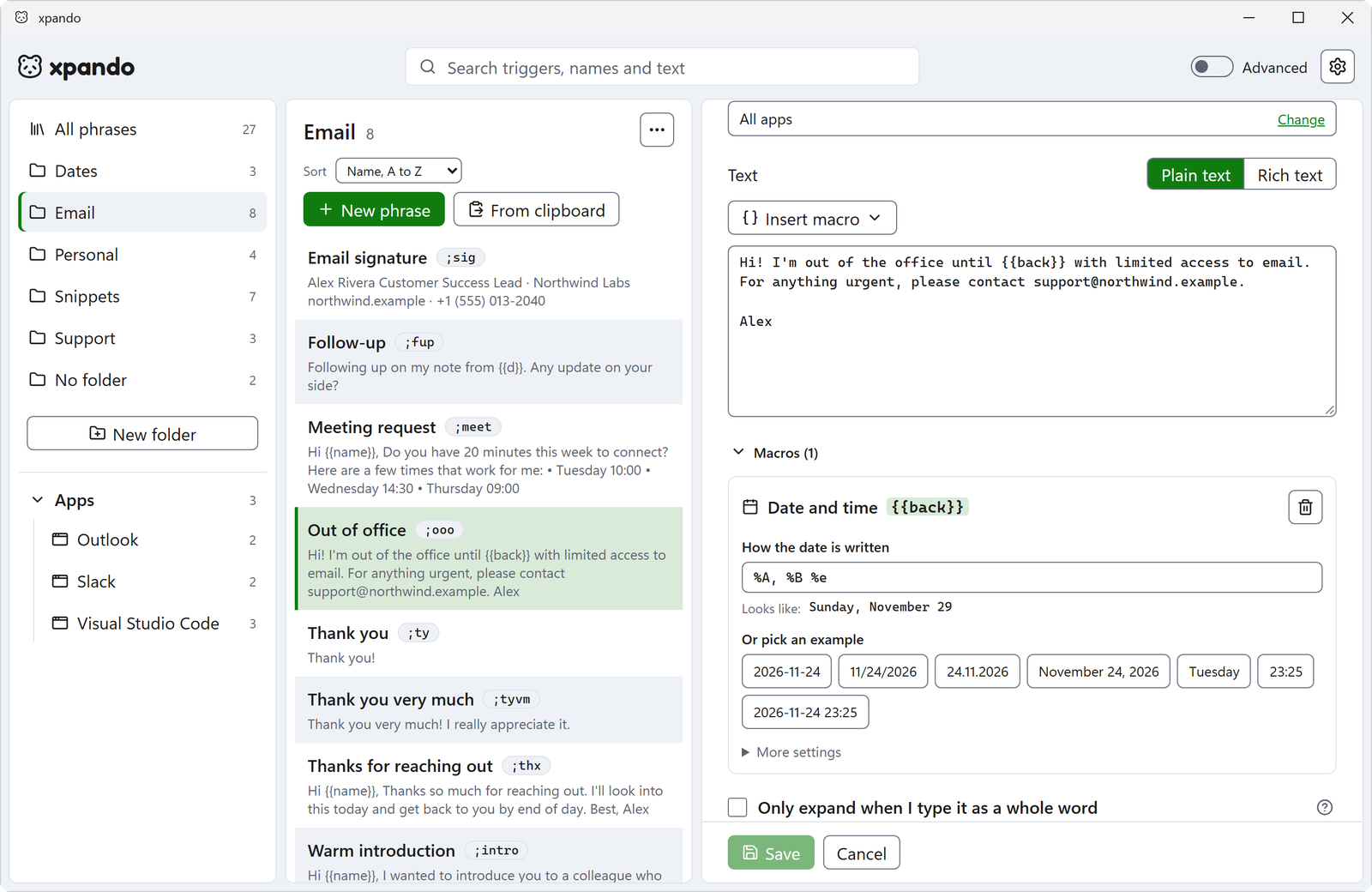
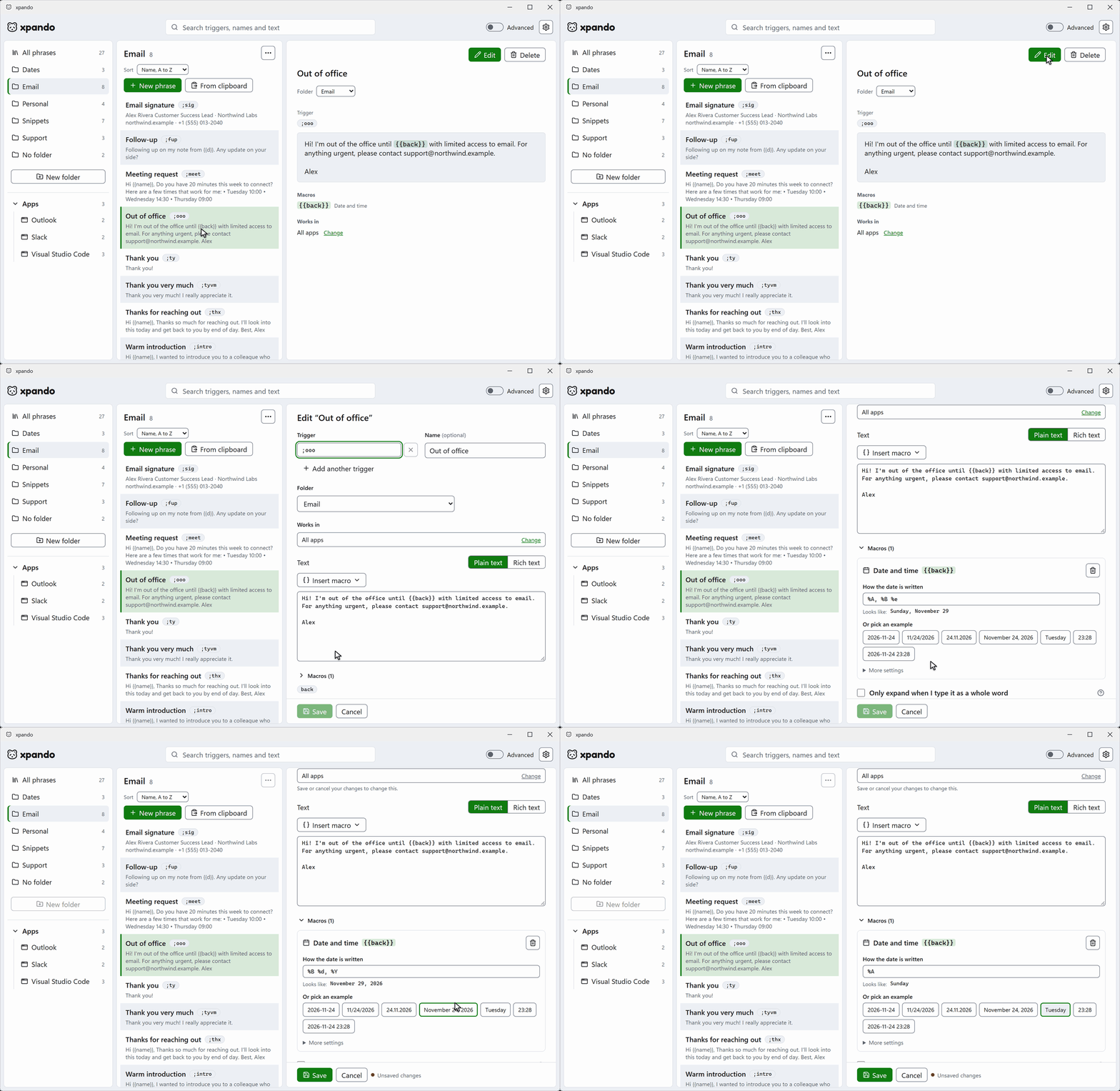
- Edit a phrase (or start a new one).
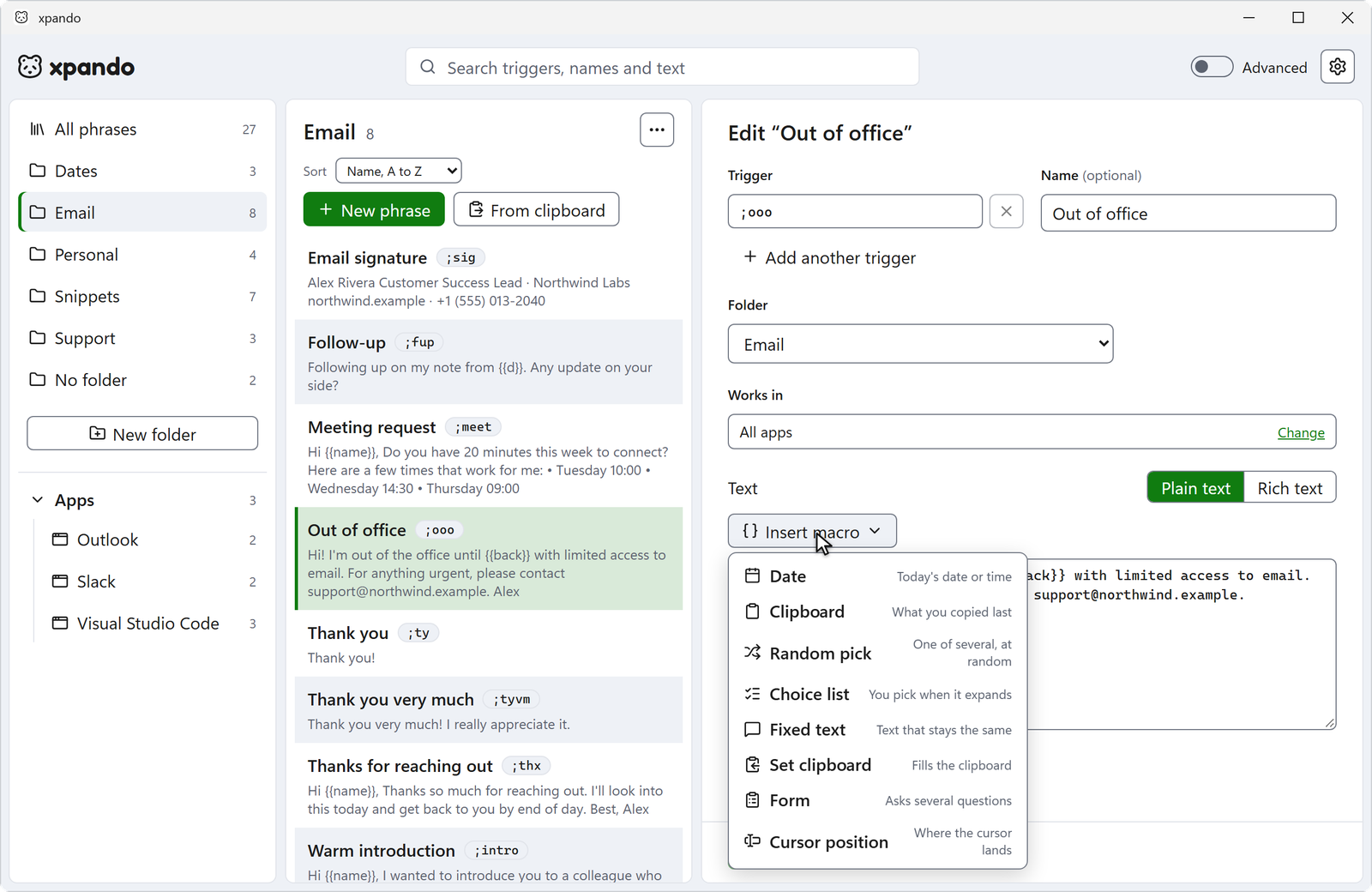
- Click Insert macro, above the text, and choose one.
- xpando puts
{{name}}into the text at the cursor and adds a card for it under Macros. - Fill in the macro's settings on its card.
- Save.
Good to know:
- The Macros section lists every macro in the phrase. Click its heading to open or close it.
- To remove a macro, click the trash button on its card. xpando also removes
{{name}}from the text, and offers Undo. - A macro that is not in the text says Not in the text yet and offers Remove it.
- A macro only runs when its
{{name}}is in the text. - If a macro uses another macro, xpando puts them in the right order for you. You cannot remove a macro that another one uses until you change that one.
- The menu in normal mode has the everyday macros. Advanced Mode adds Command output and Program output, and an Add a macro button that adds a macro without putting it in the text.
Today's date or time.
-
How the date is written is a pattern. It starts as
%Y-%m-%d(for example 2026-11-24). Under it, Looks like shows a live preview, and Or pick an example gives one-click formats such as11/24/2026,November 24, 2026,Tuesdayand23:01. - Under More settings: a list of what the codes mean (Build your own), Shift by (seconds) (for example
86400is tomorrow and-3600is an hour ago), Language of month and day names (for examplede-DE) and Time zone (for exampleEurope/Berlin). - The preview is approximate. The engine writes the final result.
Common codes: %Y year, %m month, %d day, %H hour (00-23), %M minute, %B month name, %A weekday name.
Example: an out-of-office phrase "Hi! I'm out of the office until {{back}}", where back is a Date macro with the format %A, %B %e. On 24 November 2026 it gives "...until Tuesday, November 24".
What you copied last. It has nothing to set.
Example: a phrase "Hi {{name}}," where name is a Clipboard macro. Copy a person's name, type the trigger, and the name is filled in. The clipboard needs to hold text.
One option from your list, chosen at random each time.
- Click Add option to add more. Click the X to remove one. You need at least one.
Example: options "Hi", "Hello" and "Hey" for a varied greeting.
A list that pops up when the phrase expands. You choose one option and it is typed.
- Add the options the same way as for Random pick.
- If the options in the file have an id and a label, the card says "These values have an id and a label. Edit it as YAML." Use Advanced Mode for that.
Example: options "Formal" and "Friendly" for the closing line of an email.
Text that stays the same. It is Text to insert, and it can use other macros, for example {{date}}_{{clipboard}}.
This is useful for combining other macros into one piece, or for text you want to reuse inside other macros.
Puts text on the clipboard after the phrase has been typed, ready for you to paste somewhere else. The macro itself inserts nothing into the text.
- One setting: Text to put on the clipboard. It can use other macros.
- Example: a phrase with the text
{{out}}, whereoutcombines a Date and a Clipboard macro, can also leave that same text on the clipboard.
Things to know:
- It only works with xpando's own engine. The engine that comes with xpando understands it. Stock espanso reports an error for a file that uses it.
- The clipboard is set after the phrase is inserted. xpando normally restores your old clipboard after pasting. This macro deliberately replaces it afterwards, so its text is what stays on the clipboard.
- If the phrase fails (for example a form is cancelled), nothing is put on the clipboard.
- If several Set clipboard macros run, the last one wins.
- Put it after the macros it uses.
- The phrase text must contain at least one
{{...}}reference. Macros are only run when the text mentions one, so a text without any would never set the clipboard. - If xpando cannot find its own engine, a warning on the phrase says "This phrase uses a Set clipboard macro, but xpando's engine was not found, so it will not run."
- It has been tested with automated tests, but not yet by hand on every system (macOS and Linux in particular).
Old PowerShell trick: in Advanced mode, a phrase whose macro only runs Set-Clipboard through PowerShell shows an offer with Preview conversion. Click Convert to change that one macro into a Set clipboard macro. Nothing changes until you click Convert.
Asks you several questions when the phrase expands, then fills in your answers.
-
What the form looks like: write the text of the form and put
[[name]]where an answer goes. -
The questions (written as YAML): one entry for each
[[name]]in the layout. For example a linename:and below it, indented,type: text.
Example layout: Dear [[name]], thanks for your order [[order]]. with a question for name and one for order.
The questions are written as YAML. See the espanso forms documentation for the field types.
Choose where the text cursor lands after the text is typed. This is not a card: Insert macro puts the marker $|$ into the text.
Example: a code snippet console.log('$|$'); leaves the cursor between the quotes.
It is only available in plain text. In rich text it is greyed out.
These two run things on your computer, so they only appear when Advanced Mode is on. Only use commands and programs you understand.
Runs a command and inserts what it prints.
- Command to run can use other macros.
- Under More settings: Run it with (the shell, or Default for this system), Trim spaces and line breaks around the output, and Write details to the log (for troubleshooting).
Runs a program and inserts what it prints.
- Program or argument: the first line is the program, the lines after it are passed to it. Click Add an argument for more.
- Under More settings: the same checkboxes as Command output, plus Carry on if the program fails.
With Advanced on, each card also lets you rename the macro (Name; letters, digits and _, not starting with a digit), change What it fills in (changing it clears the settings, with Undo), and shows other settings the card has no field for. When you rename a macro, xpando changes {{name}} in the text and in other macros too. The file's own names for settings (format, cmd, ...) appear next to the labels.
Related pages: Writing Phrases | Rich Text | Advanced Mode | Troubleshooting