Repository navigation
Settings and Data Folder
Open Settings with the gear button at the top right of the xpando window. Settings has three groups: Data folder, Expansion and search and Updates.
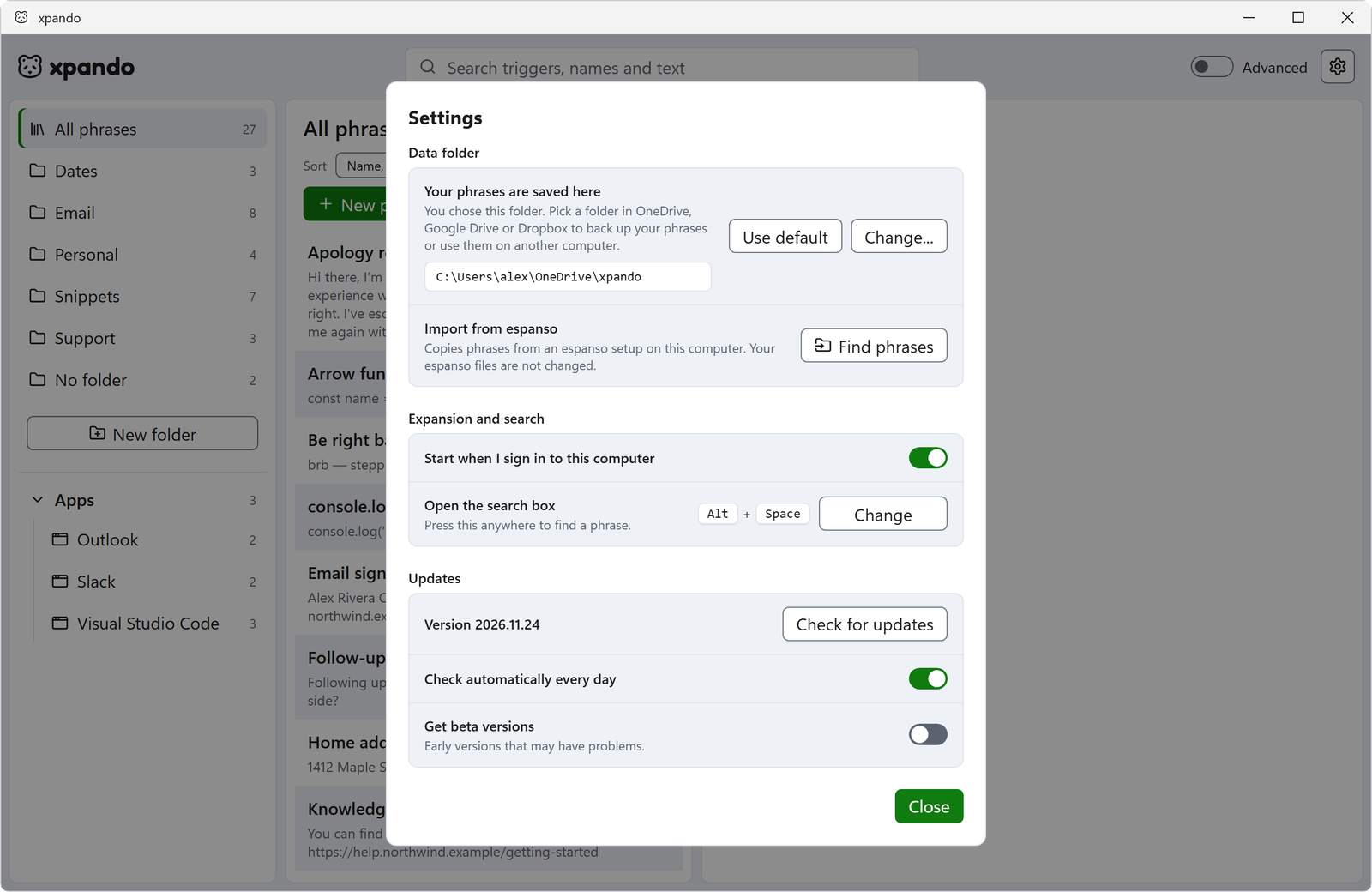
xpando keeps your phrases in its own folder. You do not have to set anything up. The first time xpando starts, it creates the folder for you.
| System | Default folder |
|---|---|
| Windows |
%APPDATA%\xpando (for example C:\Users\you\AppData\Roaming\xpando) |
| macOS | ~/Library/Application Support/xpando |
| Linux |
$XDG_CONFIG_HOME/xpando, or ~/.config/xpando
|
Settings shows the folder under Your phrases are saved here. In Advanced Mode, the status bar shows it too.
-
match: your phrase files. These are plain YAML files. -
config: settings for the engine, including which programs some of your phrase files work in, anddefault.yml, which holds the search shortcut. -
xpando-folders.txt: the names of the folders you made, so that empty ones are kept. -
.bakfiles: a copy of a file from before xpando first changed it.
xpando's engine is started with this folder, so it never reads or writes the folder of a separate espanso install. The choice of data folder itself is remembered in a small settings.yml in xpando's own settings location, kept apart from your phrases so it does not travel with them.
A folder in a sync service backs up your phrases and lets you use them on more than one computer.
- In Settings, next to Your phrases are saved here, click Change....
- Click Browse... to pick a folder, or type its full path. xpando checks it and tells you if it cannot be used. It must be a folder you can write to. If it does not exist yet, xpando can create it (only the last part of the path).
- Click Next. xpando asks Copy your existing phrases to ...?
- Copy my phrases copies everything from the old folder to the new one. Nothing is moved: the old folder stays as it is, and files that already exist in the new folder are kept, not replaced.
- Start empty switches without copying. If the new folder already has phrases, the button says Just use this folder and xpando uses them.
- xpando shows what was done. If any file cannot be copied, it lists them and keeps using the old folder, so you never end up with half of your phrases in each place.
Use default (shown when you use a custom folder) switches back to the default folder. The folder you leave is never deleted.
A synced folder can be missing when you are signed out, offline, or a drive is not connected. xpando then shows a warning at the top of the window: xpando cannot reach your data folder. It does not switch to another folder behind your back, and it does not create the missing folder.
Fix the problem (sign in, reconnect), then click Try again. Or click Settings to choose another folder.
When you come back to the xpando window, it reads the folder again, so changes from a sync service or from editing a file by hand show up. If you are in the middle of editing a phrase, xpando waits. Saving always checks first that the file did not change, and offers Reload if it did.
If your sync service leaves a "conflicted copy" next to a file, xpando shows a banner listing those files and which file each seems to copy. See Sync Tips.
Find phrases (under Import from espanso) looks for an espanso setup on this computer and offers to copy it. See Migrating from espanso. If none is found, a note says "No espanso phrases were found on this computer."
- Expansion is off appears only when the engine is not running, with a Turn on button. If xpando cannot start it, the message says why. See Troubleshooting.
- Start when I sign in to this computer: when on, xpando starts its engine in the background each time you sign in, without opening a window. Your phrases then work without you opening xpando. On Windows this adds a start entry for your user. On macOS and Linux it adds a login item.
- Open the search box: the shortcut that opens the search box from any program (Alt+Space unless you change it). See Quick Search.
When you open the xpando window, it starts the engine for you unless you turned expansion off on purpose.
Check for updates, Check automatically every day and Get beta versions. See Updates.
Your phrases are ordinary files, so backing up is easy: copy the data folder (or keep it in a synced folder). Before you try something risky, copy the match folder somewhere safe.
Related pages: Sync Tips | Migrating from espanso | Updates | Search | Troubleshooting