Repository navigation
Code editor
The code editor is where you write scripts. The language is on Scripting. This page is about the window.
- Effects → Edit as code. With an effect selected, it opens that effect's script. With none selected, you write a new one. This works on presets too.
- Advanced editor → Effects tab → Code, in the toolbar.
- Weapon mode → Code for the whole design, or Skin → Write your own for the moving color.
- Creator → Sticker → Code for the layers, or Printed On → Animate with code for its own script.
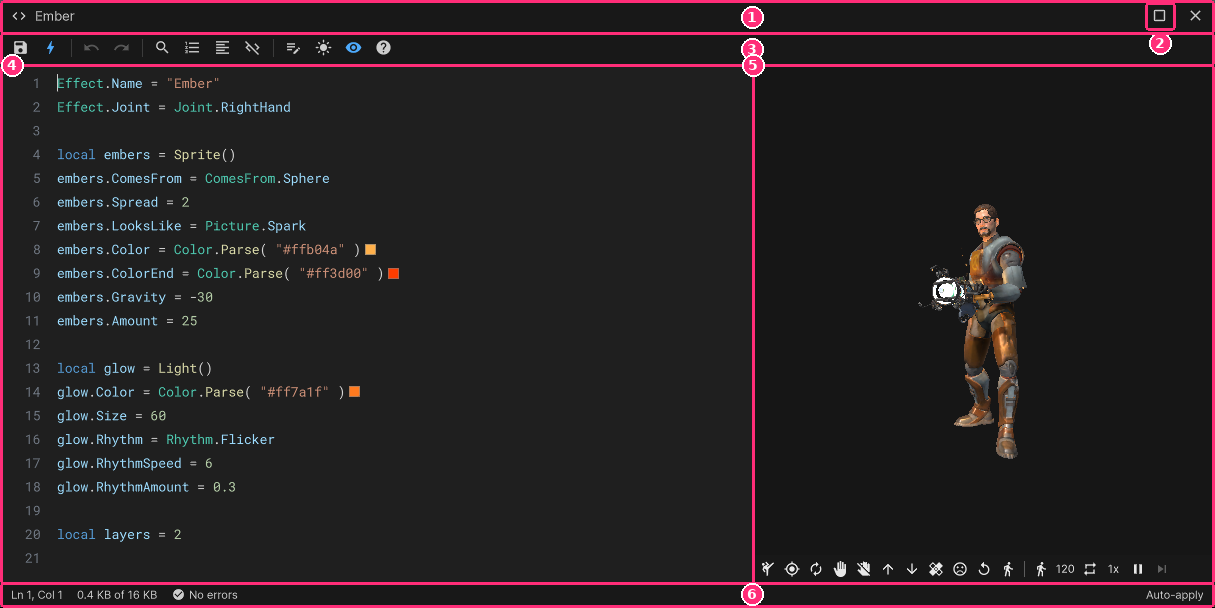
- The title names the script, with a dot when it has changes that aren't saved. Drag it to move the window. Double-click it to maximize.
- The window buttons: Maximize and Close.
- The toolbar, below.
- The code, with line numbers and VS Code's colors.
- The preview, below.
- The status bar: where the caret is, the script's size ("3.2 KB of 16 KB"), and how many errors it has. Click the errors to list them. Click a line in the list to jump to it.
Size the window from any edge or corner, down to 380 by 240. Where it was, its theme, Auto-apply and the preview's state are kept on your machine.
| Icon | Name | Key |
|---|---|---|
| Disk | Save: apply and wear it | Ctrl+S |
| Lightning bolt | Auto-apply on or off | |
| Back and forward arrows | Undo, redo | Ctrl+Z, Ctrl+Y or Ctrl+Shift+Z |
| Magnifier | Find, replace | Ctrl+F, Ctrl+H |
| Numbered list | Go to line | Ctrl+G |
| Lines | Format: indent and space it one way | Shift+Alt+F |
| Crossed code sign | Comment the lines out, or back in | Ctrl+/ |
| Note and pencil | Keep as draft | |
| Sun or moon | Light theme or dark theme | |
| Eye | Show or hide the preview | |
| Question mark | Reference | F1 |
Other keys:
| Key | What it does |
|---|---|
| Ctrl+Space | Open completion |
| Tab, Shift+Tab | Indent, outdent |
| Enter | New line, keeping the indent |
| F3, Shift+F3 | Next match, previous match |
| Esc | Close a popup or the find bar |
Brackets and quotes close themselves. The bracket or block matching the caret is marked.
Suggestions appear as you type: members after a dot, your own names, keys with their pictures, and shapes and stickers with theirs.
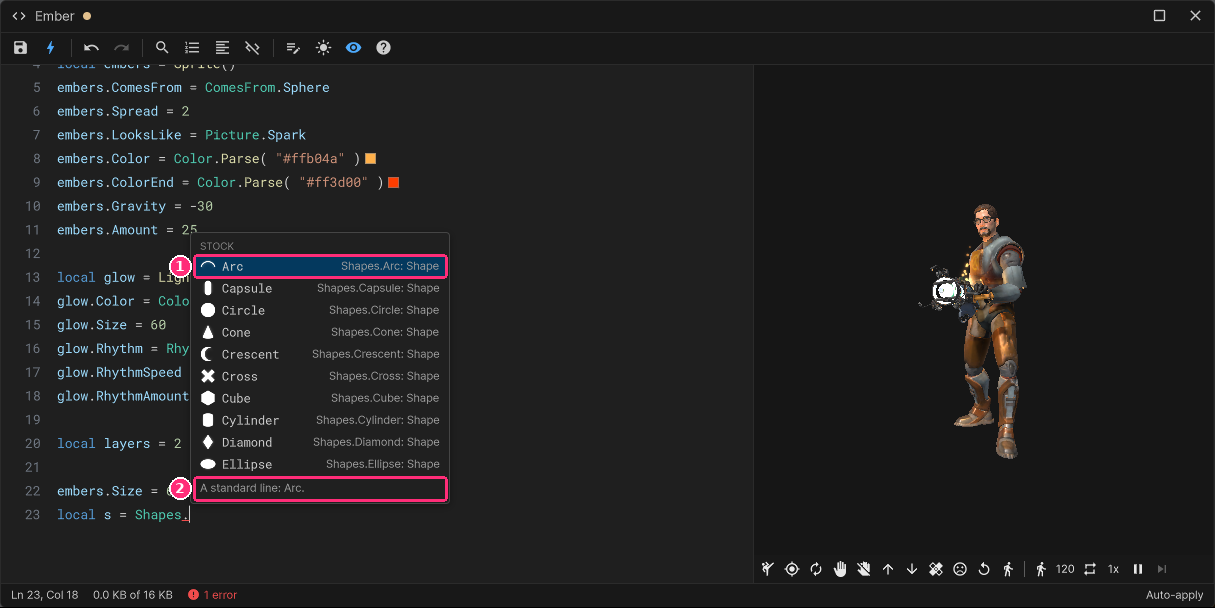
- Each row has a picture, a name and its type.
- The line under the list says what the selected one does.
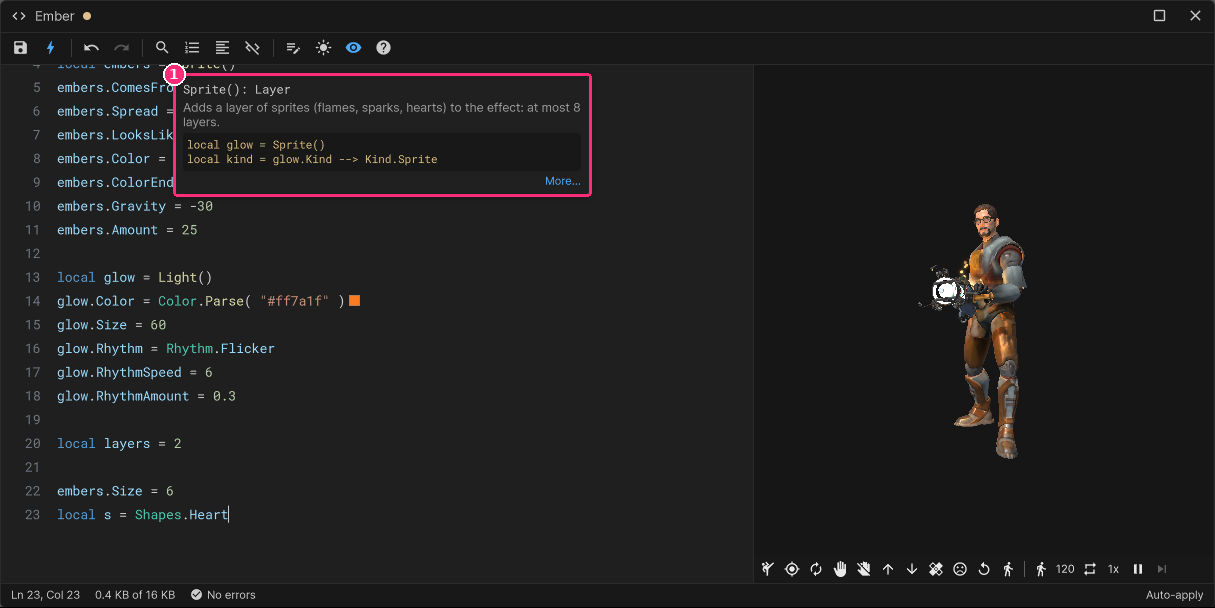
Inside a call's brackets, the parameter you are on is marked. Rest the mouse on a word for its docs. More… opens it in the reference.
A small swatch sits before each color in the code. Click it and pick another. Only that value changes, in the same form: hex stays hex. Undo reverts it. A key's picture sits before each key.
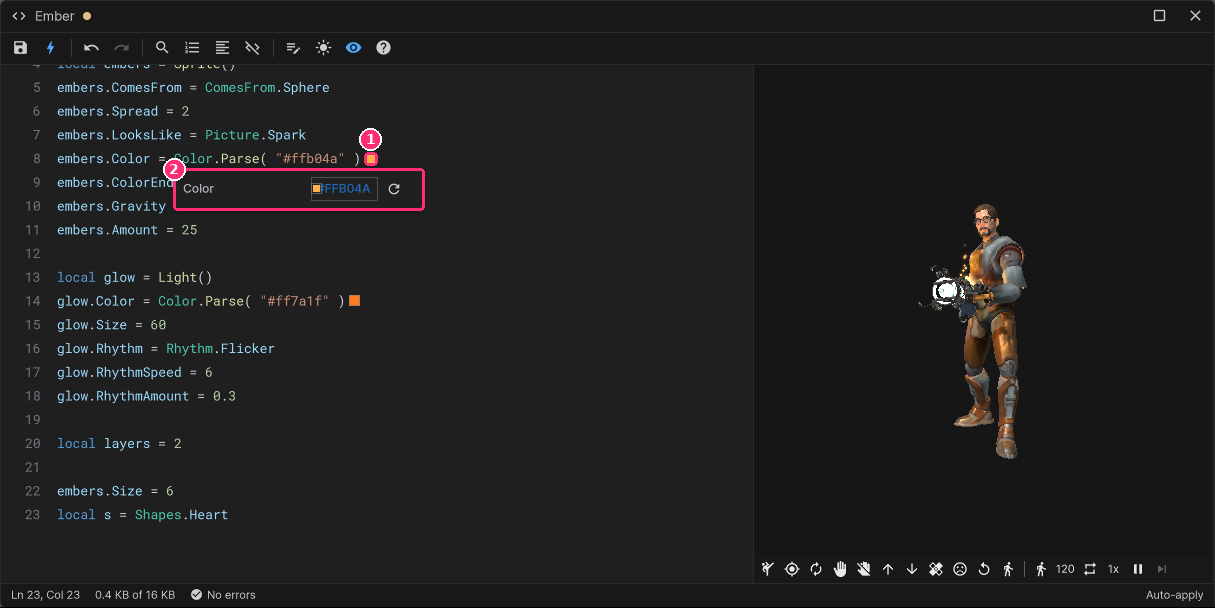
- The swatch.
- The picker.
Errors are underlined and counted, and never popped up. They aren't flagged while you are still typing the word. While the code has an error, the last good version keeps showing.
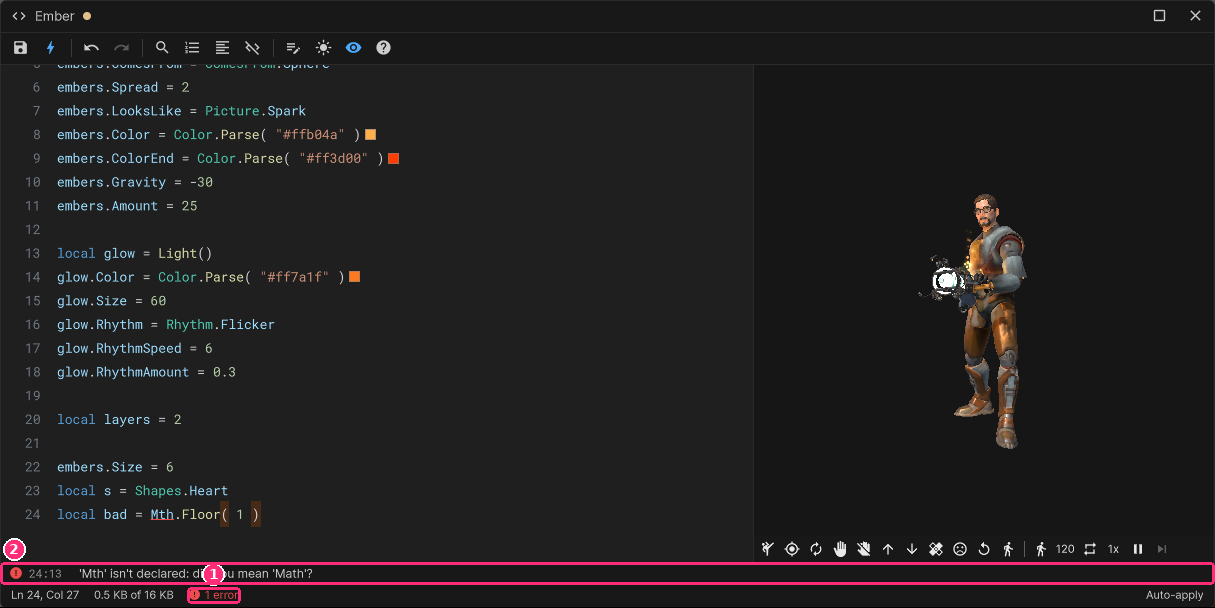
- The count on the status bar. Click it to show the list.
- The list, with each error's line and column. Click one to jump to it.
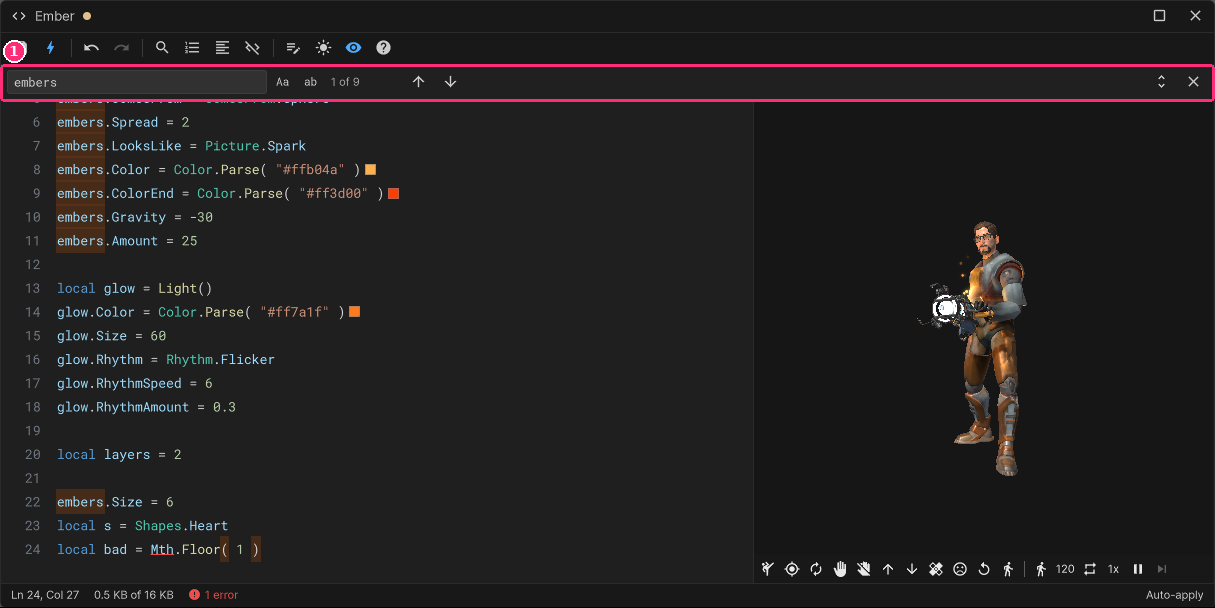
Ctrl+F finds, with Match case (Aa), Whole word (ab) and a count like "3 of 12". Ctrl+H adds Replace this one and Replace all. Undo reverts a replace all.
The eye icon shows what you write beside the code, as you write it. It takes about two fifths of the window. Off, the code takes the whole window.
| You are editing | The preview shows |
|---|---|
| An effect or weapon design | Your own character, holding the weapon you hold |
| A weapon skin | The weapon alone, close up as you see it in first person |
| A sticker | The sticker flat on its own, turning, its finish shimmering |
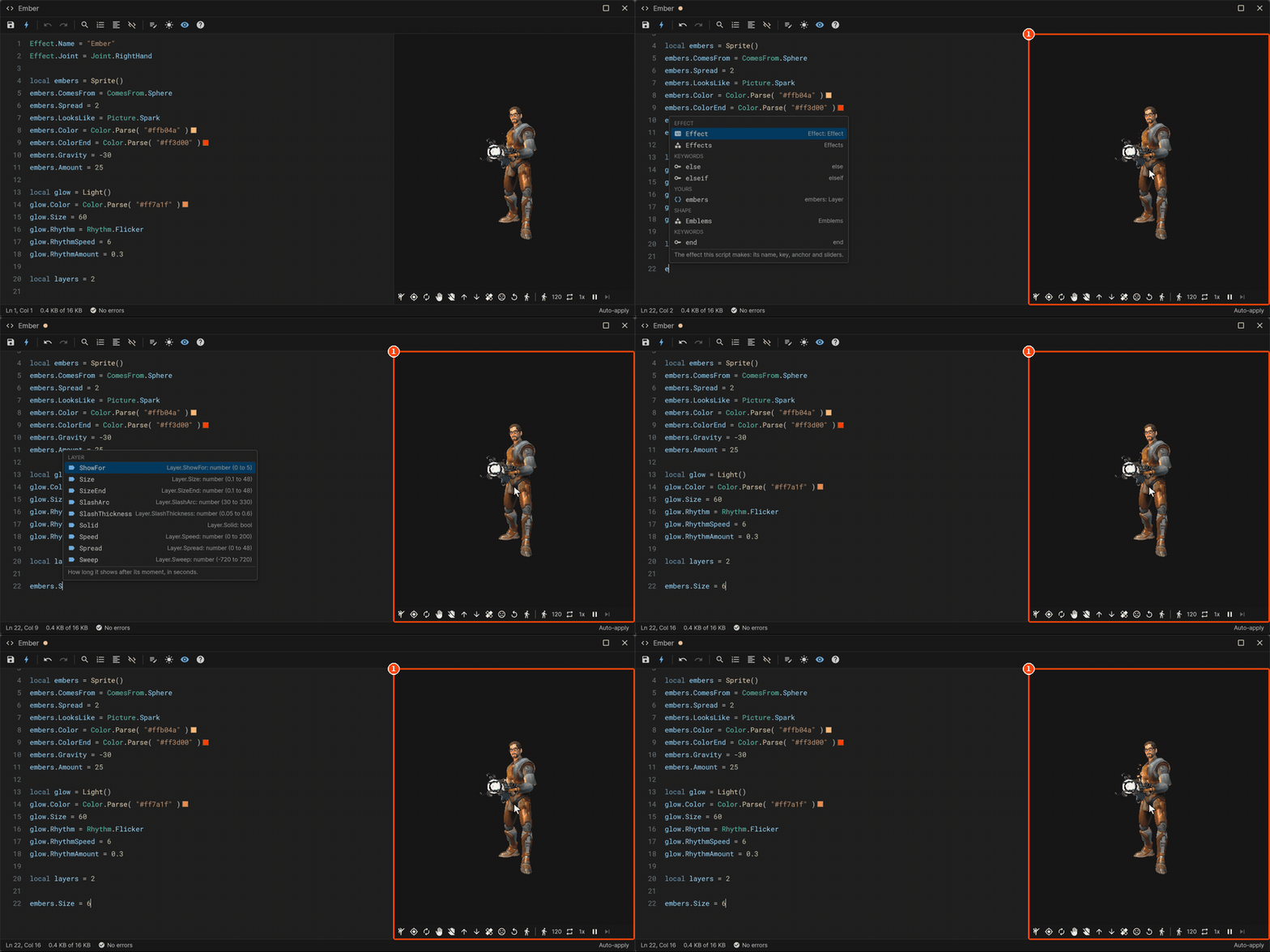
The test bar is under it. With a weapon skin, Swing, Shoot, Reload, Take out and Put away play the weapon's own animations, and an action it has no animation for says so.
- With Auto-apply on (the default, a bolt icon), the preview follows the code a moment after you stop typing.
- With it off, nothing changes until Save.
- Save (Ctrl+S) puts it on the effect and wears it, for everyone, in both modes.
Auto-apply never sends anything to the server as you type.
With the Advanced editor open, every good build updates its layers and fields. A change there is written into the code in place: the caret stays, and undo works.
- A field the code works out (a loop, a function, a parameter) can't be changed there. It is put back, with why and its line. Click the line to open the code there.
- The caret in a layer's lines selects that layer. Selecting a layer puts the caret on its lines.
Closing it with changes asks: Save, Discard, Keep as draft or Cancel. Keep as draft keeps the text exactly as it is, errors and all, and it comes back from My Effects. Weapon and sticker code has no draft of its own here: save the design or sticker as a draft instead.
The question mark icon, or F1, opens the scripting reference: every name a script can use, with a search, each with a live example. It opens where you left it. See Scripting.
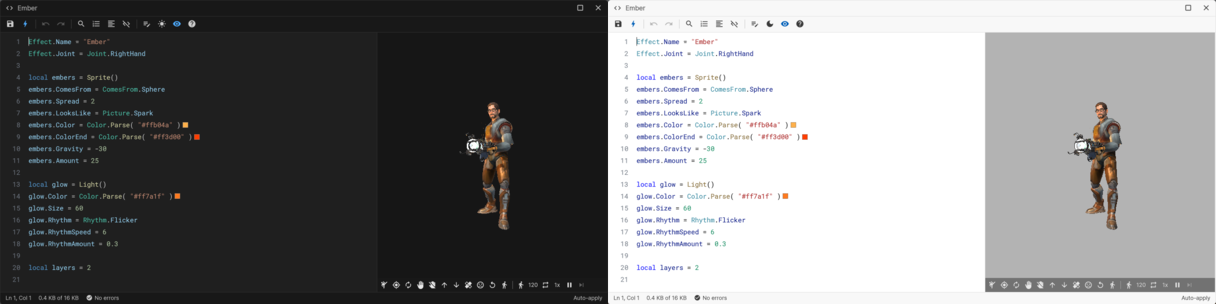
Dark+ is the default. The sun icon switches to Light+, the moon icon back. Your choice applies to every code editor and the reference.
A script is 16 KB at most, and 32 KB for all the scripts of one look, measured minified. Scripts are stored and shared minified, with comments kept, and opened formatted, in one style for everyone. See Scripting.