Repository navigation
Items
Items are cosmetics worn on your model: glasses, hats, hair, clothes. You can wear up to 8. The list has every stock item and everything on the Workshop (1,500+).
Items are on the Accessories tab of the Advanced editor. Pick a model first: the default citizen wears your avatar.

- Open Add an Item.
- Pick a category on the left. Workshop is first.
- Find an item. In a stock category, type in the box and the list narrows as you type. In Workshop, type and press Enter.
- Click its row to wear it.
Glasses, hats, hair and the like are pinned to a joint. Click an item's row under Worn to open it.
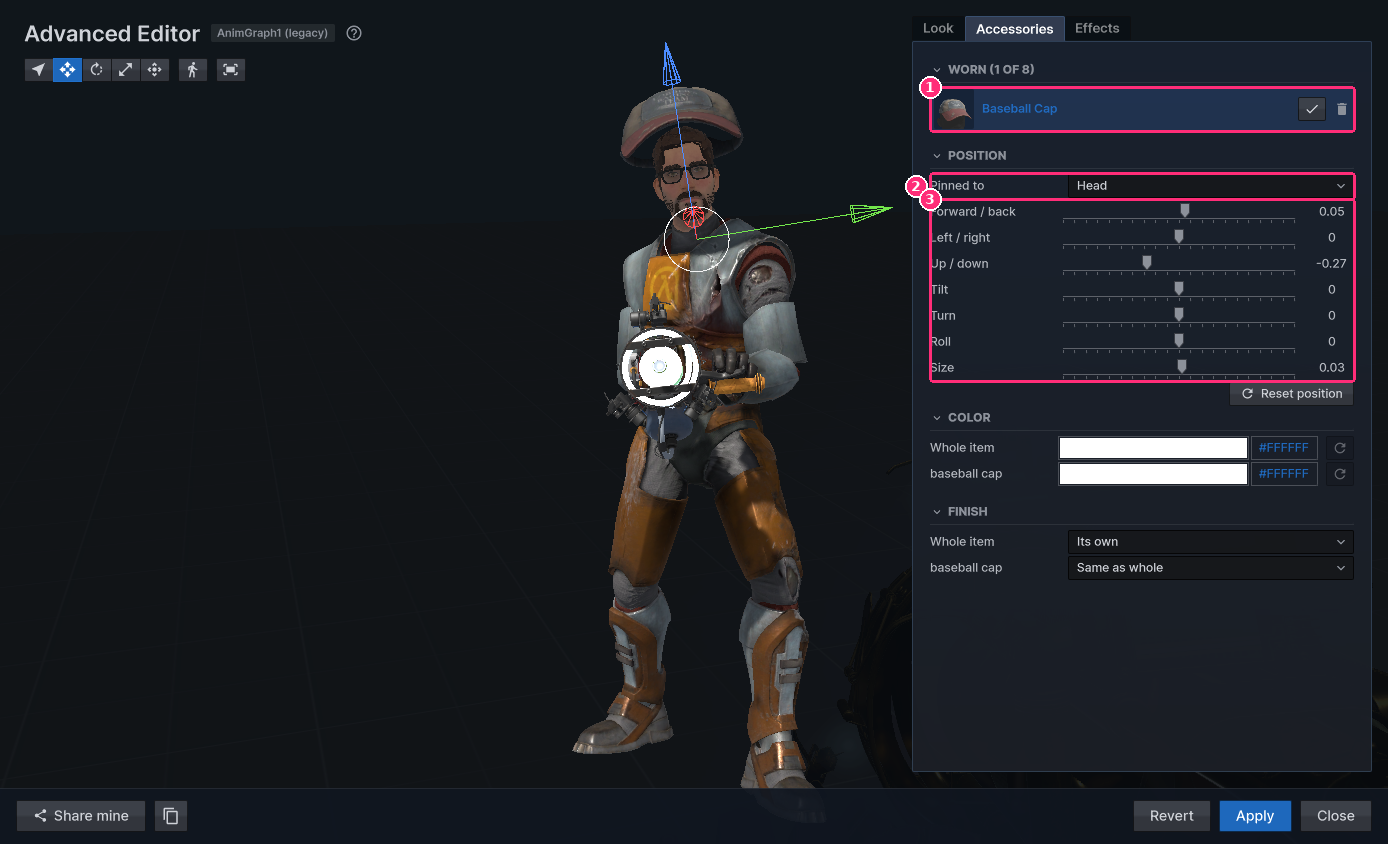
- The item's row. Click the check mark to go back to the list. The bin icon removes it.
- Pinned to picks the joint.
- Forward / back, Left / right, Up / down, Tilt, Turn, Roll and Size place it. Reset position puts it back.
You can also click the item on the preview and use the gizmo. See Advanced editor.
Clothes bend with the body instead of being pinned. They say so, and for them Size is how close they fit.
Each item has its own groups under Position, like a small Customize: Color, Finish, Body Groups and Morphs, where it has them.
- 8 items at a time.
- An item stays under half the model's height.
- An item stays within a quarter of the model's height from its joint.
- These hold on everyone's screen, so nobody hides a player behind a giant hat.
- Other players download the Workshop items you wear. They count towards your download limit on the server.
- The host can keep items off. They stay with your look and show again when the host turns them on. Workshop items also stay off while models from sbox.game do.