Repository navigation
Shapes and stickers
A shape is one plain outline. A sticker is a picture of layers, in colors of its own. See Concepts.
Find them on the Effects page, in the Shapes and Stickers tabs. Each opens the creator, which has two modes.

- Shapes and Stickers beside Effects.
- The shop icon opens the matching Workshop.
- New shape starts one of your own.
- My Shapes lists the ones you saved, used or forked. Drafts show here too, with a pencil.
- Standard Shapes lists all 40. Click one to make a shape of your own from it.
The 40 standard shapes:
- Round: Circle, Ellipse, Semicircle, Arc, Ring, Crescent
- Polygons: Triangle, Right triangle, Square, Rectangle, Rounded rectangle, Diamond, Parallelogram, Trapezoid, Kite, Pentagon, Hexagon, Octagon
- Stars and crosses: 4, 5, 6 and 8-point stars, Plus, Cross
- Symbols: Heart, Teardrop
- Lines and curves: Line, Sine wave, Zigzag, Spiral, Infinity, Helix
- Solids: Sphere, Hemisphere, Cube, Cylinder, Cone, Pyramid, Torus, Capsule

You can also reach the creator from a layer. In the Advanced editor, Draw a new shape... is at the end of a layer's shape and Looks like lists.
Press New shape. The creator opens in Shape mode.

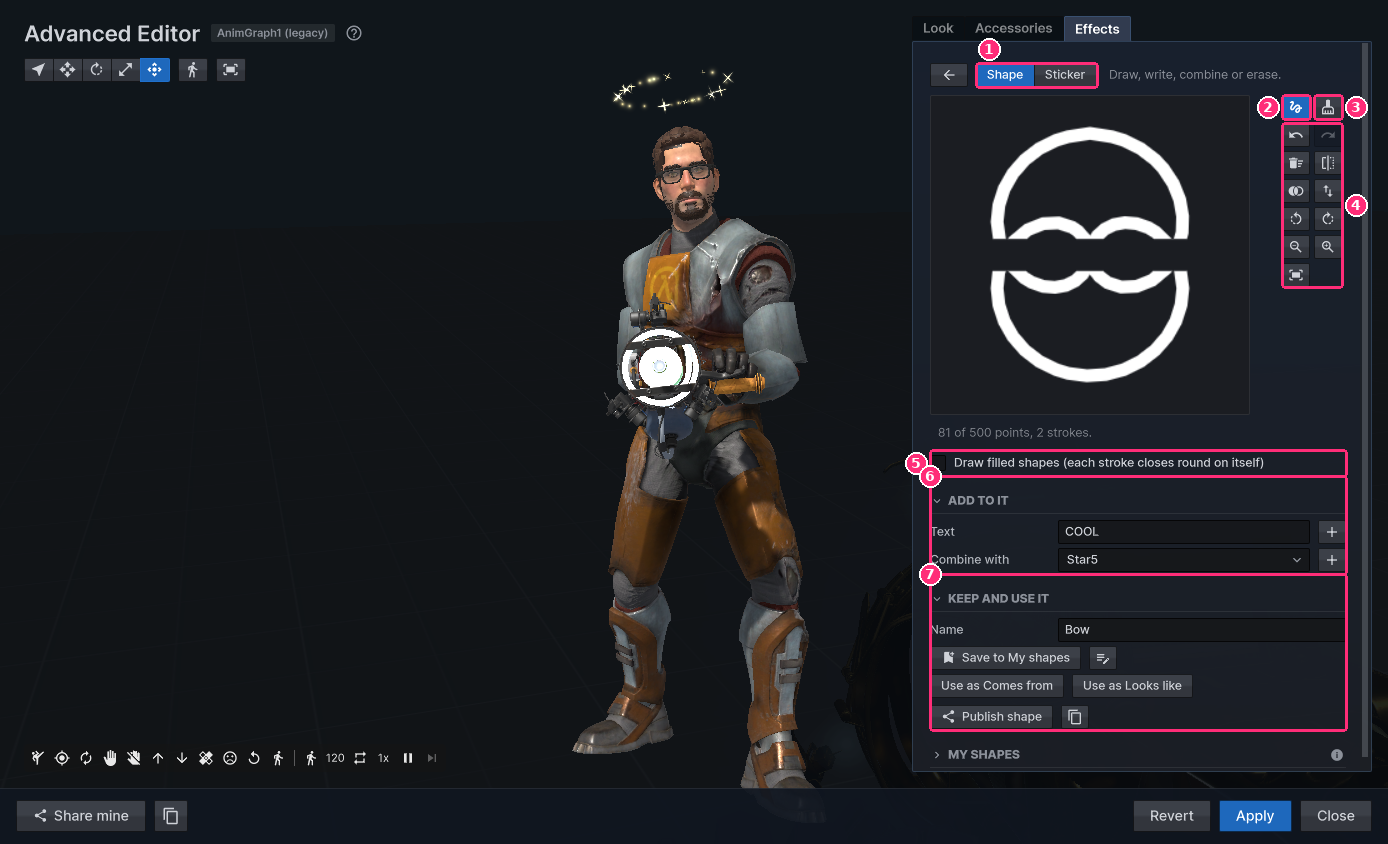
- Shape and Sticker switch mode.
- The pen draws with the left mouse button. Each stroke is smoothed and simplified.
- The brush is the eraser.
- The other icons are Undo, Redo, Clear, Mirror left to right, Add a mirrored copy, Flip upside down, Turn left, Turn right, Smaller, Bigger and Fit to the square. Point at one for its name.
- Draw filled shapes closes each stroke round on itself.
- Add to It adds text, or combines your shape with a standard one or one of yours.
- Keep and Use It names it and saves it.
Undo and Redo go a stroke at a time. A shape has up to 500 points.
Under Add to It, type in Text and press Enter. It uses letters, digits
and . , ! ? & + - : # @. The font is the same on every machine.
Pick the brush. It cuts away whatever is under it: fill, lines and text alike.
-
Eraser size sets how wide.
[and]change it while the canvas has the focus. A circle at the cursor shows the size. - Undo goes back one eraser stroke at a time.
- Sprites coming from a shape skip what was erased.
- The eraser's points count towards the shape's 500.
- Open Keep and Use It and type a name.
- Press Save to My shapes. The icon beside it saves a draft instead.
- Press Use as Comes from to send sprites out along it, or Use as Looks like to make each sprite it. Text stands upright so it reads. These show when the creator was opened from a sprite layer.
Publish shape shares it, and the icon beside it copies its code. See Workshop.
Open the Stickers tab and press New sticker, or pick Sticker at the top of the creator.

- Code opens the sticker's layers as a script. See Scripting.
- The canvas. Click a layer and drag it. Its corners and sides size it, and the knob above turns it. The wheel sizes it, Shift+wheel turns it and the arrows nudge it.
- The tools: Select and move, Draw, Eraser, Snap, Undo, Redo, Mirror, Bigger, Smaller, Turn left and Turn right.
- Add a Layer: a shape from the list (standard, yours, or Workshop...), a drawing, or text.
- Layers, up to 32. The top of the list is in front.

- The selected layer's settings.
- Printed On picks the finish, and holds the sticker's own script.
Under the layer's name:
- Across, Up, Turn, Width and Height place it by numbers.
- Flip left to right and Flip upside down.
- Color, Opacity, Outline and Outline width.
- Moving color: None, Rainbow, Rain (clan tag), Cycle (clan tag), Scanner (clan tag) or Pulse, with Speed and its colors. Layers moving the same way take turns, like a clan tag's letters.
On a layer's row, the eye hides it, the lock keeps it put on the canvas and the arrows move it. The three dots, or a right click, open: Duplicate, Delete, To front, To back, Lock, Hide, Group.
- Ctrl+click to choose several. Drag one to move them all.
- Ctrl+D duplicates, Delete deletes, Ctrl+G groups and Ctrl+Shift+G ungroups.
- The grid icon snaps to a grid and onto the middle, and centre guides show.
- The mirror icon draws every layer again, flipped left to right.
- Undo is Ctrl+Z and redo is Ctrl+Y.
Pick the Eraser tool. Eraser cuts chooses:
- Everything below (an eraser layer). It is a layer of its own, and you can move it like any layer.
- This layer only (a drawn one). Its outline follows the new edge.
Or take any layer and turn on Eraser: cut it out of every layer below. How much it cuts then sets the strength.
Open Printed On.
| Finish | What it does |
|---|---|
| Paper | Plain and matte |
| Holo | A rainbow film that shifts as it turns |
| Foil | Shiny metal under the print |
| Glitter | Flecks that twinkle as it turns |
| Gold | Gold foil |
| Lenticular | Two looks that swap with the angle. Give each layer Shows in: both looks, the first or the second |

Finishes show best on weapons, as you turn them. Sprites show a finish over time. Tiles shimmer while you point at them.
Name it and press Save to My shapes under Keep and Use It, as for a shape. Then:
- Use as Looks like makes each sprite the sticker. Each sprite covers what is behind it.
- In weapon mode, pick it under Add a sticker. See Weapons.
Publish sticker shares it. See Workshop.
Click a tile in My Shapes or My Stickers to open it again. Its three dots, or a right click, open: Open, Rename, Duplicate, Delete, Publish, Copy code. Leaving the creator with changes asks: Save, Keep as draft, Discard or Cancel.
| What | Most |
|---|---|
| Points in a shape | 500 |
| Layers in a sticker | 32 |
| Drawn points in a sticker | 2,000 |
| My shapes and stickers | 50, on your machine |
| Drafts | 50 of each kind |
| Shapes and stickers in one look | 8, with 4,000 points and 64 sticker layers in all |
A look carries each shape it uses, so everyone sees them with nothing to download. The host can turn off shapes players drew. They then show as plain circles and glows, and come back when turned on. Renaming or deleting a shape doesn't break what you wear.