Repository navigation
Models
A model is the character you wear. Open Third Person, then Models.

- Point at a tile. The preview shows it.
- Click it. You wear it now, and everyone sees it.
To go back to the citizen in your own outfit, click Default.
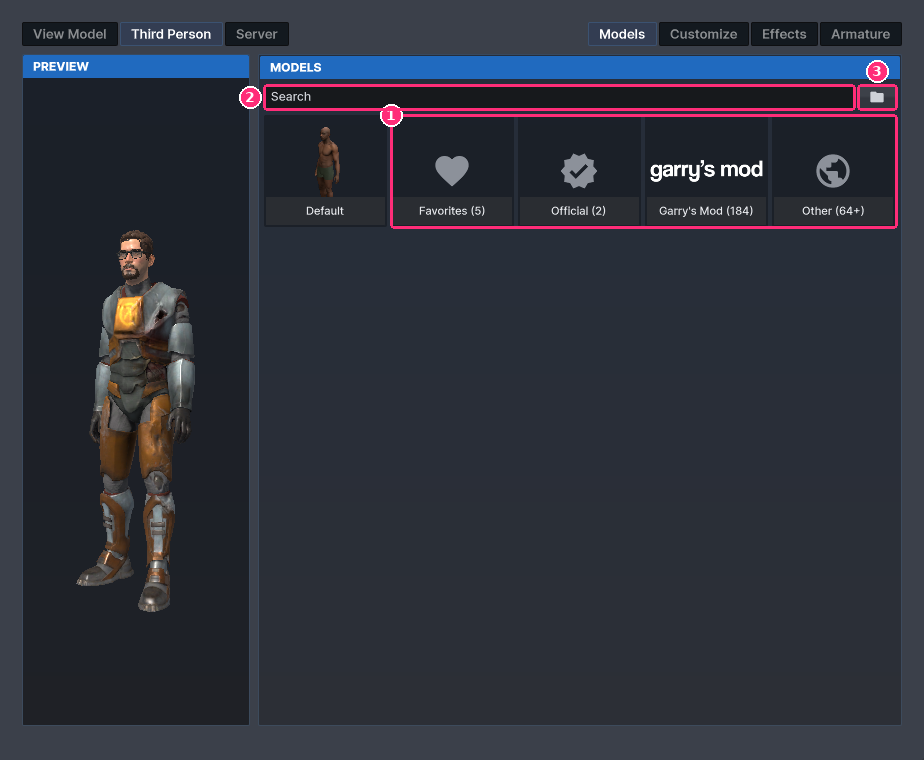
- Groups. Models are grouped into Official, Facepunch, Other and one group per mounted game (with the game's logo). Click a group to see its models, twenty at a time.
- Search. Type in the box to find a model by name. Every match shows, whichever group it is in.
- Model folders. The folder icon. See below.
Inside a group, the back arrow at the top returns to the groups. Previous and Next are under the tiles.
Right-click a tile, or click its heart. The model goes in the Favorites group, beside Default. A favorite the server no longer offers is hidden, not lost.
A model from sbox.game shows a download icon until you first pick it. It downloads only then, never while you browse or point at it. While it downloads, the tile lightens from left to right. That is an estimate, because s&box doesn't report a download's progress.
Picking another model drops the download. Other players download each model you put on, so the host limits how many new ones each player brings in. See Server settings.
If sbox.game can't be reached, the grid says so and lists only the game's own models and your mounted games.
Characters from a mounted game show in a group of their own. They are looked for in folders named like player, humans, characters, heroes, npc, actors and peds. A game whose folders say none of that offers all its models, characters by name first. A game you mount while you play joins within 5 seconds.
If a game's characters are hard to find, put their folder first:
- Click the folder icon next to the search box.
- Turn on a folder. Each folder shows how many models it holds.
- Click the back arrow.
Its models now come first in that game's group. Players other than the host can only do this once the host allows it.
Every model is checked first. Only rigged humanoids get a tile. Hands, arms, clothes and anything with too few bones or under 48 units across are left out. A package published without its materials is refused when you pick it, and it leaves the grid.
If the automatic check can't find a model's body parts, a note under the search box says why, with a Set up armature button. See Armature.
If the host chose your model for you, a note says so. Your own picks show again when they revert it.
The number with a figure in a tile's top left corner is how many armatures and looks players shared for that model. See Workshop.
Open View Model. This page sets what you see in first person.

- Use my player model's arms (on by default). Your weapons show the arms of the model you wear, moved by the weapon's own animation.
- Show weapon effects in first person (on by default). Your weapon shows its whole design. Off, it shows only its skin. See Weapons.
- The grid lists arms that Sandbox's weapons can move, grouped like the models. Click one to use it when your model's own arms aren't used: when the first switch is off, or when you wear a stock character, whose arms are Sandbox's own.
Counter-Strike, Half-Life and Deadlock have no first-person arms Sandbox's weapons can move, so the page lists none from them and says so.
- A package whose shader was built for an older s&box shows the error material in its bind pose.
- Half-Life 2 and Counter-Strike: Source need s&box's Source 1 mount, which not every install has.
- Mounted models take the whole-model tint only, not colors for single parts.