Repository navigation
Effects
An effect is something you wear that isn't a model: glowing eyes, fire in your hands, a halo. Everyone sees it. New to these words? Read Concepts first.
Open Third Person, then Effects. The default citizen wears effects too, so you don't need to pick a model first.

- Effects, Shapes and Stickers are the tab's three categories. See Shapes and stickers.
- The back and forward arrows undo and redo your changes to effects, 50 steps. A slider dragged is one step.
- The book icon (Guides) explains each idea and the harder tasks, with clips.
- The shop icon (Workshop) lists what players shared. See Workshop.
- Advanced editor builds the selected effect from layers.
- Edit as code opens it as a script. See Code editor.
- New effect starts one of your own.
- The presets. Each tile moves as its effect does.
- Surprise me makes a new effect from parts of the others.

- Click a tile. The preview shows it at once.
- Press Apply at the top. Now everyone sees it.
You can wear up to 8 at a time. Effects are made on the citizen and worn in proportion on any model.
| Preset | What it does |
|---|---|
| Glowing eyes | A glow in front of each eye and a soft light on the face, pulsing |
| Fire hands | Flames, smoke and a flickering light in each hand |
| Sparkle halo | A ring of stars turning over the head |
| Holy aura | A soft warm glow around the body, with sparkles and a light |
| Dark aura | Dark smoke rolling off the body, with a purple glow inside |
| Hearts | Hearts floating up from the chest |
| Snow cloud | A little white cloud over the head, snowing |
| Rain cloud | A dark cloud over the head, raining |
| Electric body | Sparks all over the body and a flickering blue light |
| Magic orbs | Two orbs circling the hips, a third beside the head |
| Flame head | The head on fire, lighting up around it |
| Lantern hand | A warm lantern glow held in a hand |
| Speed trail | A streak behind each foot as you run, and sparks while moving |
| Sword slash | A crescent in front of you with each swing |
| Blade trail | A trail behind the weapon's tip as it swings |
| Confetti burst | Confetti when you jump, a ring of stars when you land |
| Rainbow | World at War's Rain colors scrolling round a ring at the waist |
| Bullet tracer | A streak from the muzzle to where each shot hits |
| Muzzle flash | A burst of fire and light at the muzzle with each shot |
| Impact sparks | Sparks and a puff of smoke off what a shot or swing hits |

Blade trail, Bullet tracer, Muzzle flash and Impact sparks come from the weapon you hold, whichever it is. To put an effect on one weapon only, add it to that weapon's design. See Weapons.
- Click the effect's row under Wearing to select it.
- Drag a slider.

- Color turns its colors round the color wheel.
- Size and Speed go from half to twice.
- Amount goes from a quarter to four times.
Beside the effect's name, the round arrow resets the sliders.
Under the sliders are its Parameters, the options its script offers. See Scripting. If its layers use a clan tag color, its colors are listed there too. Add color adds one, Remove takes one away and Game colors puts back the game's five.

- The check mark switches the effect off and on.
- Duplicate and the bin icon (Remove) show on the row you point at and the selected one.
- The three dots open a menu: Edit, Duplicate, Save to My effects, Save draft, Remove. Right-clicking the row opens the same menu.
- Surprise me, the die tile after the presets, makes an effect of one to three parts of the presets and My effects, within what the server's budget has left.
- Variations, the sparkle icon beside the effect's name, offers four copies of it with colors, size, amount and speed changed. Click one to use it. More like it makes four more.

Open Save and Share.
- Type a name beside Keep it.
- Press Save. It goes in My Effects, up to 50, on your machine.
Click its tile to put it on again. Its three dots open: Open, Rename, Duplicate, Delete, Publish, Copy code.
Share this effect publishes it. See Workshop.
The icon beside Save (a note and a pencil, Save draft) keeps unfinished work.
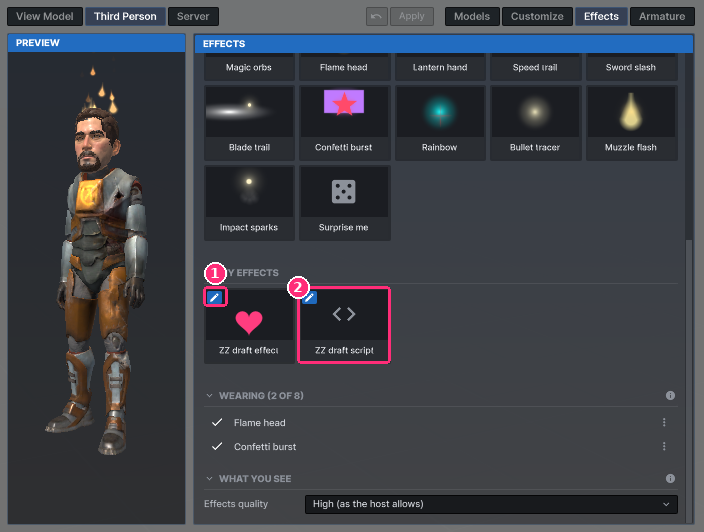
- A draft shows in My Effects with a pencil in its top left corner.
- A draft of a script has a code sign, and it opens in the code editor.
A draft shows in the preview, but it isn't worn, shared or published. Finish, in the Advanced editor, makes it an effect like any other.
You can keep up to 50 of each kind, newest first, on your machine. Past that, the addon asks before dropping the oldest. Scripts keep their text exactly, errors and all.
Open Key.

- Type a key in the box: a letter, a digit, F1 to F12 or a side mouse button. Suggestions appear as you type, with the key's picture beside it.
- Under The key, choose what it does: Shows it for 10 seconds, Switches it on and off or Shows it while held.
- Press Apply.
Clear takes the key off. The effect then always shows.
Starting an effect with a key works once every 2 minutes for each player, whichever effect it is for. The note shows how long you have left. This is fixed in the addon: no host, setting or script changes it. The host holds everyone to it, and every machine refuses a start inside it. Switching an effect off, or letting go of a held key, is always free.
Everyone sees it fade in and out over half a second. A player who joins meanwhile sees it for the time it has left.
To start from nothing, click New effect. To change an effect you wear, select it and press Advanced editor. Both open the Advanced editor's Effects tab.

- The toolbar: which effect you are editing, New, Save draft (a note and a pencil) and Code.
- Where It Comes From places the whole effect.
- Layers lists its layers, up to 8. The info icon on the heading shows the server's budget.
- Sprites, Light and Trail add a layer.
- The selected layer's settings are under its name.
Press Sprites, Light or Trail under the list. On a layer's row:
- The check mark switches it off and on.
- The arrows move it, Duplicate copies it and the bin icon removes it. These show on the row you point at and the selected one.
- The three dots, or a right click, open: Copy, Paste, Duplicate, Move up, Move down, Switch off, Delete.
Beside the add buttons, the two sheets copy a layer and the clipboard pastes it, into this effect or another.
Ctrl+click or Shift+click to choose several layers. A change goes to all of them, and only what they all have shows.
Open Where It Comes From.
- Comes from is a joint (Head, Eyes, Left eye, Right eye, Top of the head, Neck, Chest, Hips, hands, feet, or Ground under the feet), an item you wear, or Weapon held (its tip).
- Keep it where it is when it moves to another place keeps it in place when you change Comes from. Off, it snaps onto the new place.
- Forward / back, Left / right and Up / down nudge it, up to 24 units each way.
An effect on an item follows the item as you move it. While the item is off or nothing is held, it shows on the joint it was on.
Select a sprite layer.
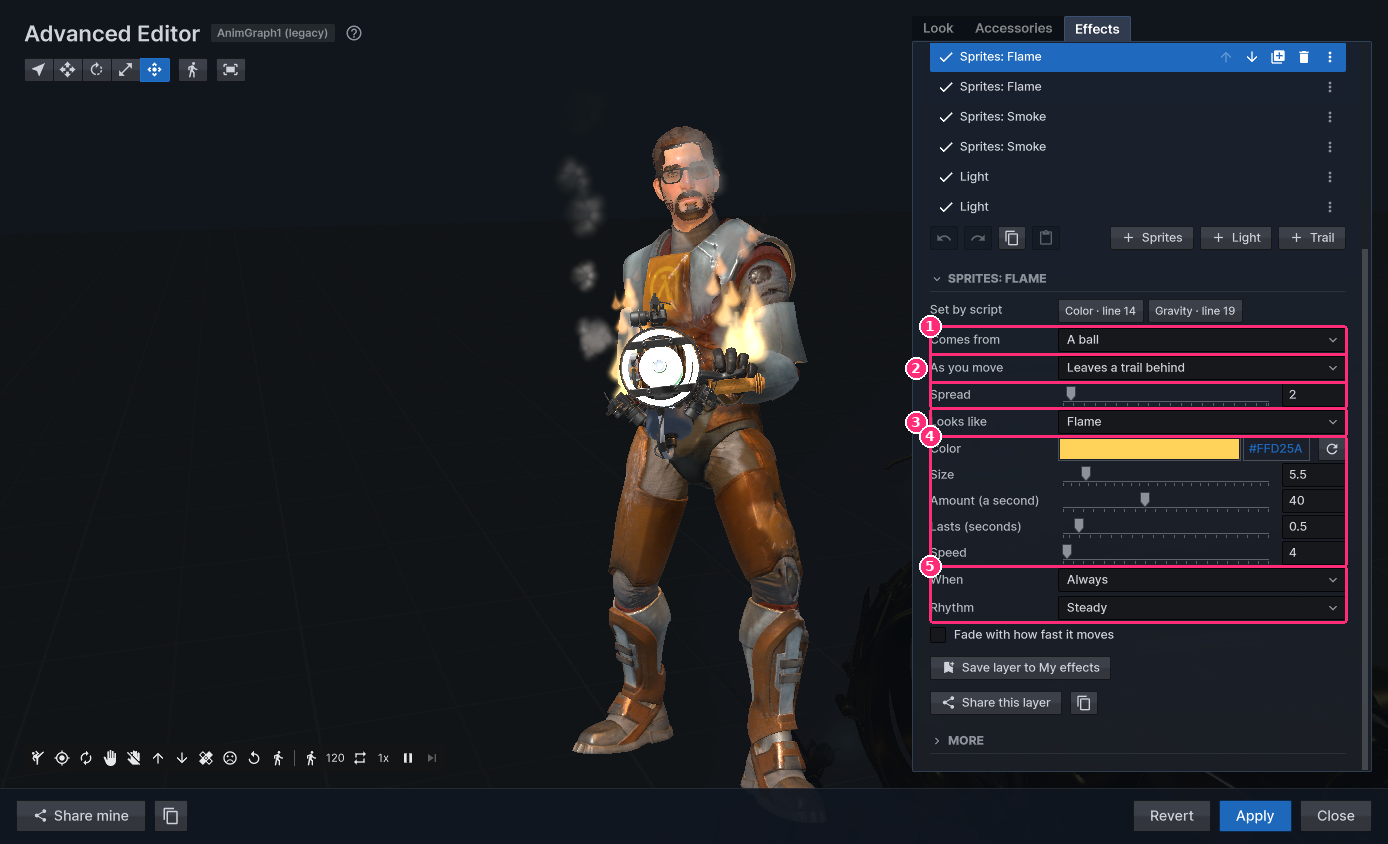
- Comes from is the shape they appear in: a point, a ball, a ring, all around the body, a box, a cone, a line, a shape, or along the shot. Spread is how big.
- As you move is Moves with the body or Leaves a trail behind. Drag (0 to 1) lets sprites that move with it lag a little.
- Looks like is the picture: Glow, Spark, Flame, Smoke, Sparkle, Heart, Snowflake, Droplet, Slash or any shape.
- Color, Size, Amount (a second), Lasts (seconds) and Speed.
- When and Rhythm, below.
Number boxes take sums. Type 2*3+1 and press Enter. A result outside the box's
range is held to it.
More folds away the rest: From joint, an offset, End color, End size, Solid (covers what is behind, instead of glowing), Falls (rises below 0), Faces, Sprites face (for example flat on the ground), Turns as it lives, and Colors (the clan tag color cycles and Mixed).
A light has Color, Reach and Brightness. A trail has Color, Width and Lasts (seconds), and shows only as much as its place moves.
The When list:
| Kind | Choices |
|---|---|
| Always | Always |
| While something is true | While moving, While on the ground, While in the air, While crouching, While holding a weapon |
| Your body | On jumping, On landing, On getting hurt, On starting to move, On stopping, On crouching down, On standing up, On hitting something hard, On each footstep, On dying, On spawning again |
| Your weapon | On shooting or swinging, On reloading, On drawing a weapon, On putting a weapon away, On a shot or swing hitting, On a kill (someone they shot dies) |
A moment can throw out a Burst of up to 100 sprites and show for up to 5 seconds (Shows for). Each moment counts at most 10 times a second, and shots 20. A layer on a foot steps with that foot alone.
Nothing extra is sent for these. Every machine works them out from what it already sees of you.
The Rhythm list: Steady, Pulse, Flicker, Rainbow, Turn (circles its place) and Jiggle. Beats a second sets how fast, and How much how strong.
Turn a layer set off to the side, and it circles its place.

Trails, slashes and tracers only show with motion or an event. The test bar over the preview plays the real cause on the body. Point at an icon for its name.

| Icon | What it plays |
|---|---|
| Martial artist (Swing) | The attack animation (Sword slash, Blade trail) |
| Target (Shoot) | A shot at a target (tracers, impact sparks) |
| Round arrows (Reload) | A reload |
| Open hand (Take out the weapon) | Draws the weapon |
| Crossed hand (Put the weapon away) | Holsters the weapon |
| Up arrow (Jump) | Up and landing again |
| Down arrow (Land) | A fall from 72 units |
| Plaster (Hurt) | A flinch |
| Sad face (Die) | The body falls and lies until Respawn, 5 seconds at most |
| Replay arrow (Come back) | Respawn |
| Walking figure (Steps) | A few footsteps walked in place |
| A key's picture | Your effect's key, with no 2-minute wait |
| Walking or running figure, then a number | Walk or run back and forth, and how fast |
| Repeat arrows (Loop) | The last action again every 2 seconds |
| 1x (Slow motion) | 1x, 0.5x, 0.25x |
| Pause, then next (One frame on) | Pause, and step one frame |
All of this stays on that preview. Nothing is sent. If nothing shown reacts to an action, the bar says so for 3 seconds.
Press Apply to wear it, Save layer to My effects to keep one layer, or Share this layer to publish one layer. Close asks about changes you haven't applied.
What You See, at the bottom of the tab, only changes your screen.

- Effects quality: High (as the host allows), Normal, Low or Off. It shows less of everyone's effects, never more than the host allows.
With other players on the server, Hide name's effects is listed under it. It hides one player's effects, for you alone.
Effects also fade as they come near your camera, so a cloud over your head or someone's aura in your face never covers your view.
A row under Wearing tells you why.
- Hidden on this server: the host turned something off, or muted you. Point at it to see which. Nothing is lost.
- Over this server's budget: your last layers wait until you remove or switch off others. See Server settings.
See also FAQ and limits.