Repository navigation
Encryption
VaultSync can password-protect archive backups. When encryption is enabled, the backup stored on your destination is unreadable without its password.
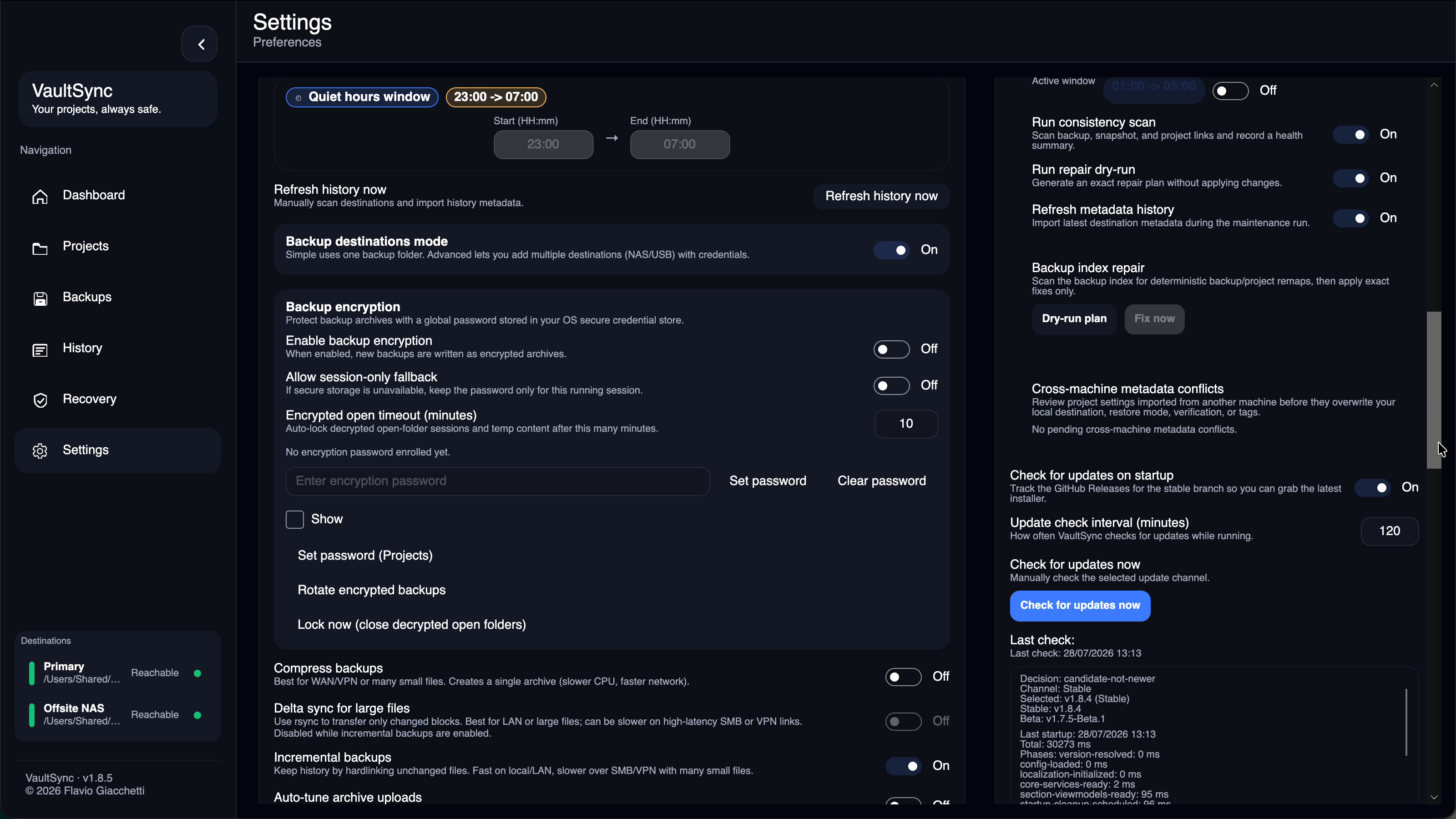
- Open Settings.
- Find Backup encryption.
- Set and save an encryption password.
- Enable global backup encryption.
- Save the settings.
Projects using Inherit global will now create encrypted backups.
- Open Projects or Backups.
- Select the project.
- Change its encryption policy to Encrypted.
- Use the project password action to set and save its password.
A project set to Plain remains unencrypted even when global encryption is enabled.
For an encrypted backup, VaultSync:
- collects the project files allowed by its preset
- creates a compressed archive on the local computer
- encrypts the archive locally
- uploads the encrypted
data.vsefile to the destination - removes the temporary local archive after the operation
The destination does not receive a completed plaintext data.zip before encryption.
VaultSync also writes .vaultsync_crypto.json beside the encrypted archive. This file describes the encryption format and contains no password or encryption key.
The current VaultSync encrypted archive format uses:
- AES-256-CBC to encrypt the archive
- HMAC-SHA-256 to detect an incorrect password or modified backup
- PBKDF2-HMAC-SHA-256 to derive encryption keys from the password
- a new random salt and IV for every backup
- 210,000 PBKDF2 iterations by default
Separate encryption and authentication keys are derived for each archive. The random salt and IV mean that two backups created with the same files and password still produce different encrypted data.
Before restoring, VaultSync validates the encrypted format and verifies its HMAC. If the password is incorrect or the archive has changed, VaultSync stops without producing a completed decrypted archive.
VaultSync stores a non-secret reference in its configuration. The password itself is stored using the operating system's credential protection:
- Windows: DPAPI, scoped to the current Windows user
- macOS: the current user's Keychain
- Linux: Secret Service through
secret-tool
Passwords are not included in metadata sync. On another computer, set the password again before opening or restoring the encrypted backup.
If secure credential storage is unavailable, VaultSync can use session-only storage when that option is explicitly enabled. The password then remains available only until the app session ends.
Open or restore the backup normally from the Backups page.
VaultSync first tries the password saved for the project, followed by the global encryption password when applicable. If no saved password is available, VaultSync asks for one.
After successful verification, VaultSync decrypts the archive into a local temporary workspace and continues with the selected open or restore operation.
Decrypted open-folder content remains available for the configured unlock timeout. Use Lock now in the encryption settings to close and remove VaultSync-managed decrypted workspaces early.
Changing the configured password affects future backups. Existing encrypted backups still require the password used when they were created.
Use the encrypted-backup key rotation action to re-encrypt existing backups with a new password. Keep the old password available until rotation finishes successfully.
- Use a long, unique password.
- Store the password in a trusted password manager.
- Keep a recovery copy somewhere separate from the computer running VaultSync.
- Do not remove the old password until existing backups have been rotated or retired.
- Test an encrypted restore before relying on it as your only recovery copy.
VaultSync cannot recover a forgotten encryption password. There is no master key or recovery backdoor.
The destination stores the encrypted backup, but VaultSync must process readable project data on the source computer.
During backup, a compressed plaintext archive temporarily exists in VaultSync's local temporary directory before it is encrypted. During open or restore, decrypted files temporarily exist on the computer performing the operation.
VaultSync cleans these managed temporary files after use and after handled failures when possible. For local-at-rest protection, enable full-disk encryption such as BitLocker, FileVault, or LUKS.
Metadata sync may carry:
- whether a backup is encrypted
- the project's encryption policy
- the non-secret credential reference
- the non-secret encryption format descriptor
Metadata sync never carries the encryption password or derived encryption keys.
Plain and encrypted backups can exist together. Each backup keeps its own encryption state, so older plain backups remain usable and existing encrypted backups continue to use the password with which they were created.