Repository navigation
Guided Tour
This page follows the same path as first-run onboarding and then explains the rest of the app. If you already skipped onboarding, you can use this page without resetting VaultSync.
| Page | Use it for |
|---|---|
| Dashboard | Check restore readiness, required action, next run, newest known-good point, activity, and storage. |
| Projects | Discover projects; optionally place them in folders; edit, pause, remove, and snapshot them. |
| Schedule | Understand whether protection can run, what will participate, and the next timer opportunities or delays. |
| Backups | Run backups, tune each project, inspect restore points, compare snapshots, and restore. |
| History | Search all recorded activity and maintain labels, notes, tags, and protected points. |
| Recovery | Measure restore readiness, run read-only drills, review 3-2-1 coverage, and export a report. |
| Settings | Configure automation, destinations, encryption, storage safety, appearance, alerts, updates, and diagnostics. |
| Guide | Review workflows and the shared backup and recovery terminology. |
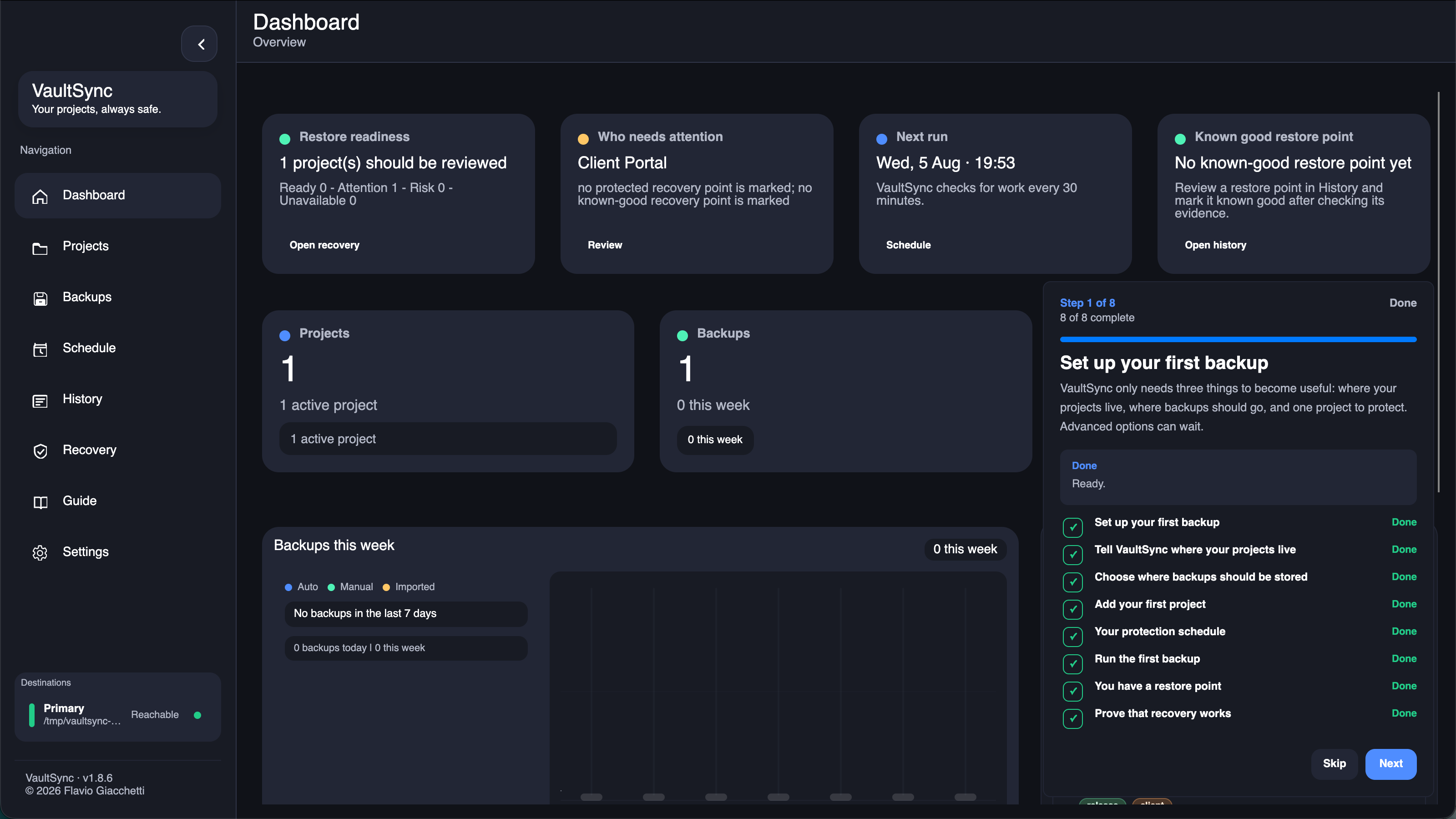
The onboarding card tracks actual setup state. You can click the app behind it and complete each action without skipping the tour.
- Read the introduction and select Next.
- Select Open Settings, then set Projects root.
- Set a Fallback backup location, or enable advanced destinations and add one active destination.
- Open Projects and register one project.
- Open Schedule and review or choose the protection timing.
- Open Backups and create the first restore point.
- Review that restore point in Backups.
- Open Recovery and run a drill. Finish becomes available only after the drill passes.
Back revisits the previous instruction. Skip closes the guide; it does not change or delete any configuration.
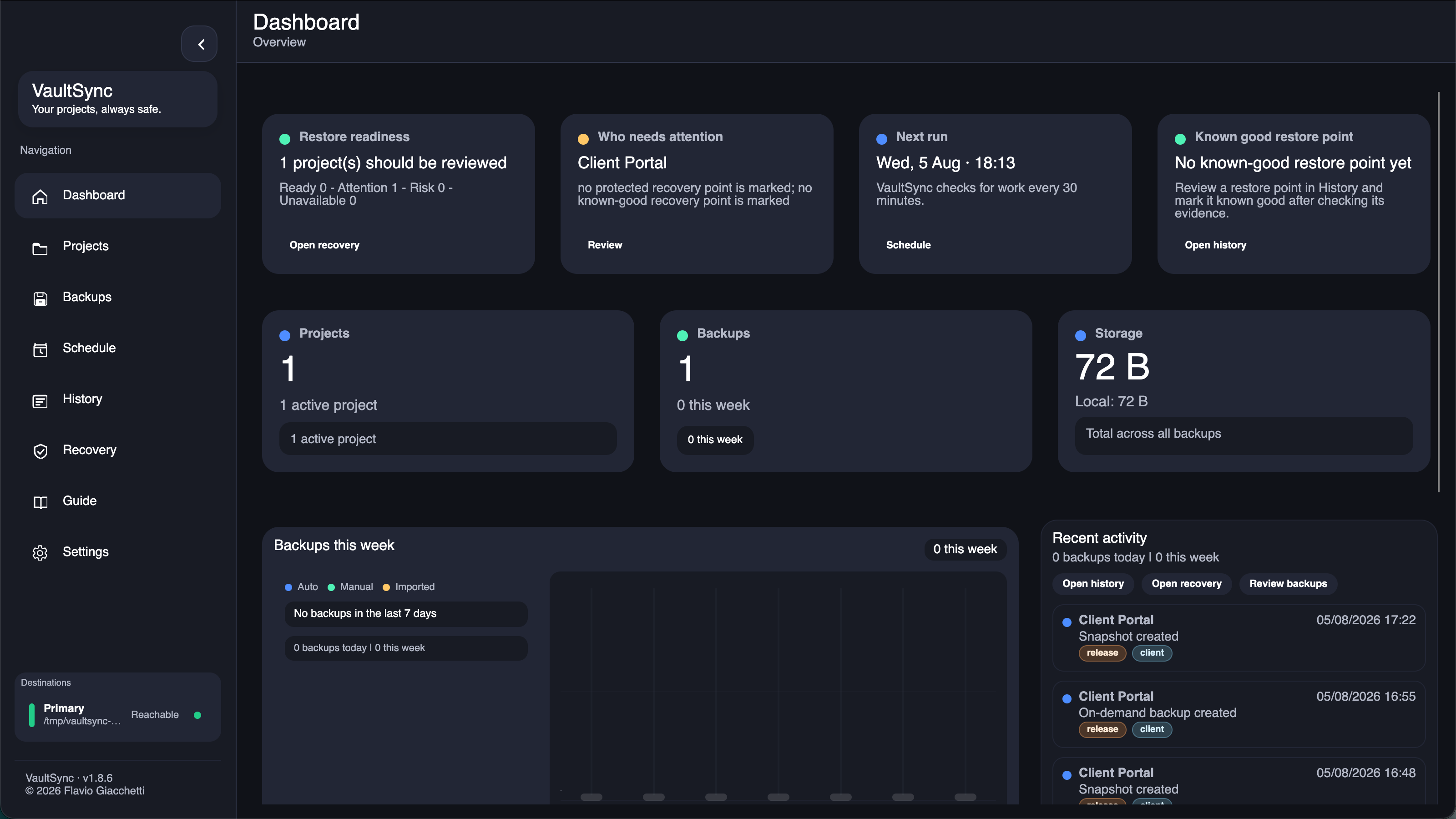
- Restore readiness, Required action, Next run, and Known good put the most useful decisions first.
- Each overview card opens the page that can explain or resolve its state.
- Backups this week separates automatic, manual, and imported activity.
- Recent activity shows the newest backup events.
- Storage usage shows the largest consumers and can be sorted.
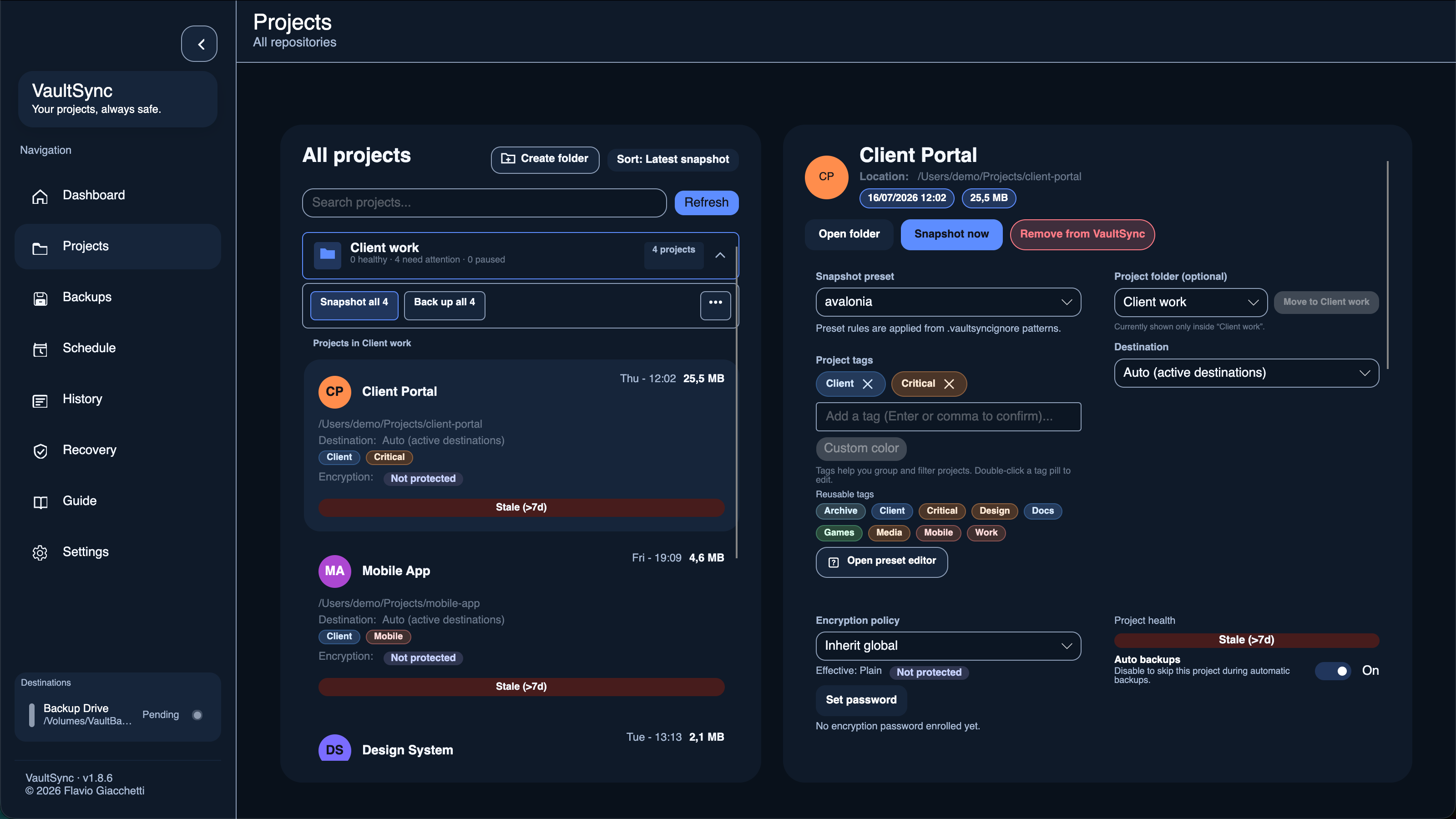
- Register a discovered folder before VaultSync starts tracking it.
- Choose a preset to apply suitable
.vaultsyncignorerules. - Create snapshots independently of copying them to a destination.
- Use project tags and avatars to keep larger libraries readable.
- Edit destination, preset, exclusions, tags, encryption, and automatic-backup state without leaving Projects.
- Optional folders keep assigned projects out of the top-level list, summarize member health, and provide folder-wide snapshot, backup, pause, and resume actions. Collapse a folder to hide its members without changing membership.
- Remove shows an exact preview: local registration and indexed history are removed, while source files and stored backup payloads remain untouched.
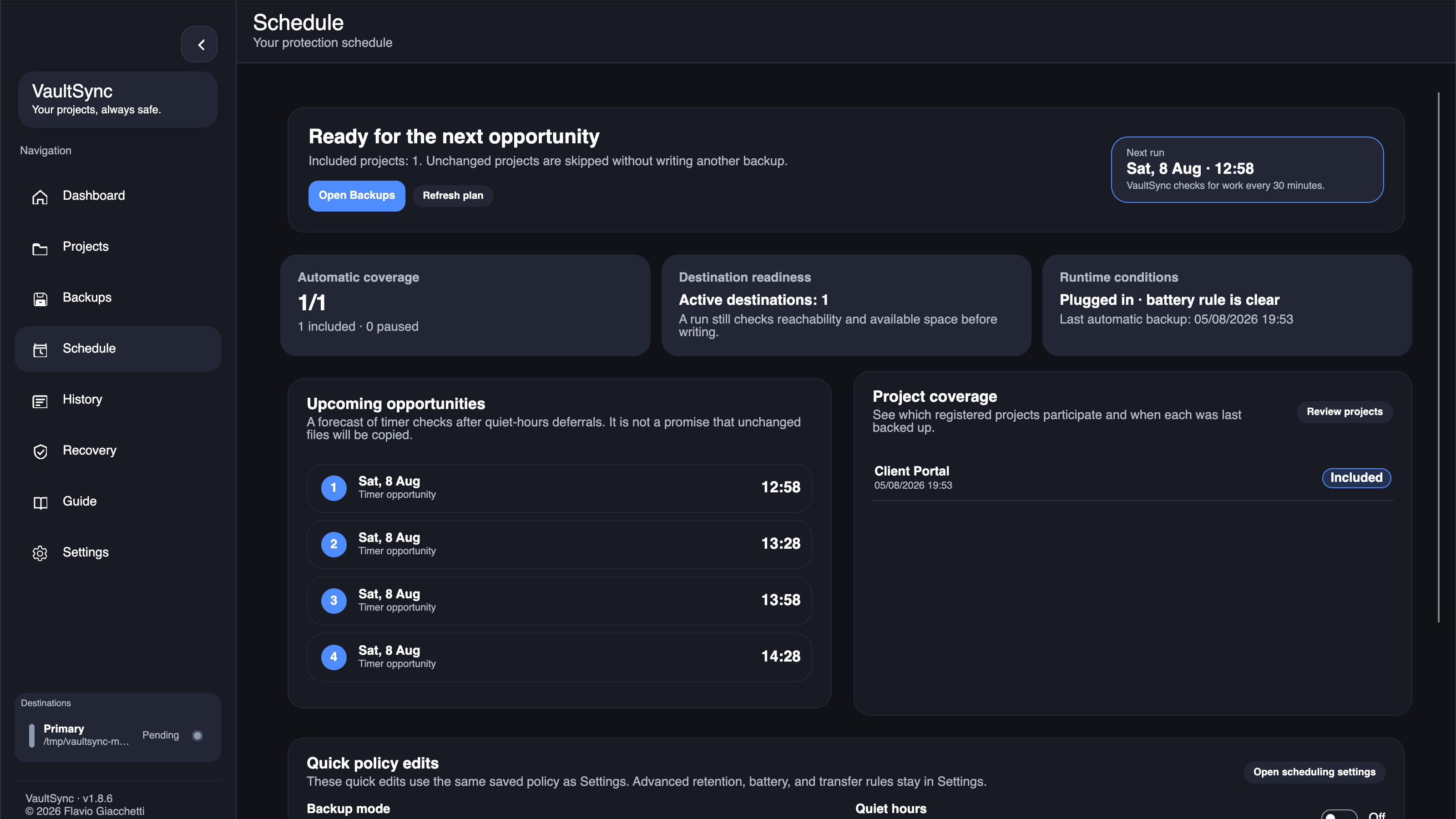
- Choose manual protection or an automatic interval.
- Read the live readiness verdict for missing destinations, paused projects, battery power, and active quiet hours.
- Preview the next four timer opportunities after quiet-hours deferrals and review each project's inclusion and last-backup state.
- Use quick mode, interval, and quiet-hours edits here; they update the same saved values exposed in Settings.
- Remember that an opportunity is a check, not a promise to write data: unchanged projects are skipped.
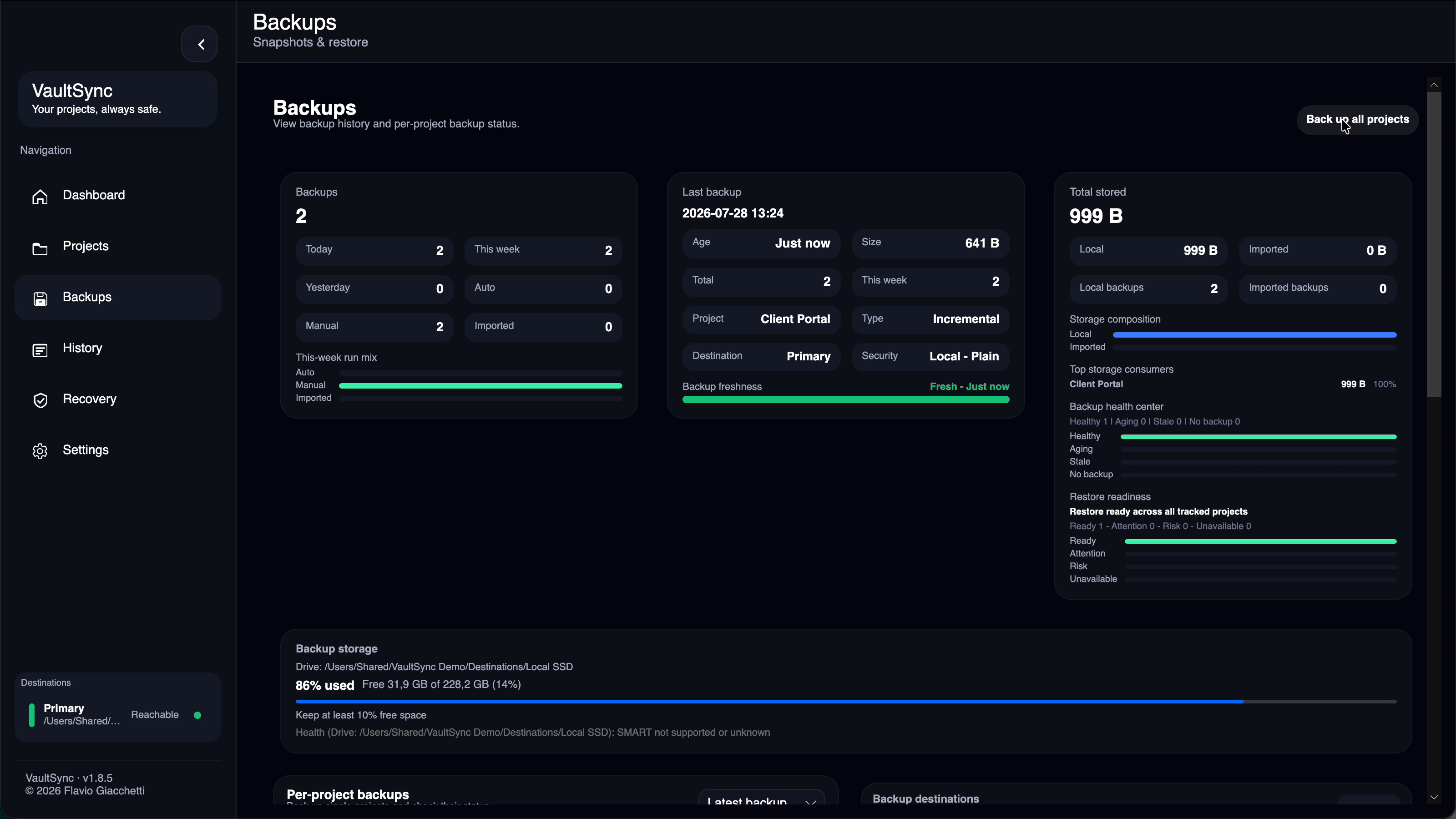
- Backup all runs eligible registered projects.
- A project can enable automatic backups, choose a preferred destination, override encryption, set its restore mode, and set its verification policy.
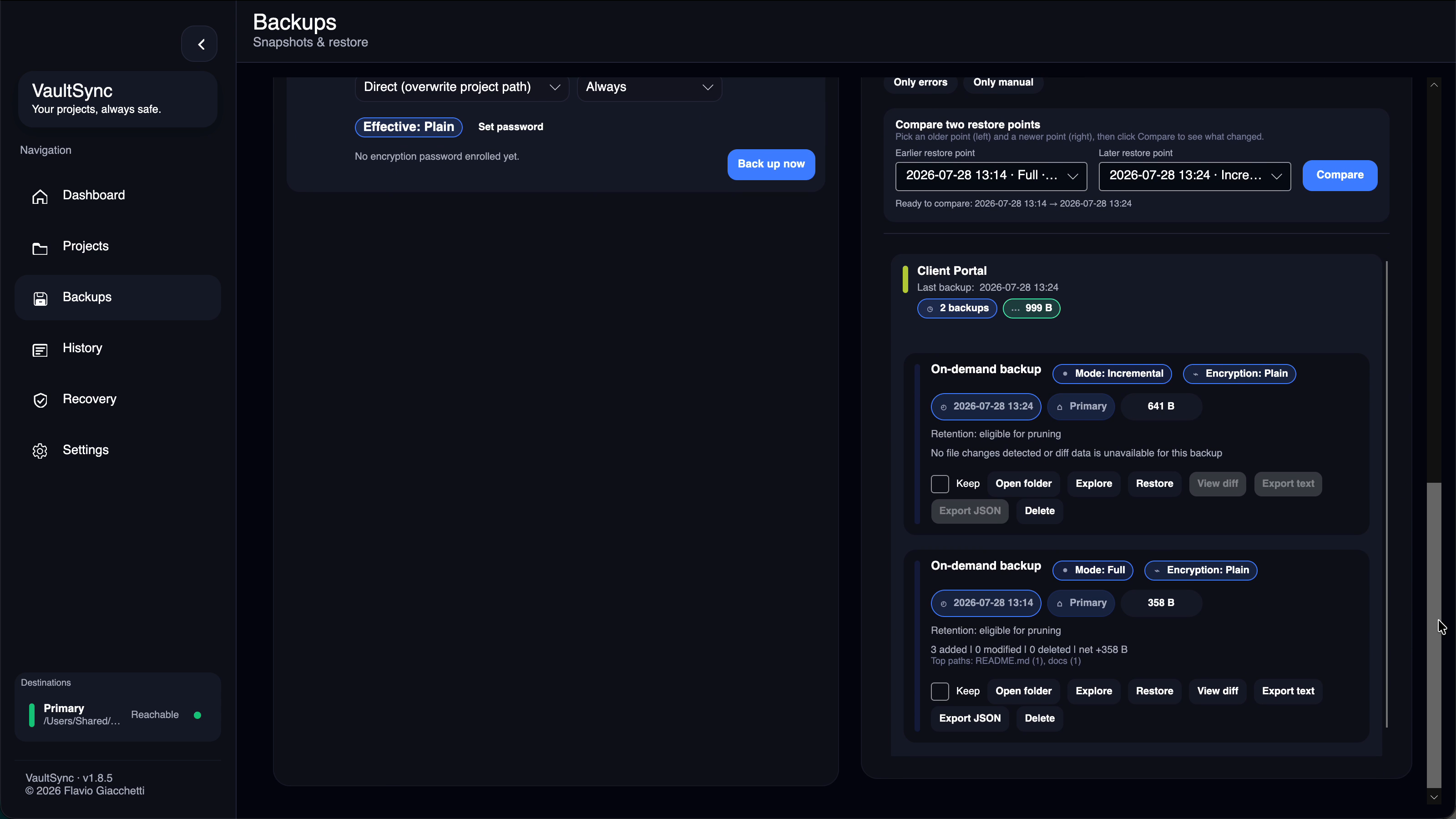
- Keep protects an important restore point from normal retention cleanup.
- Explore browses a reachable folder or archive.
- View diff and Compare explain what changed between restore points.
- Restore copies selected backup content to a safe target chosen by you.
- A verification failure offers an explicit choice to keep or delete the affected backup; VaultSync does not silently discard it.
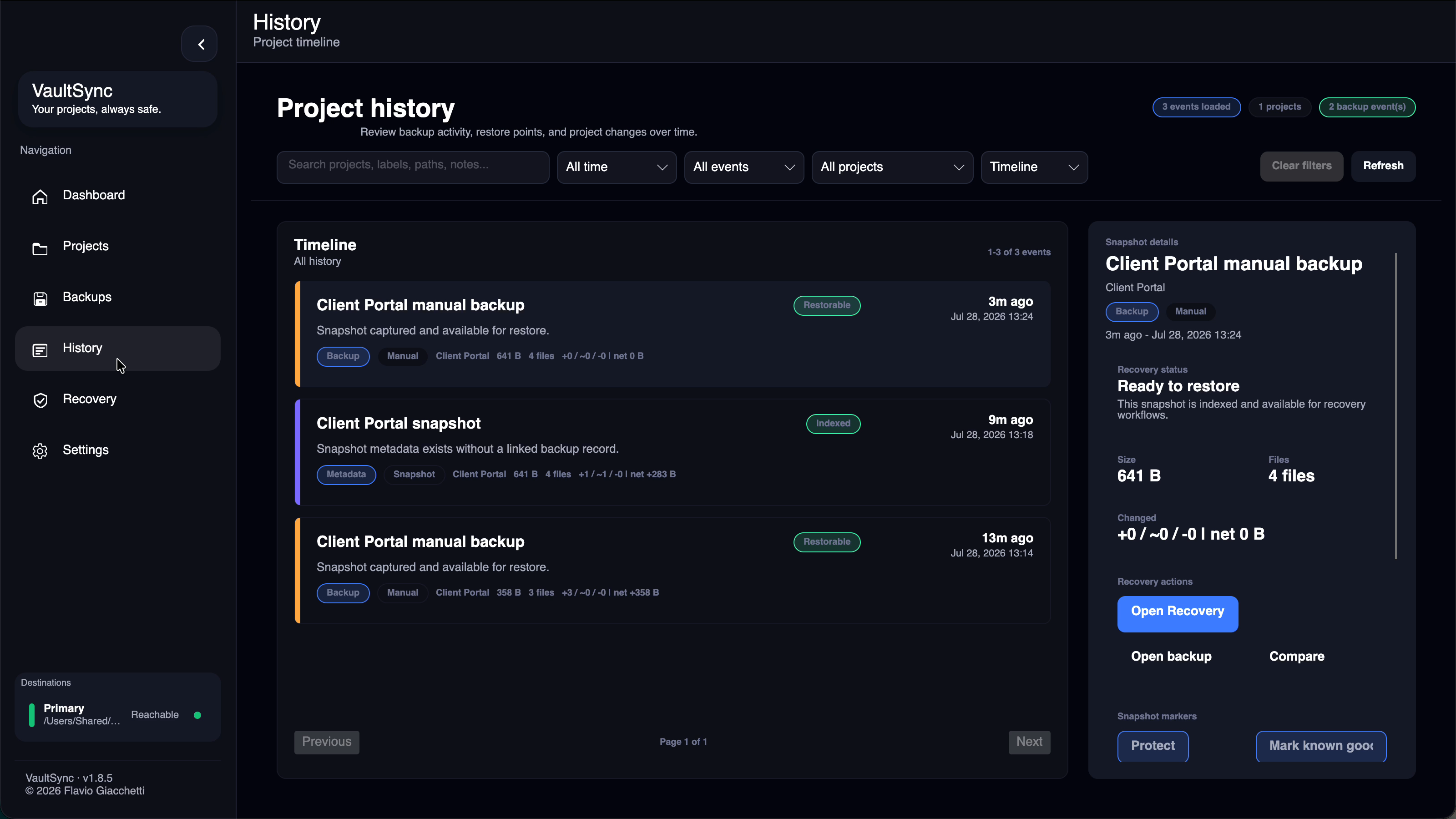
- Search by project or recorded detail.
- Filter by project, event type, date range, and protected state.
- Edit a selected snapshot's label, tags, and note.
- Protect or unprotect a point, compare it, open its backup, or continue to Recovery.
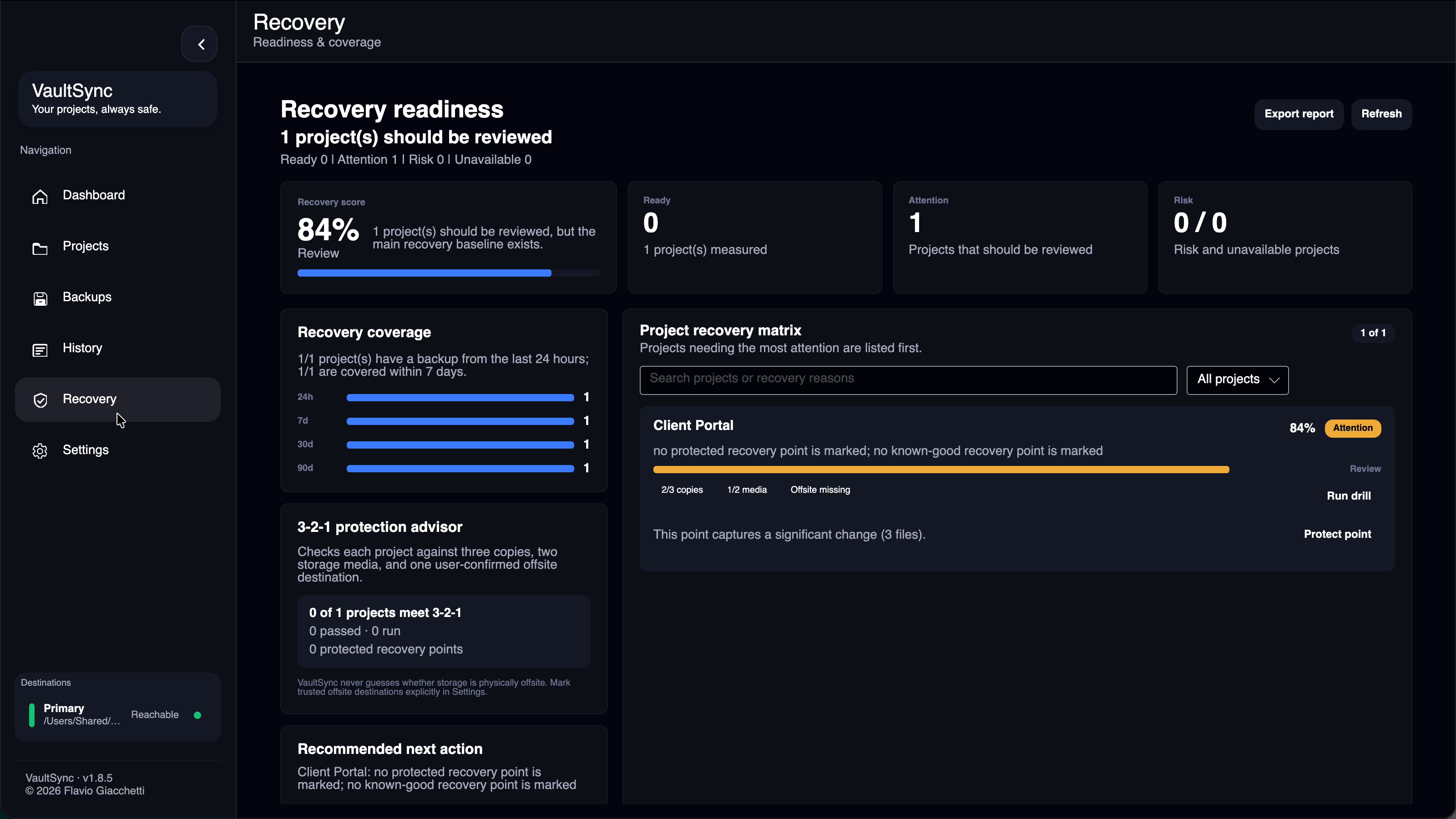
- Recovery score summarizes whether current restore points can be used.
- Recovery coverage shows the newest backup available within 24-hour, 7-day, 30-day, and 90-day windows.
- The 3-2-1 protection advisor checks three copies, two storage media, and one destination that you explicitly marked as offsite.
- Run a drill to prove linkage, reachability, readable inventory, stored bytes, and a read-only restore plan. A drill never writes into the live project.
- Export evidence package creates a portable ZIP with a readable report, versioned JSON, a manifest, and checksums that can be inspected without VaultSync.
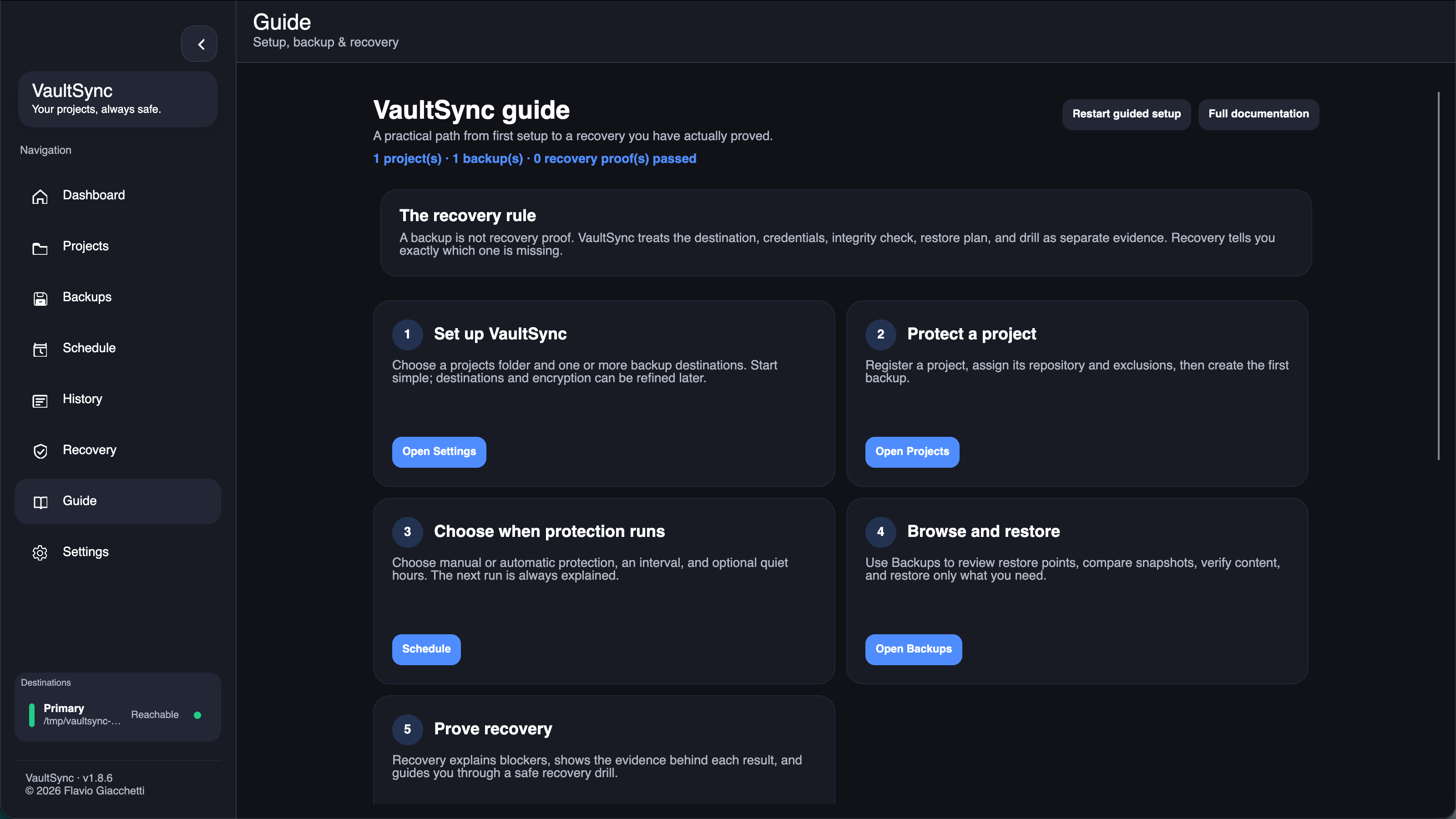
- Topic cards connect everyday actions to Projects, Schedule, Backups, History, and Recovery.
- The glossary keeps backup, snapshot, restore point, verification, known good, protected, and recovery drill distinct.
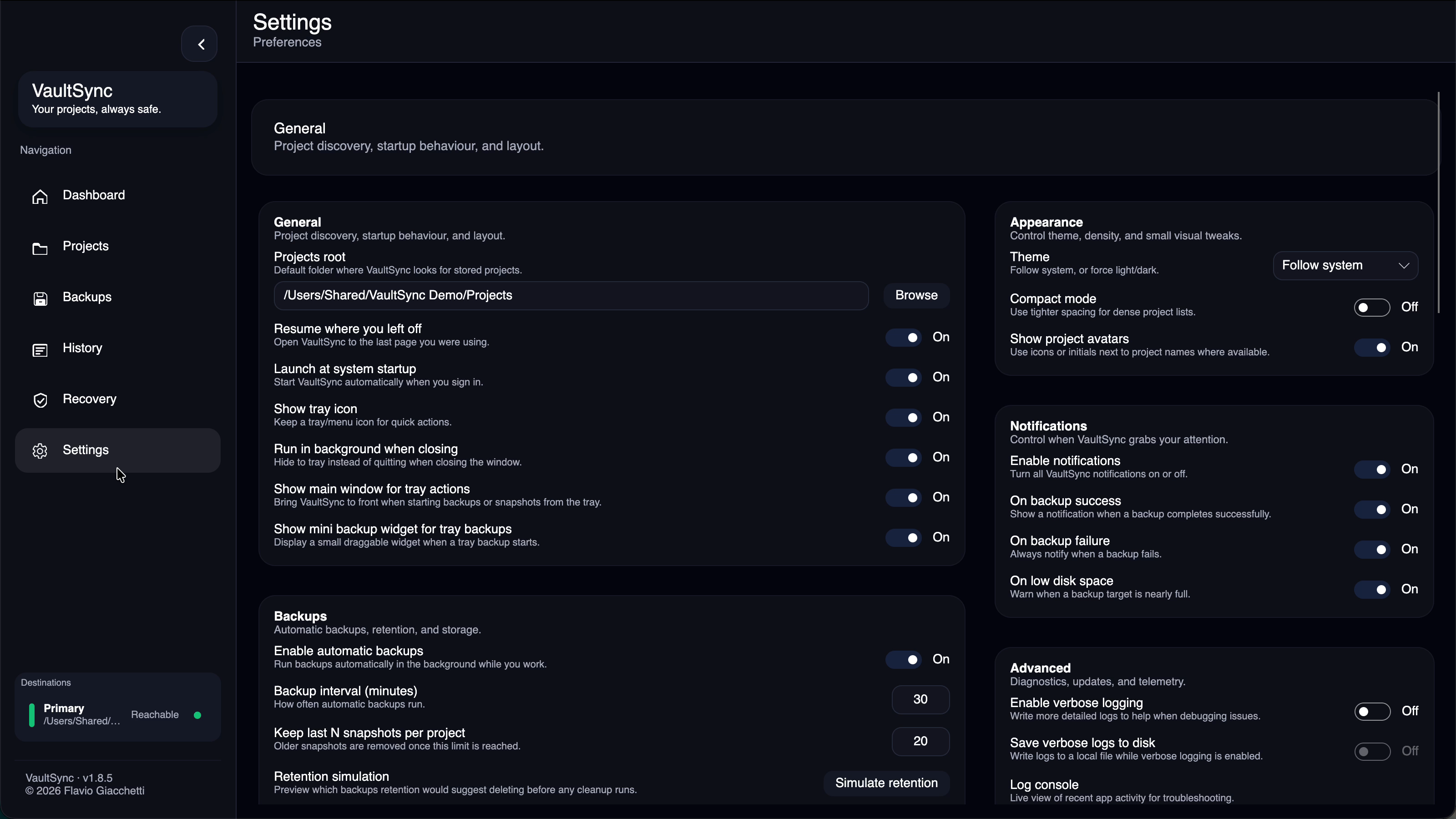
Settings are intentionally presented as one scrollable page. The complete control-by-control explanation is in Settings reference.
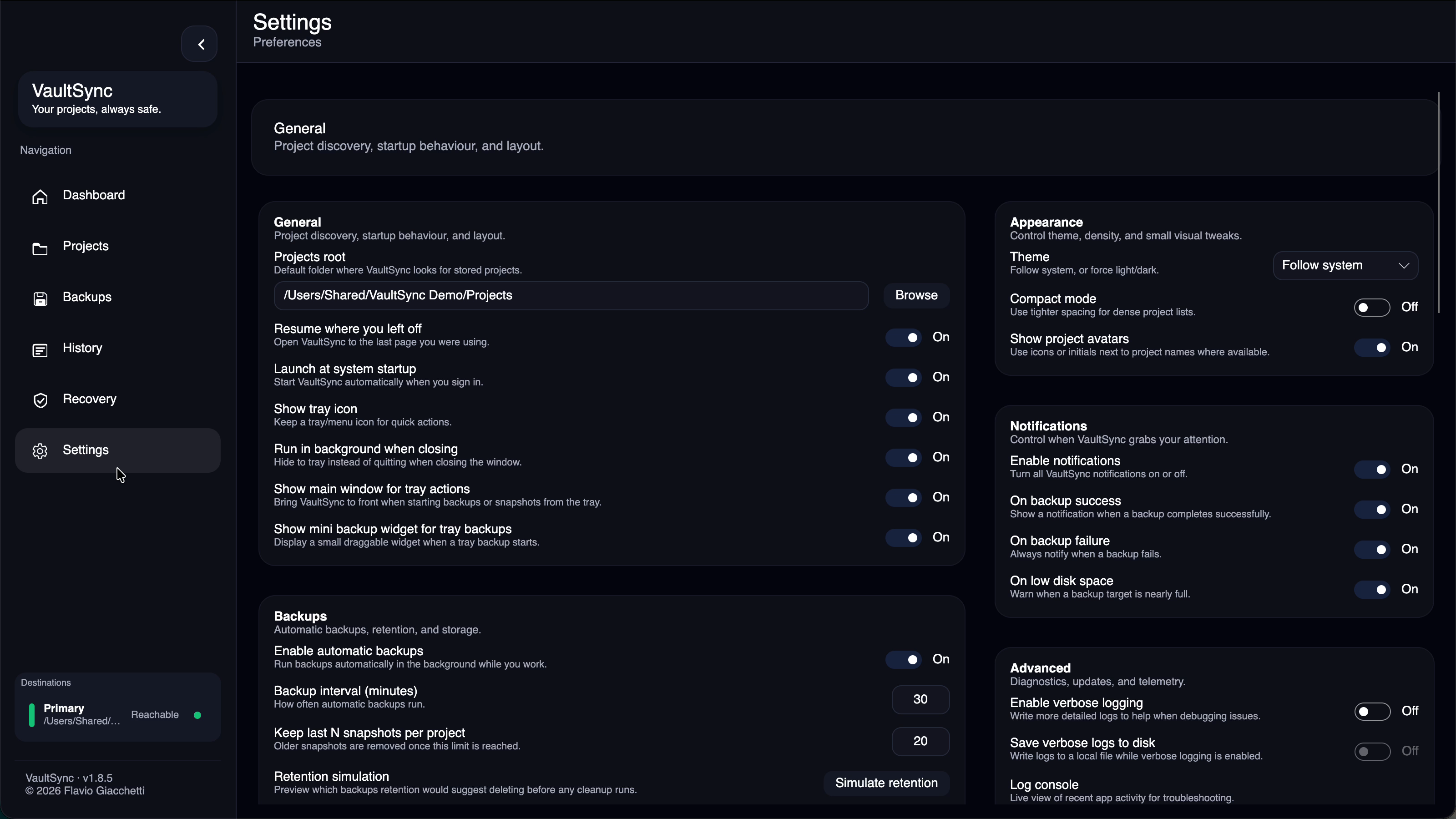
This area controls startup behavior, automatic-backup timing, retention simulation, history synchronization, quiet hours, and bandwidth limits.
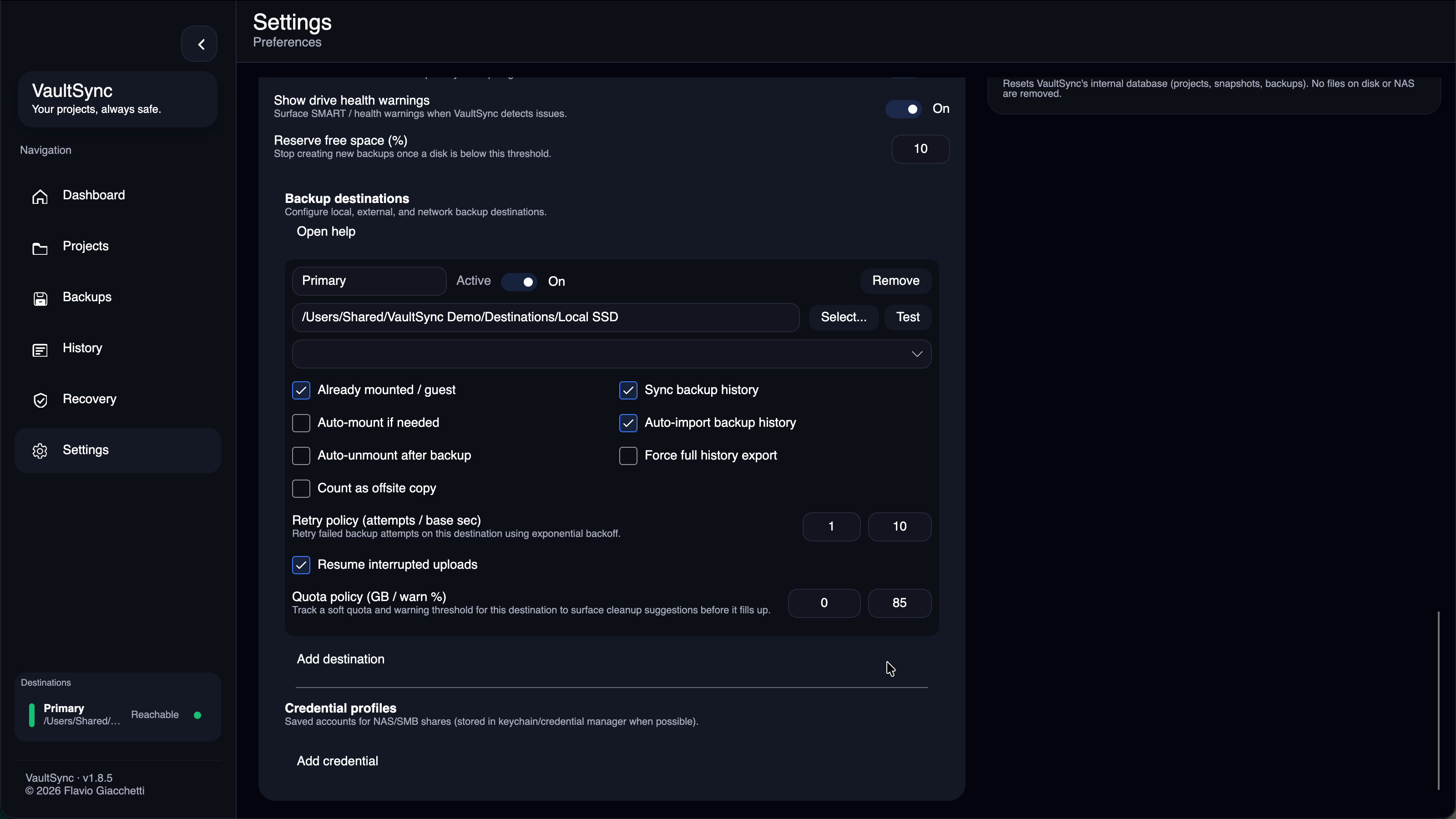
Advanced destinations expose mount ownership, offsite classification, history sync, retry and resume behavior, quota planning, and credential selection.
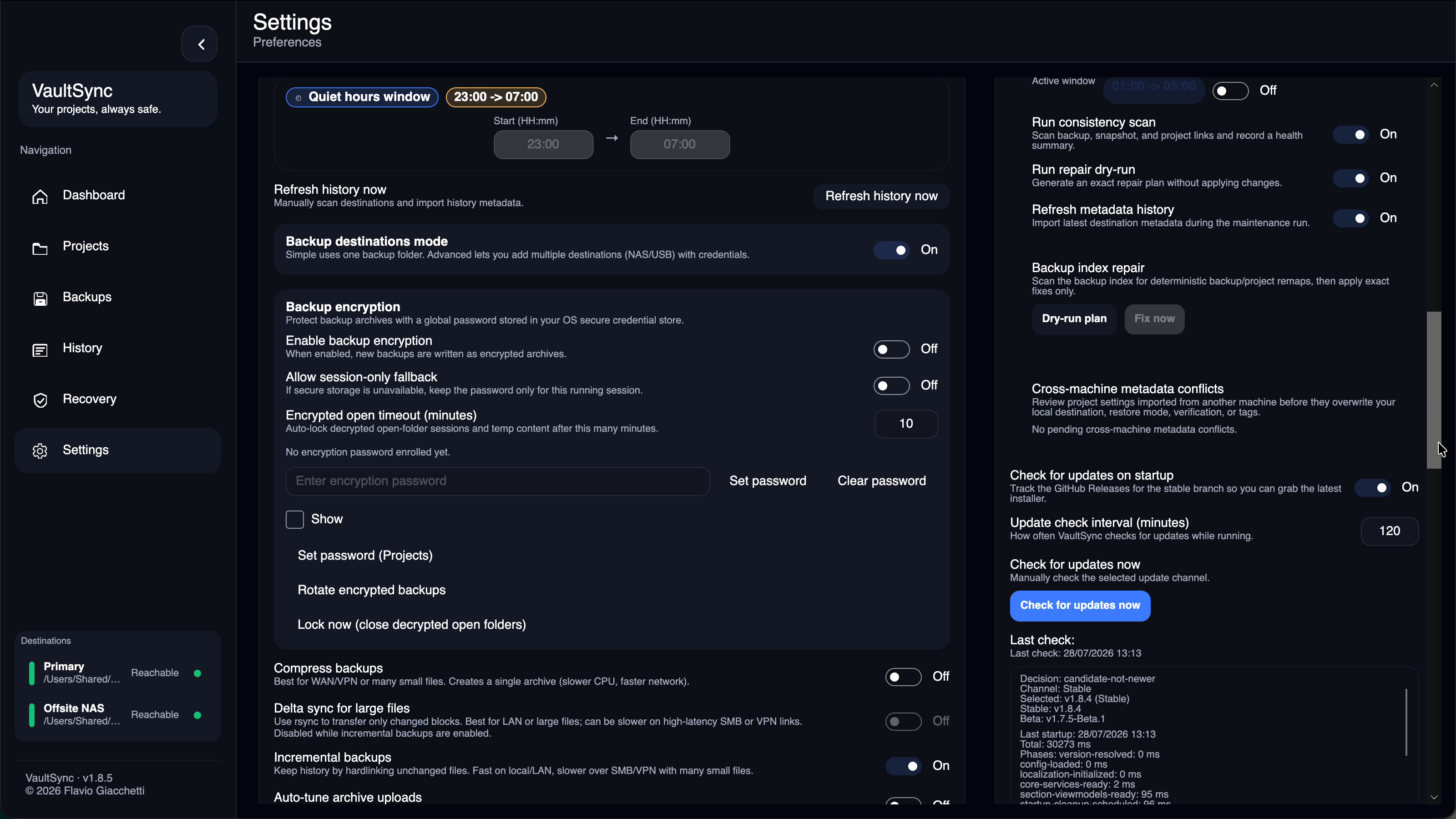
Encryption credentials, compression, delta transfer, incremental backups, hashing, verification, and scan-cache tradeoffs are kept together so their dependencies remain visible.
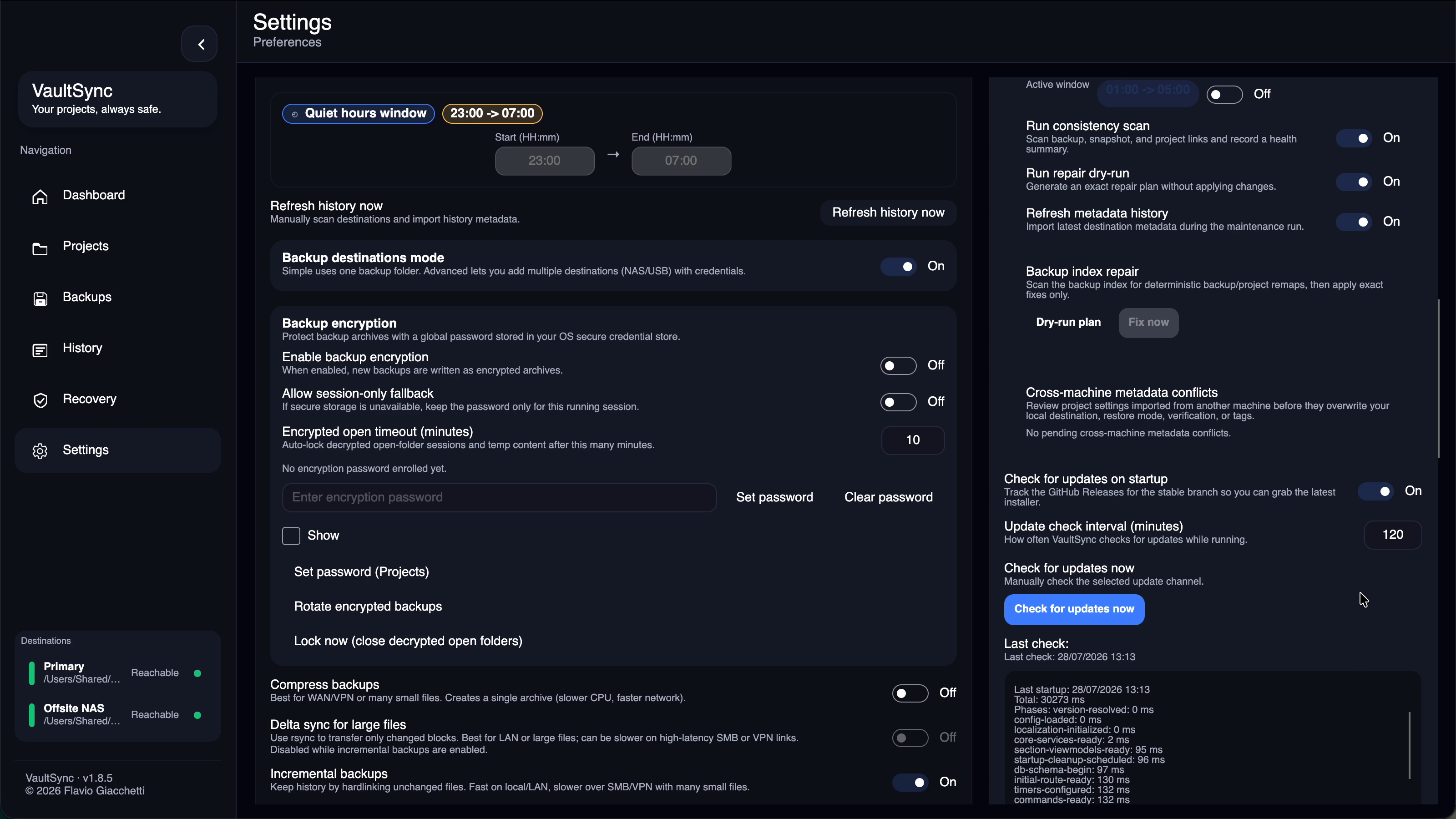
Diagnostics and maintenance use reviewable scans and dry-run plans. Update status, metadata-conflict choices, and repair actions remain explicit. Reset, cache clearing, forgetting the local project index, credential removal, and encryption-password removal each show their exact effect before execution.


- The tray menu can open VaultSync, run Backup all or Snapshot all, open recent backups, and quit the background process.
- The optional mini widget follows tray-started backup progress without opening the main window.
- Notifications can report successes, failures, and low disk space independently.
After the first backup, run a Recovery drill, test every advanced destination, and compare two restore points. Those three actions prove that VaultSync is not only creating data, but that you can find, read, and understand it.