Repository navigation
Writing and Editing
Open Content (or Blog / News), then click a title or the pencil to edit it, or New Content to start something new.
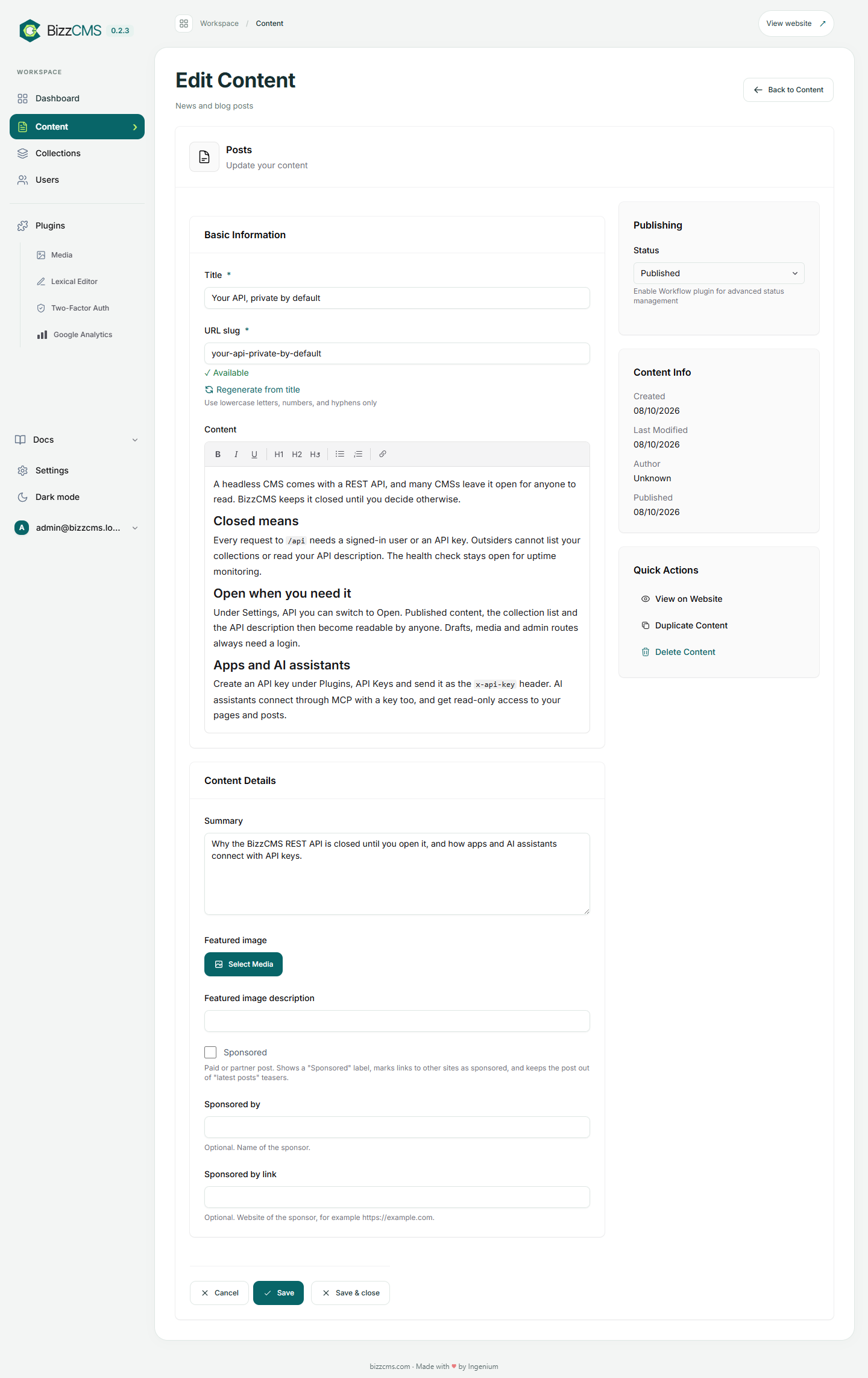
The toolbar has bold, italic, underline, headings (H1, H2, H3), bullet and numbered lists, links and an Image button.
- Images show as images in the text. Click Image to pick one from the Media library; you are asked for a short description (alt text) for Google and screen readers. Double-click an image to change its description.
- Tables, YouTube and other embeds, code blocks, dividers and images with captions appear as framed blocks marked kept as is. You can move or delete them; to change what is inside, use the HTML tab.
Above every text box:
- Visual: the normal editor.
- HTML: edit the HTML of the text directly.
- Preview: see the result.
If a text has layouts the visual editor cannot keep, it opens in HTML automatically and tells you why. Nothing is ever dropped.
- BizzCMS saves a draft every 30 seconds while you edit.
- If you empty a text box that had text and press Save, BizzCMS asks first. The server also refuses any save that would blank a page or post by accident.
Use Status on the right (Draft or Published) and press Save. Save & close saves and returns to the list.
- In the editor: Quick Actions › View on Website.
- In the Content list: the eye icon before the pencil (published items only).
Both open the page on your live site in a new tab.
Every page and post has an SEO card below the text. Press Auto-fill SEO to fill it from your content, then check the green, orange and red tips. See SEO.