Repository navigation
Factory and Controls
Documentation snapshot from README.md at commit
20d7c81. Check the current source for updates.
The minimap in the bottom-left corner turns with you (what you face is
up): node platforms, every machine as a dot in its health colour (failing
ones pulse), the HUB, the cluster gates, Bob, Porter, Gauge, Foreman and the
Krew's stations. N or the pause menu shows and hides it.
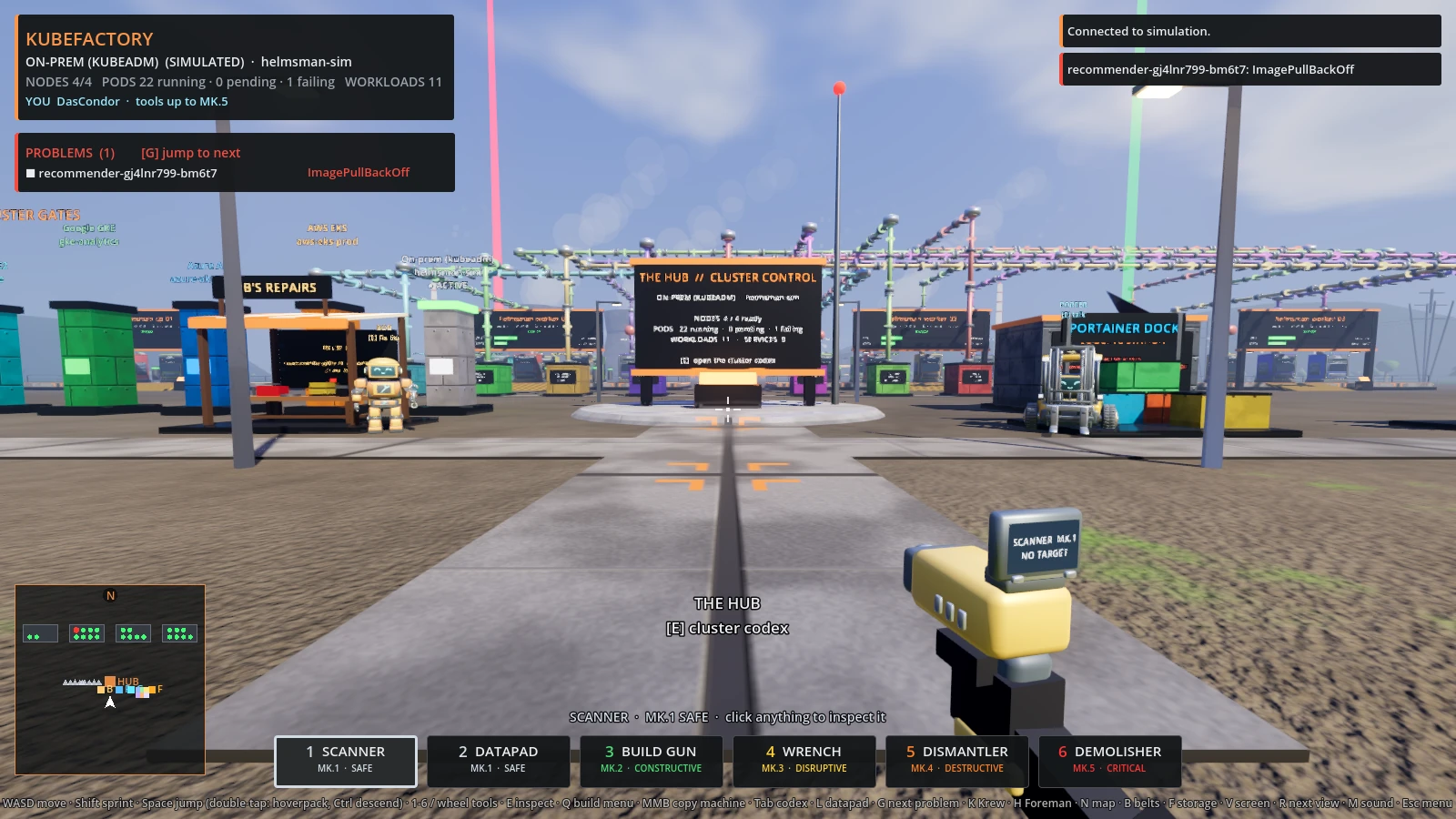
The minimap turns with you; failing machines pulse.
| In the game | In the cluster |
|---|---|
| Foundation platform with a gantry sign | Node (status, CPU / memory requests, zone, instance type) |
| Machine | Pod (colour = workload; status screen, beacon, smoke when healthy) |
| Tanks on a machine | Containers |
| Red light column + warning sign | Failing pod (CrashLoopBackOff, ImagePullBackOff, Error ...) |
| "Unscheduled" platform | Pods no node can take |
| Depot + pipeline (a valve into each machine) | Service and the pods it routes to; glowing collars show the flow. The browser's Standard preset draws them as conveyor belts |
| Cluster gates beside the HUB | kubeconfig contexts, Docker, simulations (provider-coloured) |
| Logging Station (dish + light column) | Log providers; column is green when linked, red on no signal |
| Porter's dock (right of the HUB) | Complete app setups and Portainer app lists |
| Bob's repair stand (left of the HUB) | Everything that needs fixing, with a diagnosis for each |
The tool in your hand is its own first-person model (scanner dish, datapad, build gun, wrench, saw-bladed dismantler, twin-barrel demolisher). Hold actions make it rattle, glow and spin up before they fire.
Stronger tools have a higher Mk, a hotter colour and a longer hold. The same tier colours mark every button in the panels.
| Key | Tool | Tier | Does |
|---|---|---|---|
| 1 | Scanner | Mk.1 Safe | click to inspect a pod / node / service |
| 2 | Datapad | Mk.1 Safe | click a machine to read its log ledger |
| 3 | Build Gun | Mk.2 Constructive | Q for blueprints; click a foundation: +1 replica or a new deployment |
| 4 | Wrench | Mk.3 Disruptive | hold: rolling restart (machine), cordon / uncordon (node sign) |
| 5 | Dismantler | Mk.4 Destructive | hold: delete the pod |
| 6 | Demolisher | Mk.5 Critical | long hold: delete the whole workload, or drain the node |
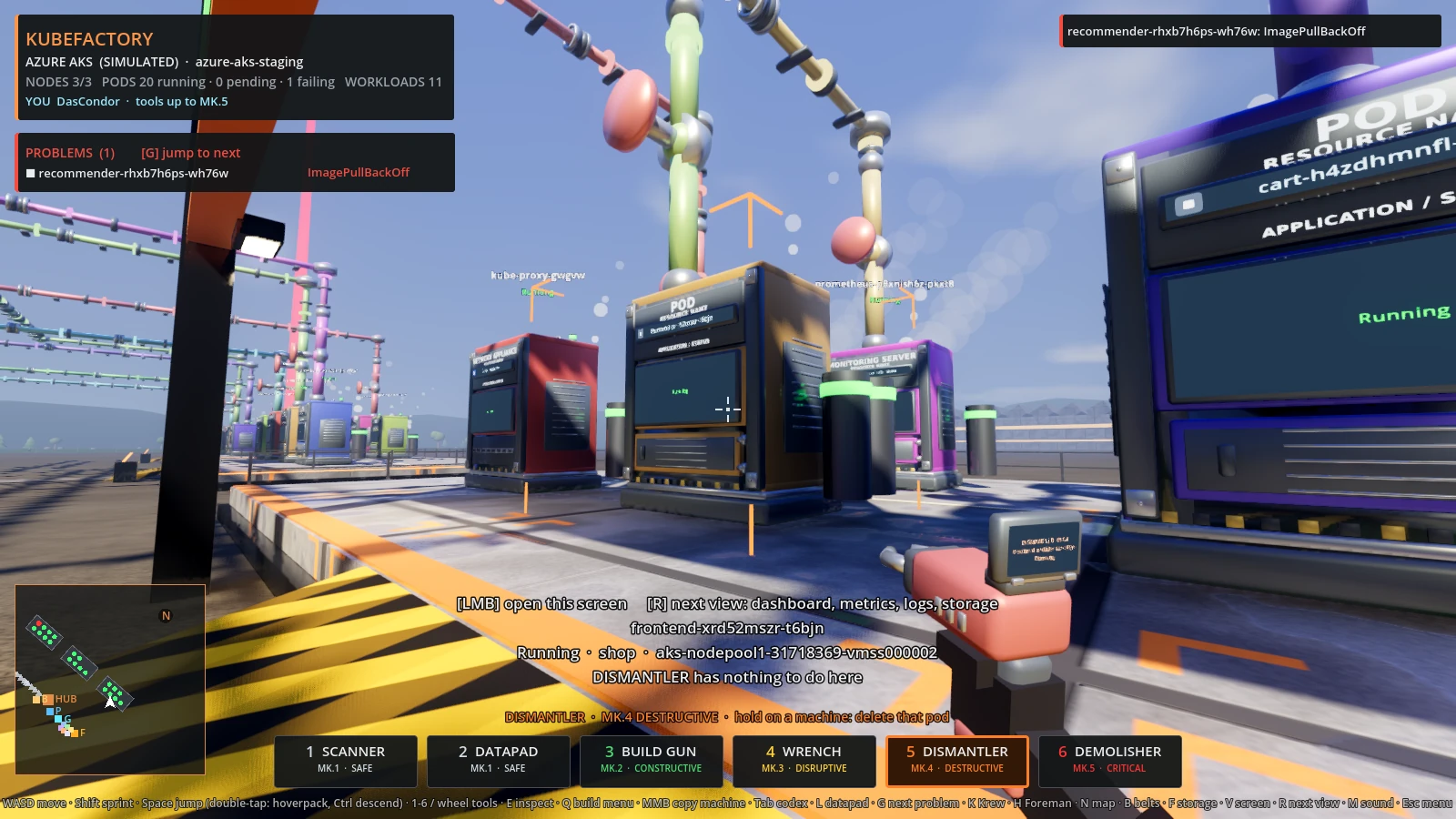
Hold to act: stronger tools take longer.
Other keys: WASD, Shift sprint, Space jump (double-tap for hoverpack, Ctrl to descend), E inspect, MMB copy a machine as blueprint, Tab cluster codex, L datapad, G jump to next problem, B pipelines (belts), F open a machine's storage door, V open a machine's screen (or the LiveView list), R next view on a machine's screen, F11 fullscreen, Esc menu.
Everything is set in the game and saved as you change it; no files to edit.
- Keys: rebind any action to a key or mouse button (not a WASD player? move it all). Clashes are pointed out, and Reset all keys brings back the defaults. Hints throughout the game ("[E] inspect") and the help line follow your bindings.
- Controller: plug in any controller Godot recognises. Left stick move, right stick look, RT use tool, LT copy machine, LB / RB change tool, A jump (twice: hoverpack), B descend, X inspect, Y build menu, L3 sprint, R3 next screen view, D-pad for next problem / Krew / Foreman / datapad, Back codex, Start menu. In menus the left stick moves a pointer, A clicks, the right stick scrolls and B closes. Look speed has its own slider.
- Display: field of view (60-110°), interface size (75-150%), mouse sensitivity, inverted look.
- Accessibility: status colour palettes for red-green and blue-yellow colour blindness (Okabe-Ito colours) and a high-contrast one. They change lamps, alarm beams, findings and tool tiers; every status is also written.
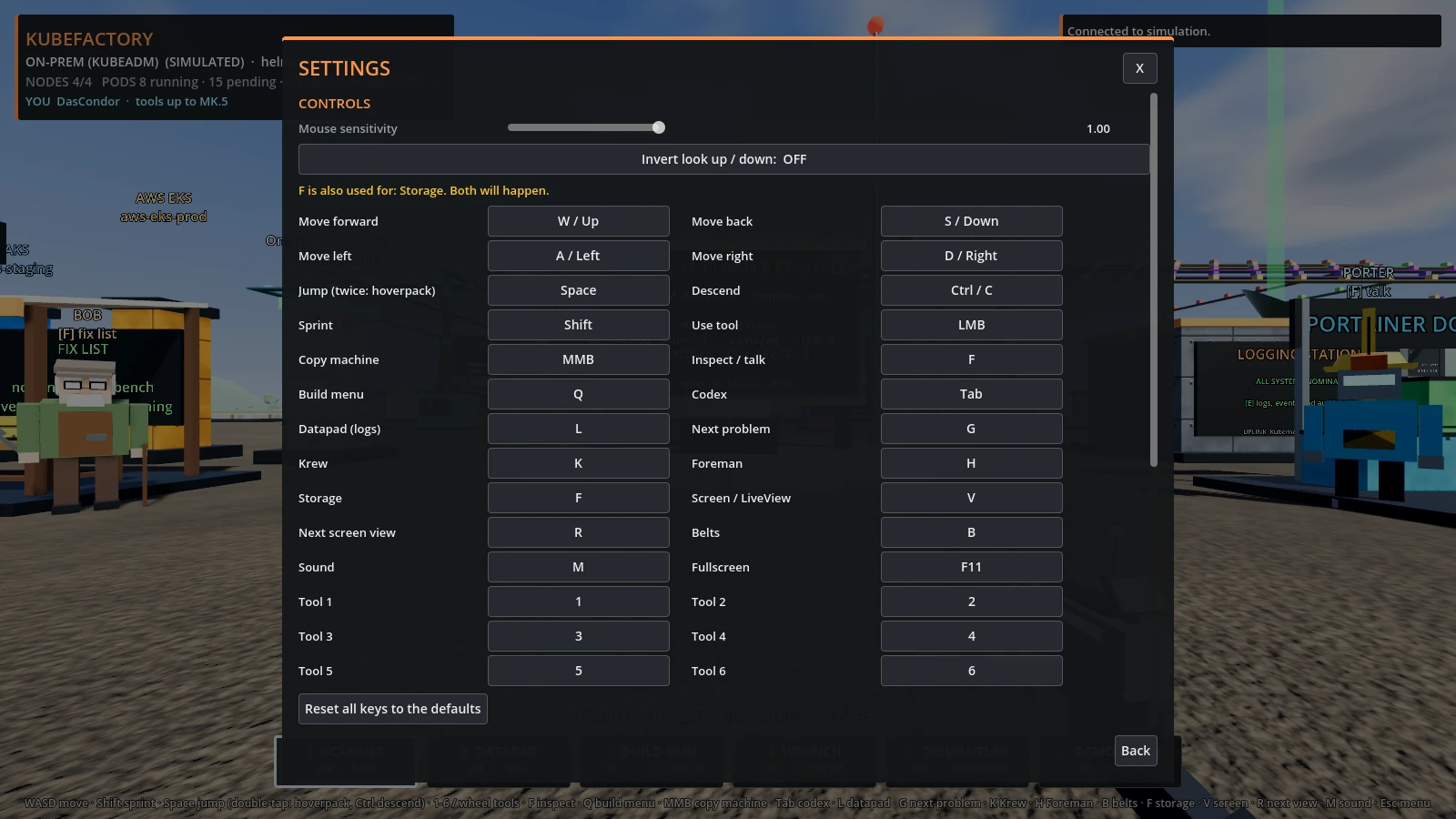
Settings: keys, controller, field of view, interface size and colour palettes.
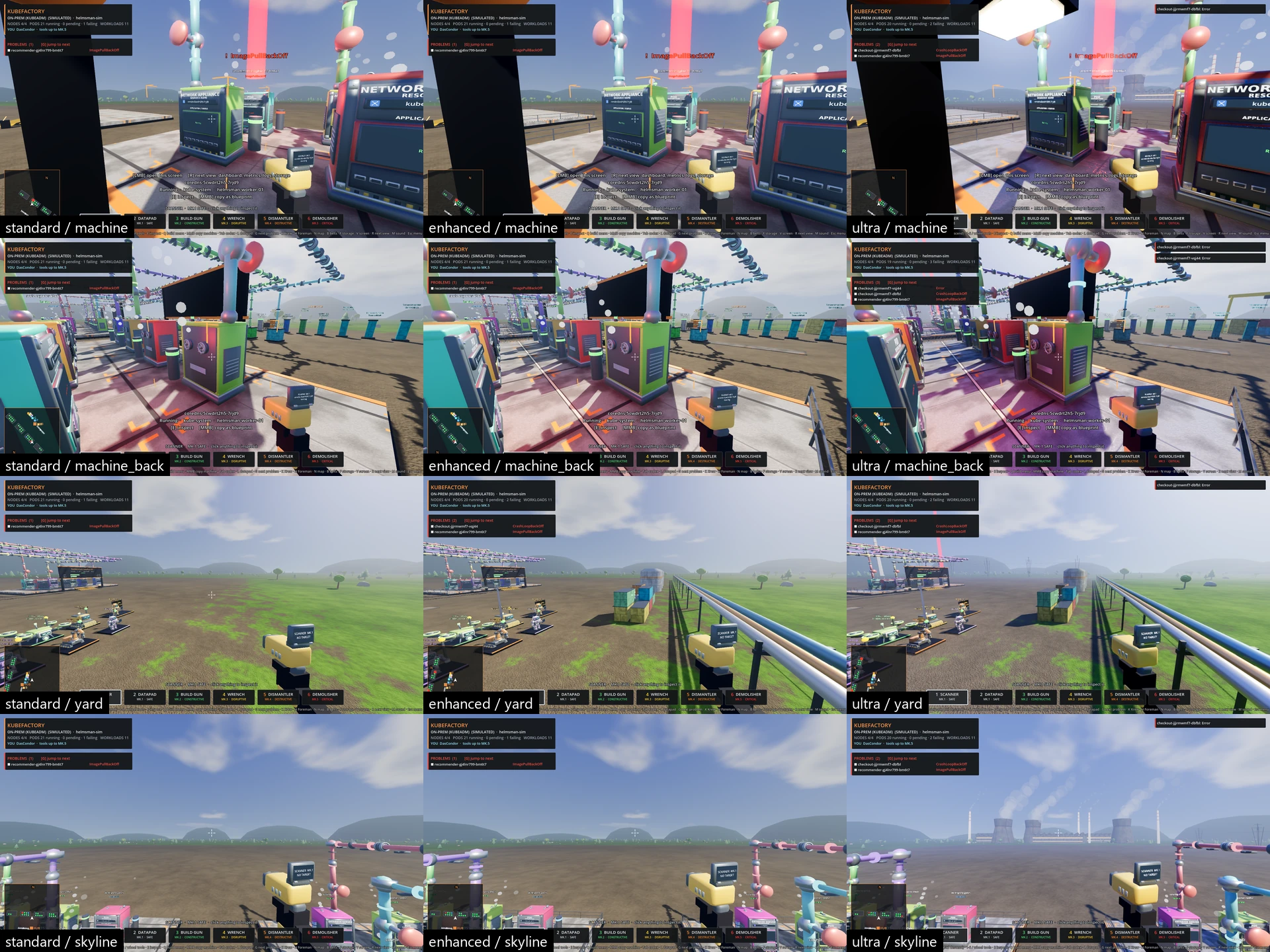
Three presets on the same world, switched live from the pause menu
(Esc > Graphics) or with --gfx=standard|enhanced|ultra. The game picks one
for your hardware the first time and tells you why; "Automatic" keeps following
that recommendation.
| Preset | What you get | Meant for |
|---|---|---|
| Standard | the look the game has always had, drawn for less work than before | integrated and entry-level GPUs |
| Enhanced | framed, riveted machines with ladders and cooling units; platform railings; concrete walkways, lit lamp posts, a perimeter fence, container stacks, tanks and pipe racks; finer shadows and anti-aliasing; surfaces that vary from dull to glossy | mid-range GPUs |
| Ultra | all of Enhanced, plus global illumination, screen-space reflections, softer sun shadows, lit base strips and gauges on machines, platform floodlights, a gantry crane, low haze, and an industrial skyline: cooling towers and smokestacks breathing steam, factory halls, pylons | high-end GPUs |
The rules they are built to:
- Standard is the floor. Nothing is drawn below the shipped look on any preset; the others only add to it. Colours, shapes and layout are the same everywhere, so it is recognisably the same factory.
- One set of models and one code path. A preset decides how much is layered on top and how hard the renderer works. The extra detail is separate meshes that drop out with distance.
- Graphics never limit management. Every tool, panel, board and action is built by code that does not look at the preset, and switching preset keeps your connection, position and open work.
- The browser demo has its own two presets. Standard is drawn in code; High loads the model library from the site, with 4x anti-aliasing and softer shadows. Enhanced and Ultra need the desktop build (WebGL has no global illumination or screen-space reflections).
How the recommendation is made: the GPU's name and type, memory and CPU threads
(recommend() in scripts/gfx.gd). Integrated or entry-level GPUs get Standard,
mid-range discrete GPUs Enhanced, high-end ones Ultra, stepping down a level
under 16 GB of memory or 8 threads.
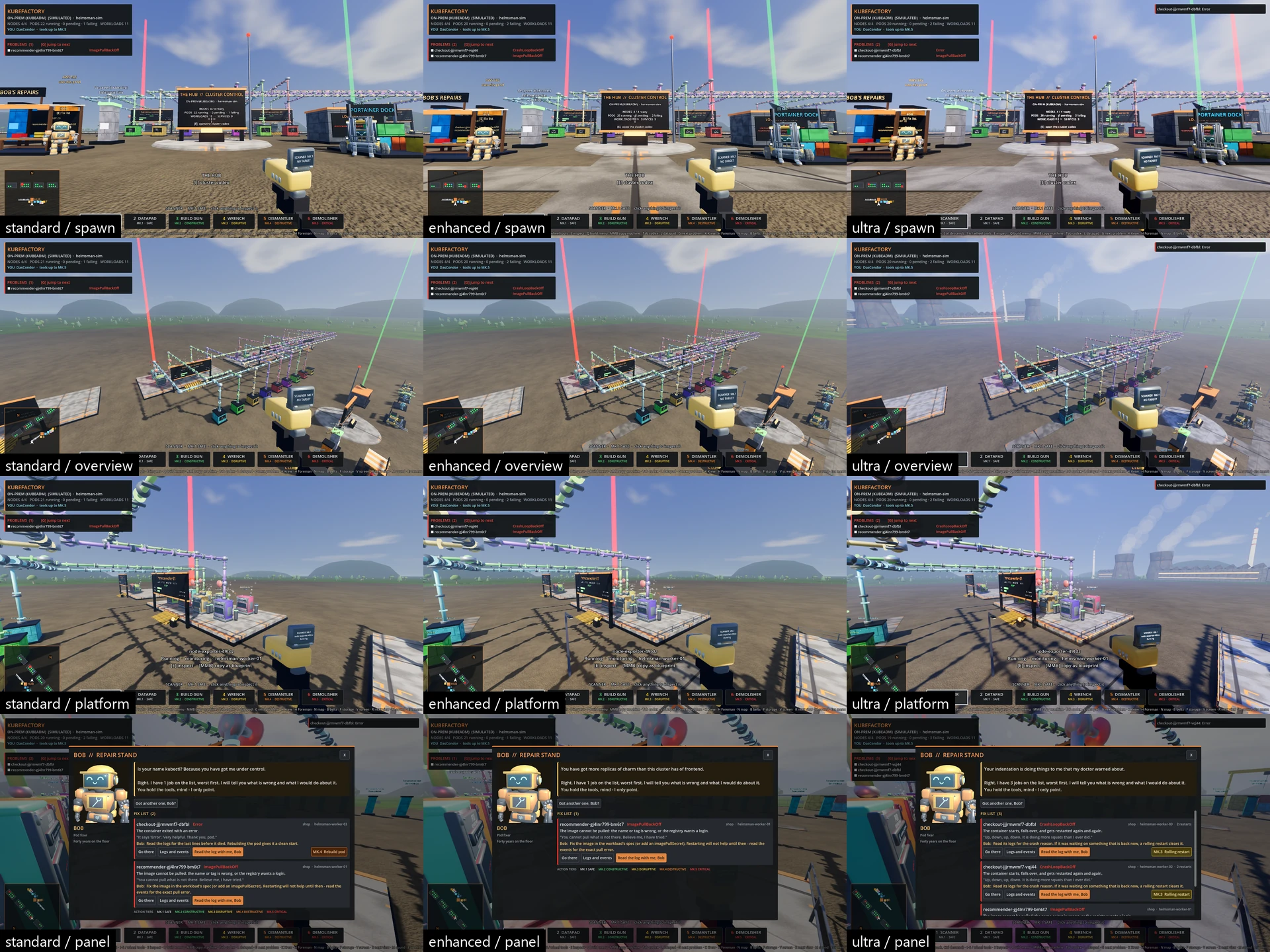
Standard, Enhanced and Ultra side by side.
Close-ups of machines, the yard and the skyline are in docs/presets-detail.webp.
Measured against the last release in docs/BENCHMARK.md;
tools\bench.ps1 reruns it on your machine.
All sounds are synthesised at startup (tool switch, build, dismantle, charge-up while holding, footsteps, datapad, a positional alarm on failing machines). M mutes.