Repository navigation
07. Creating a new Skybox
A Skybox is a 6-sided cube that is drawn behind all graphics in the game. Here are the steps to create one:
- Make 6 textures that correspond to each of the 6 sides of the skybox and put them into your project’s Assets folder.
- For each texture you need to change the wrap mode from Repeat to Clamp. If you don’t do this colors on the edges will not match up:

- Create a new Material by choosing Assets->Create->Material from the menu bar.
- Select the shader drop-down in the top of the Inspector, choose Skybox/6 Sided.
- Assign the 6 textures to each texture slot in the material. You can do this by dragging each texture from the Project View onto the corresponding slots.

In this screen shot the textures have been taken from the 4.x StandardAssets/Skyboxes/Textures folder. Note that these textures are already used in SkyBoxes.
To Assign the skybox to the scene you’re working on:
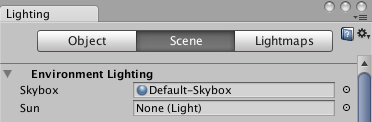
- Choose Window->Lighting from the menu bar.
- In the window that appears select the Scene tab.
- Drag the new Skybox Material to the Skybox slot.