Repository navigation
10. Adding Videos
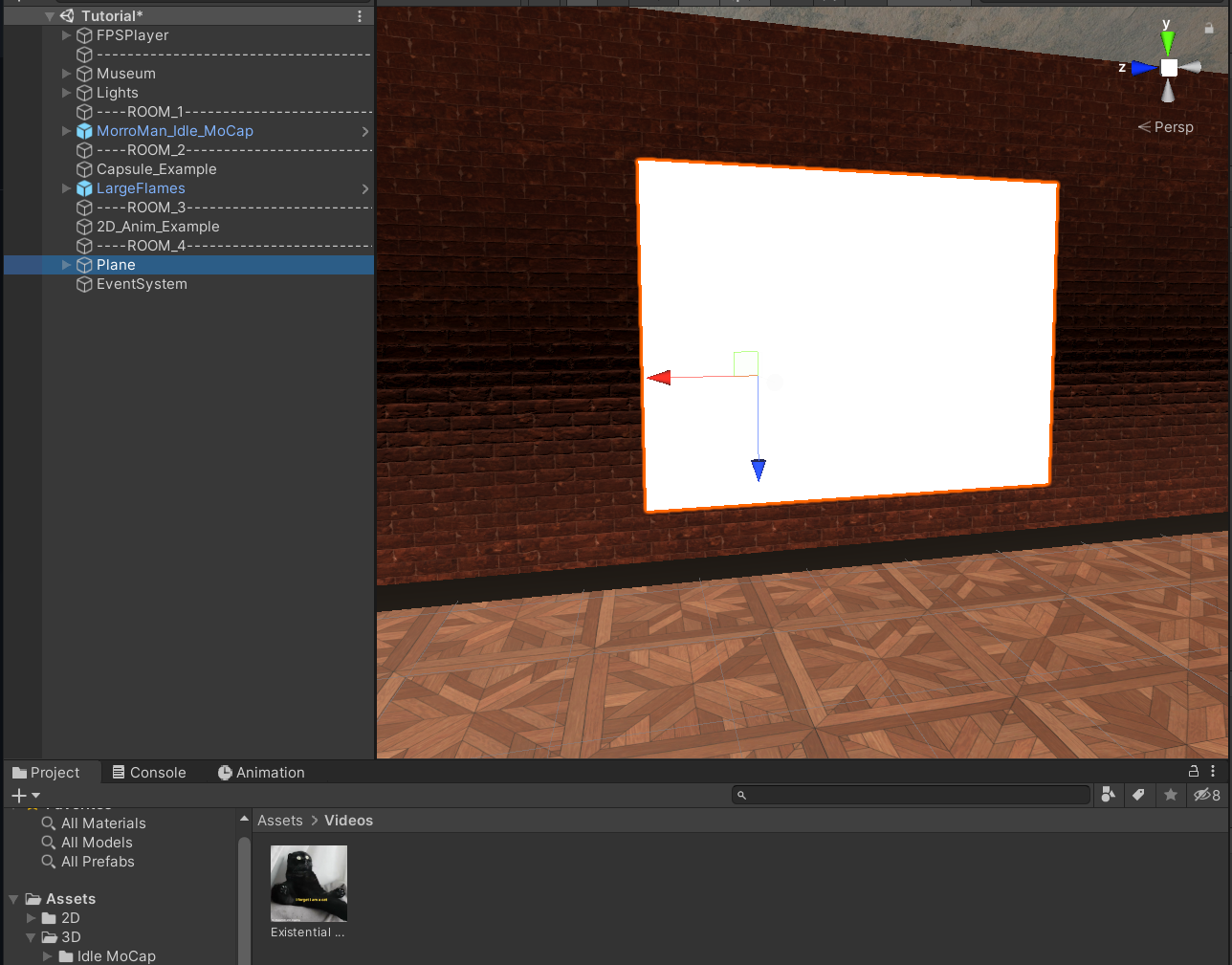
To play a video, simply create a simple 3D Object (Cube, Plane, etc.) and drag and drop the video from the Project Window onto the Object in the Hierarchy. Unity will automatically create a Video player Component on the Object.
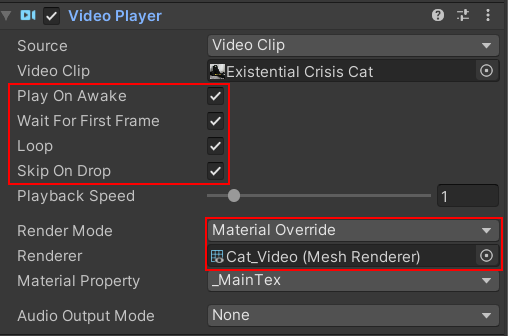
In the Inspector, you can now change the settings according to how you want the video to play. You can read more about the component here.
It is important, that you choose Material override of the Object.
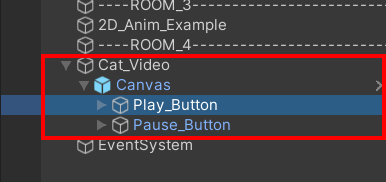
If you want to add Play/Pause Buttons, simply drag and drop the Prefab from the Prefab folder onto the Video Object in the Hierarchy.
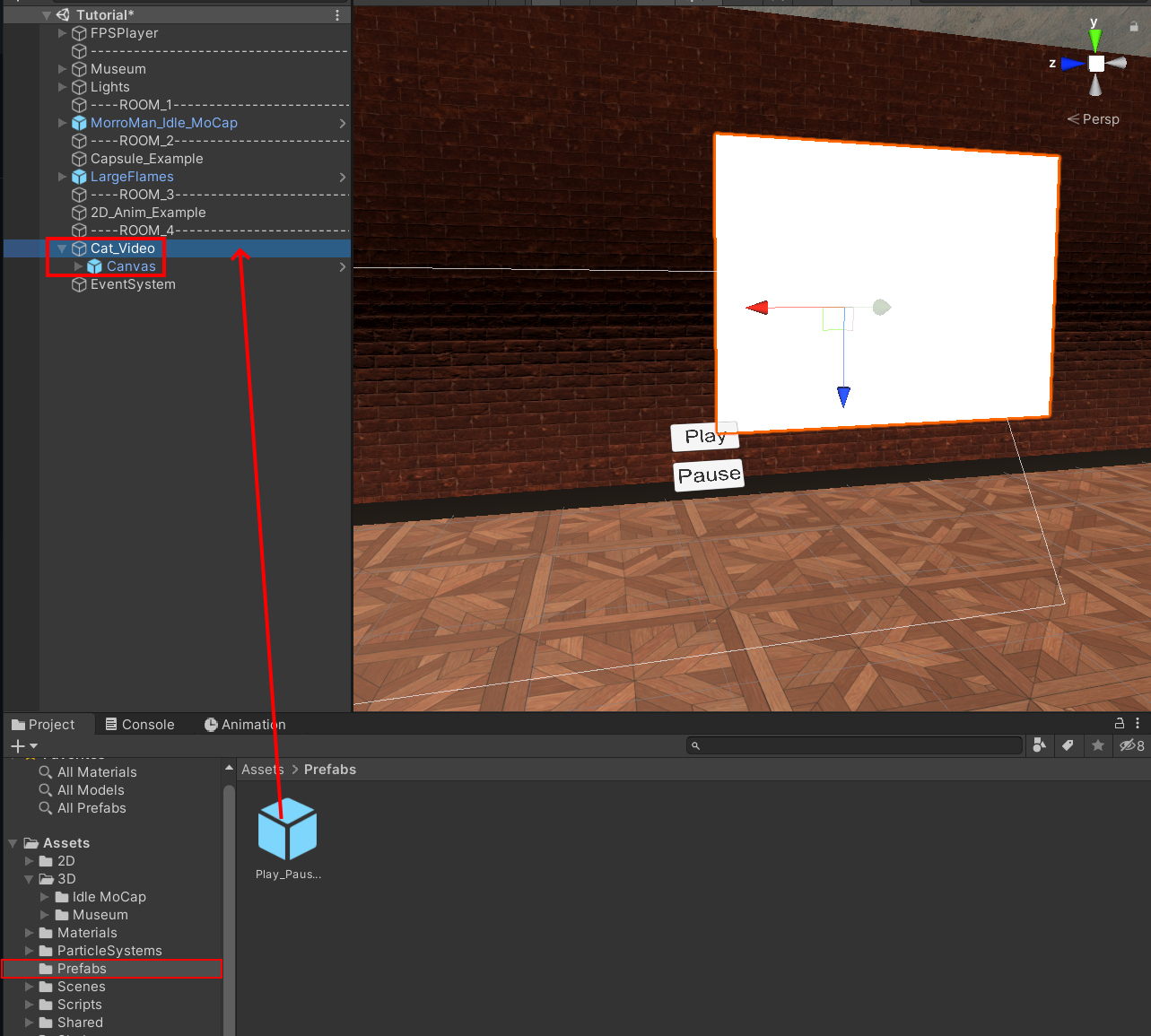
Set the Transform Location of the Canvas to 0,0,0 so that the Buttons will be centered on the video object and then rotate and move it to your liking. Then click on the arrow to show the Button objects and select them.
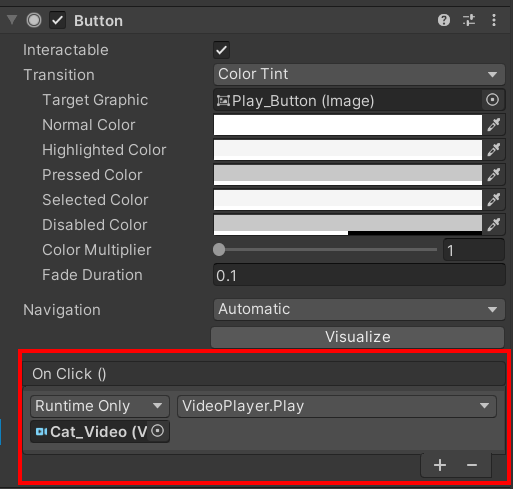
In the Inspector, go to the Button Component and drag and drop your Video Object into the On Click field. You then have to choose what happens when you click the Button.