View Modes
Radial Timeline has two views: the main Timeline view and the Inquiry view. Within the Timeline view, four modes let you examine your story from different structural perspectives. Switch modes using the keyboard shortcuts or the top-right navigation.
Shows all scenes from all subplots on the outer ring with story beats and subplot color-coding. Structured around your configured act count (default 3) with scenes organized by act divisions (360° divided evenly across acts). This is your primary manuscript-order workspace showing Narrative time (reading order). Status/publishing overlays are hidden so subplot colors remain dominant.
Interactive Reordering: You can reorder scenes by dragging them on the outer ring. See How-to#reorder-scenes for details.
Tip: For scenes in more than one subplot, click on a scene to make that subplot dominant in the outer ring color. The folded corner motif at the start of each subplot ring shows the state: missing (not assigned), gray (assigned but not dominant), or a darker hue of the subplot color (dominant and expressed on the outer ring).
Isolates each subplot into its own unitary radial pass—no combined outer ring—so you can focus on one thread at a time. Scenes inherit the author workflow palette (Todo plaid, Working pink, Overdue red, Complete = publish-stage color) along with publish-stage indicators. Removes story beats for a cleaner view. Structured around your configured act count (default 3) with acts spanning equal segments of the 360° circle. Emphasizes Author time (writing status) and Publishing time (revision stages) and completion readiness. Use the top-right navigation or keyboard 2 to cycle between subplots.
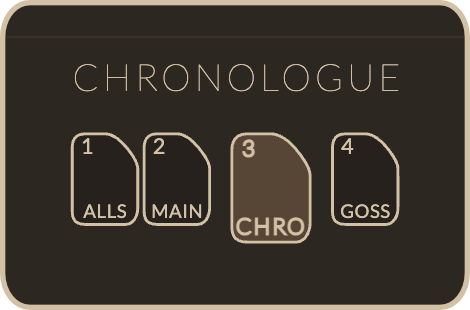
Displays scenes in chronological story order based on When field. Removes act divisions entirely—scenes are positioned across the full 360° circle based solely on when they occur in your story's timeline. Color styling mirrors Narrative mode (subplot colors only) to keep time comparisons clean.
Chronologue has three sub-modes for deeper temporal analysis:
- Shift sub-mode (keyboard Shift, Caps Lock, or click button): Gray wireframe revealing the chronological backbone. Click scenes to measure elapsed time and spot discontinuity gaps.
- Alt sub-mode (keyboard Alt): Planetary wireframe overlay translating Earth dates into your active local time profile.
- Runtime sub-mode ✦ Pro (click RT button): Blue wireframe showing scene runtime duration arcs instead of elapsed story time.
Additional features:
- Discontinuities: Large time jumps marked with ∞ symbol.
- Smart duration labels: Time-period-appropriate formatting.
- Dynamic duration arc cap: Proportionally scales scene durations.
Visualizes narrative momentum using story beat scores. The timeline grays out and momentum values display across story beats.