Welcome
Radial Timeline is a writing system that transforms how you visualize, organize, and structure narrative work. Think of it as a living manuscript where your story breathes and evolves alongside your creativity.
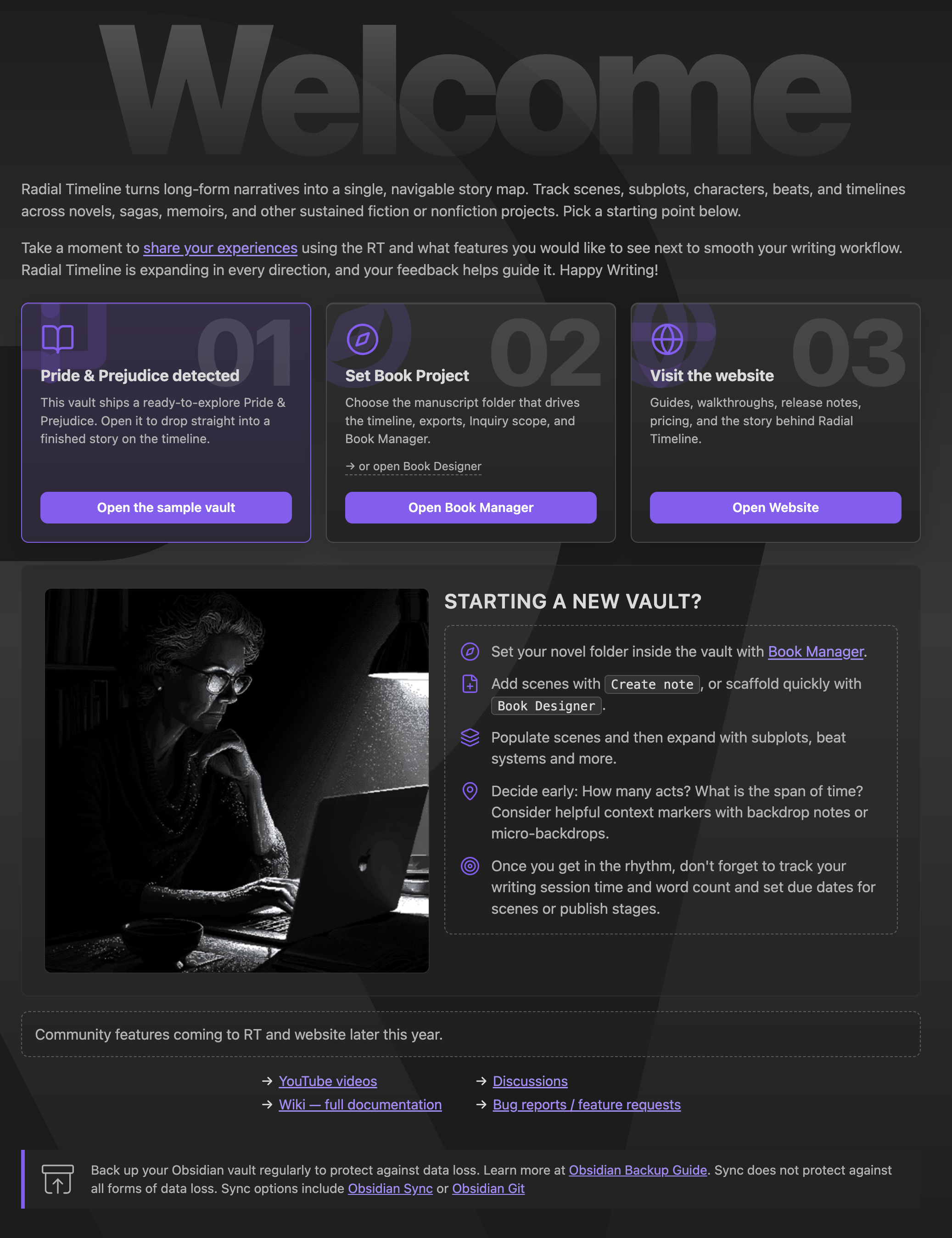
If you have a new empty vault, click the Radial Timeline icon in the Obsidian command palette or use the command palette (Cmd + P on Mac, Ctrl + P on Windows/Linux) to select Radial Timeline: Open. The welcome screen will appear. Once you've read this, you can click the Book Designer button on the welcome screen. Book Designer lets you specify the number of scenes and scope by setting the last scene of your story, along with optional example subplots, characters, and time increments for each scene. This creates a framework model for your book and demonstrates Radial Timeline's capabilities out of the box. Use the preview timeline and manually move scenes to customize it. Generate notes and see how it looks in the Radial Timeline. If you want to start over, just delete the files in the Obsidian File View and start over.
Or you can create your first scene using the command palette (Cmd + P on Mac, Ctrl + P on Windows/Linux) and selecting Radial Timeline: Create note…, then choosing Scene → Basic scene. This gives you a place to write immediately. Scene details—like the characters in the scene, subplot assignments can stay blank until you're ready to add them.
As your manuscript grows, you'll add new scenes, view them in the Radial Timeline, and reorganize them as needed. The timeline is where you do most things, including reordering scenes and beats. You can create new scenes from scratch or duplicate existing ones to build out your story.
Your manuscript deserves protection. Back up your Obsidian vault regularly. Sync is a great feature, but keep in mind it won't guard against all forms of data loss. Obsidian provides a comprehensive backup guide, and services like Obsidian Sync or the Obsidian Git plugin make this seamless.
This wiki is designed to explain all operations of the Radial Timeline plugin for the Obsidian note-taking app. Scenes, Structure, and the Timeline offers a gentle primer if you're starting fresh. Writers migrating from Scrivener or similar tools will find Migrating from Scrivener & Other Apps helpful for understanding Obsidian's markdown-based workflow.
For hands-on guidance, Fresh Vault Onboarding walks you through building a new manuscript with Book Designer and structural beats, while Existing Vault Onboarding shows how to connect notes you've already written. Once you're comfortable, Workflow Overview points to the main drafting, review, and export flow.
As your needs deepen, explore Timeline Modes to visualize your story through Progress, Narrative, Chronologue, and Gossamer modes. The Inquiry tools help you analyze scenes and themes, while the Author Progress Report tracks your drafting and revision progress.
Advanced writers can dive into Scene Properties for full schema control and custom fields, consult the Command Palette reference for command palette shortcuts, or experiment with AI Pulse Triplet Analysis to unlock optional scene analysis features.