Repository navigation
Notes and Parameters
Note (UTILITIES section) puts a yellow sticky note over the view. It stays in the window corner you drag it to, even when the window gets smaller, and stays open while you work on sketches. Closed notes are listed in the browser under Notes; double-click one to open it again. Notes are saved in the design.
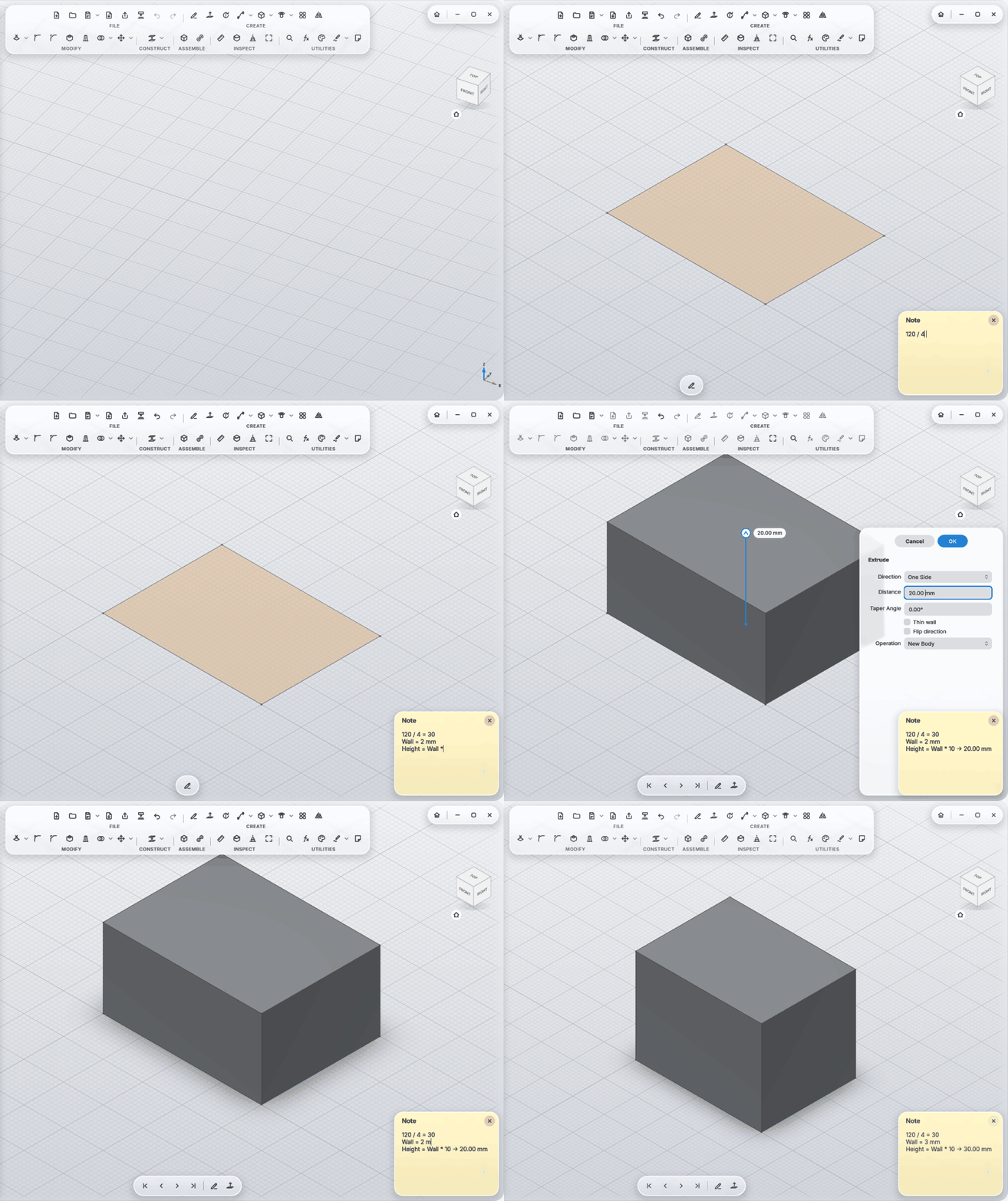
A line that ends in = gets worked out (with a decimal point in English, a comma in German):
| You type | You get |
|---|---|
120 / 4 = |
120 / 4 = 30 |
1.5 + 2 = |
1.5 + 2 = 3.5 |
10 mm + 1 in = |
10 mm + 1 in = 35.40 mm |
Width / 4 = |
using the parameter Width |
M8: 2 * 3 = |
text before the colon stays |
A line Name = value or formula (without = at the end) is a parameter. After Enter, or when you leave the
note, it's in effect:
Wall = 2 mm
Width = Wall * 20        → 40.00 mm
- Formulas show their value after the arrow. You never need to touch the arrow part; MyCAD rewrites it.
-
Umlauts work (
Wandstärkeis stored asWandstaerke, both spellings work), and so does a decimal comma. - Every size field understands the names: an extrude distance
Wall, a sketch dimensionWidth / 2. - Both ways: change the value on the model (double-click a face) or in Change Parameters, and the line in the note changes.
- Problems are marked with ⚠ after the line: a name used twice, a name already defined in another note, not a valid value.
-
Nothing gets lost quietly: if you delete the line of a parameter that a size still uses, the parameter stays and
the note says
⚠ Wall is still used by Extrude. Only when nothing needs it any more does it go away.
A line Name: A | B | C lists the configurations. Values with | have one entry per configuration:
Size: S | M | L
Size = M
Width = 40 mm | 60 mm | 80 mm
Wall = 2 mm
- The configurations appear as buttons at the top of the note. Click one and the part switches; the note keeps the
choice as
Size = M(without that line the first one counts). You can also just change that line. - Lines without
|are the same in every configuration. Each line uses the nearestName: …line above it, so one note can hold several (e.g. Size and Material). - Changing the size on the model changes only the value of the chosen configuration in the note.
- ⚠ marks a line with the wrong number of values, or a choice that isn't in the list.
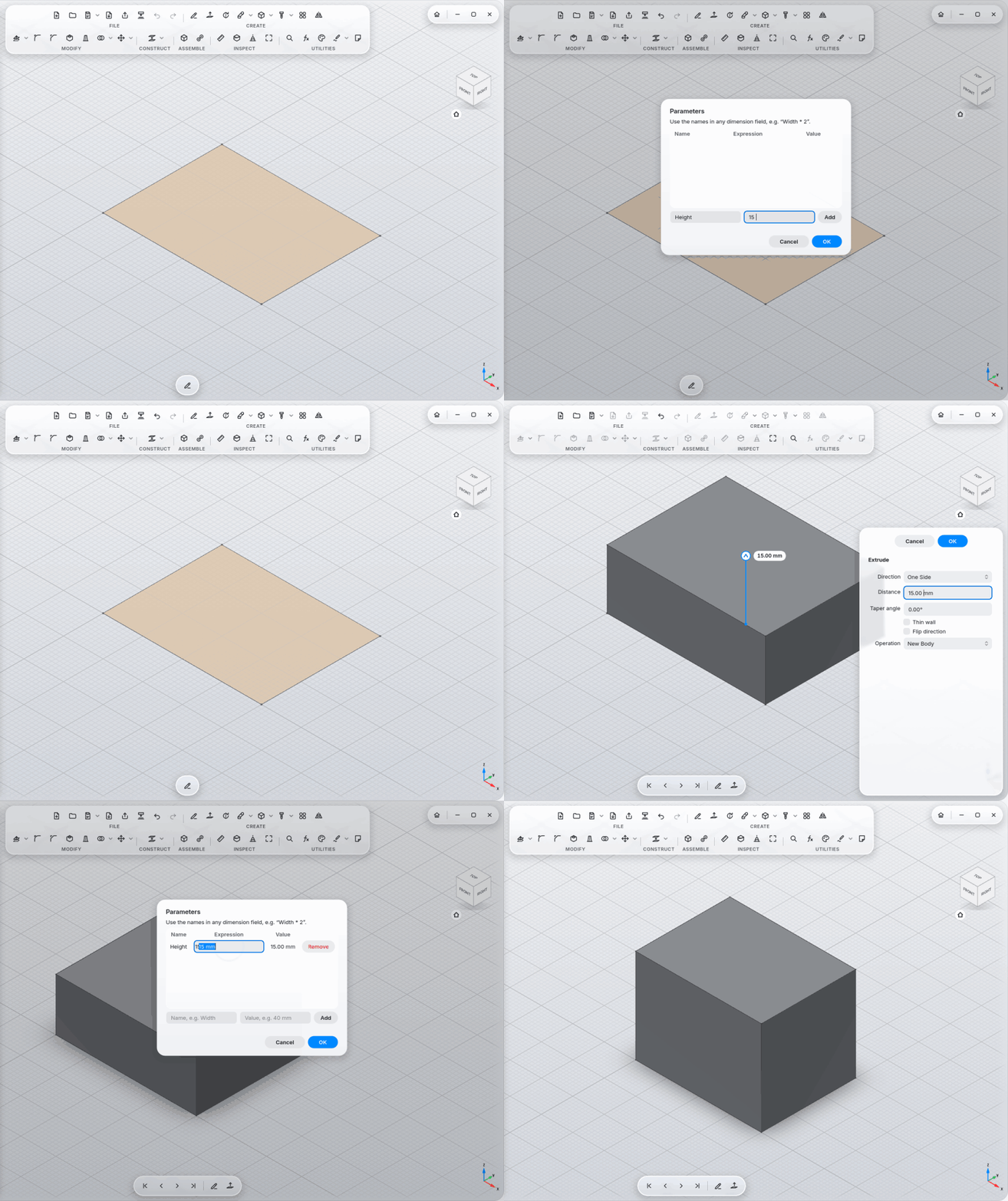
The classic way (UTILITIES → Change Parameters): a table with name, expression and value. Add creates a new parameter; change expressions right in the table. Parameters that come from a note say "In note …" and are changed there.