Repository navigation
Red Pen and Scribble
Scribble (UTILITIES section) opens a drawing sheet with a fine dot grid. A pen tablet is best, the mouse works too.
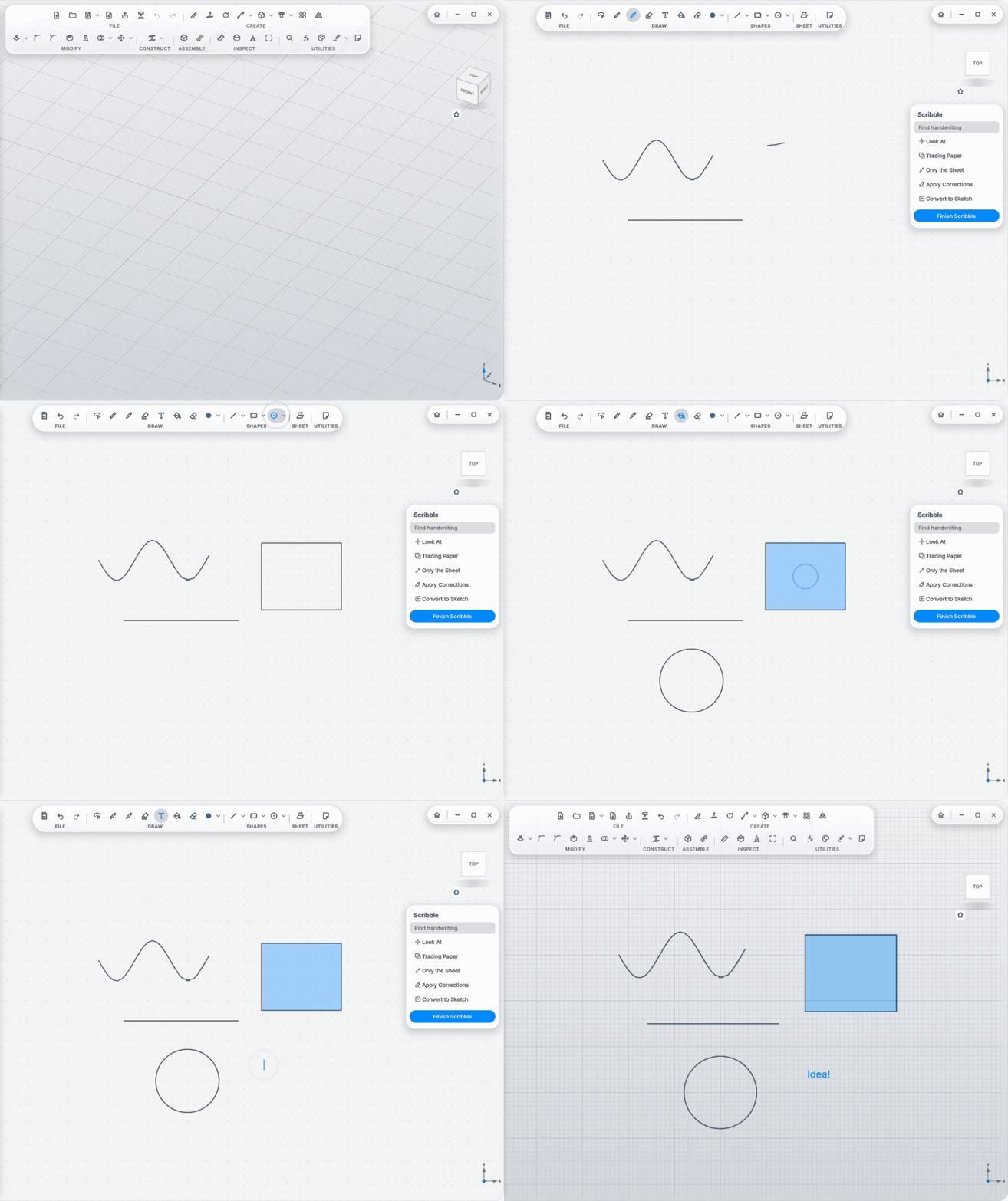
- Pens: Pencil, Fineliner, Marker, in five colors; press harder for a thicker line. Erase with the back of the pen or key E (E again goes back to the pen).
- Clean shapes: hold still for a moment at the end of a stroke and it becomes a line, arc, circle, ellipse, triangle or rectangle, snapping to horizontal, vertical and other stroke ends.
- Shapes: drag out a line, arrow, rectangle, triangle, hexagon, circle or ellipse. Fill colors an area.
- Select (V): tap strokes or draw around them, then drag; a small bar recolors or deletes them.
- Text writes on the sheet with the keyboard.
- Tidy handwriting: a second after you lift the pen, your words line up: straight, the same size and slant, still in your own hand; small drawings that don't read as text stay as drawn. Ctrl+Z brings back the raw version. Setting: Pen & Handwriting.
- Reads handwriting (offline, German model): Find handwriting in the palette jumps to any word; sizes get CAD notation (o12 → Ø12, 2x45 → 2×45°, 25mm → 25 mm).
- Tracing Paper: the model shows through. Only the Sheet (Tab) hides everything else.
- Move Sheet: lay the sheet onto a body face, or stand it up along a stroke you drew, and sketch in 3D right where a wall should go. Look At (L) turns the camera to the sheet.
-
Convert to Sketch: lines, circles, ellipses and shapes become a real sketch, ready to dimension. A written
Ø12next to a circle becomes its dimension.
Scribbles stay in the design under Scribbles in the browser.
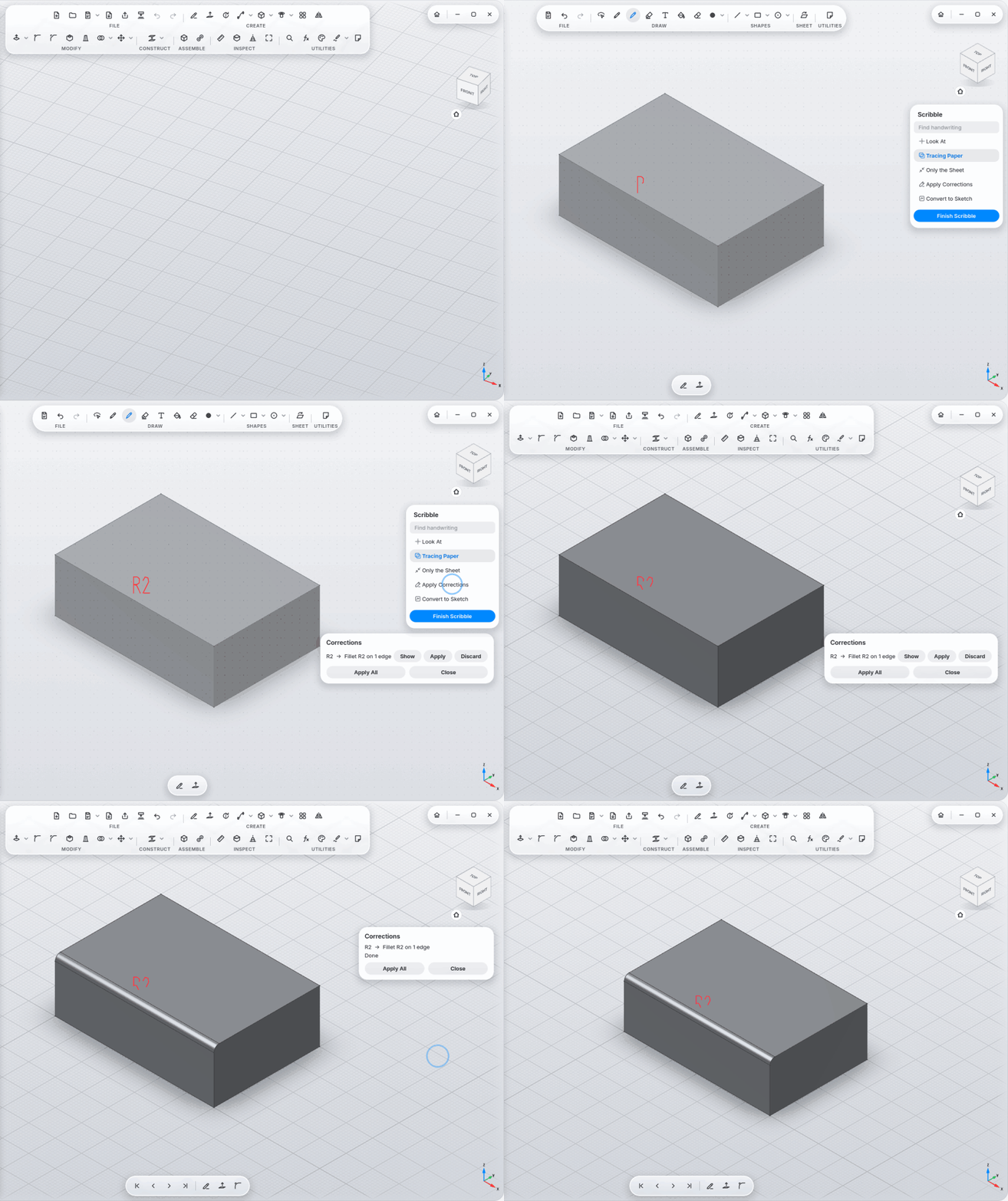
Red Pen (UTILITIES section, arrow ▾ next to Scribble) puts a see-through sheet in front of the model, facing you, with a red fineliner. Write corrections where they belong, like on a drawing. Then click Apply Corrections in the palette.
| You write | next to / on | MyCAD does |
|---|---|---|
R2 |
an edge | fillet R2 |
C2 or 2×45°
|
an edge | 2 mm chamfer |
+5 / −5
|
a flat face | pull / push the face by 5 mm |
M5 |
a flat face | M5 tapped hole right there |
M8 |
a pin | M8 thread |
Ø8 |
a flat face | Ø8 hole right there |
Ø12 |
a hole or pin | its diameter becomes 12 mm (through its dimension) |
H7 or print
|
a hole | H7 fit or 3D print play |
3× |
next to a feature (boss, pocket) | a pattern of 3 in the direction you wrote it |
12 |
a face | the size that makes the face becomes 12 |
remove or a line through it |
a face | remove the face (a fillet, chamfer or hole disappears) |
German words work too: Druck for print, weg or entfernen for remove.
Typical reading mistakes are caught: MS becomes M5, o8 becomes Ø8, R 2 becomes R2, 2x45 becomes
2×45°, 3x becomes 3×, an O inside a number becomes 0. A single upright stroke stays a 1; a stroke across a face
means "remove".
Each recognized correction becomes a card on the right: R2 → Fillet R2 on 1 edge.
- Point at a card to highlight its target on the model.
- Show tries the result on the model, Hide takes it out.
- Apply keeps it (a normal step in the timeline; Ctrl+Z takes it back), Discard drops it.
- Apply All does every card.
- If two targets are equally close (ink right between two edges), the card asks Which one? instead of guessing.
The ink stays in the scribble "Corrections", so you can see later what you changed and why.