Repository navigation
Versions and Variants
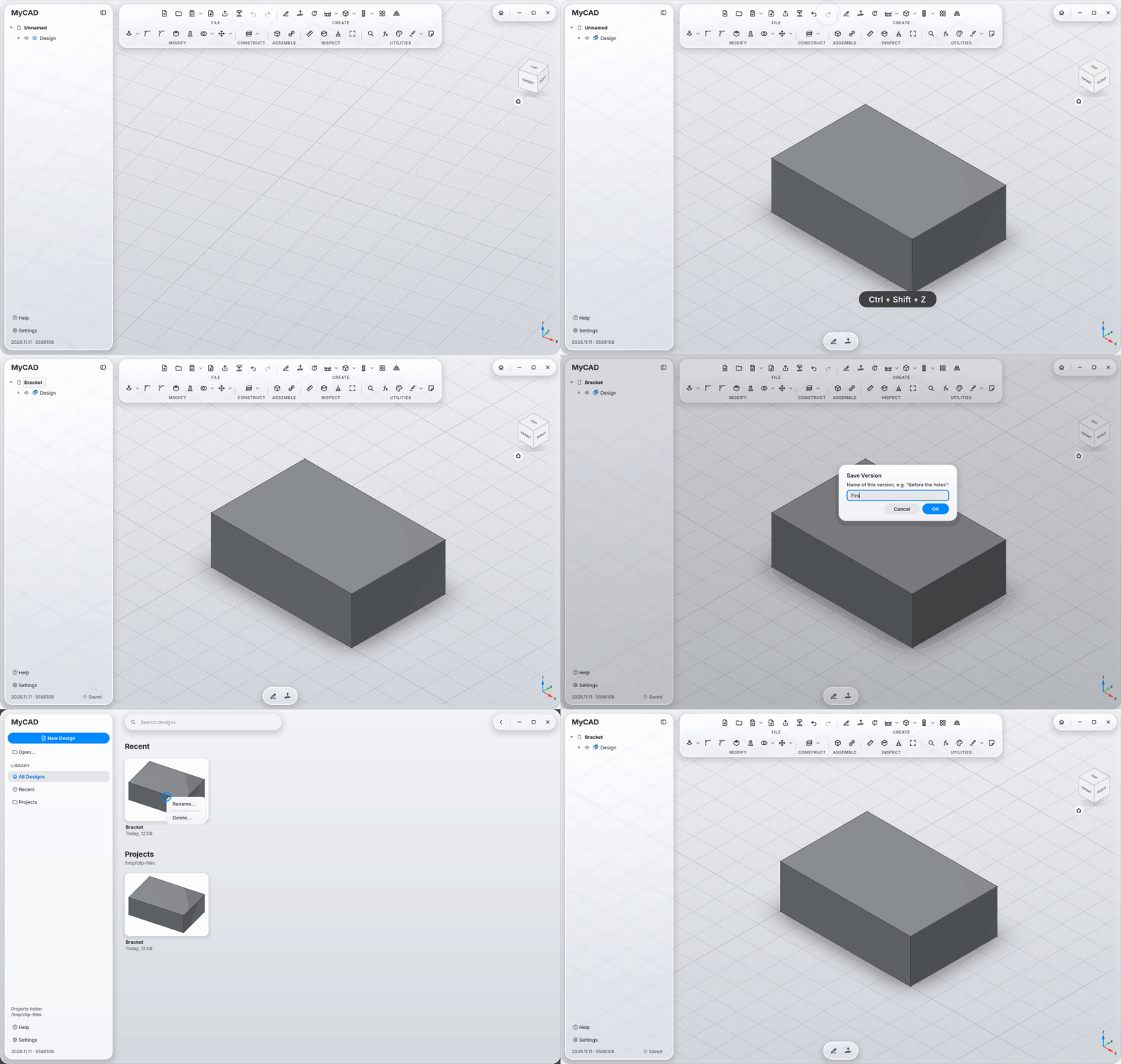
MyCAD saves by itself: after every finished action, as soon as it rests for 2 seconds. Never in the middle of a tool panel, while you drag, or during a camera animation.
- A new design gets its own folder in the projects folder the first time it's saved:
Projects/<Name>/<Name>.mycad. - Closing never asks about saving; the last seconds are saved quietly.
- After a crash, just open the design again: at most the last two seconds are missing.
- Save As on a design created this way takes its versions along, and the first folder goes to the trash.
- It can be turned off with the parameter
MyCAD/AlwaysSave(meant for tests).
Gives the current state a name, such as "Before the holes". Named versions are always kept.
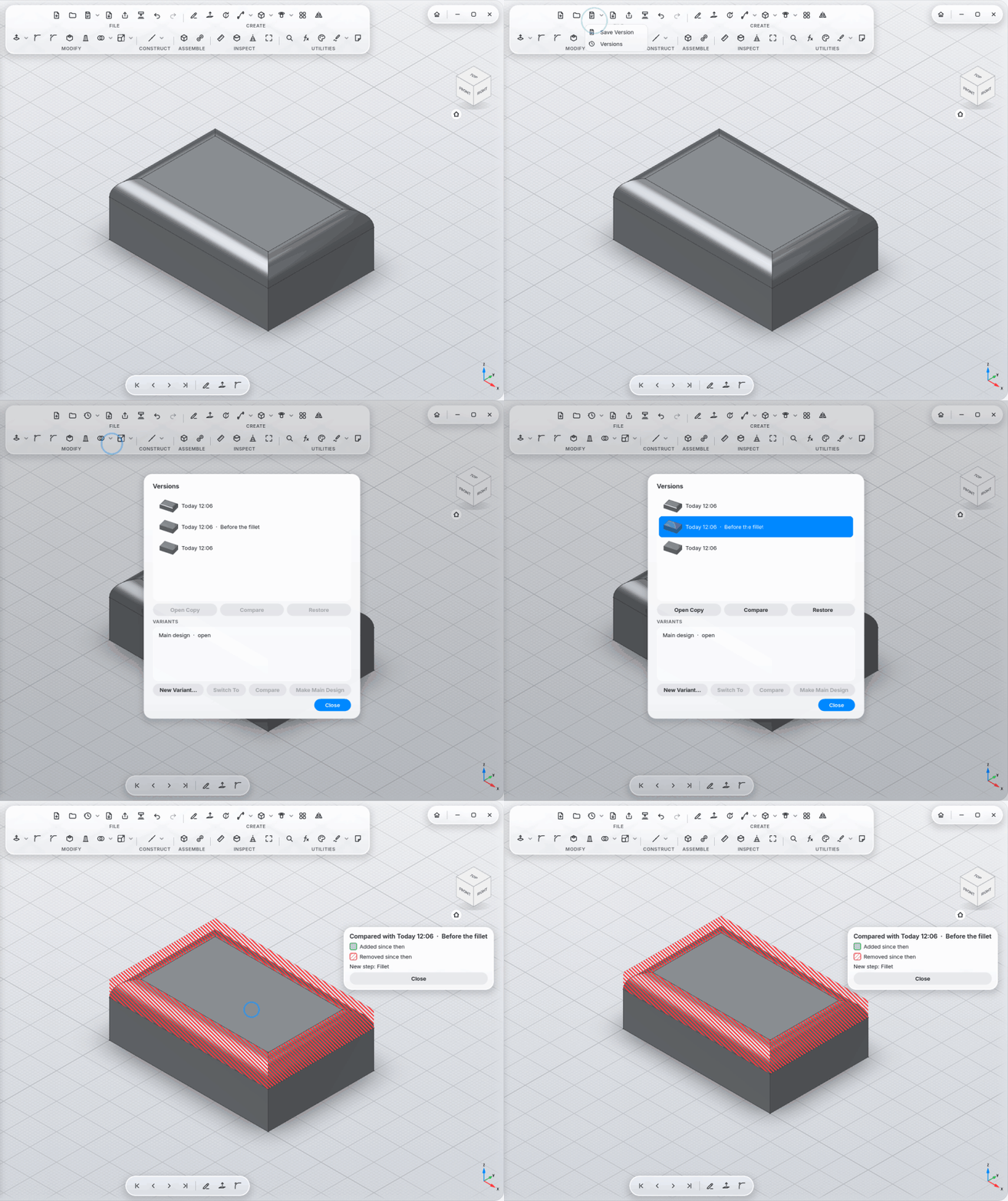
FILE section, arrow ▾ next to Save Version → Versions.
- Every saved state is a version, with a preview picture and time.
- Kept like Time Machine: everything from the last day, then one per hour for a week, then one per day. Named versions always stay.
- Open Copy: shows the version as its own design, without changing it.
- Compare: lays the version over the model as a ghost: dotted green was added since then, hatched red was removed, and the panel lists new, removed and changed steps.
- Restore: brings the state back. The state before stays as a version; restoring never deletes anything.
Versions are stored next to the design file in versions/<Name>/.
A variant is a copy of the design to try something out.
- New Variant… (in the Versions window): enter a name, and MyCAD switches into it right away.
- Switch in the browser: right-click the design name at the top of the browser → Variants → Main design or a variant (the open one has a check mark).
- Compare shows the difference between variant and main design, just like versions.
- Make Main Design: the open variant becomes the main design; the old one is kept as a version "Before …".
Variants are stored in variants/<Name>/ next to the design file.