Repository navigation
Features
The README has the short list. This is the long one: everything the editor does, a part at a time.
Your gear is on the left (weapons, armor, artifacts, talismans) as tiles in their rarity's colour, the rest of your inventory is in the middle, and the item's card is on the right, with level, gear power and your currencies along the top, just like the game's inventory screen.
- Click a tile to change it on its card.
- Double-click an empty slot to put something in it.
- Right-click any tile for its actions.
Original, the one it opens in, and Liquid Glass, with rounded glass panels and buttons and bars that float clear of the window's edges. Menu → Look switches between them on the spot, and the editor remembers your choice through updates. The colours, the lettering and the item tiles' pictures are the game's in both.
Emeralds, Echo Shards, level, XP, enchantment points, and the Merchant, Enchantsmith and Blacksmith levels (under Stats & town). Click a number to change it; changes apply as you type, and mistakes show up in red. The editor also tells you which of the three town vendors your hero has unlocked.
Change rarity, power and count, equip or unequip, turn an item into another one, make copies or delete them. Every gear slot is shown, including the ones your level hasn't opened yet.
Pick any of the game's 180 weapons, armor pieces, artifacts and talismans, with pictures, search and a category filter, and tick Equip it to put it straight on your hero. Items show their in-game names.
All 116 Uniques are there too: pick Unique rarity and a Sword is added as The Burning Blade, and kits come with their Uniques. Every Unique comes with the effect of its own, saved the way the game saves it.
Give a weapon, armor piece or artifact the effects you pick (the game rolls a Rare item one and a Special item two, and never more than four), and a weapon or armor piece an enchantment.
The editor writes them exactly as a real save holds them, so it offers the ones it has seen so far, plus anything on an item in your own saves, which it can copy to any other item.
The same window has a Soulstorm Enhanced tick box: the mark the game puts on gear from a Soul Storm's reward chest. See Effects and Best for, and Known limits for what it can't write yet.
In the effects window, pick what you want from the item (damage, survival, mobility, loot, artifacts and souls, or companions) and the editor puts its picks on, out of the effects the game can roll on that very item.
A Sword is Fighter gear, so for damage it gets Sharpness, Duelist, Swiftness and Critical Hit; a Ranger's boots get Speed for mobility, and a Tank's chestplate is told the game rolls no mobility effect on it. How it picks is in Effects and Best for.
An item's card shows a talisman's level, and Level up raises it a level, saved exactly as the game saves a level-up.
A companion's talisman levels up another way, so it gets Ready to level up: one XP short, and the game does the rest the next time you earn XP with it on.
The Books tab shows the books your hero carries. Add every book gives it all 32 the editor knows in one go, Add items adds them one at a time, and Delete takes one away. Each is saved exactly as the game saves a book it hands you. What's known about them is in Known limits.
- Goals: Most money, Most XP, Best loot, Upgrade my gear, Fully upgraded town, Every minecart station and Secret talisman hunt.
- Most powerful gear: the best melee weapon, ranged weapon, armor, artifacts and talismans.
- Kits: six complete loadouts from MetaBot's data-backed builds (Melee damage, Greatbow sharpshooter, Close-range crossbow, Humbler tank, Soul caster and Companion support).
Pick the item power and rarity, and the preset adds and equips everything. Each preset shows what it will change, and lists the best enchantment for every piece, what it does and where its book drops.
A kit's gear comes with effects, and once your hero has unlocked the Enchantsmith in the game, every weapon and armor piece gets an enchantment too: the one the build names where the editor can write it, and otherwise the editor's own pick for that kind of gear, a different one on each piece. The kit also adds the books of the enchantments the build names, so the Enchantsmith offers those even where the editor can't write them yet.
More in Presets and kits.
Connect Claude or another AI assistant over MCP, and ask it for what you want ("give my hero the best melee kit at power 30"). It shows you its changes before anything is written. See Connect an AI assistant.
Items by most powerful, highest item level, most item XP, rarest, most effects, newest, name or kind, and filters for each kind of item and the Village Merchant's stock. Heroes by power, level, XP or emeralds.
The game's own item pictures, for every item but one. The editor gets them by itself when it opens, from batch-ly.com (the developer's site), and keeps them on your PC; Menu → Pictures → Don't get item pictures automatically turns that off, and Menu → Pictures → Get item pictures… gets them when you ask. If that set isn't there, Get item pictures… gets the Minecraft Wiki's instead. Items without a picture get a pixel-art icon.
Your own pictures win over both. For an item without one, snip its tile in the game (Windows+Shift+S), pick it in the editor and press Paste picture: the editor cuts the item out and keeps it on your PC. What the editor goes online for is in Safety and privacy.
When the editor doesn't know what the game calls an item, press Name it… on its card. The name stays on your PC, and Share item IDs… can send it on so everyone gets it.
When your saves hold item IDs, effects or enchantments the editor's list doesn't have, an item the game marks some way the editor hasn't seen, or parts of the game's world it doesn't know yet (quests, doors, minecart stations), a Share item IDs button with the count appears at the top. Nothing is sent unless you send it. See Teach the editor.
Simple looks like the game, keeps numbers within the game's caps and opens gear slots with your level, as the game does.
Advanced is the technical view: every item in a sortable list, a tree of every value in the save, the raw JSON, the settings save and raw item IDs.
Menu → World → World map… draws the ground your hero has explored, straight from its save and the same way round as the game's own map: the clearer the fog over a square, the greener, with every door you've found on it. Scroll to zoom, drag to move, tick Names to label the dots.
With Not found yet ticked, the map also shows what the editor knows from other players' saves and your hero hasn't found, as hollow dots: doors, exactly where those saves have them, minecart stations and cutscenes around where a play recording saw them turn up, and the spots where recordings saw chests opened. Rocks that move out of the way, keys, locks and gates have a colour of their own, where a recording has given one a place; point at one to see how it stands for your hero.
Beside it is how far the hero has got: the story quests, every quest and its steps, minecart stations by the game's names, what you may have missed, and the game's own counts (chests opened, achievements).
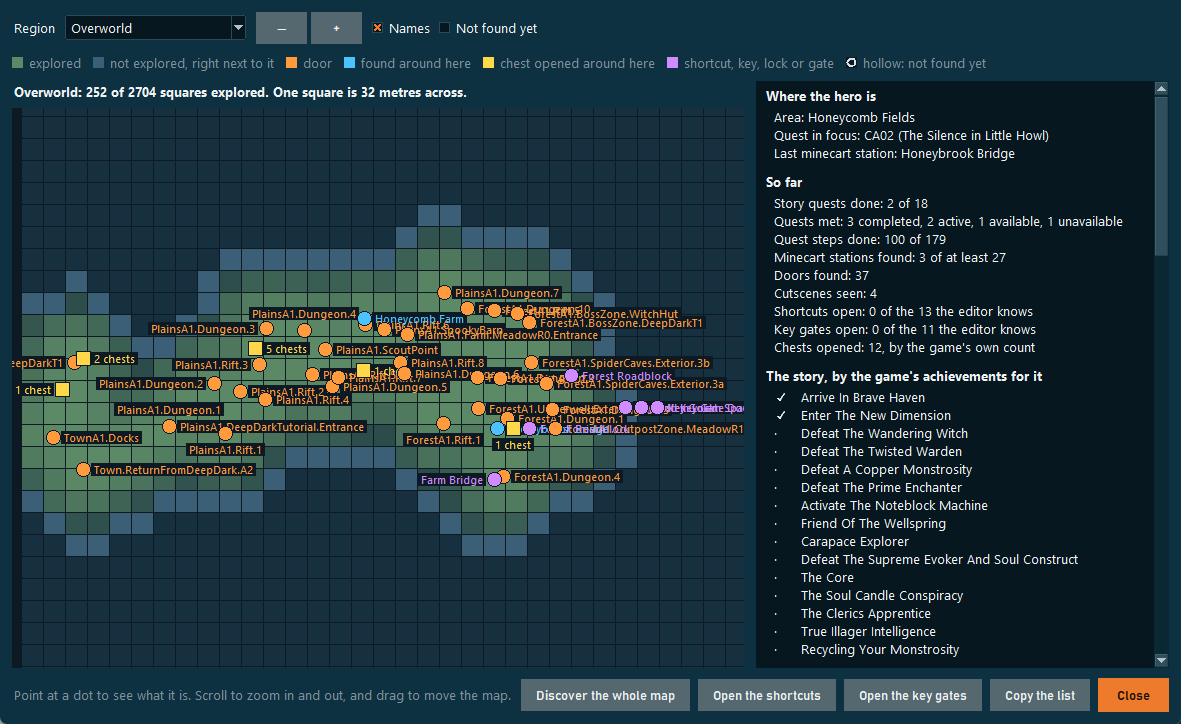
Discover the whole map lifts the fog of the whole map: every square of every region your save has a picture for, and every region the editor knows that your hero hasn't been to, 26 regions in all. It asks first, and it finds nothing for you: doors, minecart stations and chests stay as they are. One thing to know before you press it: the play recorder tells where a chest was opened by the fog that lifts as you explore, so on a hero with the whole map discovered it can only tell the area.
Open the shortcuts marks the rocks that block a way round, and a bridge, as moved: the ones the game moves once you've come round to their far side. Open the key gates opens the gates that a key opens, and with each gate marks its lock as having its key and the key as taken, the way a save holds them once you've opened one by playing. Both ask first, and both keep to the overworld: what's inside a dungeon is left alone. The list beside the map says how many of each are open.
Apart from those three buttons the window is a view, and nothing is changed.
Menu → World → Story progress… lists every quest of your hero, group by group: the main story, each area's side quests, and the rest. For each one it shows how it stands (not open yet, available, active, finished), how many of its steps are done, and which quest the game tracks on screen. Every quest goes by the game's own name for it. Pick a quest to see every step, in the words the game shows for it on screen where the editor has them (Defeat the monsters, Open the gate), or else with what the step is about where its name says so. Under your hero's own quests are the ones it hasn't met yet, which the editor knows from other players' saves.

Five buttons change the quest you picked:
- Finish it marks the quest and every one of its steps as done, the way a save holds a finished quest, and lists the quests that wait for it as available, the way the game does.
- Next step moves it on by one step, the way the game does: it begins a quest that's available, and in an active one finishes the step it's on, so that the next step's turn comes. The last step finishes the quest.
- Start it over makes it available again with every step unset.
- Add it lists a quest your hero hasn't met as available, the way the game lists a quest it has just opened.
- Track it makes an active quest the one the game shows on screen.
Finish all, on a group's own line, finishes every quest of that group: the ones your hero is in the middle of, the ones it has only met and the ones it hasn't met. Finish the whole game…, at the bottom, does that for every quest the editor knows. Both say what they're about to do and ask first.
A quest that reads finish again was finished without the number a save holds with some finished steps, which version 1.16.0 left out where it hadn't seen one. Finishing it once more gives the steps their numbers and changes nothing else, and Finish all takes such quests along.
Nine quests can be done again in the game (a golem to rescue and eight boss fights). The window says so when you pick one: finished, it comes back on the game's map as a new side quest, and nothing in a save changes that.
Where the hero starts, at the bottom, sets the minecart station the save says your hero was last at, and its area. A save keeps no other position for a hero, and the game starts your hero there the next time it loads it. You can pick any station your hero has found, or the town's fountain.
Like every other change, these wait for Save to game, which backs up your saves first. What the editor can't do here is in Known limits.
Menu → World → Play recorder… writes down what the game saves while you play: items picked up and changed, stats, every quest step, minecart stations, doors, cutscenes, chests you open and the ground you explored, each with where it happened.
What it records puts more on the world map: where a station, a cutscene or a chest turned up. Show the map opens the map from there. It only reads your saves, and everything it writes stays on your PC.
Share this recording… shows what a recording found, as it can be sent on: no date, no time of day, nothing of where your saves are. It opens a GitHub issue with it or copies it, if you choose to. The recording itself, which holds your whole hero save, stays where it is. See Teach the editor.
Menu → World → Soul Storms… (or the button on Advanced mode's Help page) shows the Soul Storm that's on now and how long it has left, or the next one if none is, and below it each area's next storm: where, when it starts and ends on your PC's clock, and how long until then. It keeps itself up to date while it's open, and it needs no save.

The times come from the game's own timetable, which a player read out of the game's files and sent (issue 41): a storm every 40 minutes that lasts 20, going round seven areas in a fixed order (Howling Woods, Singer's Meadow, Rainy Plains, Humbler Huskland, Lullaby Hills, Frozen Highlands, Honeycomb Fields). The editor keeps a copy and fetches nothing. See Known limits for what that means if the game changes it.
A button next to Save to game starts Minecraft Dungeons II, the Xbox app's copy or Steam's, whichever your saves belong to. With unsaved changes it asks first, since the editor can't save while the game runs.
Menu → Share and suggest → Suggest something… is where to leave an idea for the editor, or to say what it gets wrong. Write it in the box, then Open a GitHub issue…: your browser opens the editor's page on GitHub with what you wrote filled in, and you press the green button there to send it (you need a free GitHub account). Copy puts it on the clipboard instead, to paste anywhere else.
A line about the editor goes with it, unless you untick it: its version, which kind of saves are open, the mode and the look. Nothing of your saves is in it, and the editor sends nothing itself.

The first time a new version opens, it shows what changed: the main things in a line each, with a picture where one says it better. That window waits for you to close it, so the news isn't missed. Menu → Updates → What's new… shows it again. The notes and their pictures come with the editor, so nothing is fetched to show them.
When a newer version is out, an Update button appears. Press it and the editor downloads the new version from GitHub, checks it and replaces itself; your saves, backups, pictures and settings aren't touched.
A backup before every save, one-click restore, no saving while the game runs, a read-back check after writing, and an automatic rollback if anything fails.
If the game saves your hero while the editor is open, the editor loads the new version, or re-applies your unsaved changes to it, so neither side's progress is lost. If a game update has changed how heroes are saved since the editor was last checked, it says so before you save.