Repository navigation
Getting started
Everything here is about your offline heroes. Online heroes are kept on the game's servers and can't be changed.
Download MCD2SaveEditor.zip, unzip it, and open MCD2SaveEditor.exe from inside the MCD2SaveEditor folder. Leave the .exe in its folder. There is nothing to install.
If Windows says "Windows protected your PC", click More info → Run anyway: the .exe isn't code-signed. Safety and privacy has more on that, and on checking your download.
Rather not run an .exe, or on Linux or a Mac? See Running from source and Linux and Mac.
The editor won't save while the game is running, so that the two can't write over each other. Let the Xbox app or Steam finish syncing as well.
The editor finds your saves by itself and opens your hero. Pick another at the top left. If it finds nothing, see Troubleshooting.
The window is laid out like the game's inventory: your gear on the left, your inventory in the middle, and the picked item's card on the right.
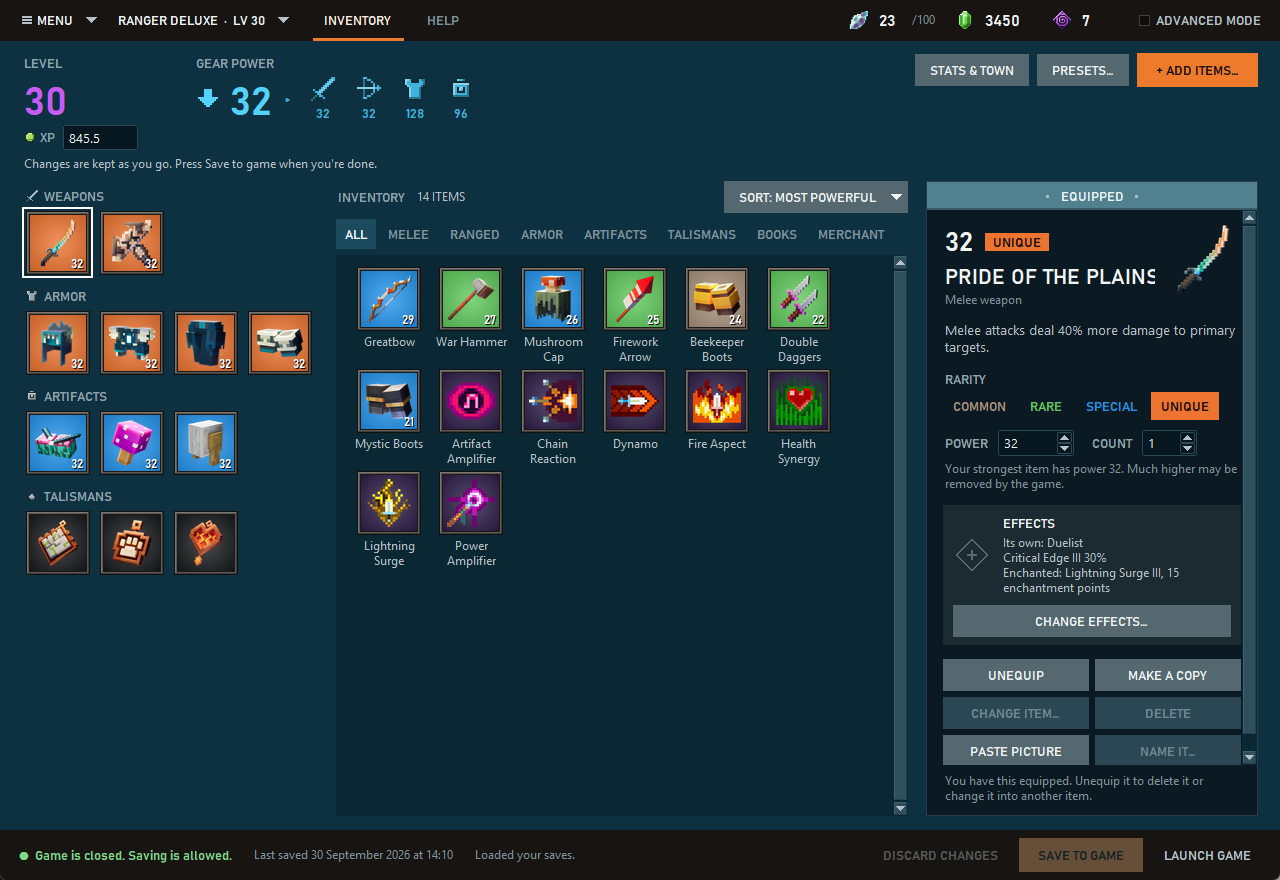
Menu → Look → Liquid Glass shows the same window with rounded glass panels and buttons, and Original brings this look back. The editor remembers which you picked.

| To do this | Do this |
|---|---|
| Change an item | Click its tile, then use its card on the right: rarity, power, count, equip, copy, delete, or turn it into another item |
| Add an item | + ADD ITEMS: any weapon, armor piece, artifact or talisman, with search and a filter. Pick Unique rarity to get an item's Unique |
| Change effects or an enchantment | Change effects… on the item's card. See Effects and Best for |
| Level a talisman up | Level up on the talisman's card raises it a level. A companion's talisman gets Ready to level up instead: one XP short, and the game does the rest |
| Get enchantment books | BOOKS above your inventory, then ADD EVERY BOOK. One at a time: + ADD ITEMS. DELETE on a book's card takes one away. With a book in your inventory, the Enchantsmith offers its enchantment |
| Set your hero up in one go | PRESETS…. See Presets and kits |
| Change emeralds, level and the town | Stats & town: click a number and type |
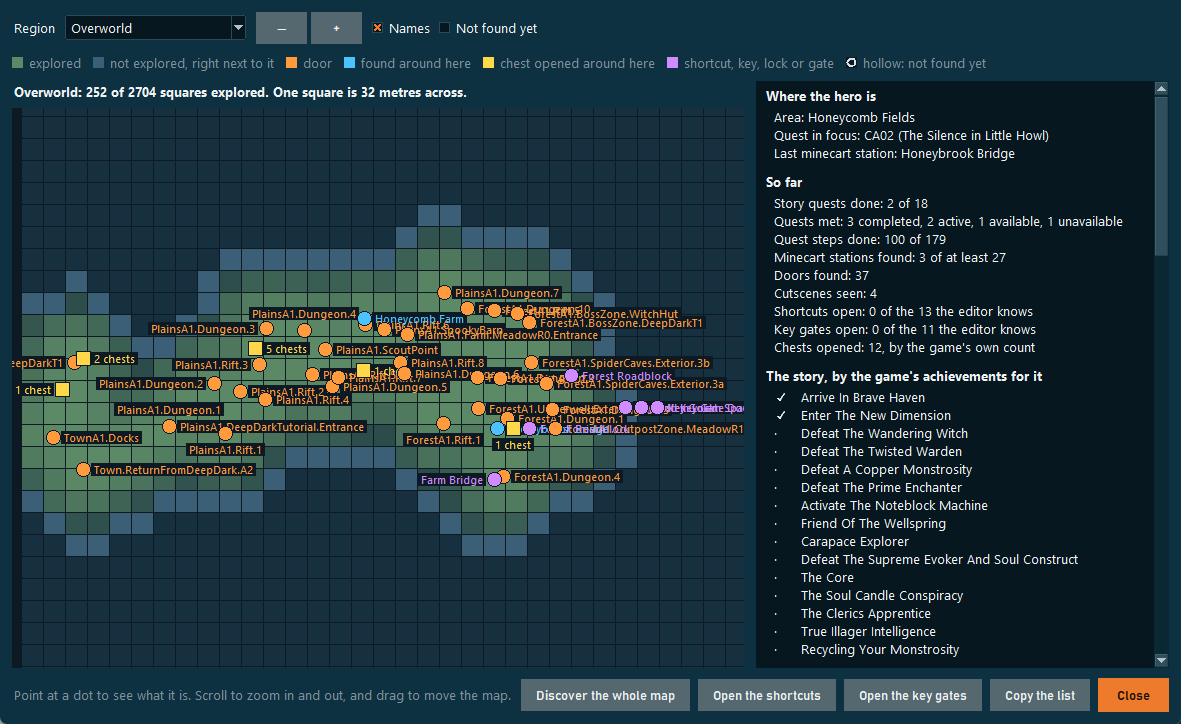
| See your map and how far you've got | MENU → World → World map…: the ground your hero has explored, the doors it has found, its quests and minecart stations. It only shows; nothing is changed |
| Change how far you've got in the story | MENU → World → Story progress…: pick a quest, then Finish it, Start it over or Add it. Where the hero starts starts your hero at any minecart station it has found |
| Write down what the game saves while you play | MENU → World → Play recorder…: leave it open and play. It only reads your saves |
| Start the game | LAUNCH GAME, next to SAVE TO GAME |
| Tell the developer an idea, or what goes wrong | MENU → Share and suggest → Suggest something…: write it, then Open a GitHub issue… or Copy |
| See everything in the save | Advanced mode shows every value |
Mistakes show up in red, and the editor stays within what the game allows unless you are in Advanced mode.
Press Save to game. The editor makes a backup first, every time. Then start the game: Launch game, next to it, starts it for you (the Xbox app's copy or Steam's, whichever your saves belong to).
Try a small change first (a few emeralds, say), start the game and check it before making big ones.
If the game, the Xbox app or Steam asks which save to keep, keep this PC's: that's the one with your changes.
Close the game and use Menu → Restore a backup… to go back to how things were before a save: pick a backup and press Restore.
Every save first copies your whole save folder into the editor's backups folder. Restore writes a backup's saves over the ones in your save folder, so it can't bring back a hero you've since deleted in the game. Backups contain your sign-in token, so don't share them.
When the editor opens it asks GitHub whether a newer version is out, and shows an Update button if one is. It also gets the game's item pictures from batch-ly.com, the developer's site, if this PC hasn't got them yet; Menu → Pictures → Don't get item pictures automatically turns that off. Your backups, pictures and settings live in %LOCALAPPDATA%\MCD2 Save Editor, so they stay when the editor's folder is replaced.
The first time a new version opens, it shows what changed, and waits for you to close that. Menu → Updates → What's new… shows it again.