Steam Workshop
Publish and maintain your mod's Workshop item from VS Code, without the Paradox launcher. One panel holds the description, tags, previews, required DLC and items, translations, changenote and live statistics. It is the only place in the toolkit that uploads anything.
Uploads go through the running Steam client's own API, the same one the launcher uses. There are no credentials to enter: your logged-in Steam session is the authorization, so Steam must be running and signed into an account that owns the game. During an upload Steam shows you as in-game, because the API starts under the game's app id. The native Steam binding runs in a child process, so a wedged client cannot take the extension host down; after five silent minutes the toolkit closes it and asks you to restart Steam.
All three games are supported. Crusader Kings III keeps the item id in descriptor.mod; Victoria 3 and Europa Universalis V keep it in a small toolkit file, since their metadata.json has no field for it (Supported Games).
Paradox: Open Steam Workshop Panel, or the Steam Workshop Panel row in the Project panel's Publish group (0.5.0 layout) (Sidebar Views). The panel opens on the focused mod; with several mods in the workspace, a dropdown in the toolbar switches between them. Paradox: Open Steam Workshop Page opens the item in the Steam client when Steam is installed, else in the browser, and the panel's external-link button does the same.
The panel asks Steam once per mod, not on every keystroke. The circular arrow re-queries. The line beside it reads asking Steam… or Steam unreachable, with the reason in a tooltip.
Above about 1160px the cards sit in two columns: Details, Description and Previews on the left, Publish, Mod files, Changenote and Requirements on the right, Translations across the bottom. A narrow pane stacks them in that order.
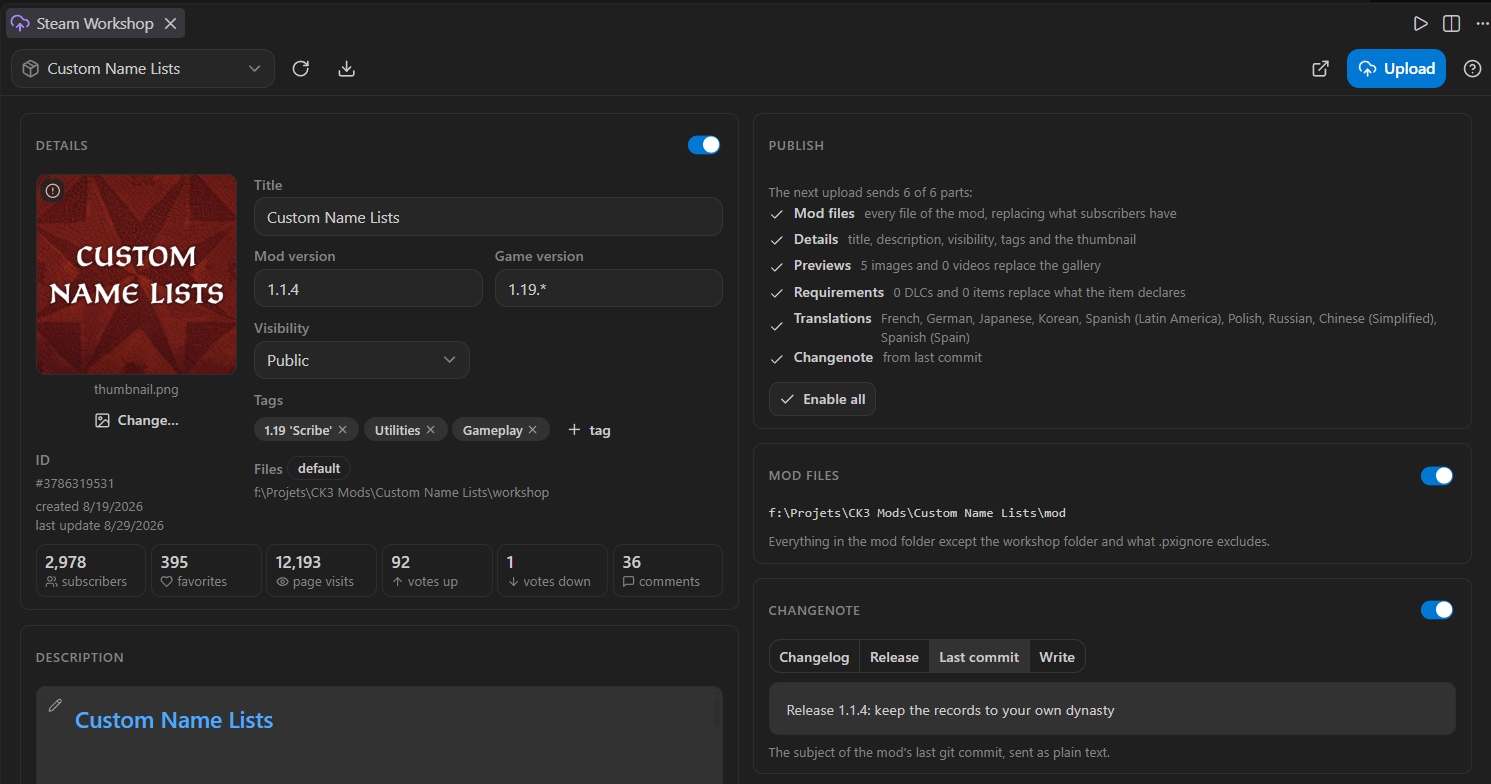
The Details card puts what your mod says next to what Steam says: the preview image (the mod's, or the item's current one when the mod has none) with a Change button and a chip that turns red when the image is too large; Title, Mod version and Game version, all editable; Visibility; Tags as chips; a Files row naming the listing folder; the item id, or "not on the Workshop yet"; the created and last-updated dates; and a BANNED by Steam note if that ever applies.
Statistics appears once Steam answers: subscribers, favorites, page visits, votes up, votes down and comments. A counter Steam does not return is left out, not shown as zero.
While an upload or download runs, a step strip under the toolbar names each stage and shows the percent of the one in flight. The cards never move under your cursor.
Every part of an upload is a switch in the title row of its card, and the switches are what uploads. The Publish card lists the parts with a check or a cross and what each sends right now:
- Mod files: every file of the mod, replacing what subscribers have.
- Details: title, visibility, tags and the thumbnail.
- Description: the default-language description. Off, the item keeps the description it has on Steam.
- Previews: the gallery images and videos, replacing the item's gallery.
- Requirements: the required DLC and Workshop items.
- Translations: all of them, or one language at a time.
- Changenote: the entry on the item's Change Notes tab.
A part that is off is dimmed and marked Not uploaded, so the card reads as a plan. Enable all asks before it turns everything back on.
The upload confirmation is the last check. It repeats the parts with their switches and sentences, counts what goes as you flip them, shows the changenote as Steam will render it with its source named, and states that subscribers get the update within minutes and Steam keeps no previous version. The button says Publish for a new item and Upload for an existing one. With every part off, the upload is skipped with a notice.

Pre-upload checks run in the Publish card. A missing or overlong title, a description over 8000 bytes (Steam BBCode) and a preview of 1 MB or more block the upload. A missing preview, an empty description, no tags, or a supported game version that does not cover the installed game only warn.
A new item is created private and stays invisible until you set the visibility, in the panel or on the Workshop page: Private, Friends only, Unlisted or Public.
When the upload finishes, a notification names the mod and the parts sent, with buttons to the item page in the Steam client and in the browser.

Version stamps. Every details upload also sets the mod version, the supported game version and the game as key/value tags and metadata on the item. They do not show on the page; they let tools compare listings without downloading them.
The mod files go up as a staging copy, deleted when the upload ends. .pxignore at the mod root, in gitignore syntax, says what the copy leaves out. It is created on your first toolkit upload with defaults (.git/, .vscode/, .claude/, node_modules/, image sources, OS noise) and is yours to edit. .pxignore and .px-toolkit/ never upload; descriptor.mod and .metadata/ always do. A one-time message points out that the launcher ships the whole folder, so the exclusions hold for toolkit uploads only.
.pxignore is its own language mode: # comments, ! negation, trailing / folder markers and * / ** / ? globs are highlighted, and the file carries a slashed-circle icon in the Explorer.
If Steam reports that you have not accepted the Workshop legal agreement, the toolkit warns you and offers to open it. The item stays hidden until you do.
On first publish the toolkit creates the item, writes the id down, and only then uploads, so a failed upload leaves an item you can retry into, never an orphan.
-
Crusader Kings III:
remote_file_idindescriptor.mod, where the game's own tooling looks. The uploaded descriptor already carries it. -
Victoria 3 and EU5:
publishedFileIdin<mod>/.px-toolkit/workshop.json.
A CK3 mod the launcher uploaded already carries its id in descriptor.mod, so the next upload from the panel updates that item. For Victoria 3 and EU5, write "publishedFileId": "<id>" into <mod>/.px-toolkit/workshop.json by hand. There is deliberately no button that picks an item from a list: one careless pick would replace a published mod's files, and a Workshop update has no rollback.
The description, translations and gallery are text and images you will edit, review and diff, so the panel keeps them as files:
<mod>/.px-toolkit/workshop/
  item.json                     {"title": "...", "publishedfileid": "..."}
  description.bbcode            the default-language description
  dependencies.json             required DLC and Workshop items
  translations/german/title.txt
  translations/german/description.bbcode
  previews/                     gallery images, order.txt, videos.txt
  changelog/                    changenote sources (see below)
px.workshop.dir sets the location, resolved against the mod's content folder (absolute paths work too). Empty, it means .px-toolkit/workshop inside the mod, which uploads leave out; an existing workshop folder beside the mod, the <project>/mod plus <project>/workshop layout of Getting Started, is picked up when it is there.
Paradox: Move Workshop Listing (command palette) moves the folder between the two layouts in either direction, and creates the files at the target for a mod that only has drafts in workshop.json. An explicit px.workshop.dir is cleared afterwards, since both places are what the empty default resolves to. A mod that sits directly in the game's mod folder is offered no sibling: ../workshop there would be one folder shared by every installed mod. Paradox: Move Mod, which converts a whole mod between the game folder and the mod projects layout, carries the listing along.
Old root language folders (german/ rather than translations/german/) are still read and move on the next save. A listing that still holds a description.md is converted to description.bbcode once, with a notice.
The download button in the toolbar asks which parts to write: details into item.json (title, tags, visibility), the description, the translations, the gallery images and videos, the requirements, the preview image.
This overwrites. The confirmation lists the exact folder and files, and says that local text never uploaded to Steam is lost. Commit or copy first if it matters. A gallery image Steam's CDN no longer serves (it answers 404 for a while after a gallery is replaced) is reported as not downloaded; every other part still lands. Steam is asked about every Workshop language in one query, so translations added on the website come down too.
The button is also how you create the folder in the first place, which is why it warns before creating one inside the game's Documents mod folder in the older sibling layout, where every installed mod's listing would overwrite the others.
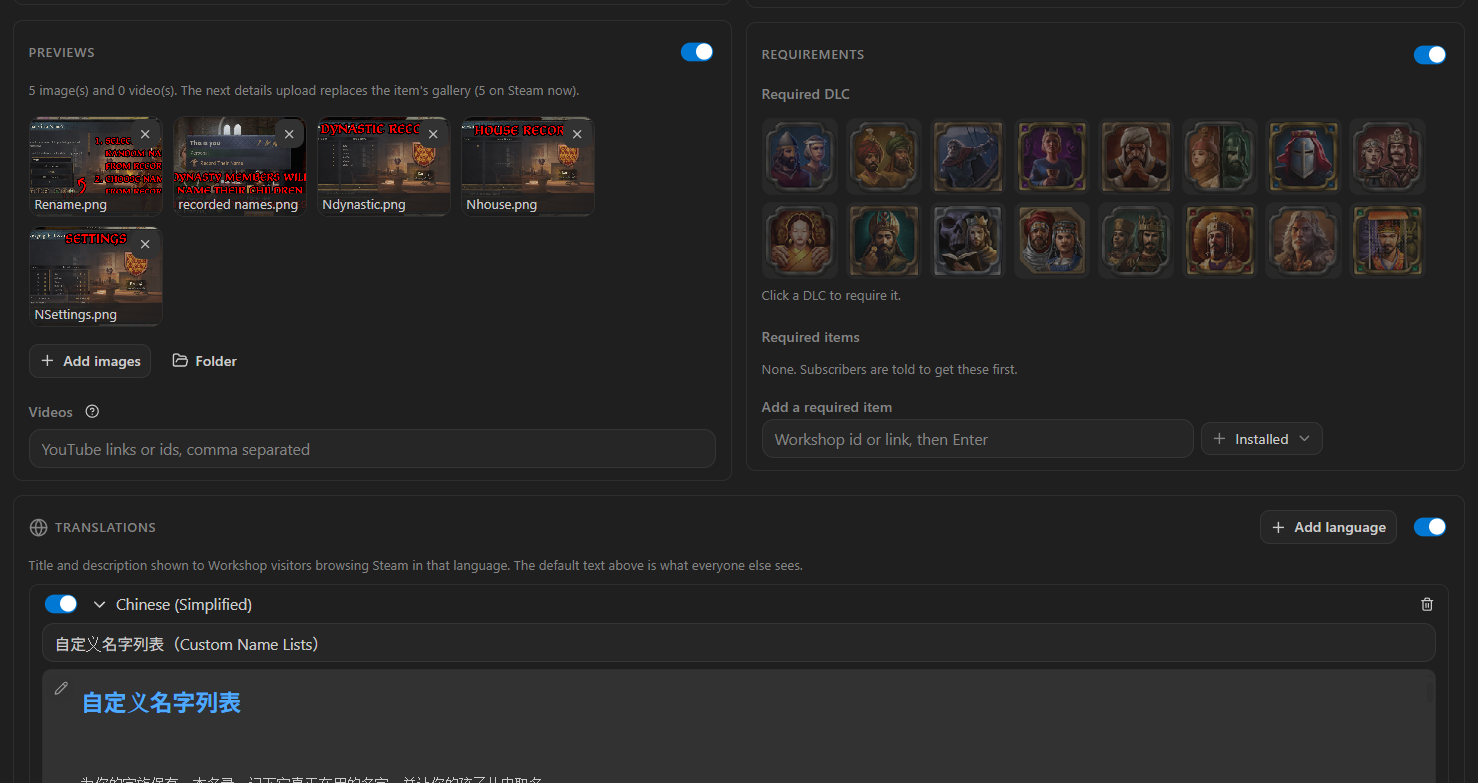
The Requirements card is what the item declares it needs, saved to dependencies.json and applied to the item after each requirements upload.
Required DLC is a grid of the DLC your install ships (game/dlc/*/*.dlc), with their own icons; hover names one, click requires it. Chapters and the Subscription never appear, because the game does not ship them as DLC. Steam is only asked when the game path gives nothing.
Required Workshop items are chips. Installed mods and the dependencies your descriptor declares are offered first; an item that is not installed shows its title and id after a Steam lookup.
The previews/ folder beside the listing is the item's gallery: images in file-name order plus videos.txt with YouTube ids. While the folder exists, a previews upload replaces the item's gallery; without it, Steam's gallery is left alone.
Add images from the panel or drop files into the folder. Video tiles lead the gallery, as on Steam, and open on YouTube. Drag a tile to reorder; the order is saved to previews/order.txt, and files not listed follow by name. The card's help covers the formats, the 1 MB limit and the ordering.
The Changenote card offers four sources, and the one you pick is exactly what uploads:
- Changelog: the entry for the mod's current version, rendered as BBCode, with its file named and an Edit file button.
-
Release: the notes of the mod's newest GitHub release, pre-releases included, read through the
ghCLI signed in as you and converted from Markdown. A tag alone carries no text, which is why the release is read and not the tag. A release without notes, a mod without a GitHub remote, or a missingghsay so. - Last commit: the subject of the mod's last git commit, sent as plain text. A mod with no commit yet says so, and the upload carries no changenote.
- Write: a box for this upload only.
The default is the changelog entry when the version has one, else the release when it has notes, else the last commit. A missing entry says which one is missing and offers to create it. The Publish card and the confirmation both name the source.

px.workshop.changelog says where the changelog lives, resolved against the workshop folder. The default is changelog, and three shapes are accepted:
-
A folder: the file named after the version, so
1.2.md,v1.2.bbcode,1_2.txt. No match means no entry, on purpose: "the newest file" would ship the wrong note after a forgotten version bump. -
A single file with headlines: the section under the first headline containing the version, Markdown (
## 1.2.0) or BBCode ([h2]1.2.0[/h2]), running to the next headline at the same level or shallower, so a### Fixedsubsection stays inside its version. - A single file without headlines: the whole file.
The source menu also finds a changelog the mod already keeps (a changelog folder, CHANGELOG.md or .txt, in the listing folder or the mod root) and writes the setting for you, and it can create changelog/<version>.md seeded from the last commit. Nothing is written on a plain open. The panel watches the changelog, so an edit in the editor updates the card at once.
Markdown converts to Steam BBCode on the way (Steam BBCode lists what each construct becomes). Translation submits carry no changenote of their own: one upload is one entry on the Change Notes tab, not one per language.
Title, Mod version, Game version write straight into descriptor.mod (name, version, supported_version) or metadata.json (name, version, supported_game_version). Lowering a version asks first, because a downgrade is usually a typo: subscribers never see one as an update, and the changelog lookup follows the mod version. A wildcard game version like 1.16.* survives hotfixes.
Tags are chips. The add button offers the launcher's own tag list with a search box, plus a custom entry, and every change rewrites the descriptor's tags block. On Victoria 3 and EU5, whose metadata has no launcher list, the button goes straight to free text.
Preview image. Change copies the file you pick into the mod as thumbnail.<ext> and, on CK3, points picture= at it. Steam wants a square image, 512x512 or larger, PNG or JPG, under 1 MB. An oversized image is announced, and the upload keeps the item's current preview instead of failing.
Description and translations are previews, not text boxes. The panel renders the BBCode as the Workshop page will, and the text is edited in its file. Every row carries the same buttons: Edit file opens description.bbcode (a language's own file for a translation) beside the panel and creates the listing folder from your drafts if there is none yet; Reload re-reads the files; Fetch from Steam replaces the draft with what Steam serves for that language, shown in its tooltip. Save the file and the preview follows. A preview scrolls its own content, so a wide table cannot push the panel sideways, and a drag strip under it sets its height.
Translations. Add a language and you get a title and a description for it, shown to Workshop visitors browsing Steam in that language. Languages your mod already has localization folders for are offered first. An empty row says empty - will not upload. Each translation is one Steam submit, in the same session as the main one.
.bbcode files are a first-class language in the editor, so the listing edits like source:
- Syntax highlighting for tags, parameters, headings, inline styles,
[code]and[noparse]blocks, and bare links, with bracket matching and auto-closing. - Tag completion on
[, with snippets that place the closing tag and the cursor, and a closer list after[/. The set is what Steam renders:h1toh3,b,i,u,strike,spoiler,url,img,list,olist,*,quote,code,noparse,hr, tables andpreviewyoutube. - A live preview, to the side (
Ctrl+K V) or in place (Ctrl+Shift+V), with the same renderer and styles as the panel. Paradox: Show BBCode Source on the preview tab jumps back to the file. -
Paradox: Edit BBCode as Markdown opens the same file as Markdown, named
<file>.bbcode.md; a save converts it back and writes the.bbcode, and no second file appears. Convert to Markdown File is the one that writes a real second file. - A ? button in the title bar opens the Steam BBCode page in the Wiki hub. Steam BBCode is the same list here, with how the markup works and the Markdown mapping.
- A blue
BBfile icon in the Explorer.
Upload failures and results open as dialogs, so Steam's advice is readable rather than folded into a toast, and the Paradox Modding Toolkit output channel keeps the raw error beside the readable one.
Steam answers a refused upload with a result code that says nothing on its own. The toolkit rewrites the codes an upload can realistically hit into a sentence that says what to do, keyed on the EResult name, and keeps the code in parentheses for bug reports:
Paradox Modding Toolkit: Workshop upload failed - a field is over Steam's limit. The description caps at 8000 characters and the title at 128 (SubmitItemUpdate: k_EResultLimitExceeded)
Three codes account for most failures: k_EResultAccessDenied means the signed-in account does not own the item, k_EResultLimitExceeded is nearly always the description, and k_EResultFileNotFound nearly always the preview image. Steam Workshop Error Codes has the full table.
Steam init failed means the client is not reachable at all: start Steam and sign into an account that owns the game.
The descriptor's picture= must be a bare file name in the mod root, which is all the launcher accepts anyway. A value with a path separator, a .. or an absolute path is dropped rather than joined, because that value decides which file leaves your machine; the search then falls back to thumbnail.png, thumbnail.jpg and thumbnail.jpeg in the mod root.
-
Steam Workshop Error Codes for every
k_EResultan upload can come back with, and what to do about each. - Steam BBCode for the markup the description, translations and changenotes are written in, and what each Markdown construct becomes.
- Getting Started for the two mod layouts and where the listing sits in each.
-
Configuration for
px.workshop.dir,px.workshop.changelogandpx.modProjectsDir. - Multi Mod and Translation for the localization work that feeds the suggested translation languages.