Repository navigation
Appearance and customization
Overall palette stays at the top of every settings page. Below it are four tabs: Environments (select or create an environment, then edit its name, reference, colors and motifs in one place), Numbering and reference defaults, Paragraph typography, and Contents and export. Only the Knuth–Plass subsection is marked Beta. Appearance edits keep the current scroll position; native dropdown pickers close after selection. The grouped interface uses the compatible settings-display path on Obsidian 1.13 and 1.14.
Start with Overall palette at the top of Settings:
- Curated presets: Forest combines leafy greens, teal and muted earth tones; Sakura combines rose, plum and dusty pink. Mint, Sky, Mauve, Golden, Cherry, Prussian, Radiation, Vampire and Abyss offer other coordinated ranges. Colors vary by environment within each palette.
- Colorful: the original distinct role colors, including purple lemmas and green propositions. Available in light and dark modes.
-
Follow theme accent: every role derives from Obsidian’s public
--text-accent, with lighter/darker and neighbouring tonal variations. Changing the host accent updates the palette automatically. This does not guess a named preset or read the operating system’s accent directly. - Custom palettes: expand Custom palettes and reset, name a copy and click Create palette. It starts from the selected preset and its overrides; edit each environment freely and independently.
Light and dark palettes are selected separately and switch with Obsidian’s current appearance mode. The Palette mode to edit selector chooses which one you are modifying; the status line identifies both the edited palette and the palette currently used by notes. Forest is the light default and Radiation the dark default. The color overview shows the complete selected palette. Fixed presets remain independent of the host accent.
Neutral callout body text keeps framed environment prose the same color as ordinary notes. Disabling it mixes in 36% of the current frame color. Proof and Remark bodies remain neutral. This changes neither the font nor headings, borders or fills; links and code retain their own styles.
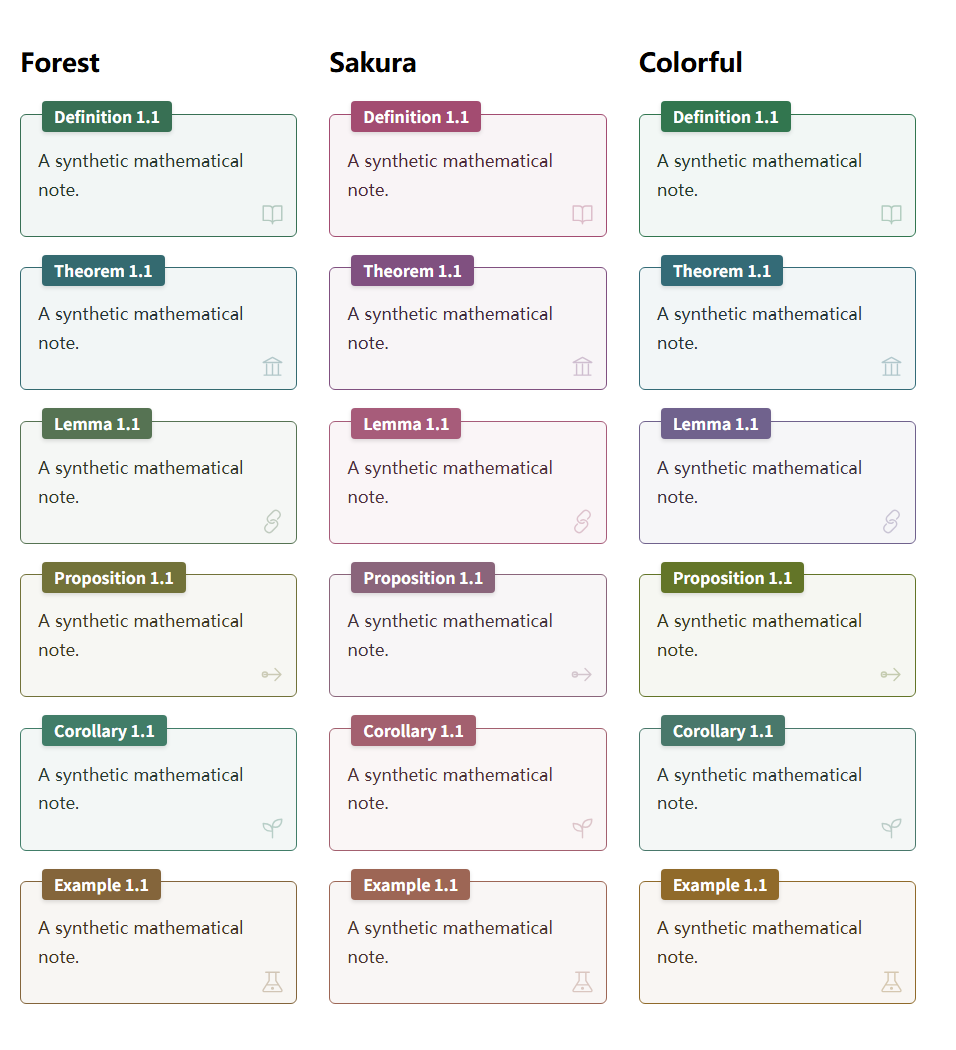
Framed callouts mix 6% callout color with 94% white in light mode, or 8% callout color with 92% neutral dark gray in dark mode. Nested callouts use their own colors. The corner decoration can be hidden; this does not hide a proof's QED square. The optional Style Settings plugin can adjust border width, corner radius (0 means square corners), motif size and opacity.
Open Settings → Academic Notes, select the overall palette, then use Environments:
- Select your light and dark palettes, then choose the Palette mode to edit. The editor operates on the palette selected for that mode; the preview shows that palette even if Obsidian currently uses the other mode.
- Choose a built-in or custom environment. Change Environment accent directly with the color picker; no enabling toggle is required. Use its Default button to clear just that color override. Changes are stored only in this palette: a Forest override does not affect Sakura, and returning to Forest restores its saved override. The accent controls the border, title background and same-hue fill; title text uses black or white for contrast. Proof/Remark remain unframed, with only their title color changing. Algorithm rules and captions default to the palette's primary/definition hue, with neutral body text.
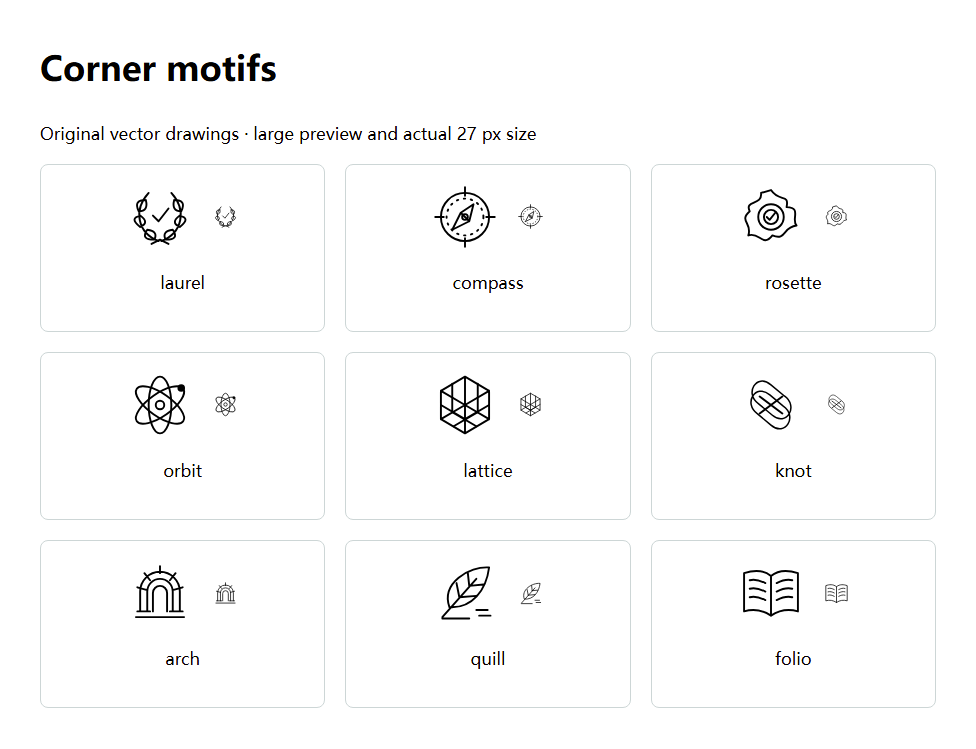
- For a framed environment, choose a motif and an optional motif color. The gallery contains nine fine-line vector drawings. The global hide-decoration option takes precedence; it never hides the proof's QED square.
- Reset this environment clears its overrides in the edited palette. Reset this palette clears all environment overrides in that palette; other palettes remain untouched.
- Expand Custom palettes and reset, enter a name and use Copy to a custom palette → Create palette to copy the selected preset and its current overrides. The copy is independently editable. Resetting it returns to its underlying built-in preset (or theme colors); Delete palette removes the copy and selects its base.
On upgrade, previous global overrides, including custom-environment colors, migrate to the light and dark palettes selected at the time of upgrading. This preserves the current appearance and lets other presets use their own defaults. Custom colors and motifs are preserved in PDF exports, including when theme capture is disabled.
In Settings → Academic Notes → Environments, select any environment and set:
-
Display name: the name in its heading and full-name references, in any language (for example,
Satz,算法, orObservación). -
Reference abbreviation: for example,
S.,算, orobs. The default algorithm/figure/table/equation reference prefixes also respect this field. -
Reference format for this environment: an optional override such as
{abbr} {number},{name} {number}, or算法 {number}. Available placeholders:{type},{abbr},{name},{number},{title},{file}.
Figures, tables, algorithms and equations have one format editor here. The field shows its inherited default as a placeholder; existing saved formats continue to apply. Numbering and reference defaults → Default reference format for theorem environments only supplies the shared fallback for theorems, definitions and lemmas. A format entered for one environment takes priority over that fallback.
Click Save. Empty fields use defaults; Reset to default clears only the selected environment’s overrides. Explicit link aliases remain unchanged when Respect handwritten link aliases is enabled. These settings change displayed text; existing ^block-ids and wikilink destinations stay valid.
In the same environment selector, choose New environment. For example, set ID observation, display name Observation, abbreviation obs, base appearance Lemma, and enable automatic numbering. After saving, its colors and motifs appear in the same editor. Changes belong to the palette selected above; without an override, the environment follows its base appearance. Click Save, then write:
> [!observation] Compactness
> A mathematical observation with inline math $x\in K$.

^obs-compact

See [[#^obs-compact]].
The new environment appears in Insert academic environment. It has an independent counter when shared theorem counters are disabled, follows the same section/chapter rules when exporting books, and supports cross-file references and PDF links. Choose Remark for an unboxed heading. The Automatic numbering switch controls the new environment; the global theorem numbering switch still applies. [!observation|*] suppresses one instance’s number; [!observation|A] supplies a manual number.
IDs must start with a lowercase English letter and use only lowercase letters, digits and hyphens (up to 40 characters). Built-in IDs and aliases are reserved. Up to 64 custom environments are supported. Saved IDs cannot be renamed: create another environment to use a different ID. Deleting a definition leaves the original note text intact; its callouts revert to ordinary Obsidian callouts on the next native render. Custom environments reuse the existing mathematical-box/Remark layout and Markdown body; they do not define new pseudocode grammars or LaTeX macros.
Run Share palettes and environments, or use Settings → Academic Notes → Environments → Import or export.
-
Show current profile places the JSON in the text box for copying. Save current profile in vault writes
academic-style-*.jsonto your configured export folder; on mobile use the Files app if Obsidian hides JSON files. - To import, paste the JSON or choose Load JSON file. Select Keep local entries (default) or Use imported entries for conflicts. Unrelated local definitions remain.
- Optionally enable Also apply the profile's palette selections and reference defaults. Otherwise the current light/dark selections remain unchanged.
- Choose Preview import, inspect the entries and conflicts, then Apply import. Changing the input or conflict options requires another preview.
Profiles contain only palettes, motifs, environment definitions, environment names and reference formats/defaults. They exclude notes, folder paths, diagnostics, PDF settings and KP preferences. Their format is versioned and validated; arbitrary CSS, unsupported fields, invalid colors or reserved environment IDs are rejected. Importing profiles never changes Markdown environment IDs in existing notes. If an imported definition reuses an existing ID, the selected conflict policy determines which definition those callouts use.
Select a custom environment and choose View usages to see the indexed note and block counts and open the relevant notes. Delete environment first shows this impact review; Delete definition, keep notes removes the definition, reference overrides and palette overrides after confirmation. The Markdown remains, but loses that definition's numbering and appearance. Excluded notes are not counted.
Alternatively enable Hide from insertion menu, then save. Existing notes keep their environment numbering, rendering and references; only the quick-insert menu hides the environment. Uncheck it to restore the insertion entry. This state is included in shared profiles.