Repository navigation
Figures and tables
Write captions in callout titles. Figure captions appear below images; table captions appear above three-line tables. Replace image paths with files in your vault.
> [!figure] Function curve
> ![[Attachments/curve.svg]]

^fig-curve

> [!table] Parameters
> | Parameter | Value |
> | --- | --- |
> | $a$ | 1 |
> | $b$ | 2 |

^tab-parameters

See [[#^fig-curve]] and [[#^tab-parameters]].
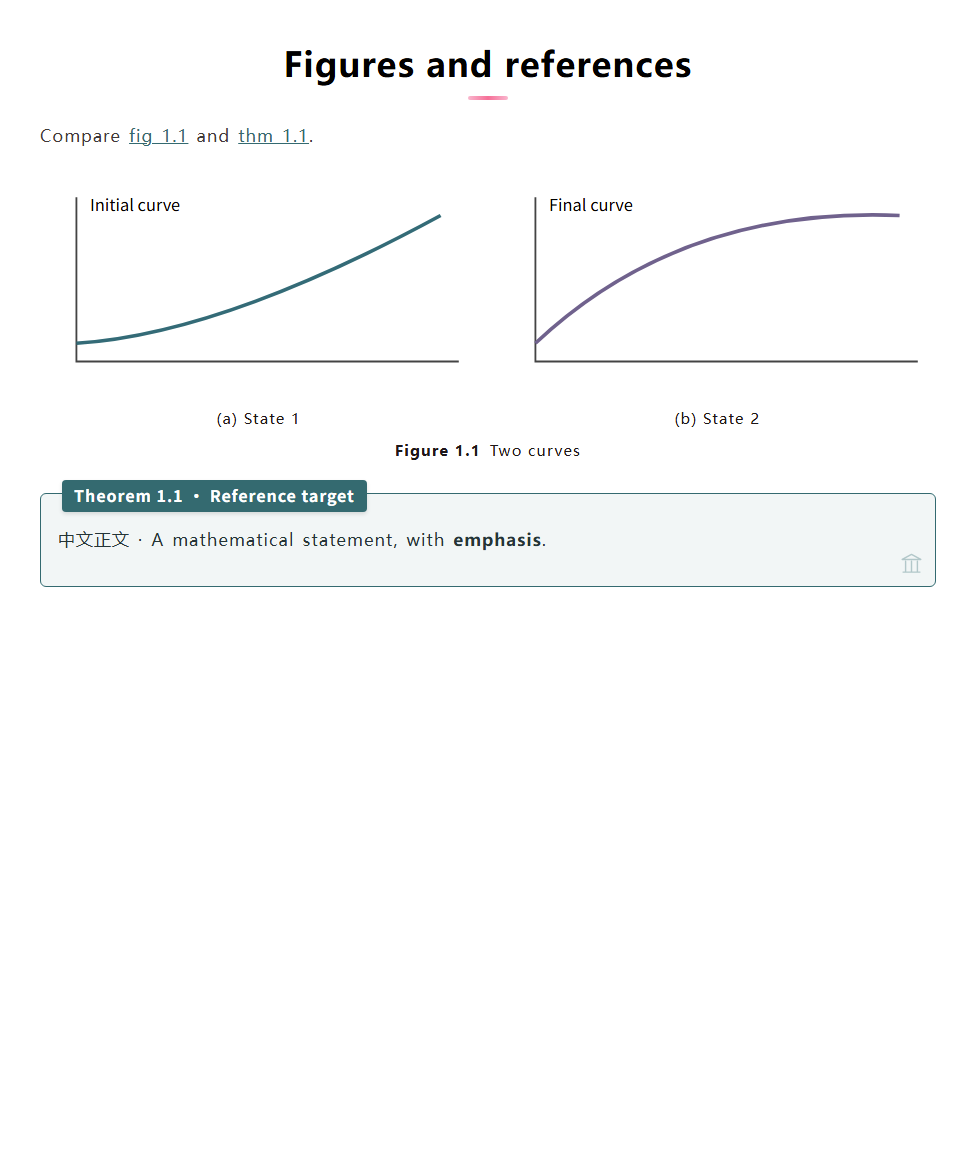
Subfigures must be nested inside a main figure:
> [!figure] Two states
> > [!subfigure] Initial state
> > ![[Attachments/initial.svg]]
>
> ^fig-initial
>
> > [!subfigure] Final state
> > ![[Attachments/final.svg]]
>
> ^fig-final

^fig-states
Subfigures display (a), (b), etc.; [[#^fig-initial]] can render as fig 1.1(a). Layout wraps in narrow windows. An orphan subfigure keeps its caption and produces a warning. Aliases fig, tbl, and subfig are supported. Use explicit callouts for figures and tables; ordinary image alt text and H6 headings are not captions.
Optional note properties:
---
cssclasses:
  - academic-serif
  - academic-indent
---
academic-serif uses local serif fonts. academic-indent indents ordinary paragraphs, excluding callouts and lists. academic-keep-table-style preserves the theme's table styling.
An untitled subfigure (> [!subfigure] with nothing after the closing bracket) shows only its image when it is not referenced: no letter and no empty caption row. It does not consume a letter, so the next titled subfigure starts at (a). An existing block ID alone does not require a caption. If a link actually references that ID, or a manual number is supplied, a label remains available. Explicit folding controls remain usable on screen; empty captions are removed from PDF export.
Run Academic Notes: Insert academic environment from the command palette, or assign it a hotkey under Obsidian's Hotkeys settings. Choose a theorem, definition, proof, remark, single figure, subfigure group or table. Groups offer 2–12 images, a maximum column count and an optional shared image height. The command inserts before the current line (before the enclosing quote block when inside a callout), preserves existing text, selects the title and generates block IDs that do not collide with the current note. Replace the sample image paths with your own attachments. Edit the generated Markdown freely afterward.
Place group options on the outer figure, for example:
> [!figure|cols=auto height=180] Comparison
> > [!subfigure] Wide image
> > ![[Attachments/wide.png]]
>
> > [!subfigure] Tall image
> > ![[Attachments/tall.png]]-
cols=auto: two images use up to two columns, four use up to four, and other counts use up to three. Four columns switch directly to two, then one; four-image groups never wrap as 3+1. Rows retain equal cell widths; a final partial row is centered. -
cols=1,2,3or4: cap the column count. Narrow figures still reduce columns; a four-column cap also skips three columns. The figure's own width controls wrapping, including split panes and PDF pages. -
height=180orheight=180px: use the same target height of 180 pixels for every subfigure. Images stay proportional and fully visible. If the widest image cannot fit its column, the entire group uses the same reduced height. This explicitly overrides individual![[image.png|300]]widths inside this group. It is a shared image height, not a crop or a guarantee of equal visible artwork height. Accepted range: 16–1200 pixels; PDF export proportionally reduces oversized groups to fit the page, subject to the picture-pagination limits below. - Omit
heightto preserve individual image-width settings. These options apply to subfigures inside this group, not ordinary images. Invalid layout values are ignored. Combine with existing numbering metadata, e.g.|A.1 cols=2 height=180or|* cols=2.
For abbreviation expansion, the optional LaTeX Suite snippets provide subfig2, subfig3, subfig4, subfig6, athm, aproof and aremark. Merge the entries into your existing snippets array, type a trigger on a blank top-level line and press Tab; further Tab presses move between fields. See LaTeX Suite's instructions. Snippets do not create IDs; use Academic Notes' add-block-ID command when a reference is needed. The built-in insertion command needs no other plugin.