Repository navigation
Translate as You Type
Translate as You Type (new in 0.6.5) is a prototype, to try: write a draft in the language you type, press ⏎, and its translation goes in at once, with no candidates to pick. There is no command for it: you turn it on and off by holding Shift.
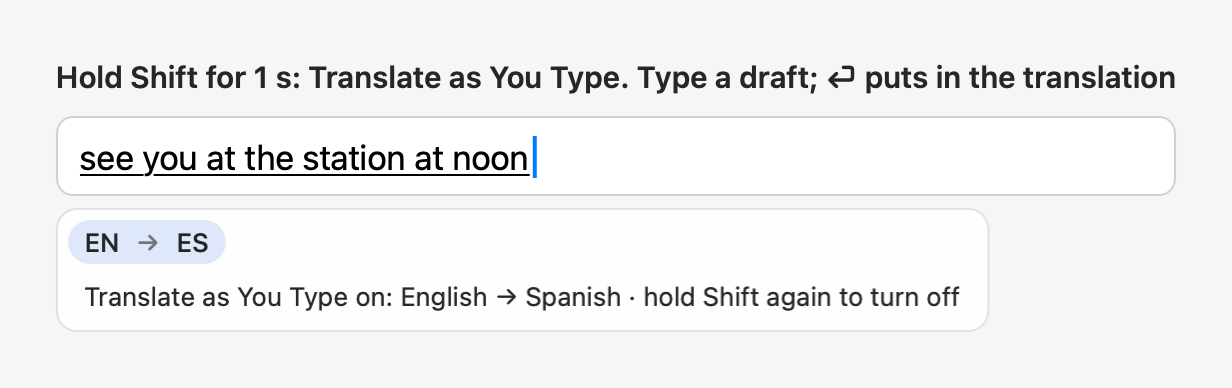
- Hold Shift on its own for 1 second. At 0.5 s a hint near the caret says "Keep holding → Translate as You Type", and at 1 s "Translate as You Type on: Chinese → English · hold Shift again to turn off" (naming the language it translates into) confirms it for about 1.5 s. Let go before then and nothing changes.
- Turning it off works the same way: "Keep holding → Translate as You Type off", then "Translate as You Type off".
- A quick tap of Shift still switches the input language. Shift with a letter (a capital) or with another key never turns it on.
- While it's on, the menu bar icon carries a small dot.
While it's on, what you type collects into a draft, with a small chip by it showing the two languages (such as "ZH → EN").
| Key | What it does |
|---|---|
| ⏎ | Translates the draft, and the translation goes in at once: the draft says "Translating…" meanwhile. Nothing is sent: ⏎ again is the app's own (to send a chat message, say) |
| ⇧⏎ | Inserts the draft as typed |
| Esc while it's translating | Stops it and keeps the draft |
| ⌫ while it's translating | Stops it too, and deletes a character as on the draft |
- If it fails (the network, a refusal, secure input), the draft stays with a one-line notice, and ⏎ tries again.
- Text typed in the language it translates into (translating into English, tap Shift to English) goes in as typed.
- The language you picked last on its chip (below), in every app and after a restart.
- Until you pick one, your first translation language in Settings → Translate & Rewrite; and back to that one when the language picked is no longer among your translation languages.
- The language you're typing when it comes on doesn't change it.
While it's on, the chip shows under the line you're typing in, in the input method's own panel (the candidate panel, on top of any candidates), so it never takes the focus from the app.
- Click the first language ("ZH" in "ZH → EN") to switch the input language, as a tap of Shift does.
- Click the second ("EN") for a short list of your translation languages, the current one checked, and click one: it's what it translates into at once (the chip and the next translation follow) and from then on.
- The keys work as before; one closes the list.
It follows the app: the app's first rewrite style in Settings → Apps, else casual in chat apps (WeChat, Slack, Messages, Telegram, Discord, Teams), formal in mail apps (Mail, Outlook, Spark), and natural elsewhere. See Settings and Configuration → Per-app settings.
- Switching to another app (one with no text field too) turns it off, with no notice, and coming back leaves it off.
- Unless that app has "Always Translate as You Type" in Settings → Apps (
translateAlwaysin its profile): there it comes on by itself. - In an app with No AI it does nothing: text goes in as typed, with a notice. So does what you type while secure input is on (a password field).
As for @translate: the draft is sent only when you press ⏎, to your own AI provider, with sensitive information
hidden when that's on (see Privacy). Its request is one of its own: the other commands' prompts are
unchanged.