Playing
Start a game, then open the address from the notification on your phone or computer, for example
http://192.168.1.20:4263. The home screen shows the four pads:
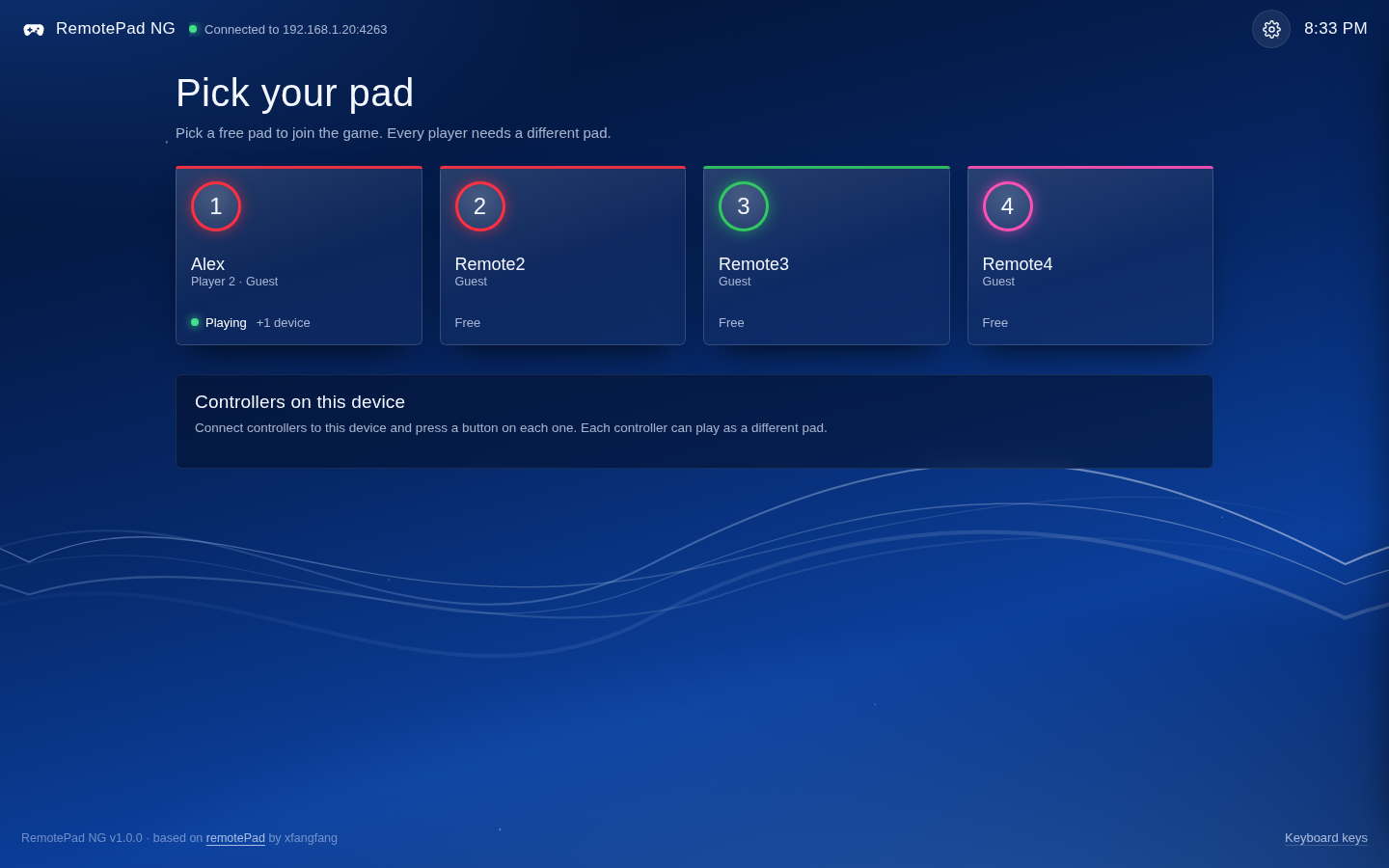
| State | Meaning |
|---|---|
| Free | Nobody uses this pad. Pick it. |
| Joining the game | You picked it and the game is about to see the new player. |
| Playing | The game reads this pad. The player number is shown too. |
| No free player slot | The game already has as many players as it allows. |
| Turned off | Switched off in Settings → Pads. |
"This device" marks your pads, and "+1 device" means someone else uses that pad too. Every player needs a different pad.
The game only sees a new player once someone picks their pad. Some games only look for players when they start: for those, see Players and PS4 Users.
Picking a pad opens the controller. Turn your phone sideways.
| Control | How it works |
|---|---|
| Sticks | Drag them. Double-tap a stick and hold the second tap for L3 / R3. |
| Touchpad | Drag to touch, with up to two fingers. Tap to click. Hold still for about half a second to keep it pressed. |
| L2 / R2 | Fully pressed while you hold them. |
| PS button | Opens the menu: this device's settings, the button layout, all settings, leave the game. |
| SHARE | Does nothing: the PS4 keeps SHARE for itself, so games never see it. |
| Top corners | Back to the pads, and full screen. |
The strip along the top of the touchpad shows the pad's light bar color. It pulses while the page isn't connected to the console. When the game rumbles, Android phones vibrate, and so do connected controllers that support it.
Press the PS button, then Edit the button layout:
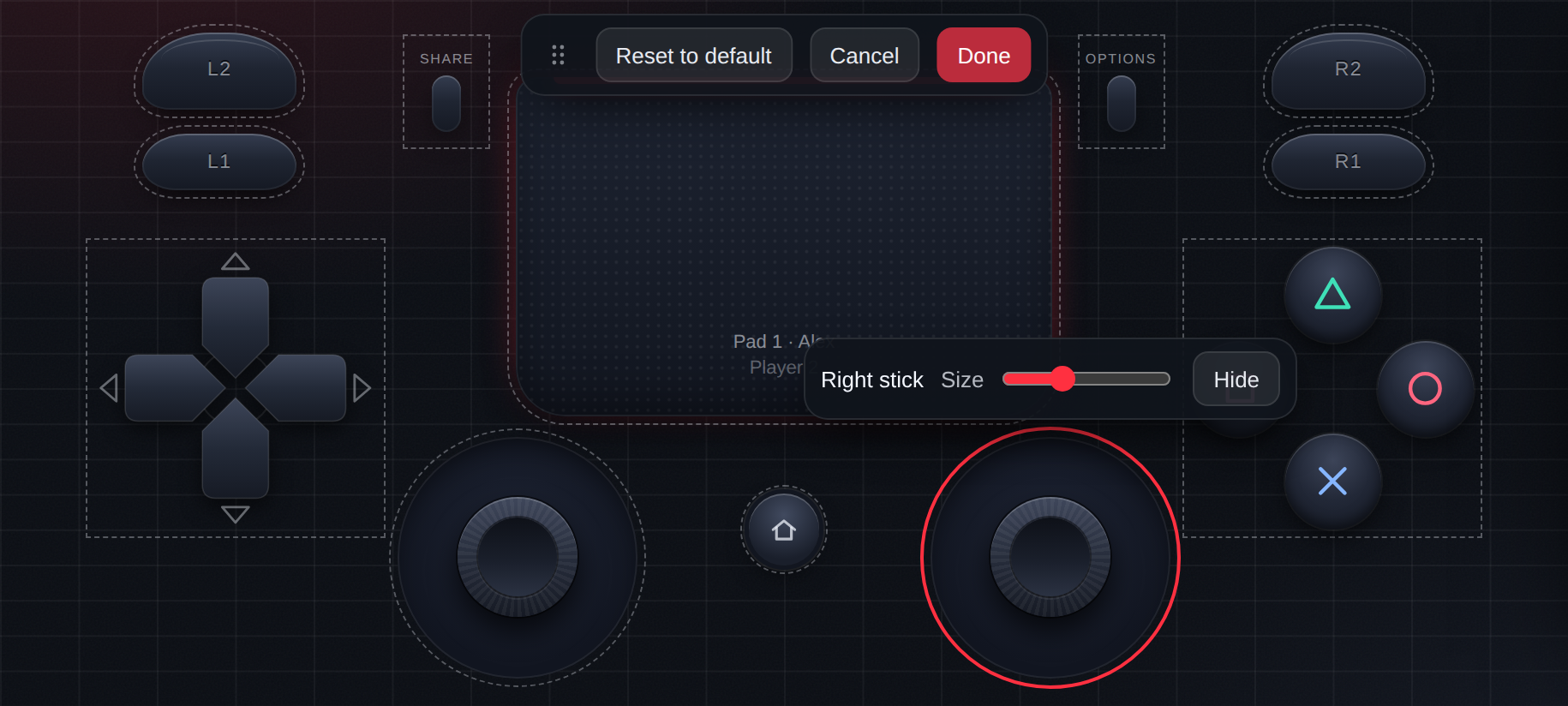
- Drag a button to move it.
- Tap a button to change its size, or to hide it.
- Drag the bar by its dotted grip if it covers a button.
- Reset to default needs a second tap to confirm.
- Done keeps your layout; Cancel undoes your changes.
Each phone or computer keeps its own layout, separately for landscape and portrait.
In the PS button menu, or Settings → This device:
| Setting | What it does |
|---|---|
| Keep the screen on | The screen doesn't turn off while you play. On by default. |
| Vibration | Buzz the phone on presses and rumble (Android). |
| Floating sticks | A stick starts wherever your thumb lands. |
| Tap the touchpad to click | A quick tap clicks the touchpad. |
| Double-tap a stick for L3 / R3 | Turn it off to get separate L3 and R3 buttons. |
| Show keyboard keys | Labels the buttons with their keys. On by default on computers. |
You can play with real controllers connected to your phone or computer: Xbox, DualSense, DualShock 4, Switch Pro and most others.
- Connect the controller to the phone or computer (USB or Bluetooth) and press a button on it.
- On the home screen, under Controllers on this device, pick its pad: Off, 1, 2, 3 or 4. A row lights up while you use its controller, so you can tell them apart.
Each controller can play as a different pad, and the choice is remembered. Keep the browser window in front: browsers only read controllers there.
If no controller shows up, your browser may only allow controllers on secure (https) pages, and the
console's page is plain http. Try Chrome or Edge, or save the page to your device, open the saved file, and
enter the console's address.
| Key | Button | Key | Button |
|---|---|---|---|
| W A S D | Left stick | Arrow keys | Right stick |
| I J K L | D-pad | Space | ✕ |
| Esc | ○ | Backspace | □ |
| Enter | △ | Q / E | L1 / R1 |
| 1 / 3 | L2 / R2 | Z / C | L3 / R3 |
| O | OPTIONS | U | Touchpad click |
| T Y G H | Touch the touchpad's corners |
Change them in Settings → Keyboard. The keyboard drives the pad that's open on that page.
- Back arrow (top left): back to the pads. Your player stays in the game, with its controller switched off, until someone picks the pad again.
- PS button → Leave the game: your guest player signs out of the game.