Repository navigation
First Time Setup
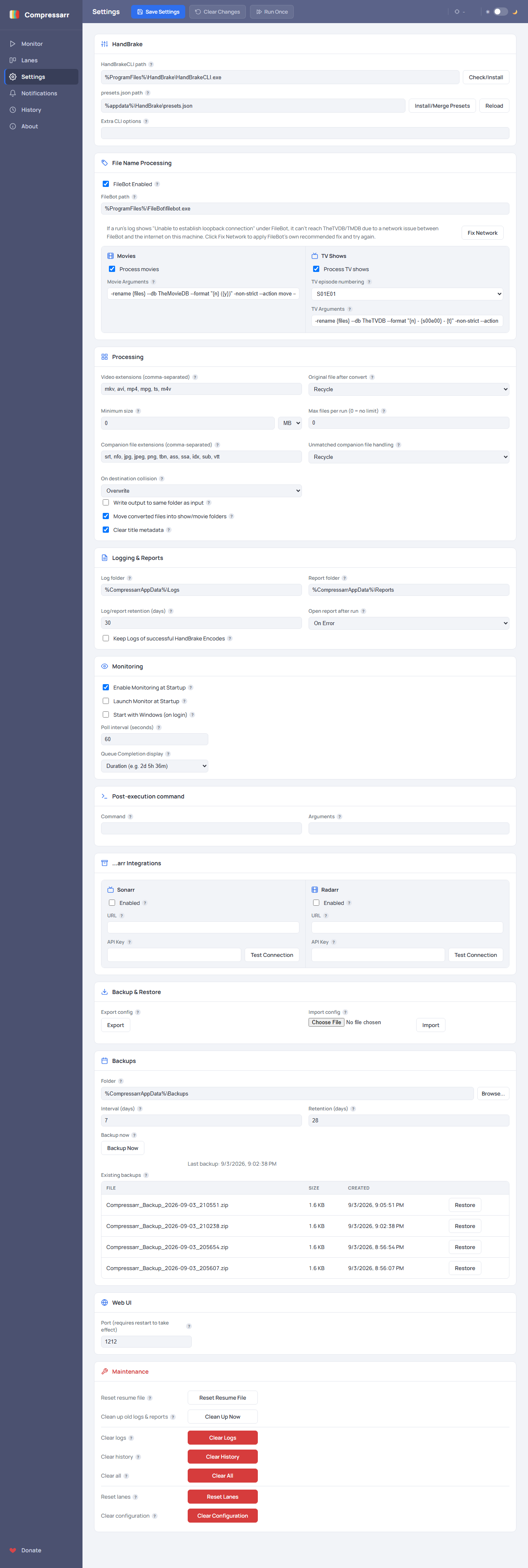
After installing Compressarr and opening the Web UI for the first time, there are just two things to take care of before you can start compressing anything: telling Compressarr where HandBrake is, and giving it its own set of quality presets. Both are done from the same place — the HandBrake card at the very top of the Settings page.
Compressarr doesn't do the actual video compression itself — it hands that job off to
HandBrake, a well-known, free, open-source video conversion program.
Specifically, it uses HandBrake's command-line tool, HandBrakeCLI.exe. Compressarr's job is
everything around that: watching folders, deciding what to compress and with which settings,
and filing the finished result away neatly. Think of HandBrake as the engine, and Compressarr as
everything else in the car.
On the Settings page, find the HandBrakeCLI path field.
- If you already have HandBrake installed, click Check/Install. Compressarr will look in the usual install locations and fill in the correct path automatically if it finds one.
- If you don't have HandBrake installed yet, click Check/Install anyway — Compressarr can download and install a copy of HandBrakeCLI for you, with no extra steps.
You'll know it worked when the HandBrakeCLI path field shows a real file path instead of being empty, and no error appears.
Right below that, find presets.json path and click Install/Merge Presets.
This adds Compressarr's own set of ready-made quality presets (like "Compressarr SD-HD") into HandBrake's preset list, so they're available to pick from when you set up a Lane in the next step. If you already had your own custom presets in HandBrake, this merges Compressarr's presets in alongside them — it won't delete or overwrite anything you already had.
Tip: If you ever add new custom presets to HandBrake yourself later and want Compressarr to see them without restarting, use the Reload button next to the presets path field instead of Install/Merge Presets.
With those two steps done, Compressarr is ready to actually do work. The only thing left is telling it which folders to watch and where the finished files should go — that's what a Lane is, and it's covered next.
Continue to Understanding Lanes to set up your first watched folder.