Repository navigation
Notifications
Compressarr can let you know when a run finishes — on your desktop, your phone, in Discord or Slack, or through almost any other service you already use. Everything here is optional and off by default; turn on only what you actually want.
All of this is set up from the Notifications page in the sidebar.
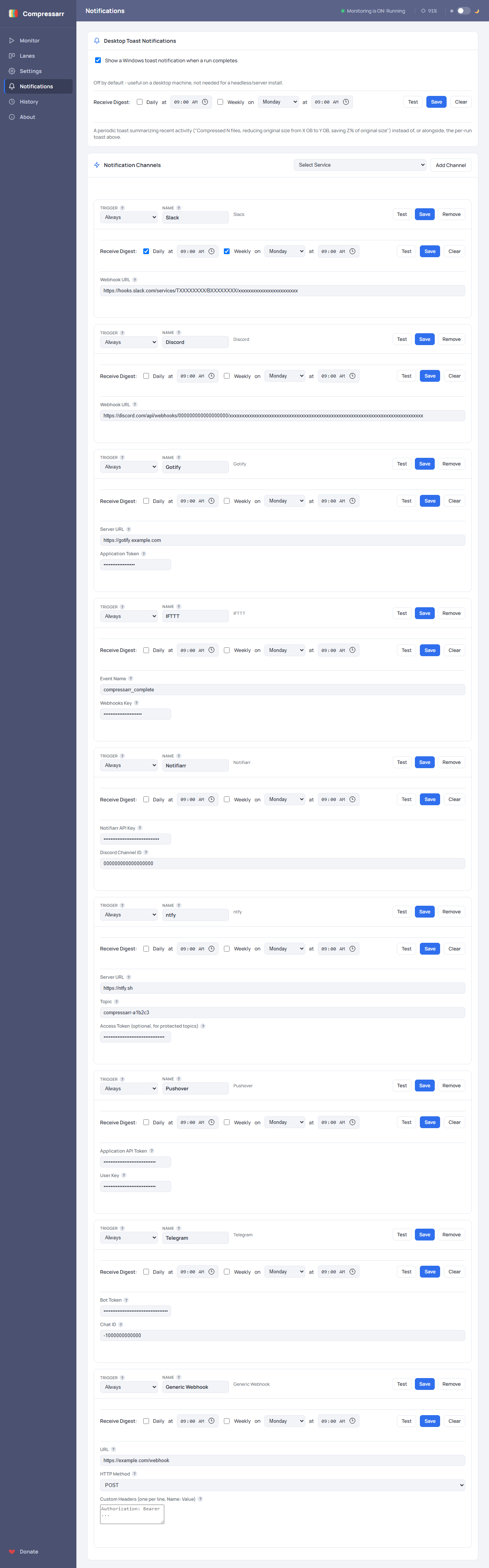
The simplest option: a small Windows notification pop-up when a run finishes, which opens the report if you click it. Turn it on with the single checkbox at the top of the page. It's off by default because it only makes sense on a desktop machine you're sitting at — not much use if Compressarr is running on a headless server somewhere.
Everything else works the same way, regardless of which service you pick:
- Choose a service from the Select Service dropdown and click Add Channel.
- Fill in its fields. Every field has a ? bubble next to it explaining exactly what it needs and, where relevant, where to find it (an example is shown as faint placeholder text too).
- Click Test to send a real test message using whatever you've typed in — even before saving, so you can confirm it works before committing to it.
- Click Save.
You can add as many channels as you like, including more than one of the same type (say, two different Discord servers). Each channel also has its own Trigger setting — Always, On error or warning, or Never (kept configured but temporarily disabled) — and a Name field so you can tell similar channels apart.
Separate from Trigger above, every channel — and the desktop toast — can also send a periodic summary instead of, or alongside, a message after every single run. It reads something like:
Compressed 12 files, reducing original size from 45.3 GB to 21.1 GB, saving 53.4% of original size.
Right on each channel's own row, under its Trigger/Name:
- Daily / Weekly — independent checkboxes. Turn on one, both, or neither.
- at (time) — what local time each one fires. Daily and Weekly each have their own time.
- on (day) — which day of the week Weekly fires.
- Test — sends a real digest right now, using today's actual numbers rather than a canned message, once for each digest type currently checked (both, if both are checked) — this bypasses the schedule entirely, so you don't have to wait to see what it'll look like.
- Save — same as the channel's own Save button above.
- Clear — unchecks both Daily and Weekly without saving, if you want to back out.
Want digest-only notifications from a channel, with no per-run pings at all? Set its Trigger to Never and turn on Daily and/or Weekly — the two are completely independent, so any combination works.
By default, every notification reads something plain like "12 file(s) processed, 4.2 GB saved."
The Message Format card lets you change that wording — it controls the Title/message text sent
to Discord, Slack, Telegram, Pushover, ntfy, Gotify, and Notifiarr (it doesn't change the desktop
toast, or the Generic Webhook's raw JSON payload — though the same rendered text does also flow
into IFTTT's value1/value2 fields and the Generic Webhook's own title/message fields,
alongside their other structured data).
Pick a Style from the dropdown:
-
Minimal —
12 file(s), 24.1 GB saved. -
Standard (the original default wording) —
12 file(s) processed, 24.1 GB saved (53.4%) in 42 min. - Detailed — three lines: file count and duration, before/after size, and error/warning counts.
-
Custom — write your own Title and Body text using
{token}placeholders (see the table below). A typo in a token name is left as literal text rather than breaking the message, so it's safe to experiment.
Whichever style you pick, a live Preview right on the page shows exactly what the message will look like, filled in with your real numbers, so you don't have to wait for an actual run (or use Test) to see it.
Every built-in style and Custom template draw from the same set of tokens:
| Token | Value |
|---|---|
{run_number} |
The sequential run number |
{files} |
Files processed this run |
{saved_gb} / {saved_pct}
|
Space saved, in GB / as a percent |
{before_gb} / {after_gb}
|
Total size before/after, in GB |
{duration} |
How long the run took |
{outcome} |
Success / Warning / Error |
{error_count} / {warning_count}
|
Counts for this run |
{retries_succeeded} |
Files recovered via automatic retry this run |
{report_path} |
Local path to this run's HTML report |
{today_files} / {today_saved_gb}
|
Rollup for today so far |
{month_files} / {month_saved_gb}
|
Rollup for this calendar month so far |
{year_files} / {year_saved_gb}
|
Rollup for this calendar year so far |
{file_list} |
This run's filenames, one per line |
{file_list} is different from every other token here: it's left out of Minimal, Standard, and
Detailed on purpose, since it's the only one that can put an actual media filename in front of
wherever the message goes. It only ever shows up if you type {file_list} into a Custom
template yourself — think of it as opt-in, not something that could ever leak in through a
built-in style.
This only affects the per-run notification — the Daily/Weekly Digest above always uses its own fixed wording regardless of what Style is selected here.
Each service needs something different set up on its own side first (a webhook URL, a bot token, an API key). See Configuring Notifications for a full step-by-step walkthrough for every service — Discord, Generic Webhook (which also covers Zapier, Make, n8n, Node-RED, and Home Assistant), Gotify, IFTTT, Notifiarr, ntfy, Pushover, Slack, and Telegram.
Every channel receives the same small amount of information: the run number, a short summary like "12 file(s) processed, 4.2 GB saved," and whether it succeeded, had a warning, or had an error. No filenames, show/movie titles, or folder paths are ever included.
The one exception is the Generic Webhook and IFTTT channels specifically, which also include the local file path to that run's HTML report — worth knowing if you're pointing one of those two at a third-party service, since that path leaves your computer as plain text. Every other channel never includes it. A digest isn't tied to any single run, so it never includes a report path either, regardless of channel type.
The other exception is filenames — but only if you deliberately ask for them. See Message
Format above: a Custom template that includes {file_list} will send that run's filenames to
whichever channel it's on. Nothing sends filenames unless you've typed {file_list} into a
Custom template yourself.
Continue to History Page to see your compression stats build up over time.