Repository navigation
Settings Reference
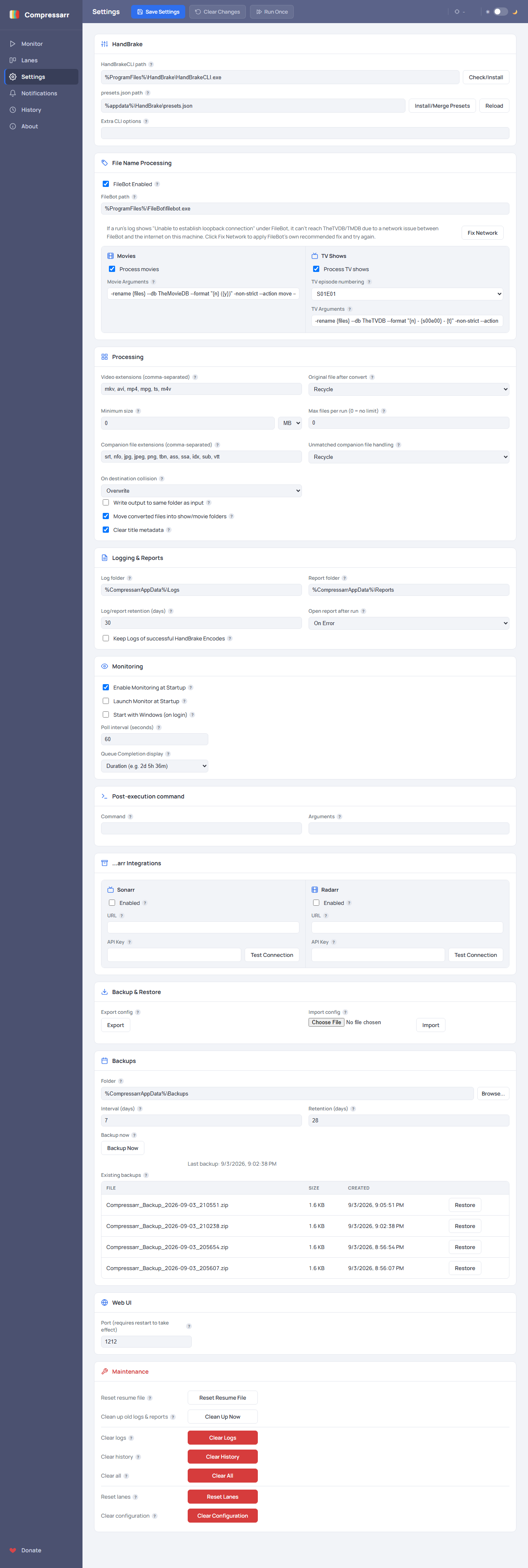
This page explains every card on the Settings page. You don't need to change most of these from their defaults — Compressarr works well out of the box — but it's useful to know what's here when you want to fine-tune something.
Every field in the app also has a small ? next to it — hover over (or tap) one any time for a quick reminder of what it does, right there in the app.
If a required field is missing or points at something that doesn't exist (a HandBrake path that's no longer valid, a Lane with no preset selected, and similar), Compressarr outlines it in red and shows a message in the toolbar — checked both when you open the page and whenever you save. This is a warning, not a hard stop: saving still works, so you can fix it at your own pace.
Covered in detail on the First-Time Setup page — this is where you point
Compressarr at HandBrakeCLI.exe and install its presets. Extra CLI options lets advanced
users pass additional command-line flags to every single conversion; leave this blank unless you
specifically know you need it.
If you don't run Sonarr/Radarr, filenames dropped into a watch folder often aren't clean or consistent enough for reliable TV/Movie detection on their own. This card can optionally shell out to the free FileBot tool to rename and organize files — looked up against TheTVDB (TV) and TheMovieDB (Movies) — right before Compressarr scans a Lane's Input folder each pass.
- FileBot Enabled — the master switch for this whole feature. Off by default.
-
FileBot path — where
filebot.exeis installed. - Fix Network — if a run's log shows "Unable to establish loopback connection" under FileBot, it means FileBot can't reach TheTVDB/TMDB due to a network issue between FileBot and the internet on this machine. Click this to apply FileBot's own recommended fix and try again.
- Process movies / Movie Arguments — enable toggle and FileBot CLI arguments used for files detected as Movies.
-
Process TV shows / TV episode numbering / TV Arguments — enable toggle, a picker for
S01E01-style vs.1x01-style numbering (fills in the Arguments for you), and FileBot CLI arguments used for files detected as TV episodes.
TV and Movies each get their own toggle and Arguments — deliberately separate, since one shared argument string can't safely serve both content types at once. A file FileBot couldn't confidently rename shows an amber Unmatched badge in the Monitor page's queue instead of failing silently.
Controls how files get compressed and handled, across every Lane:
-
Video extensions — which file types count as "video" and get picked up (e.g.
mkv, avi, mp4, mpg, ts, m4v). Add more if you use a format not listed. - Minimum size — skip files smaller than this. Useful for ignoring tiny sample clips or accidentally-grabbed junk files. Pick KB, MB, or GB from the dropdown next to it.
-
Max files per run — caps how many files get processed in one pass, so a folder that suddenly
fills up with 50 files doesn't try to compress all 50 back-to-back.
0means no limit. - Original file after convert — what happens to the original file once compression succeeds: keep it, permanently delete it, or send it to the Recycle Bin (recoverable, safer default).
-
Companion file extensions — which sibling files (subtitles,
.nfo, artwork, etc. sharing a video's filename) move along with it when it's filed into your library. - Unmatched companion file handling — what happens to a companion-looking file whose extension isn't on that list, or one left behind once every video in its folder is gone: Maintain, Delete, or send it to the Recycle Bin (default).
-
On destination collision — what to do if a file already exists at the destination:
overwrite it, skip the move, or automatically rename the new one. Companion files (subtitles,
.nfo, artwork) follow this same setting and always take the video's own resulting filename, so a renamed video and its companions stay matched. - Write output to same folder as input — turns off the "move to a Movie/TV library folder" step entirely; compressed files just replace the originals in place.
- Move converted files into show/movie folders — the normal behavior described on the Understanding Lanes page; turning this off leaves finished files sitting in each Lane's Output folder instead.
- Clear title metadata — removes an embedded "title" tag some files have, so your media server reads the filename instead of a possibly wrong/stale embedded title. On by default.
- Log folder / Report folder — where Compressarr writes its run logs and the HTML reports it generates after each run.
-
Log/report retention (days) — old logs and reports older than this are automatically cleaned
up (moved to the Recycle Bin, not permanently deleted). Set to
0to keep everything forever. - Open report after run — whether the HTML report pops open automatically: Always, only when there was an error, or Never.
- Keep Logs of successful HandBrake Encodes — off by default. HandBrake writes its own detailed log for every file it converts; with this off, a successful encode's log is deleted as soon as that file finishes instead of sitting around until it ages out under retention above. A failed encode's log is always kept, since the report links to it.
- Enable Monitoring at Startup — automatically starts watching your Lanes the moment Compressarr launches, instead of waiting for you to click Start Monitoring yourself.
- Launch Monitor at Startup — opens the Monitor page in your default browser as soon as Compressarr launches. Independent of Enable Monitoring at Startup above — monitoring and the browser window each start on their own, so you can have either, both, or neither.
- Start with Windows (on login) — launches Compressarr automatically whenever you log into Windows.
- Poll interval (seconds) — how often Compressarr checks your Lanes' Input folders for new files while monitoring is on.
-
Queue Completion display — how the Monitor page's estimated finish time is shown: an
absolute date/time, or a countdown duration like
2d 5h 36m(the default for new installs).
An optional program Compressarr runs after each pass finishes — for example, to trigger something else in your setup. Most people can leave this blank.
If you use Sonarr and/or Radarr, Compressarr can tell them a file no longer needs to be monitored once it's been compressed — so they don't try to re-download the original, larger version.
- Enabled — turns this integration on for that app.
-
URL — the web address of your Sonarr or Radarr instance (e.g.
http://localhost:8989for Sonarr). - API Key — found inside Sonarr/Radarr itself, under Settings → General → Security.
- Test Connection — checks that the URL and API key actually work, right away, instead of only finding out during a real run.
This step is entirely optional — Compressarr works perfectly well without Sonarr or Radarr.
Two related but different things live here:
- Export config / Import config — a manual, one-time download/upload of your entire configuration (Lanes, settings, everything) as a single file. Good for a quick backup before making a big change.
- Backups (the card below it) — a fully automatic version of the same idea: Compressarr zips up your setup on a schedule (Folder, Interval, Retention) and lists Existing backups you can restore from with one click. See Backups & Restore for the full, step-by-step guide, including moving to a brand-new PC.
-
Port — which network port the browser interface listens on. Only change this if
1212conflicts with something else on your machine; changing it requires restarting Compressarr. -
App — Compressarr is an installable PWA, and this card shows whichever of three states
actually applies:
- Install as app button (Chrome, Edge, Android) — installs Compressarr as a standalone app with its own icon and no browser chrome, useful on a phone or tablet or for one-tap desktop access.
- On iOS Safari, which has no installable prompt at all: instructions to tap the Share icon, then Add to Home Screen.
- If you're already running the installed app: instructions for uninstalling it from your
browser's own app list (
chrome://appsoredge://apps) — no web page can trigger an uninstall directly, by design.
A set of "reset" buttons for troubleshooting. Covered in full, with exactly when you'd want to use each one, on the Troubleshooting page.
If you'd like a message on your phone or in Discord/Slack when a run finishes, see Notifications next.