Repository navigation
History Page
The History page shows how much space Compressarr has actually saved you over time, and gives you access to every individual run report.
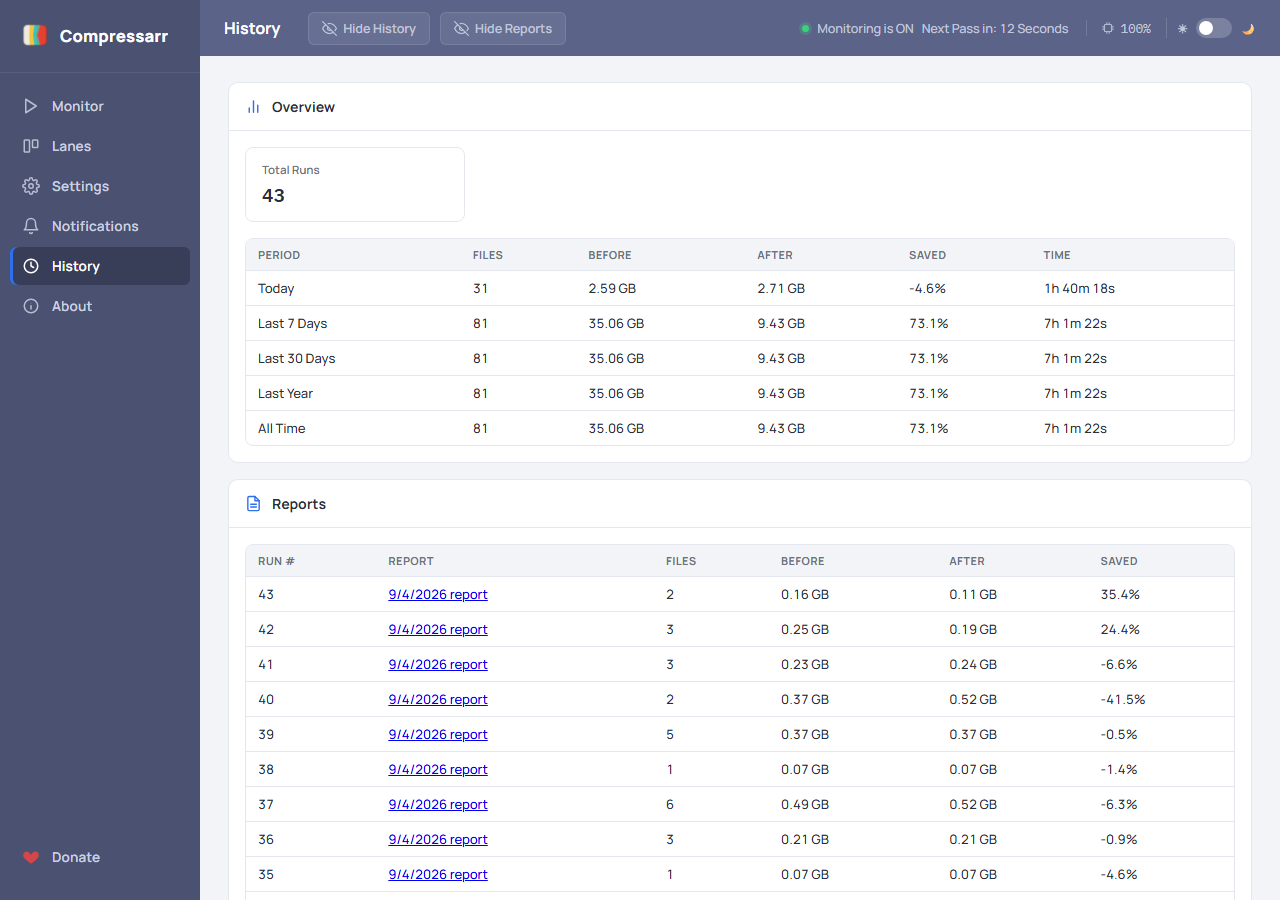
At the top, the Overview card shows your total runs and a rolling breakdown — Today, Last 7 Days, Last 30 Days, Last Year, and All Time — of how many files were processed, the total size before and after compression, how much was saved, and how long it took.
Below that, the Reports table lists every individual run, newest first, with its own file count, before/after size, and percent saved. Click any date link to open that run's full HTML report in a new tab.
A run's row is highlighted red if it had at least one error, or yellow if it completed but had a warning (like a companion subtitle file that couldn't be moved) — so a problem run is noticeable at a glance without having to open every single report. The sidebar also shows small count badges next to History for the same reason.
Each report is a self-contained page you can open, save, or share on its own. It shows:
- How many files were processed, and the total space saved, for that run
- A breakdown by Lane, listing every file with its before/after size and percent saved
- Any errors or warnings for that run, with a "Full Details" link to the exact HandBrake log for a file if something went wrong
A close button in the upper-right corner closes the report - most useful when Compressarr is running as an installed app (PWA), which has no browser chrome of its own to close a tab with.
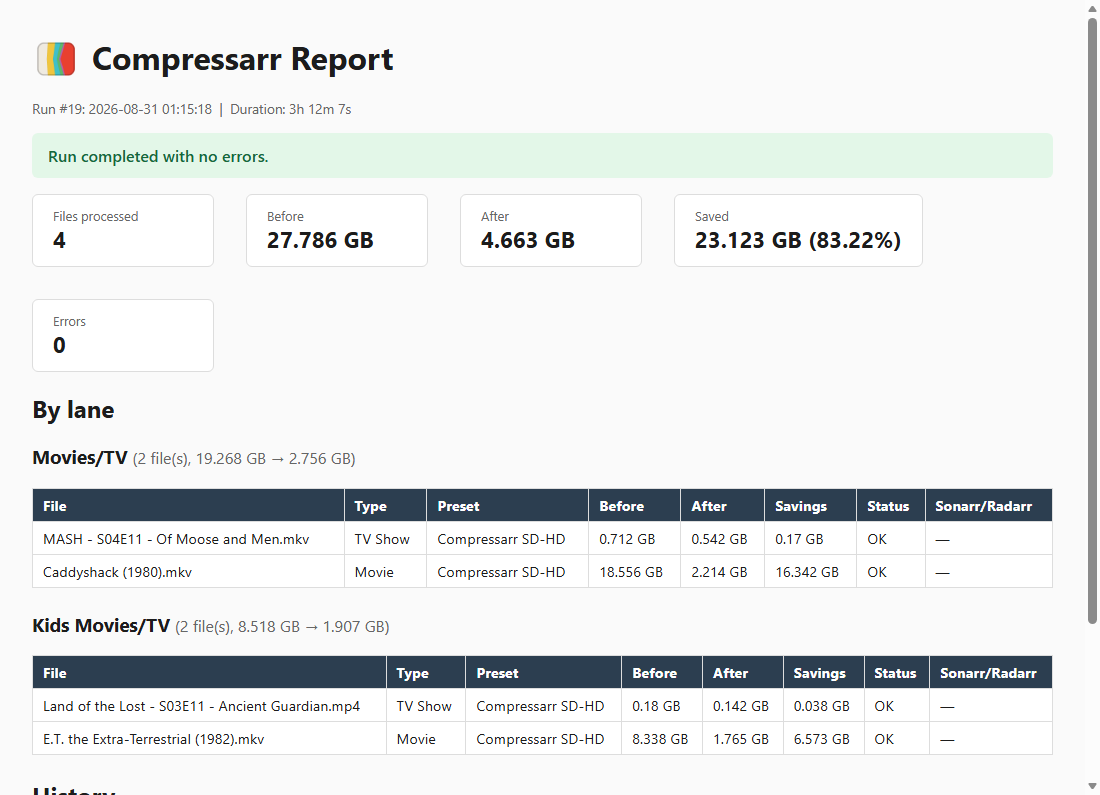
(This particular example is representational test data, not a real film — your own results will depend on your source files, hardware, and chosen preset.)
If you'd like to protect your setup or move it to a new machine, continue to Backups & Restore.