Repository navigation
Understanding Lanes
A Lane is the core building block of Compressarr. In plain terms: a Lane is one watched folder, plus instructions for what to do with whatever shows up in it. You can have just one Lane, or several — for example, one for movies and a separate one for kids' shows, each with its own settings.
This page walks through what each part of a Lane does. You manage Lanes from the Lanes page in the sidebar.
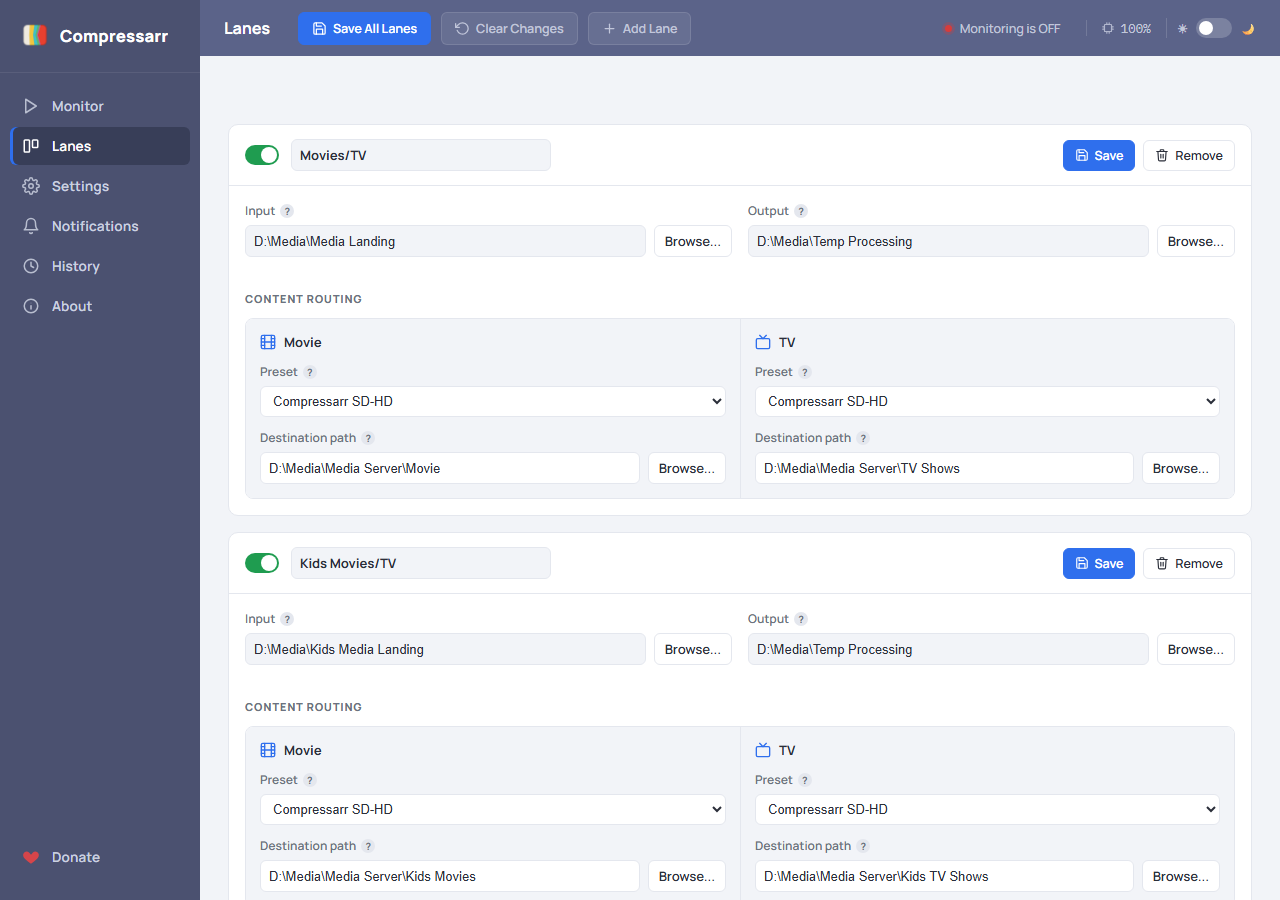
Every Lane has a name you choose (shown in the queue and reports later, so pick something you'll recognize) and a toggle switch to turn that whole Lane on or off without deleting it — handy if you want to temporarily pause one Lane without affecting the others.
This is the folder Compressarr watches. Any video file that shows up here — dropped in by you, or by another program like Sonarr/Radarr — is a candidate to be compressed. Compressarr looks inside subfolders too, so it's fine if your files end up organized into their own folders (e.g. one folder per movie).
This is a temporary parking spot, not the final destination. The moment HandBrake finishes compressing a file, it's written here first. From there, Compressarr immediately moves it to its real destination (see Content Routing below) — so in normal use, you shouldn't see files pile up in Output.
Compressarr looks at each filename and decides whether it's a TV episode or a movie (it looks for
the usual S01E02-style pattern TV episodes use). Based on that, it picks:
- Preset — which HandBrake quality preset to compress it with. TV and Movies can use different presets, since a fast-moving cartoon and a big-budget film often compress best with different settings. See Understanding Presets for what Compressarr's two built-in presets actually do.
- Destination path — the folder the finished file gets moved into once it's done, e.g. your media server's actual TV Shows or Movies library folder.
Both Input, Output, and every destination path field have a Browse... button next to them, which opens a folder picker so you don't have to type paths out by hand.
1. A video file appears in Input
      ↓
2. Compressarr picks it up and compresses it with HandBrake
      ↓
3. The compressed result is written to Output (briefly)
      ↓
4. Compressarr moves it into the right Movie/TV destination folder
      ↓
5. Done - the file is now in your library, at a fraction of its original size
If you'd rather Compressarr leave the finished file sitting in Output instead of automatically filing it away, that's a Settings-page option ("Move converted files into show/movie folders") — see the Settings Reference page.
- On the Lanes page, click + Add Lane.
- Give it a name.
- Set Input to the folder you want Compressarr to watch (use Browse... to pick it).
- Set Output to a folder for the in-progress/temporary compressed files.
- Under Content Routing, pick a Preset for Movie and/or TV, and set a Destination path for each.
- Click Save.
You can add as many Lanes as you want. Click Save All Lanes at the top of the page to save every Lane on the page at once.
Continue to The Monitor Page to start Compressarr watching your new Lane.